Blogs Product Finder Quiz for Shopify
Product Finder Quiz for Shopify: How to Build One
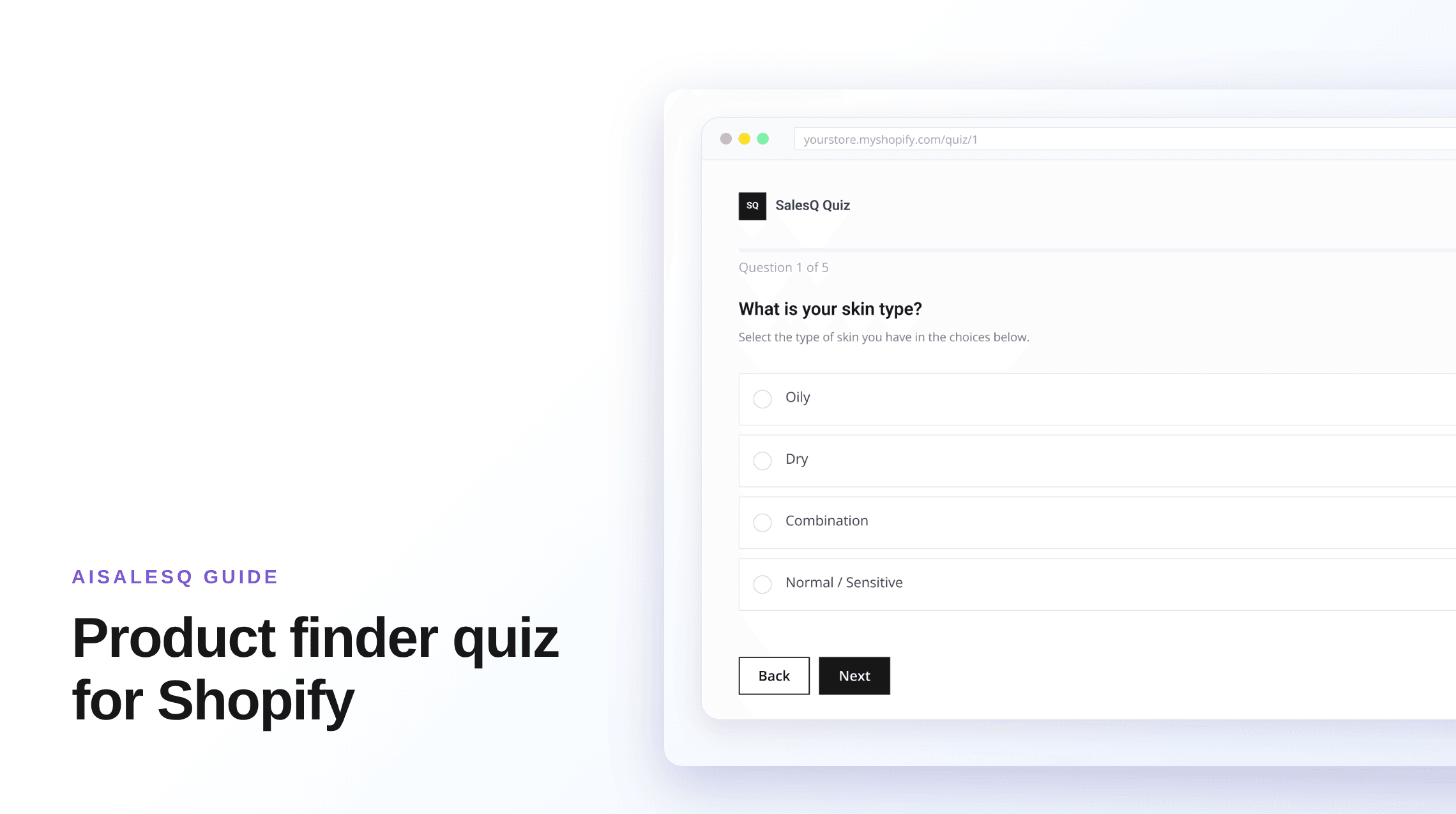
A product finder quiz narrows a catalog to the few products that fit one shopper. This is the build in order: the questions, the matching rules, the result page, and the Shopify setup.

AISalesQ Team
Updated on October 10, 2026 - 5 min read
What a Product Finder Quiz Is
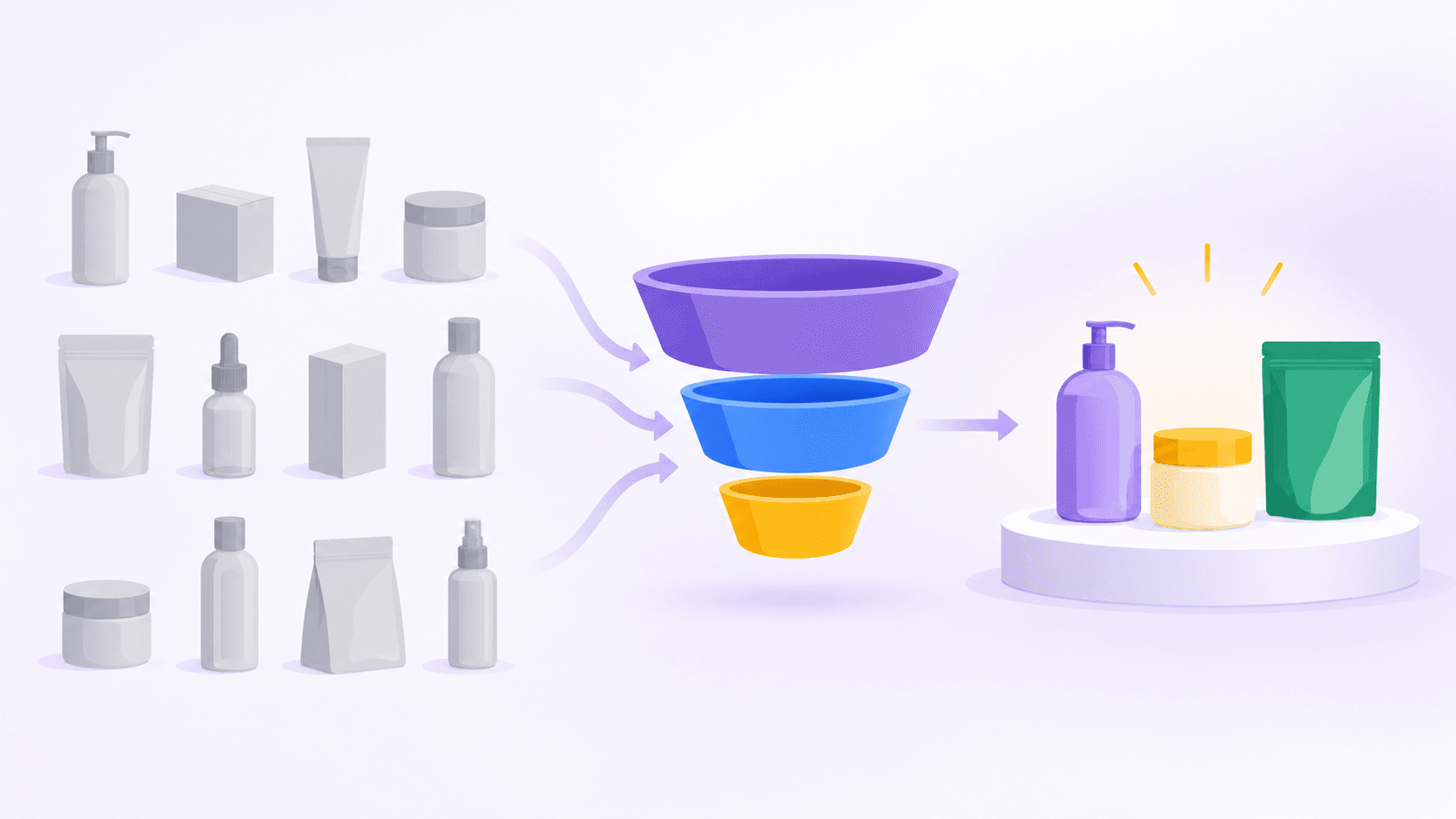
A product finder quiz is a quiz whose only job is to narrow your catalog to the products that fit one shopper. The shopper answers a few practical questions, and the quiz returns a short list they can add to cart.
It differs from collection filters in one important way. Filters ask shoppers to know your attributes, such as "hydrating" or "medium roast". A product finder asks about the shopper, in their own terms, and does the translation for them.
It is one kind of product recommendation quiz. The steps below use AISalesQ, and the same order works in any Shopify quiz app.
Before You Build
Spend ten minutes on paper first. Write down the products or product groups you want the finder to recommend. Then, for each pair of groups, write the one fact that would make you recommend one over the other.
Those facts are your questions. If two product groups cannot be separated by any fact a shopper could tell you, they should share a result.
Step 1: Write the Questions
Turn each deciding fact into a question a shopper can answer without thinking. "What will you mostly use it for?" is easier than "Which performance tier do you need?"
Choose the question type to match. In AISalesQ you can use multiple choice, picture choice, dropdown, slider, a buttons scale, a rating scale and yes/no for choices, plus short text, name, email and phone fields for input. Picture choice works well when the options are easier to recognise than to describe.
Order the questions from easiest to hardest, and put any question that rules out whole product groups early, so later questions can be skipped.
Step 2: Map Answers to Products
You have two ways to connect answers to products.
With answer mapping, you attach products or collections to each answer. The result shows the products for the answers the shopper picked. This is the fastest route for a finder, because answers such as "for a puppy" or "for espresso" already point at products.
With score-based results, each answer adds points to a category and the category with the most points selects a result page that holds your chosen products. Use this when the result depends on the overall pattern of answers and not on any single one.
Both are rules you write. Nothing is picked for you, so check every path once you are done.
Step 3: Add Logic
Logic keeps the finder short. Use skip logic to hide questions that no longer apply after an earlier answer. Use jump logic to send a shopper to a specific question, or straight to a result page, when one answer settles the recommendation.
Keep the rules few. Every rule is a path you need to test, and a finder with three well-chosen rules is easier to maintain than one with fifteen.
Step 4: Build the Result Page
The result page should answer three things at a glance: which product, why it fits, and what to do next.
Show the recommended products with an add-to-cart or checkout button, and say in a sentence why they match the shopper's answers. You can add a retake button for shoppers who want to change an answer, and a discount code if you want to give a reason to buy now. In AISalesQ the code is created in Shopify for that submission; see quiz discounts for how that works.
Avoid recommending so many products that the shopper is back to comparing. Two or three is usually enough.
Step 5: Decide on Email Capture
You can show an email step before the result. Shoppers who enter an address become subscribers with their answers and their result saved, which is what makes a relevant follow-up possible.
Decide whether the email is required or optional. Required captures more addresses and loses some shoppers; optional does the reverse. There is no universally right answer, so pick one and compare your completion rate.
Ask for marketing consent with its own checkbox, left unticked by default. In AISalesQ the subscriber and their consent choice sync to your Shopify customer list. Subscriber management covers what is recorded.
Step 6: Publish It in Your Shopify Theme
Publish the quiz in the app, then place it in your theme. AISalesQ gives you three placements.
A popup, added by turning on the app embed in the theme editor. You choose which page types it appears on and when it opens: immediately, after a delay, on scroll, or on exit intent on desktop.
An inline section, added as an app block to any page, such as a dedicated "Find your product" page or the top of a collection.
A button block that opens the quiz when clicked, which suits a navigation link or a product page.
Put the finder where undecided shoppers are: the homepage, large collection pages and the navigation. A finder that only lives on its own page is rarely found.
Step 7: Measure and Adjust
Start with the funnel. Look at views, how many shoppers answer the first question, how many submit, and where they drop off. A sharp drop at one question usually means it is confusing or feels intrusive.
Then look at what the finder sells. Counting completions tells you the quiz is used. Connecting orders back to it tells you whether it is worth keeping. AISalesQ's revenue attribution, available from the Growth plan, matches paid orders to quiz subscribers and shows orders and revenue per quiz.
Change one thing at a time, and give each change enough traffic to judge before changing the next.
Common Mistakes
Asking questions you will not use. Every extra question costs completions.
Recommending everything. If most paths end at the same bestseller, shoppers do not need a quiz to find it.
Forgetting out-of-stock products. Review your mapping when the catalog changes.
Testing only the happy path. Take the quiz with the least common answers too, and check there is a sensible result for each.
Hiding the result behind a form with no explanation. If you ask for an email, say what the shopper gets for it.
What Is a Product Recommendation Quiz? How It Works
A product recommendation quiz asks shoppers a few questions and matches the answers to products. How the matching works, what to ask, and where it pays off.
Ecommerce Quiz: 6 Types, With Examples and When to Use Each
Product finders, routine builders, gift finders, fit quizzes and more. What each type of ecommerce quiz is for, and how to choose one.
Keep reading
You might also like
What Is a Product Recommendation Quiz? How It Works
A product recommendation quiz asks shoppers a few questions and matches the answers to products. How the matching works, what to ask, and where it pays off.
Ecommerce Quiz: 6 Types, With Examples and When to Use Each
Product finders, routine builders, gift finders, fit quizzes and more. What each type of ecommerce quiz is for, and how to choose one.
What to Send After Someone Finishes Your Shopify Quiz
Your quiz told you exactly what the shopper needs. Here is a simple five-email plan to turn that knowledge into sales, with clear timing, stop rules, and tracking.
Common questions
Questions about building a product finder quiz.
What merchants ask when they set up their first finder on Shopify.
Filters make the shopper choose product attributes. A finder asks about the shopper's situation and translates the answers into products, so it works for people who do not know your category yet.
Yes. Quiz apps provide a visual builder. In AISalesQ you add questions, map products and place the quiz in your theme through the theme editor, without editing theme code.
Where undecided shoppers already are: the homepage, large collection pages and the main navigation.
A popup, an inline section and a button that opens the quiz are the three placements AISalesQ supports.
Usually two or three. The purpose of a finder is to end the comparison, and a long result list starts it again.
Yes. In AISalesQ a result can show products, collections, or both.
Have a question that isn’t answered here?
Contact the AISalesQ team directly
Newsletter
Subscribe to new posts