Subscribers & analytics
Understand the Analytics page
What each tab on the Analytics page shows, from quiz views and submissions to email engagement, automations and your subscriber base.
3 min read·Updated October 20, 2026·Growth and Scale
In the appSalesQ/Analytics
In this guide
- 01Pick a date range and switch between the five tabs
- 02Read quiz, email, automation and subscriber figures
- 03Know how open rate, conversion rate and LTV are worked out
Before you start
- –The Growth or Scale plan. See Compare plans and limits.
- –A published quiz on your store. See Publish your quiz on your store.
The Analytics page brings together results from all your quizzes, emails and automations. Five tabs split it by topic, and most figures can be compared with the period before.
Open Analytics
- 1
Go to Analytics
Click Analytics in the app menu. The page opens on the Overall tab.
- 2
Pick a date range
The page shows This month by default. Open the date menu to choose another preset or Custom dates, then click Save. Click the X icon to go back to the default.
- 3
Switch tabs
Click Overall, Quizzes, Email, Automation or the subscribers tab to change what you see.
Overall
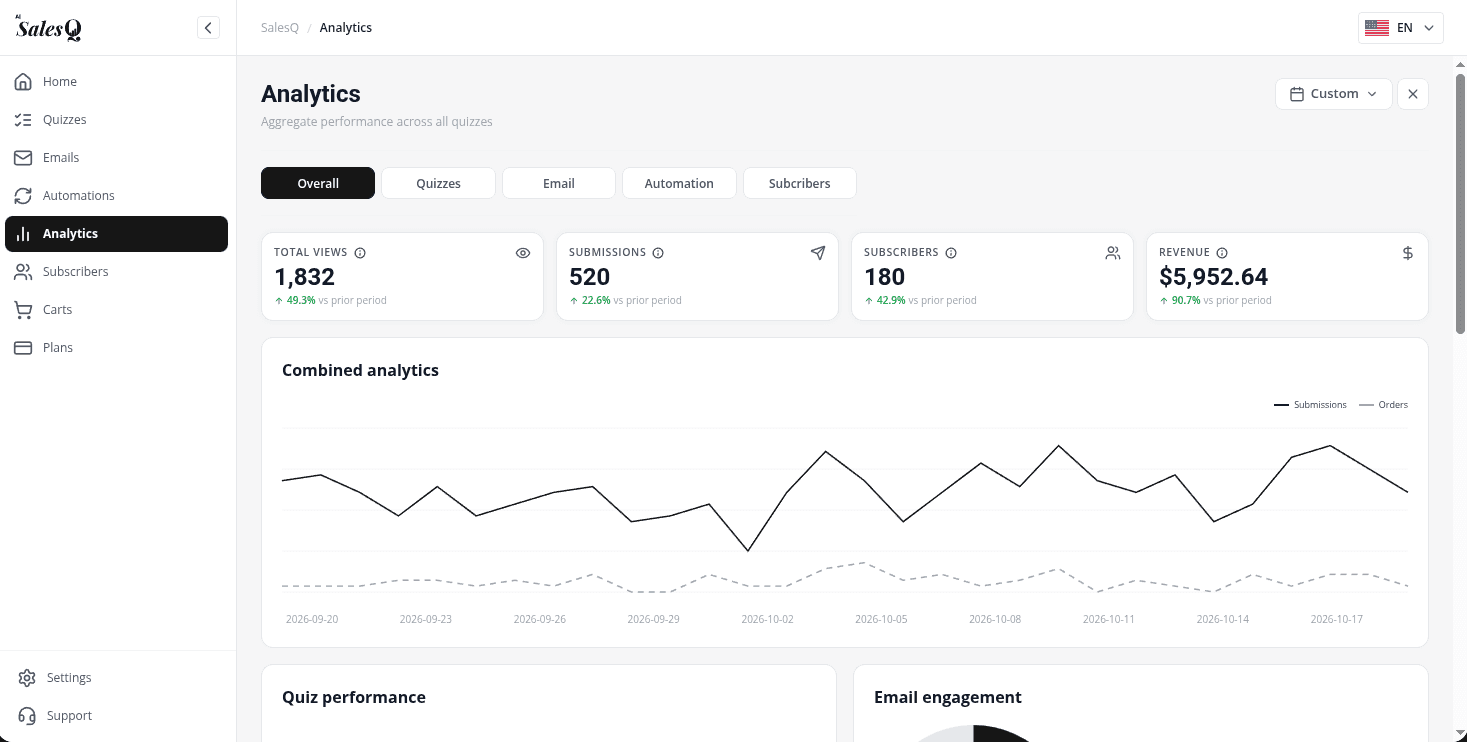
The main figures at a glance: Total views, Submissions, Subscribers and Revenue, each compared with the prior period. Below them:
- Combined analytics: submissions and orders over time.
- Quiz performance: the completion rate of your 8 most viewed quizzes, with Avg. completion and Drop-off rate.
- Email engagement: Open rate, Emails sent, Conversion rate, Unsubscribe rate and Failed rate for your automation emails.
- Automation funnel: how many contacts entered your automations, got the first and second email, and bought.
- Recent subscribers: your 5 newest contacts, with View all to open the Subscribers page.
- Per-quiz breakdown: your top 3 quizzes, with a total row for all of them.
Quizzes
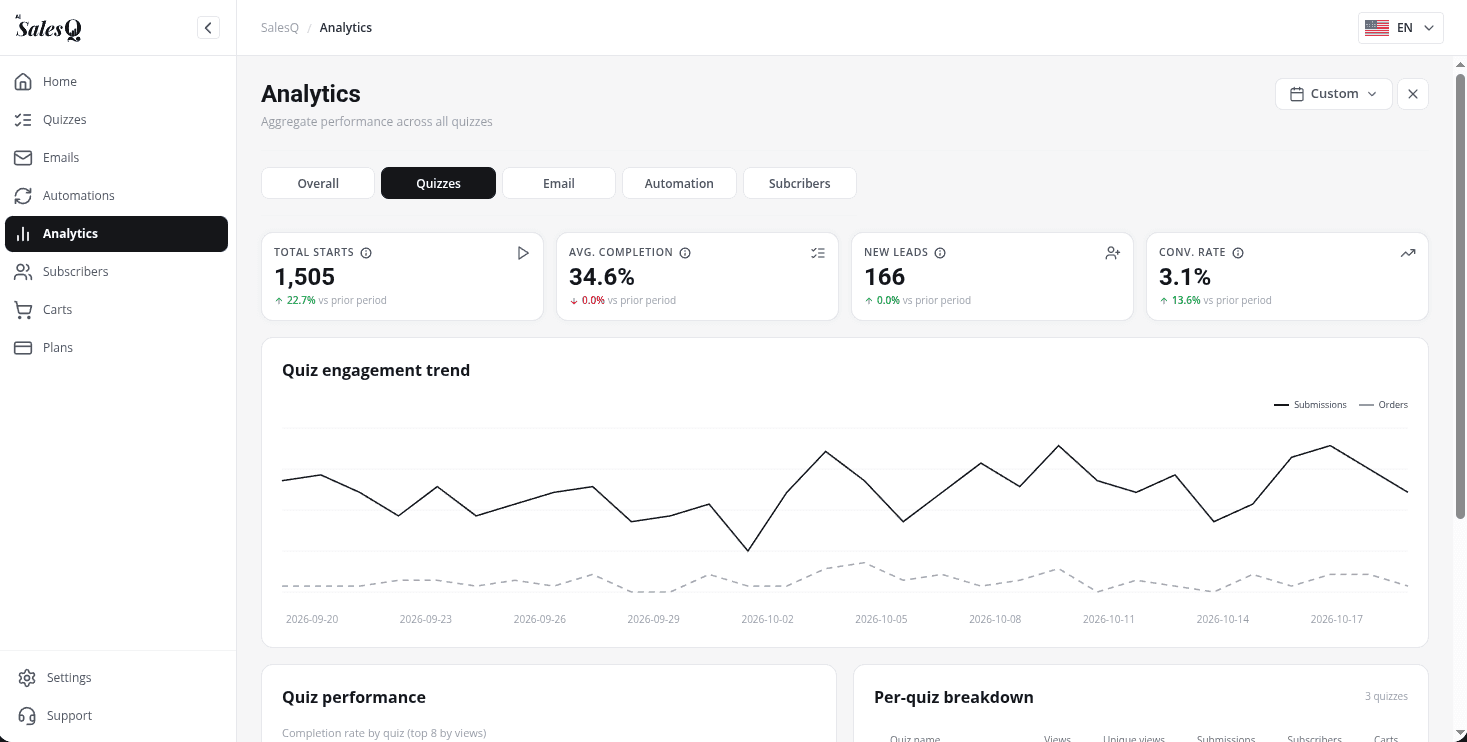
Total starts, Avg. completion, New leads and Conv. rate (the share of quiz completions that led to a purchase), followed by the Quiz engagement trend, completion rates by quiz and the full Per-quiz breakdown with views, submissions, subscribers, carts, orders, revenue and device split for every quiz.
Results for the emails your automations send, counted over all time:
| Figure | How it's worked out |
|---|---|
| Emails sent | Automation emails sent to subscribers. |
| Open rate | Opened automation emails divided by emails sent. |
| Conversion rate | Orders credited to your automation emails divided by emails sent. |
| Unsubscribers | The share of subscribers who unsubscribed from automation emails. |
Automation
Active flows (automations set to active), Total runs, Success rate (runs that finished their full email sequence) and Emails sent, all counted over all time, plus Automation throughput and the Automation funnel. The funnel follows the date range you picked.
Subscribers
| Figure | How it's worked out |
|---|---|
| Total base | All subscribers captured by your quizzes, all time. |
| Churn rate | Unsubscribed contacts divided by all subscribers. |
| LTV (avg) | An estimate: all revenue credited to your quizzes divided by the number of subscribers. |
| Retention | The share of subscribers who haven't unsubscribed (100% minus churn). |
Below the figures you'll find Subscriber's growth over time and your Recent subscribers.
Video tutorials
Watch the series in order, or jump to the one you need.
- 01
 1:32How to Install a Shopify Quiz App: AI Sales Quiz Builder Setup & Tour
- 02
 1:38How to Create a Product Recommendation Quiz on Shopify (Step by Step)
- 03
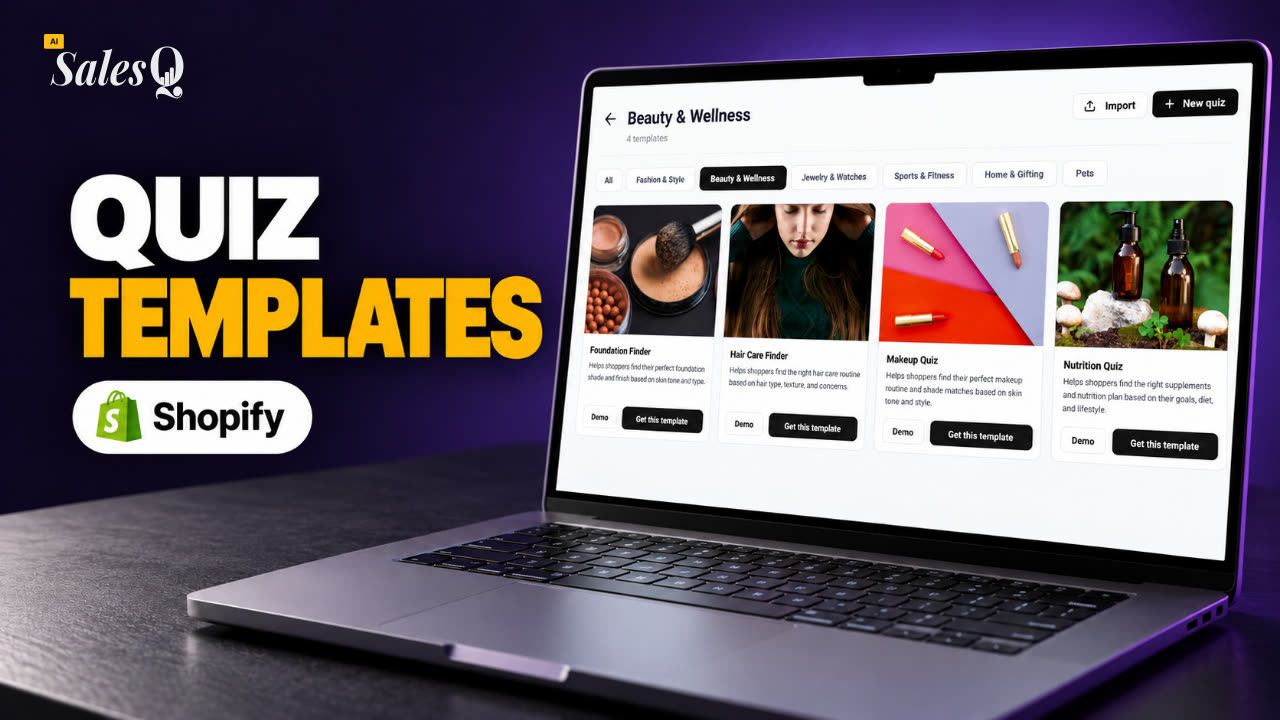 1:44Shopify Quiz Templates: Build a Product Quiz in Minutes
- 04
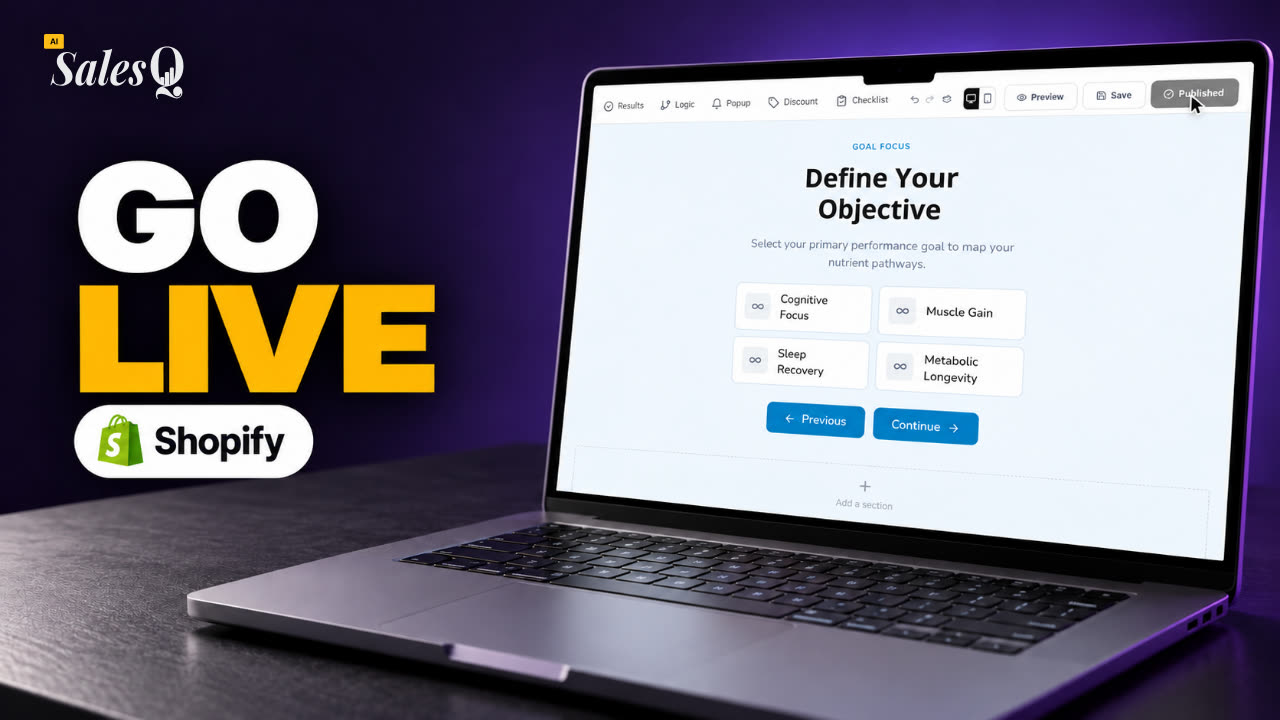 1:48How to Add a Quiz to Your Shopify Store (Publish & Embed)
- 05
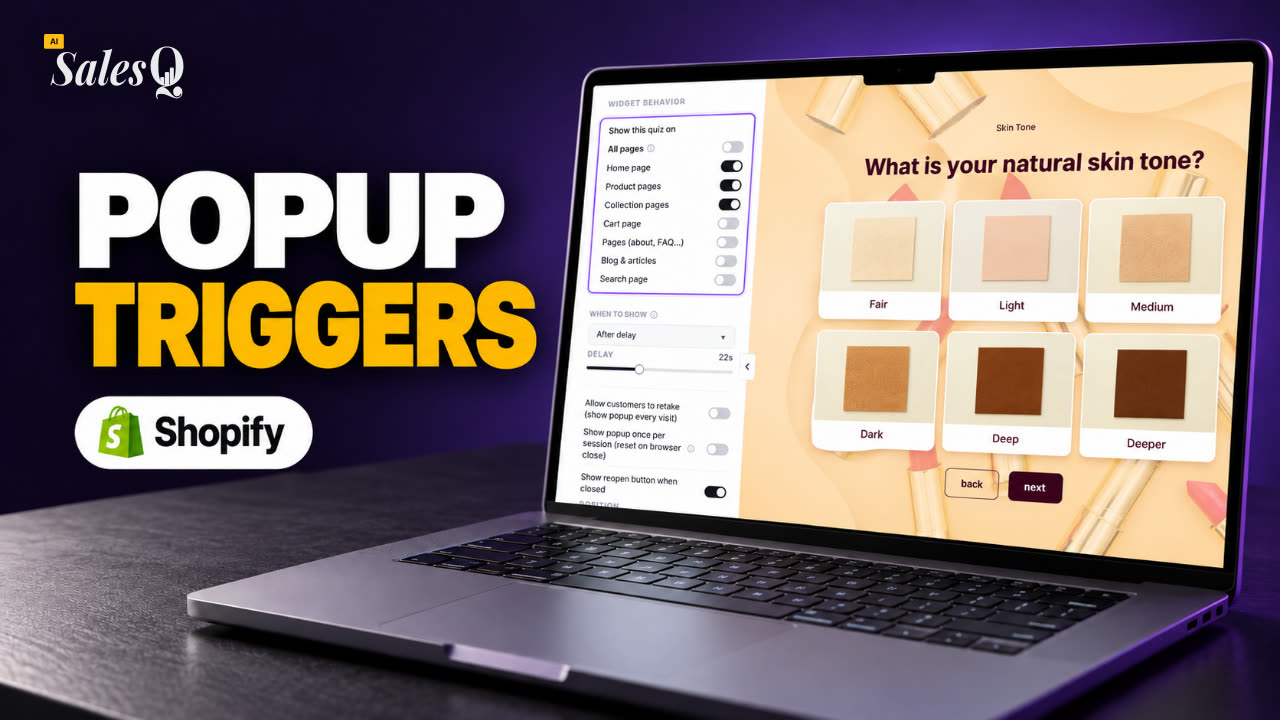 1:56Shopify Quiz Popup: Triggers, Timing & Page Targeting
- 06
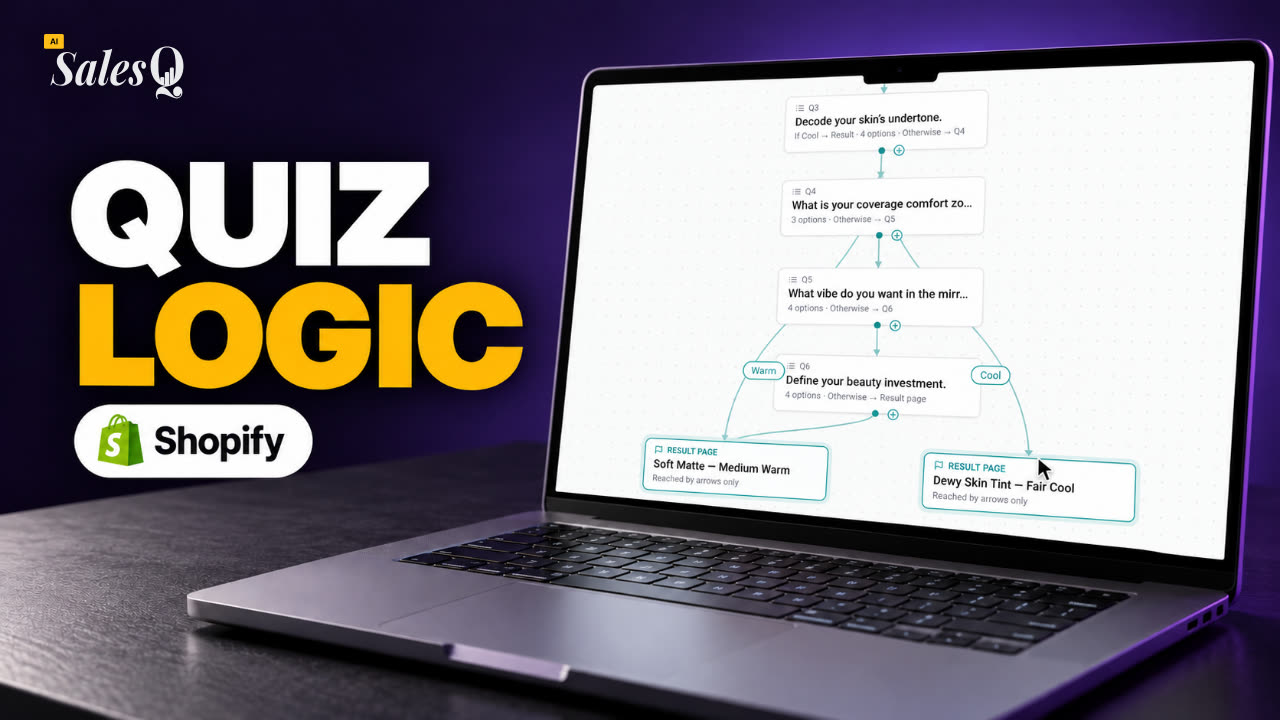 1:44Shopify Quiz Logic & Branching: Send Shoppers to the Right Product
- 07
 1:42Shopify Quiz Discount Codes: Unique Codes That Convert
- 08
 1:44Shopify Email Marketing: Create a Quiz Follow-Up Email
- 09
 1:36Shopify Email Templates for Quiz Follow-Ups (Ready to Use)
- 10
 1:51Shopify Email Builder Tutorial: Drag-and-Drop Blocks
- 11
 1:49Personalize Shopify Emails With Quiz Answers (Merge Tags)
- 12
 1:32Shopify Email Automation: Quiz Follow-Up Flow Step by Step
- 13
 1:29Manage Shopify Email Automations: Pause, Resume & Edit Flows
- 14
 1:41Shopify Email Sending Limits Explained (Quiz Emails)
- 15
 1:31Send Shopify Emails From Your Own SMTP Server
- 16
 1:43Shopify Email Consent & Unsubscribe Link Explained
- 17
 1:46Shopify Quiz Subscribers: Search, Filter & View Profiles
- 18
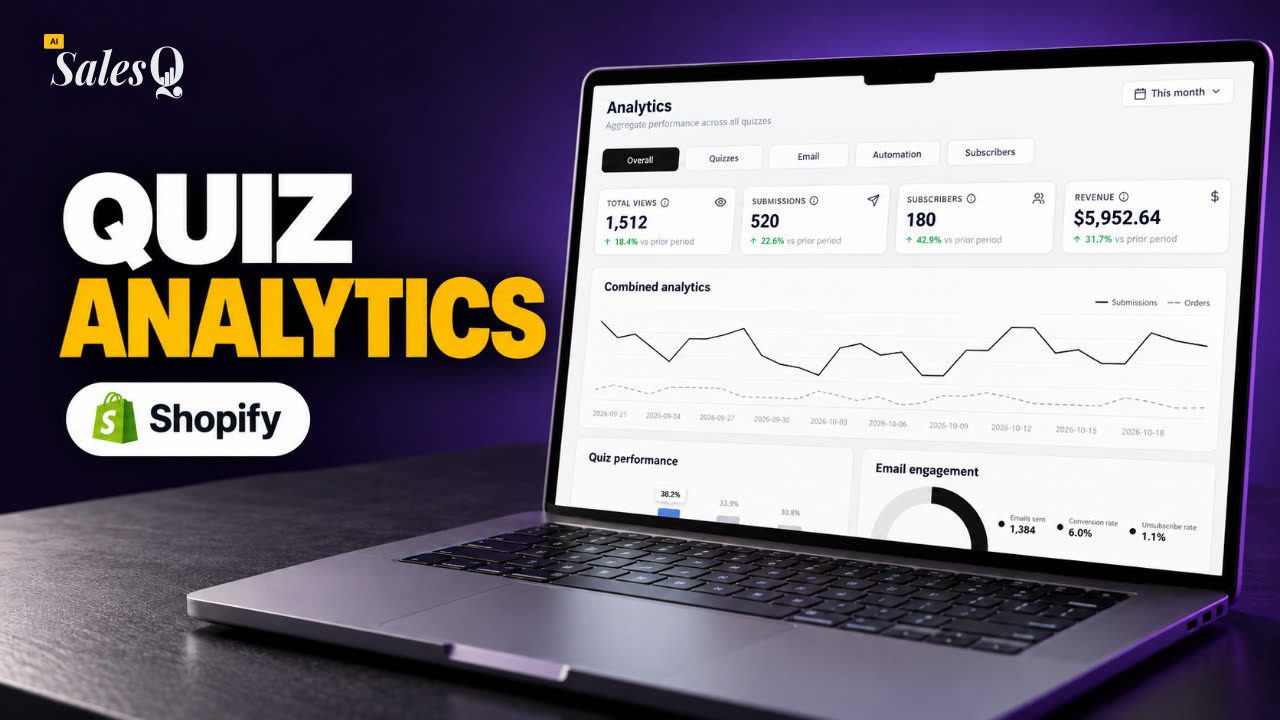 1:45Shopify Quiz Analytics: Track Revenue, Conversions & EmailsNow playing
- 19
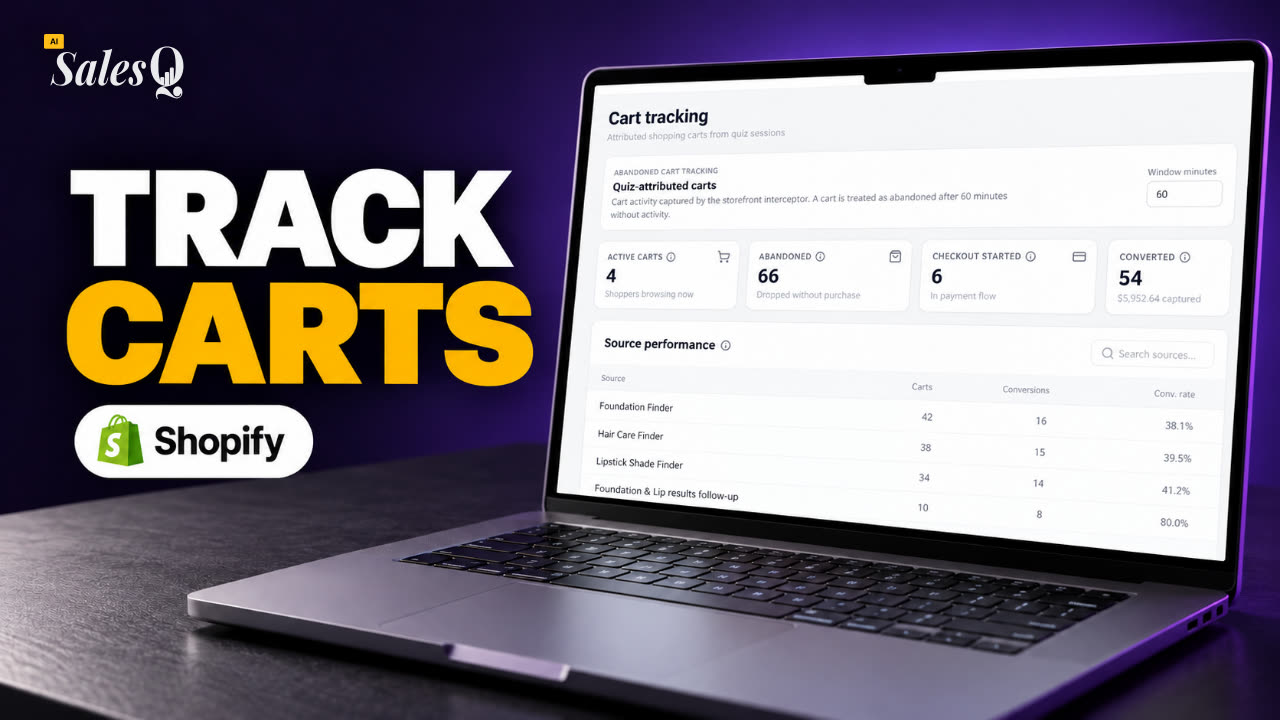 1:44Shopify Abandoned Cart Tracking for Quiz Shoppers
- 20
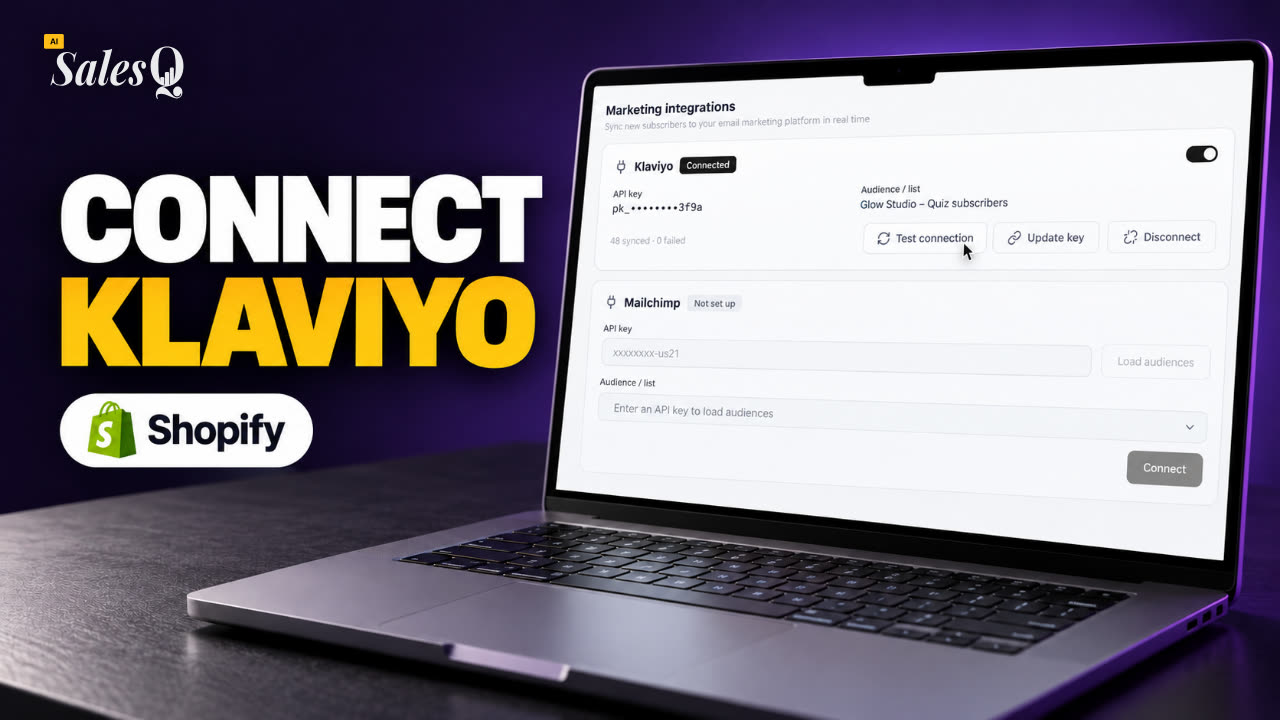 1:42Klaviyo Shopify Integration: Send Quiz Subscribers to Klaviyo
- 21
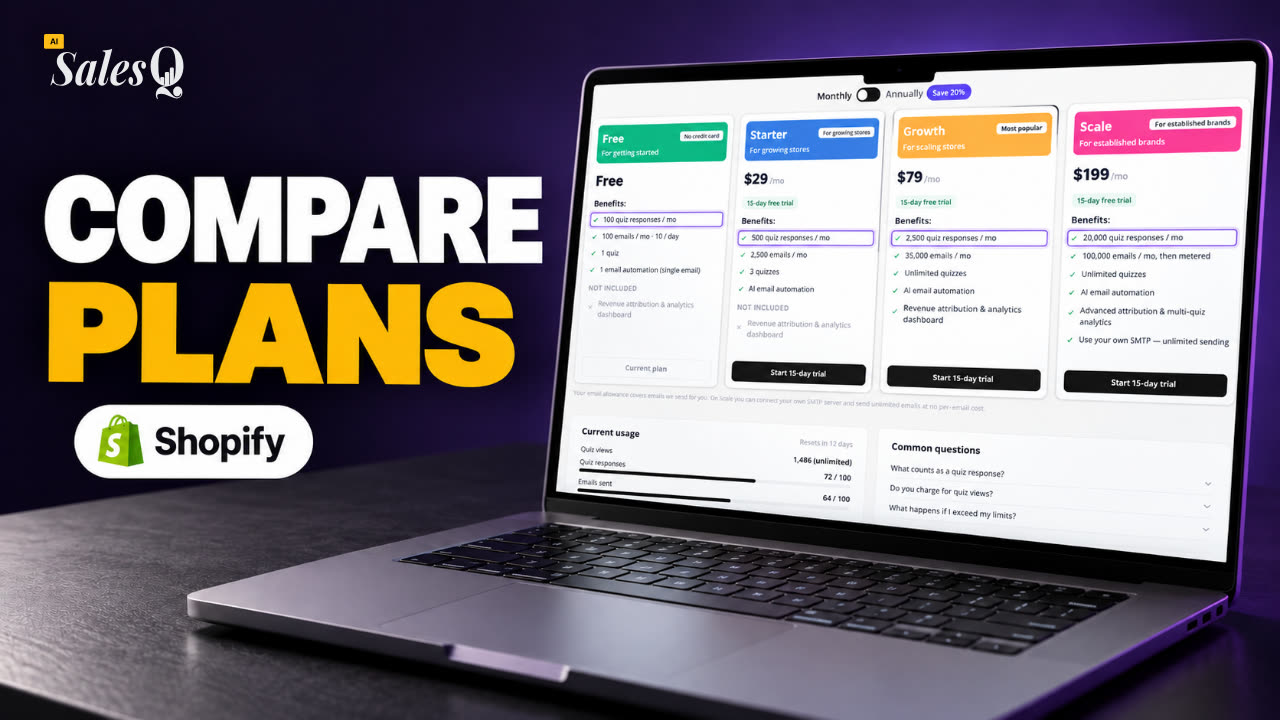 1:43Best Shopify Quiz App Pricing: AI Sales Quiz Builder Plans Compared
Learn more
Related articles
- Per-quiz analyticsOpen one quiz's analytics to see its views, submissions, revenue and products sold, read each response and export them as a CSV file.→
- Revenue attributionHow AISalesQ decides which orders and revenue to credit to a quiz, and where you'll see those numbers in the app.→
- Quiz performance on HomeCompare all your quizzes on the Home page: views, submissions, subscribers, carts, orders, revenue and products sold.→
Was this page helpful?
Still need help?
Can't find what you need? Talk to the people who build the app.