Subscribers & analytics
View and filter your quiz subscribers
Find everyone who left their email or phone number in a quiz, and narrow the list by status, source and date.
3 min read·Updated October 20, 2026·All plans
In the appSalesQ/Subscribers
In this guide
- 01Find a subscriber by email, phone, name or tag
- 02Filter the list by status, source and date
- 03Understand each column in the list
- 04Open a subscriber's full profile
Before you start
- –A published quiz on your store. See Publish your quiz on your store.
- –A quiz step that asks for an email address or phone number.
Every shopper who finishes a quiz and leaves an email address or phone number becomes a subscriber. The Subscribers page lists all of them in one place, with the quiz they took, when they submitted it and whether they still receive your emails.
Open the subscriber list
- 1
Go to Subscribers
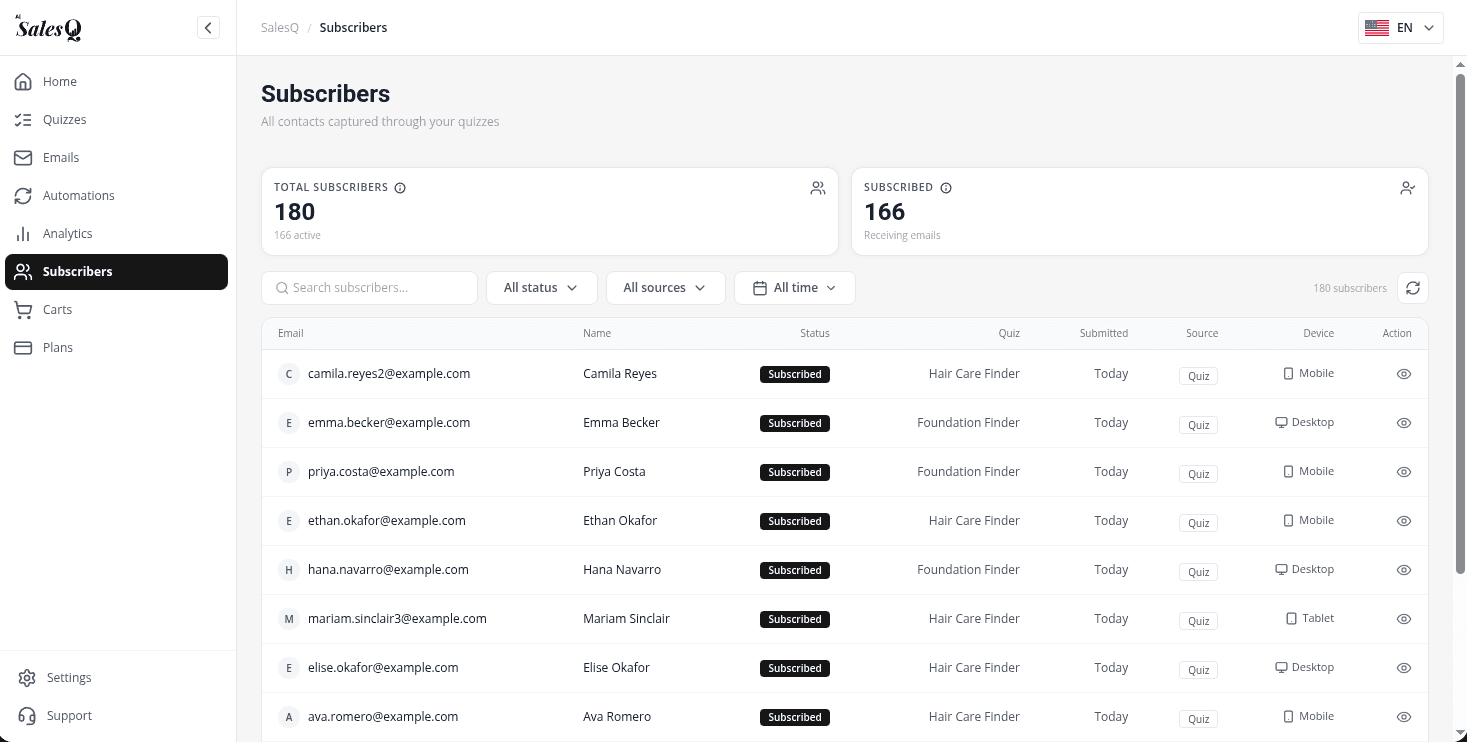
Click Subscribers in the app menu. The page opens with all contacts captured through your quizzes, newest first.
- 2
Check the totals
The two cards at the top show Total subscribers (with how many are still active) and Subscribed, the contacts currently receiving your emails. These totals always cover your whole store, whatever filters you set below.
Search and filter
- 1
Search
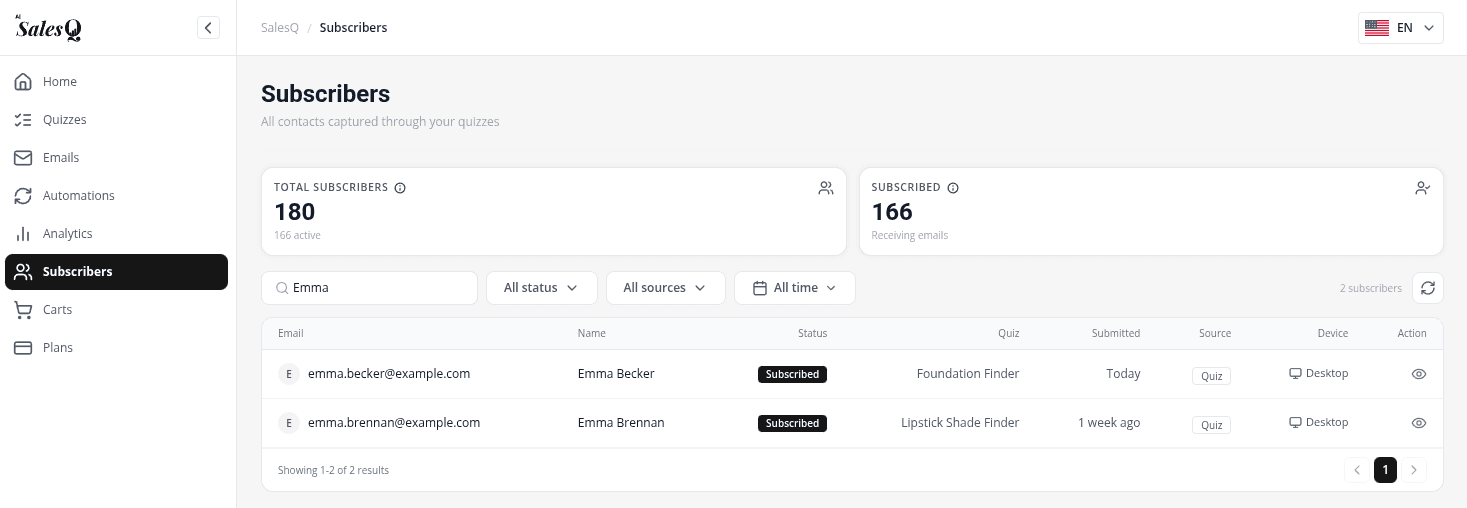
Type in Search subscribers... to find a contact by email, phone number, name or tag. The list updates as you type.
- 2
Filter by status
Open All status and choose Subscribed or Unsubscribed.
- 3
Filter by source
Open All sources to show only contacts from one source, such as Quiz.
- 4
Filter by date
Use the date menu to show contacts who subscribed in a period. Pick a preset such as Today, This week or Last week, or choose Custom, select the dates and click Save. Click the X icon next to the date to clear it.
The number next to the filters, for example 24 subscribers, shows how many contacts match. If nothing matches, you'll see No subscribers match your filters.
What the columns show
| Column | What it shows |
|---|---|
| The contact's email address. | |
| Name | The name they entered in the quiz, if you asked for it. |
| Status | Subscribed (black) or Unsubscribed (grey). |
| Quiz | The quiz they took. |
| Submitted | When they submitted it, for example Today or 3 days ago. |
| Source | Where the contact came from, such as Quiz. |
| Device | Desktop, mobile or tablet. |
| Action | View opens the contact's profile. |
The list shows 10 contacts per page. Use the arrows below the table to move between pages.
Open a subscriber
Click any row, or View, to open the contact's profile on the right. It shows their quiz answers, discount codes, marketing consent and Shopify order history. See A subscriber's profile for everything in it.
Where subscribers come from
Subscribers are added only by your quizzes, when a shopper submits their details on the storefront. You can't add, import, delete or export contacts on this page. Customers who are in Shopify but never took a quiz don't appear here.
If the list is empty, you'll see No subscriber yet!. Make sure your quiz is published and asks for an email or phone number, then take it yourself to check.
Video tutorials
Watch the series in order, or jump to the one you need.
- 01
 1:32How to Install a Shopify Quiz App: AI Sales Quiz Builder Setup & Tour
- 02
 1:38How to Create a Product Recommendation Quiz on Shopify (Step by Step)
- 03
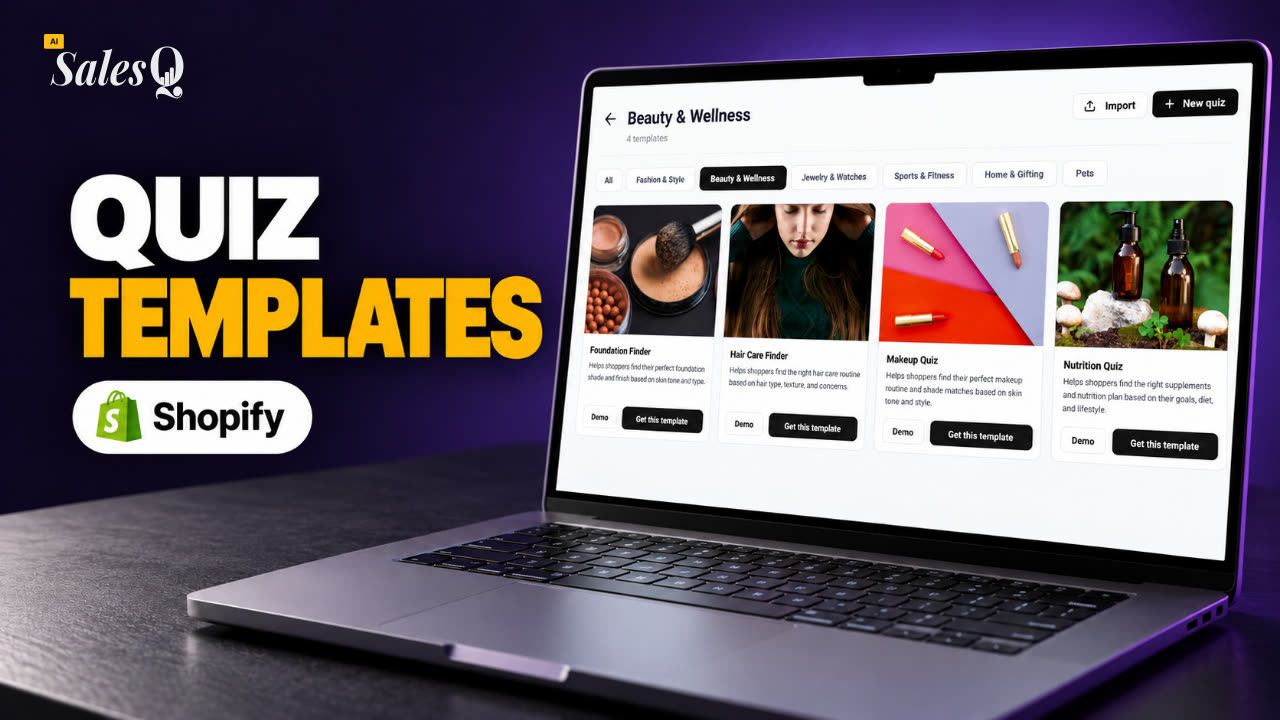 1:44Shopify Quiz Templates: Build a Product Quiz in Minutes
- 04
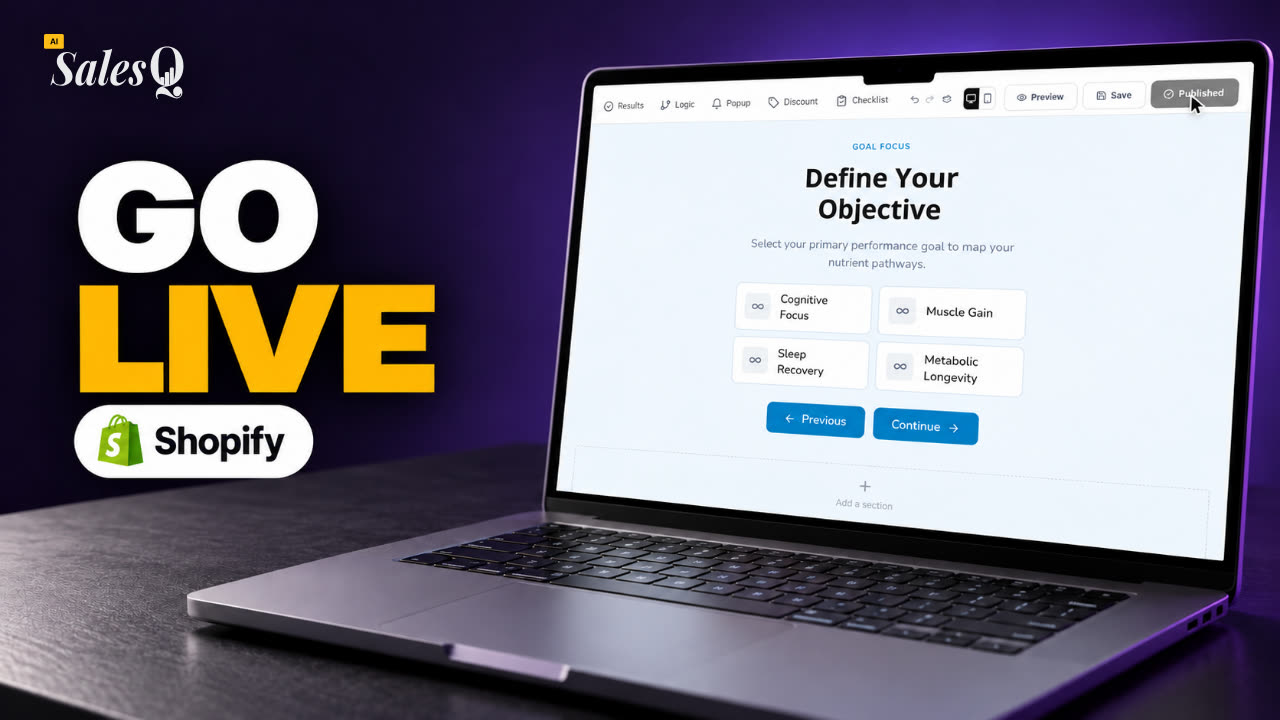 1:48How to Add a Quiz to Your Shopify Store (Publish & Embed)
- 05
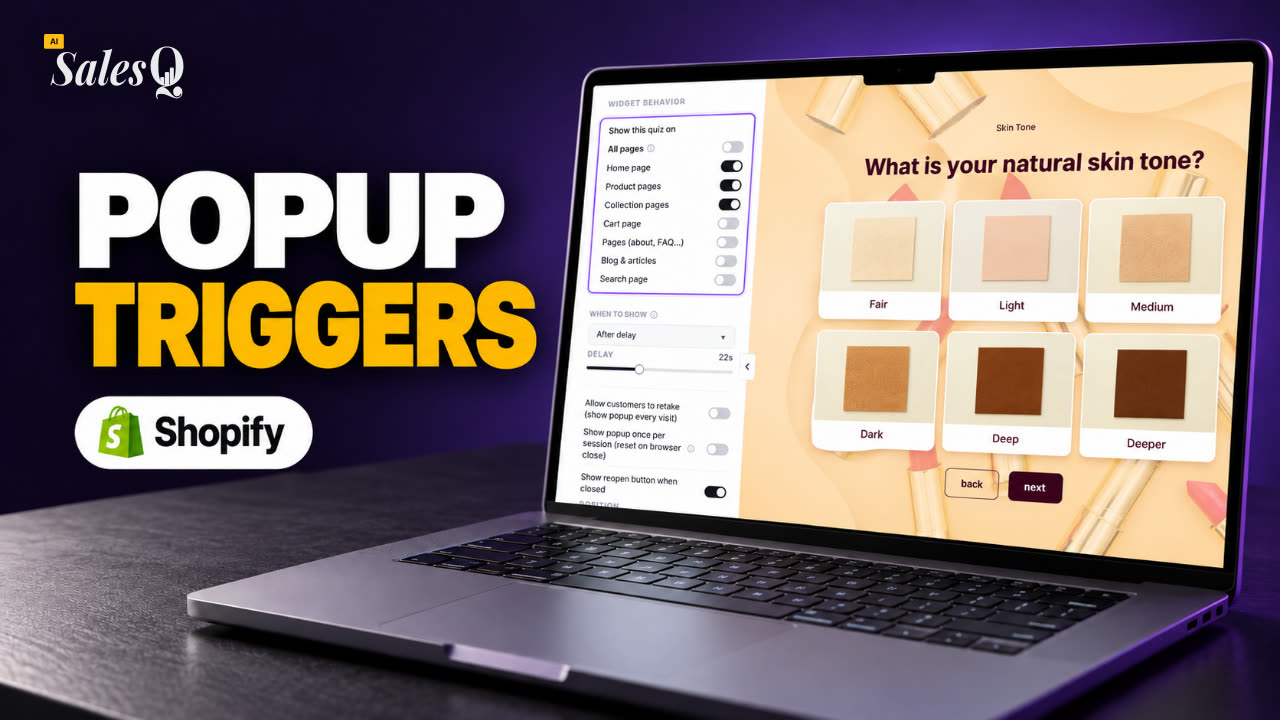 1:56Shopify Quiz Popup: Triggers, Timing & Page Targeting
- 06
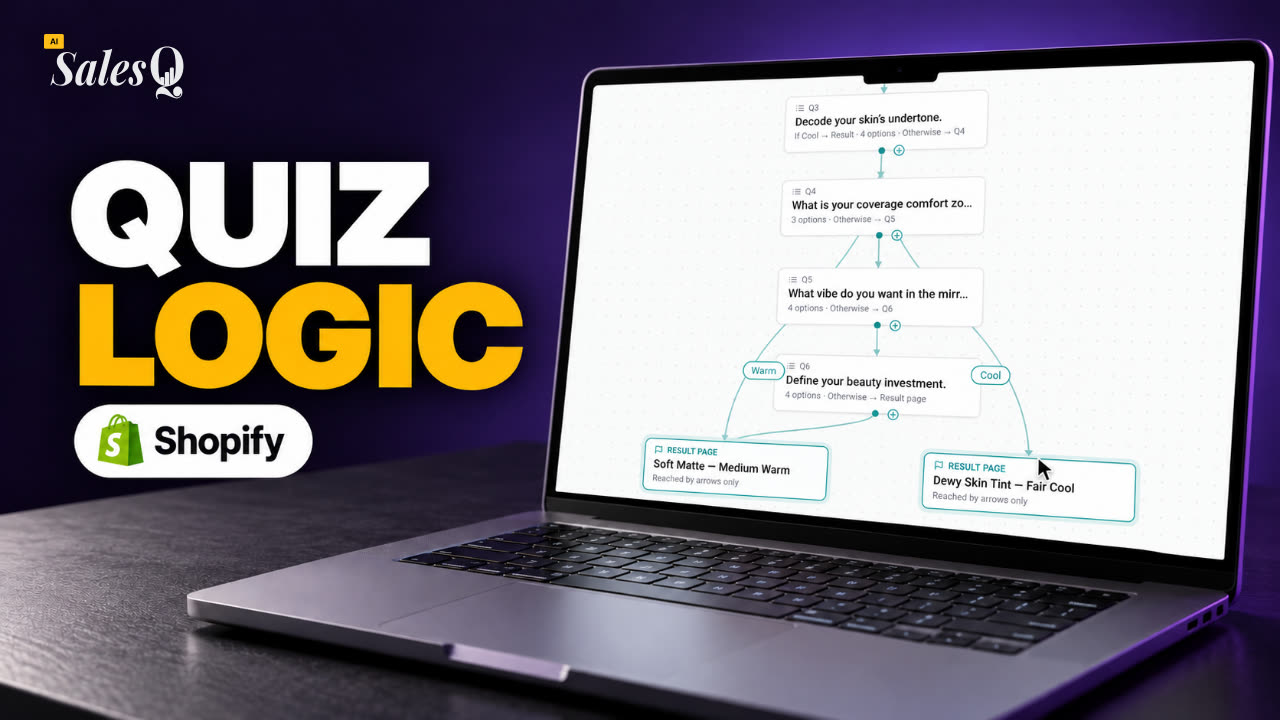 1:44Shopify Quiz Logic & Branching: Send Shoppers to the Right Product
- 07
 1:42Shopify Quiz Discount Codes: Unique Codes That Convert
- 08
 1:44Shopify Email Marketing: Create a Quiz Follow-Up Email
- 09
 1:36Shopify Email Templates for Quiz Follow-Ups (Ready to Use)
- 10
 1:51Shopify Email Builder Tutorial: Drag-and-Drop Blocks
- 11
 1:49Personalize Shopify Emails With Quiz Answers (Merge Tags)
- 12
 1:32Shopify Email Automation: Quiz Follow-Up Flow Step by Step
- 13
 1:29Manage Shopify Email Automations: Pause, Resume & Edit Flows
- 14
 1:41Shopify Email Sending Limits Explained (Quiz Emails)
- 15
 1:31Send Shopify Emails From Your Own SMTP Server
- 16
 1:43Shopify Email Consent & Unsubscribe Link Explained
- 17
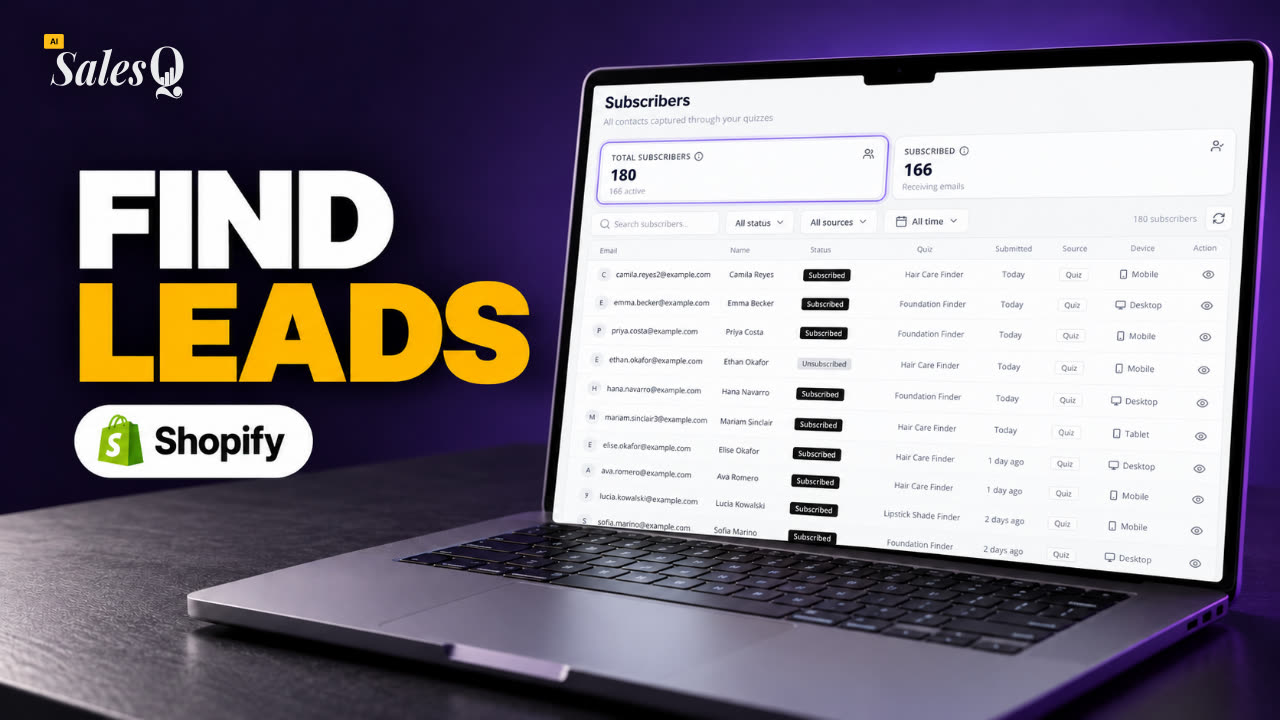 1:46Shopify Quiz Subscribers: Search, Filter & View ProfilesNow playing
- 18
 1:45Shopify Quiz Analytics: Track Revenue, Conversions & Emails
- 19
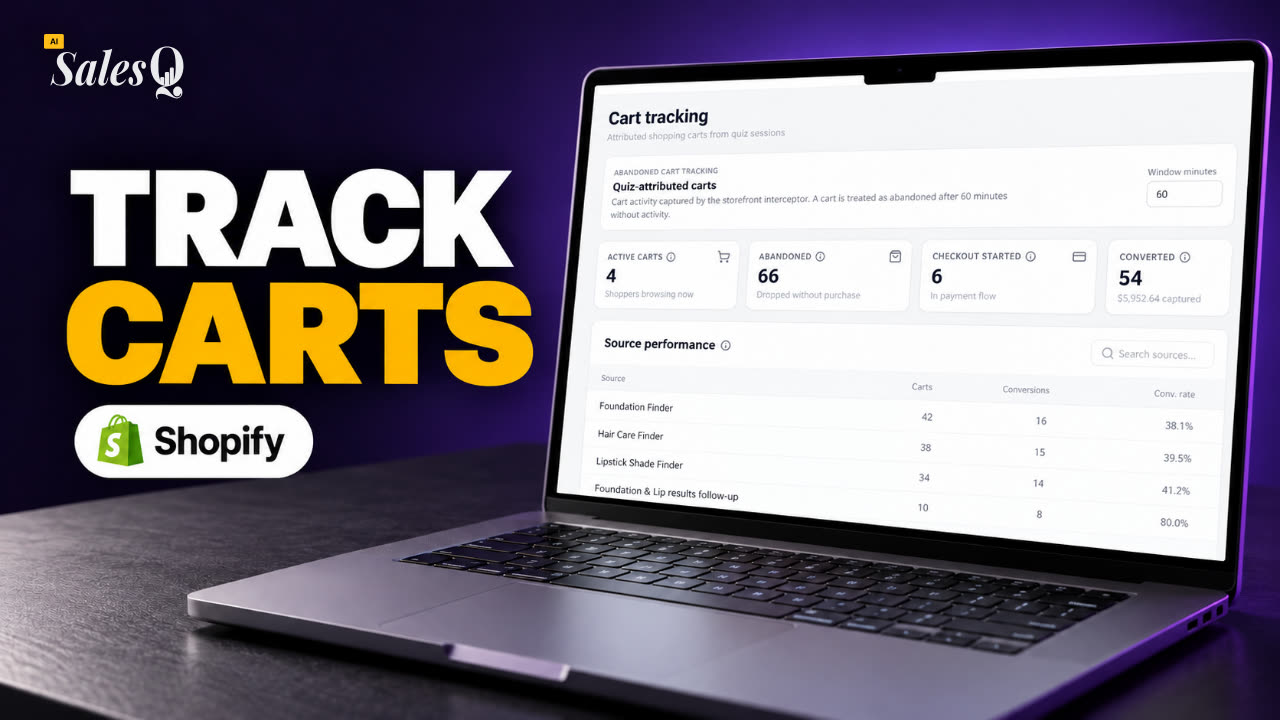 1:44Shopify Abandoned Cart Tracking for Quiz Shoppers
- 20
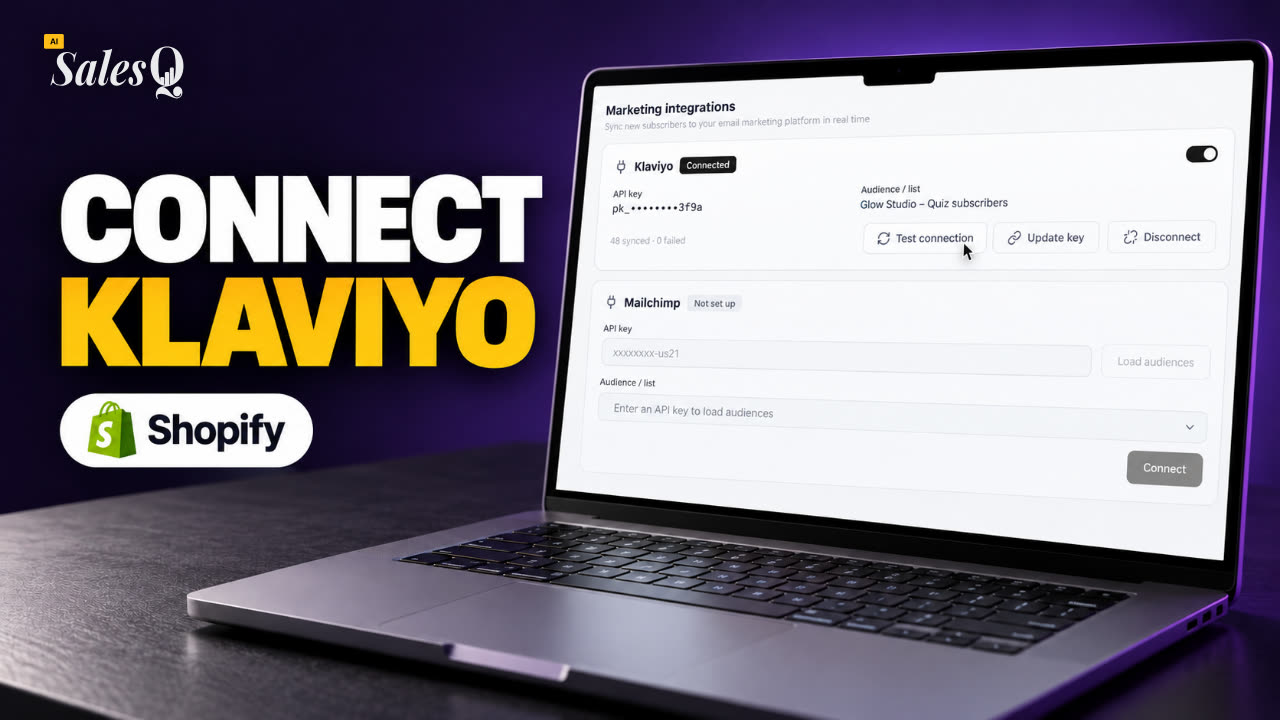 1:42Klaviyo Shopify Integration: Send Quiz Subscribers to Klaviyo
- 21
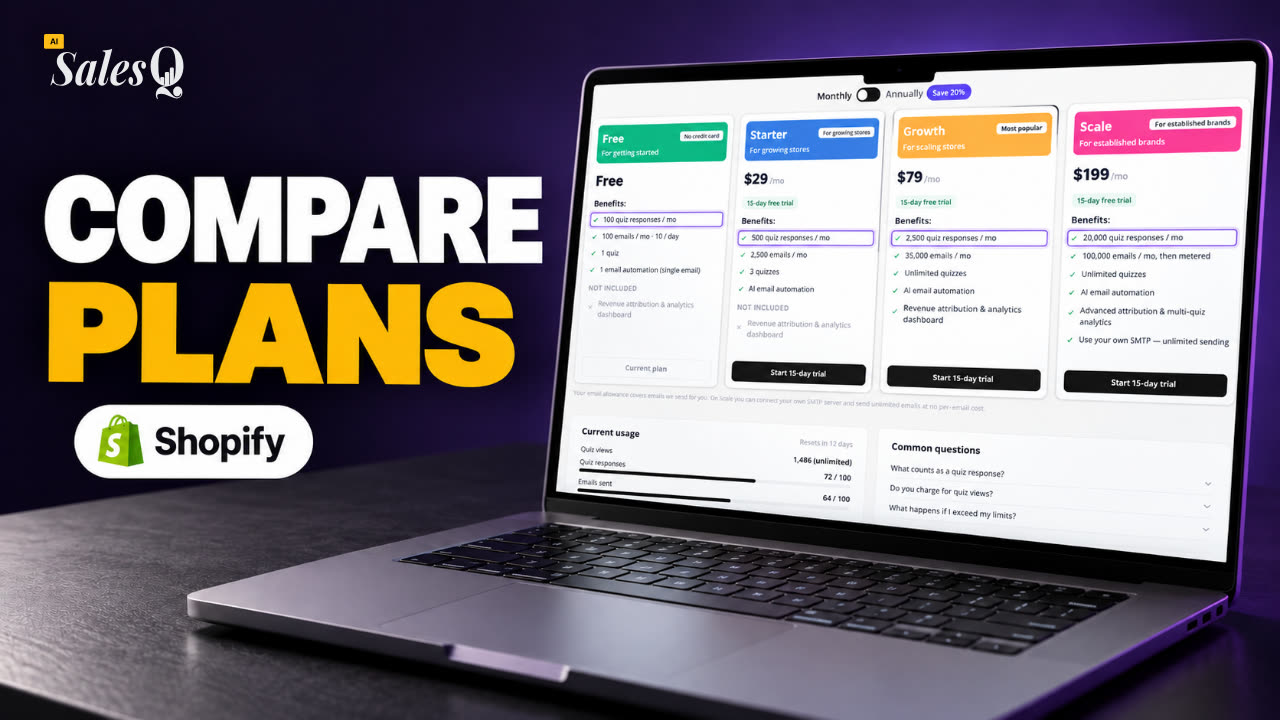 1:43Best Shopify Quiz App Pricing: AI Sales Quiz Builder Plans Compared
Learn more
Related articles
- Subscriber profileSee a subscriber's quiz answers, discount codes, marketing consent and Shopify orders, and unsubscribe or re-subscribe them.→
- Per-quiz analyticsOpen one quiz's analytics to see its views, submissions, revenue and products sold, read each response and export them as a CSV file.→
- Connect KlaviyoSend new quiz subscribers to a Klaviyo list automatically, and check, pause or disconnect the connection.→
Was this page helpful?
Still need help?
Can't find what you need? Talk to the people who build the app.