Quiz builder
Start from a quiz template
Try a ready-made quiz, add it to your store as a draft, then swap in your own products, text and discount before you publish.
4 min read·Updated October 20, 2026·All plans
In the appSalesQ/Quizzes/View all quizzes →
In this guide
- 01Browse the templates by category and try one in Demo
- 02Add a template to your store as a new draft quiz
- 03Replace the sample products with your own
- 04Check the discount and the results before you publish
Before you start
- –Install AISalesQ on your store
- –Room for one more quiz on your plan
Templates are finished quizzes with questions, result pages, design and a discount already set up. You add one to your store as a draft and then make it yours.
Browse the templates
- 1
Open the gallery
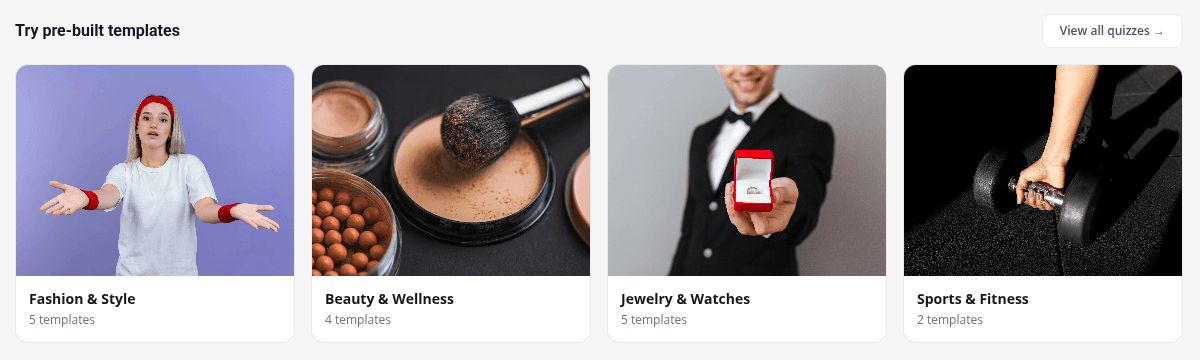
Go to Quizzes and scroll to Try pre-built templates. Click View all quizzes →, or click a category card to open that category.
- 2
Pick a category
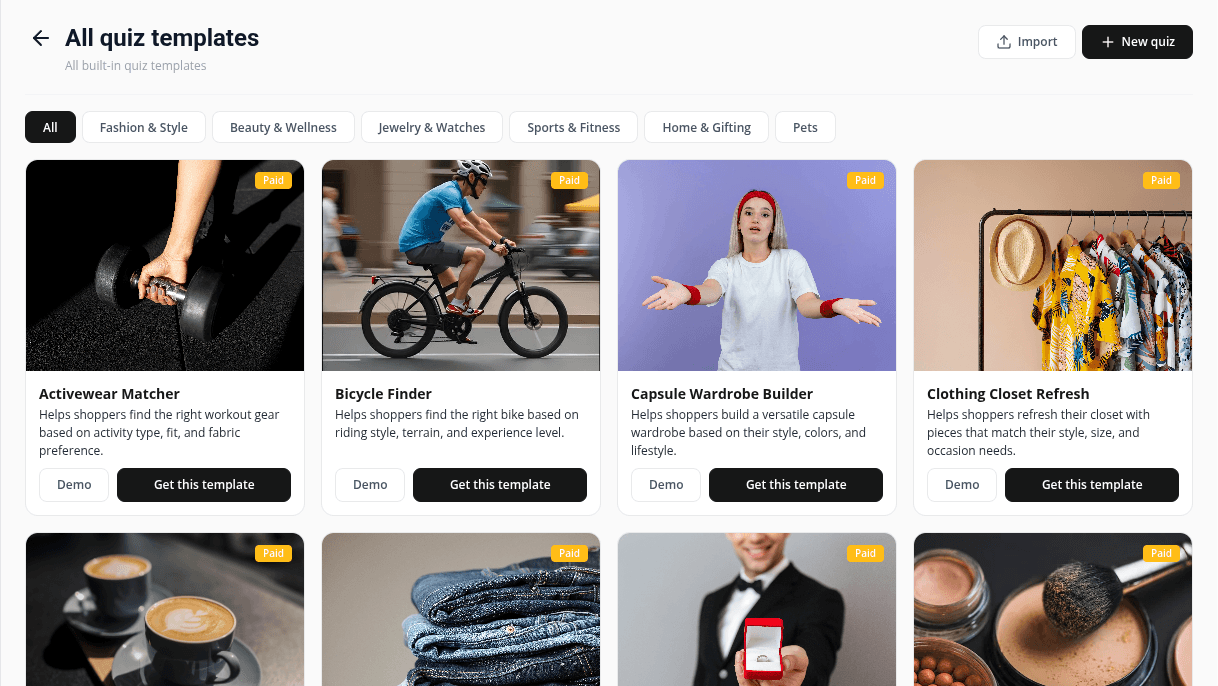
Use the tabs at the top: All, Fashion & Style, Beauty & Wellness, Jewelry & Watches, Sports & Fitness, Home & Gifting and Pets.
- 3
Try it first
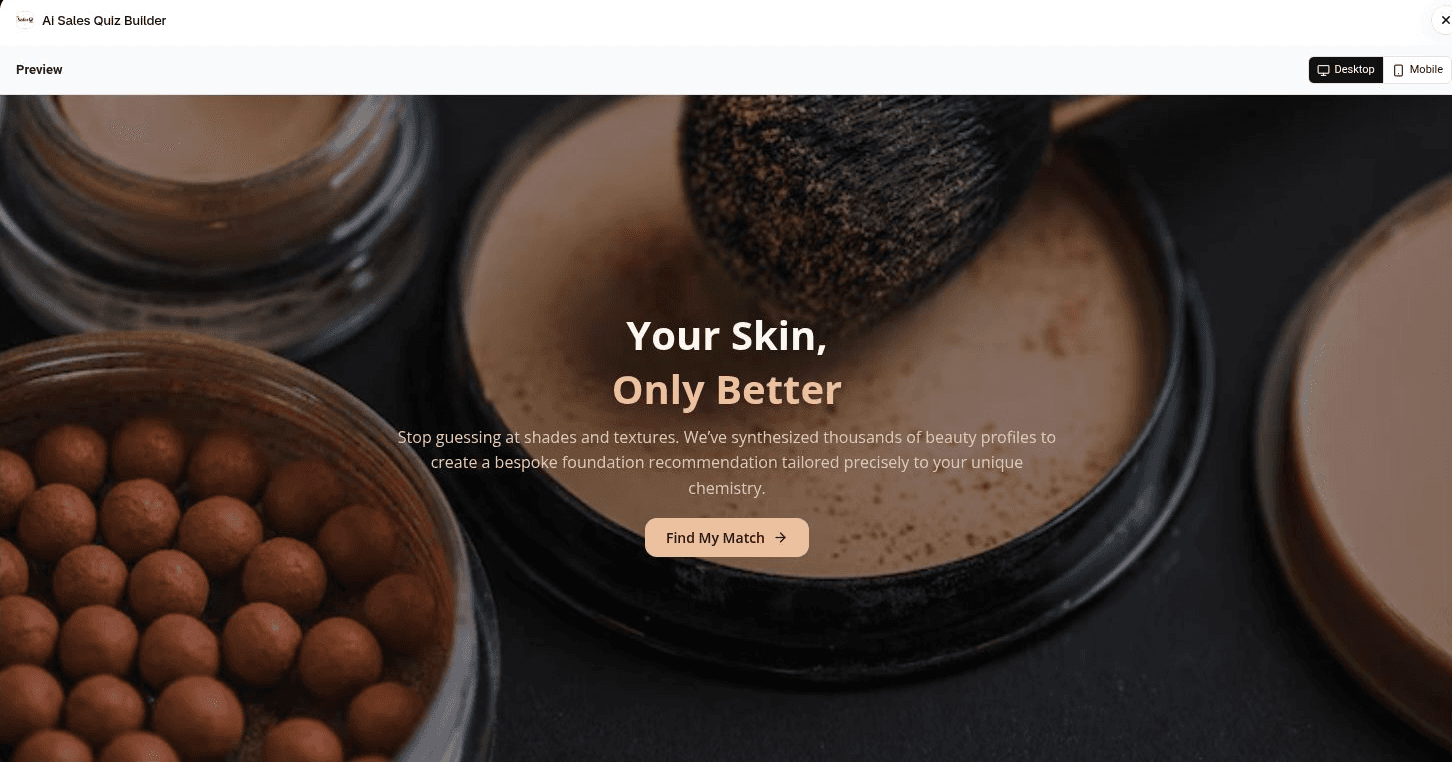
Click Demo on a template to take it full screen, as a shopper would. Nothing is saved or added to your store.
| Category | Templates |
|---|---|
| Fashion & Style | Capsule Wardrobe Builder, Clothing Closet Refresh, Denim Fit Finder, Occasion Outfit Finder, Personal Style Archetype |
| Beauty & Wellness | Foundation Finder, Hair Care Finder, Makeup Quiz, Nutrition Quiz |
| Jewelry & Watches | Engagement Ring Finder, Jewelry Stack Builder, Jewelry Style Archetype, Jewelry Style Finder, Watch Matcher |
| Sports & Fitness | Activewear Matcher, Bicycle Finder |
| Home & Gifting | Coffee Finder, Gift Concierge |
| Pets | Dog Care Finder |
Add the template to your store
- 1
Get the template
Click Get this template. The button shows Adding… for a moment, then the new quiz opens in the editor. It starts as a draft, so shoppers can't see it yet.
Make it yours
- 1
Rename the quiz
The new quiz keeps the template's internal name, which can differ from the gallery title. Click the name at the top left and type your own.

- 2
Replace the products
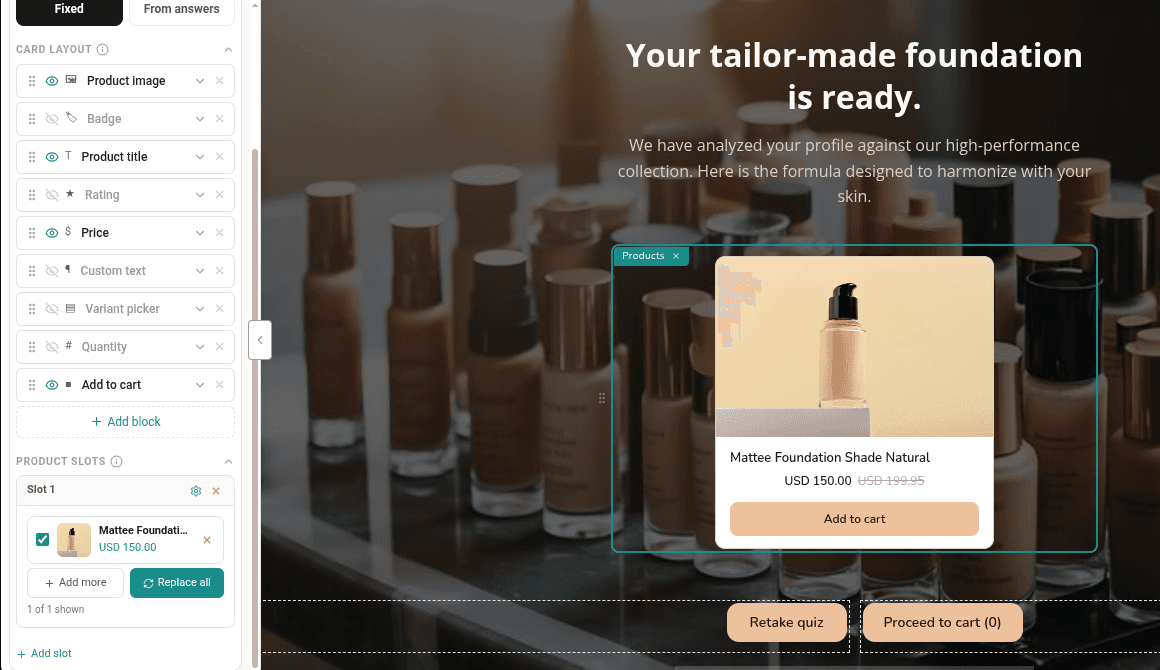
Open Results. On every result page, click the Products block and, under Product slots, replace the products in each slot with your own. Do the same for any Collections block.
- 3
Edit the text and images
Go through each question and result page in Questions and Results. Change the headings, answers and images to match your products and your voice.
- 4
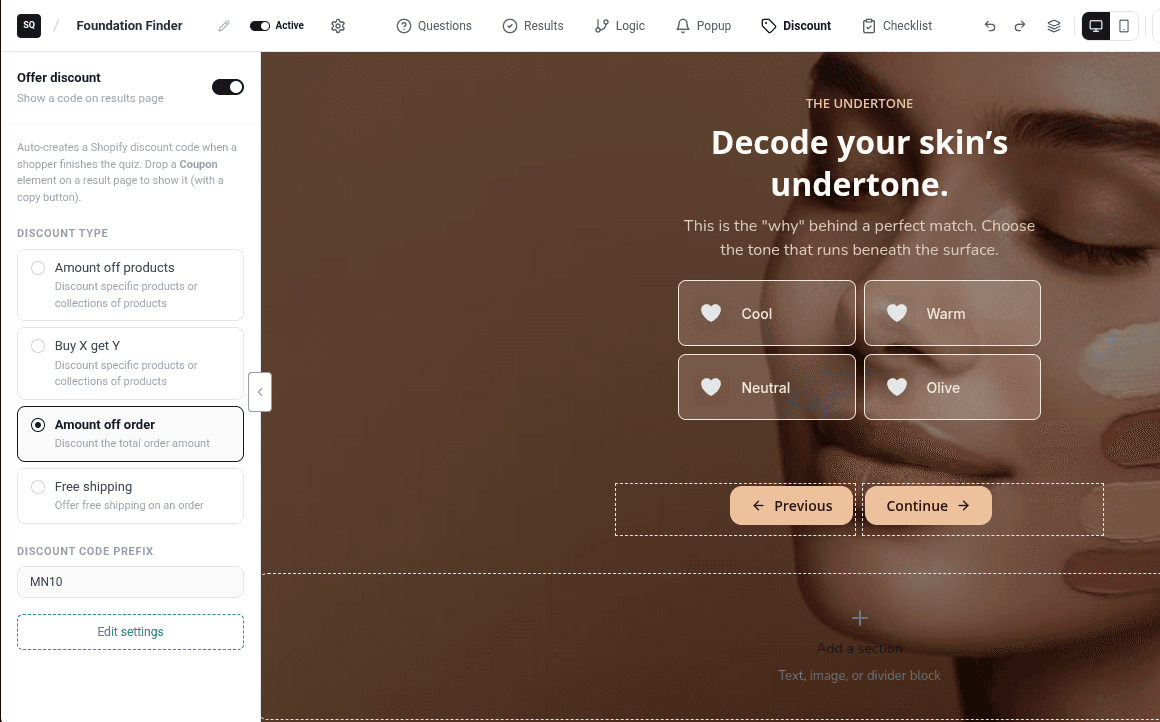
Check the discount
Open the Discount tab. Every template has a discount switched on, and some offer 50% off. Set the value and the Discount code prefix you want, or turn Offer discount off.
- 5
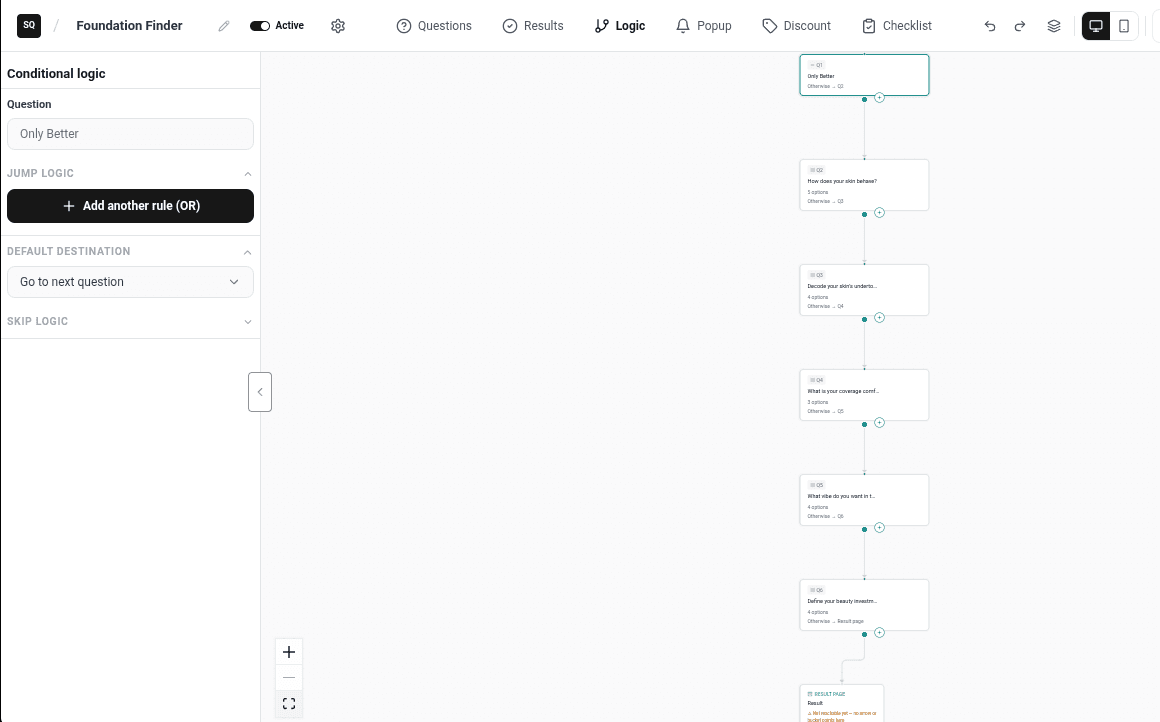
Check every result can be reached
Open the Logic tab. Each result page shows how shoppers reach it. If a page shows ⚠ Not reachable yet, add an arrow or a display rule for it. See Send shoppers to the right result.
- 6
Preview and save
Click Preview and try a few different paths. Then click Save, and Publish when you're ready.
Video tutorials
Watch the series in order, or jump to the one you need.
- 01
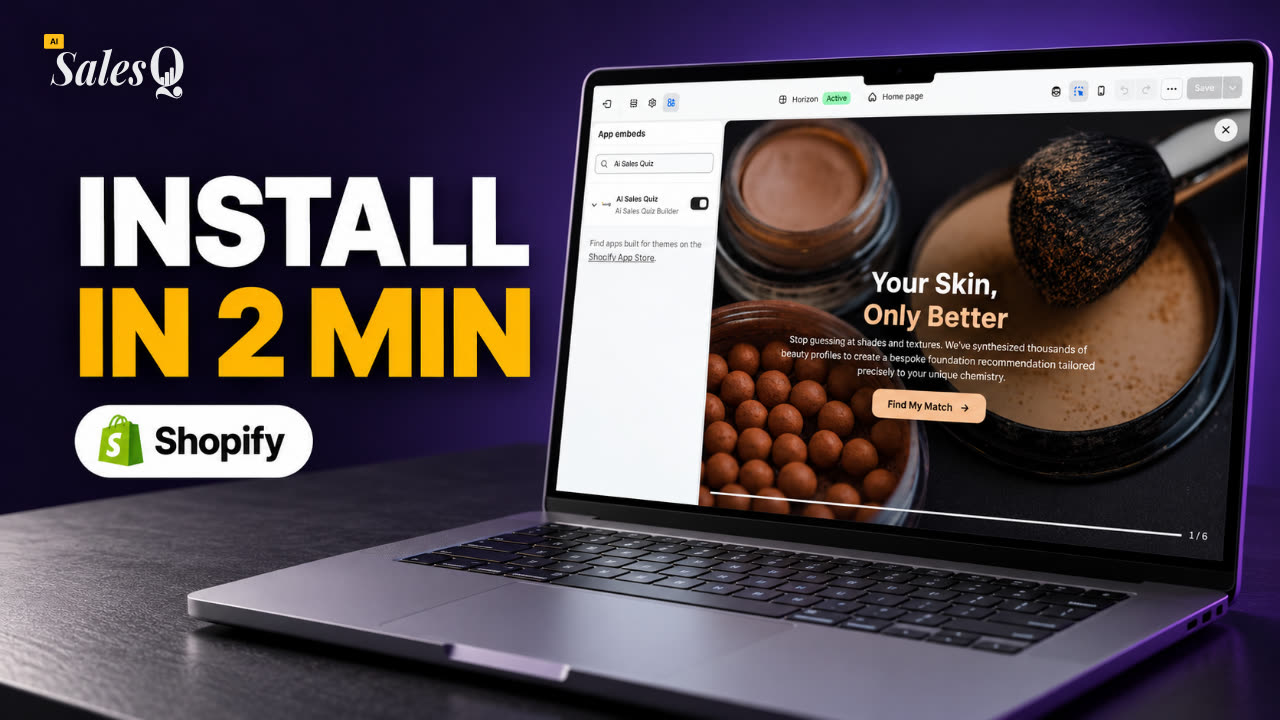 1:32How to Install a Shopify Quiz App: AI Sales Quiz Builder Setup & Tour
- 02
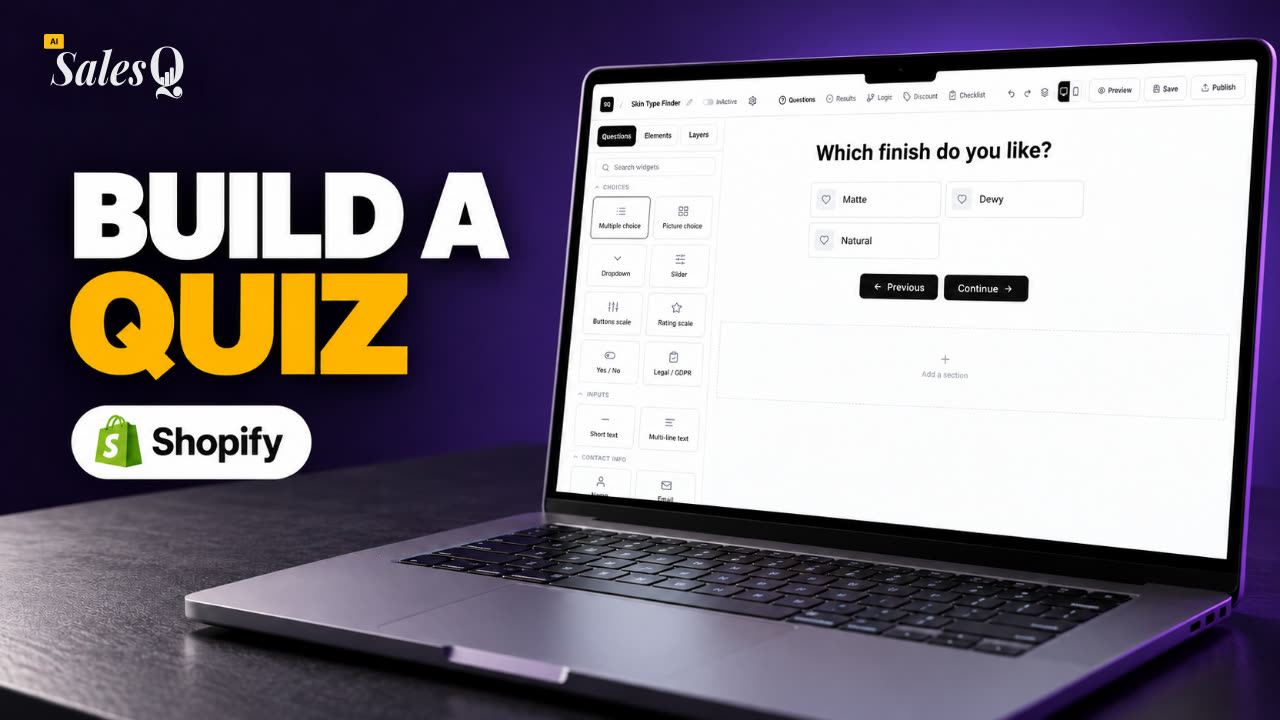 1:38How to Create a Product Recommendation Quiz on Shopify (Step by Step)
- 03
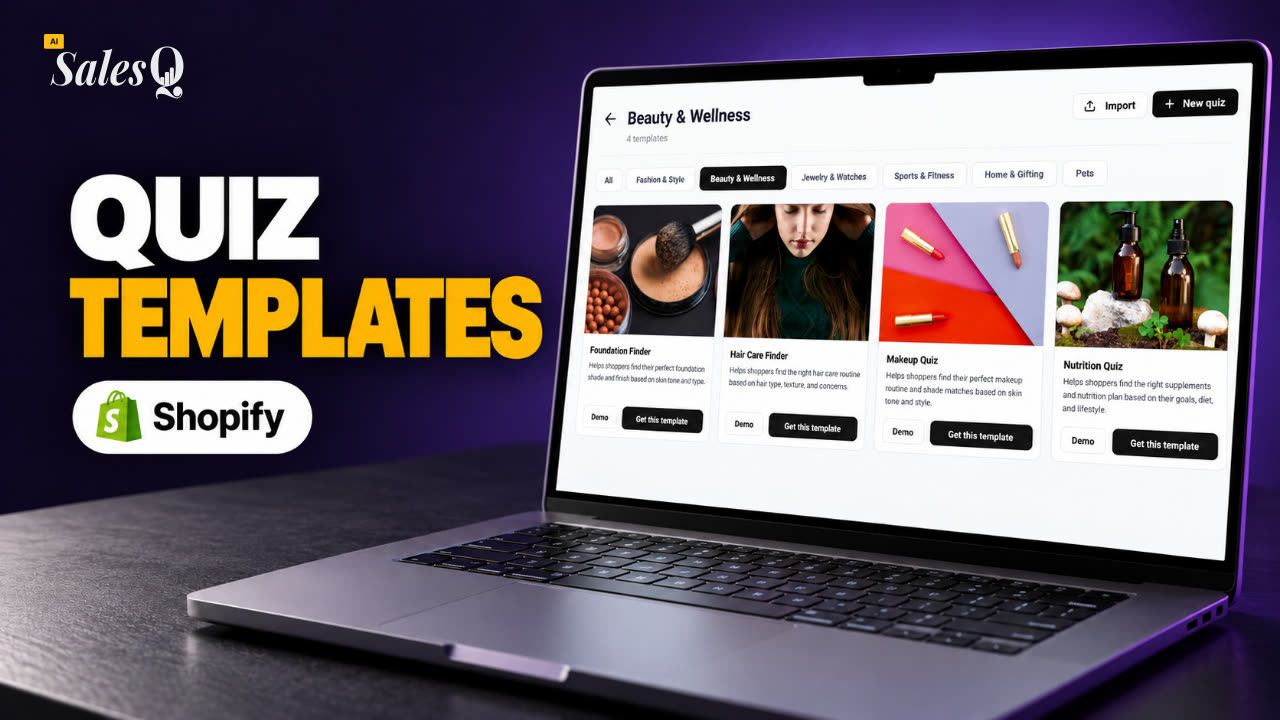 1:44Shopify Quiz Templates: Build a Product Quiz in MinutesNow playing
- 04
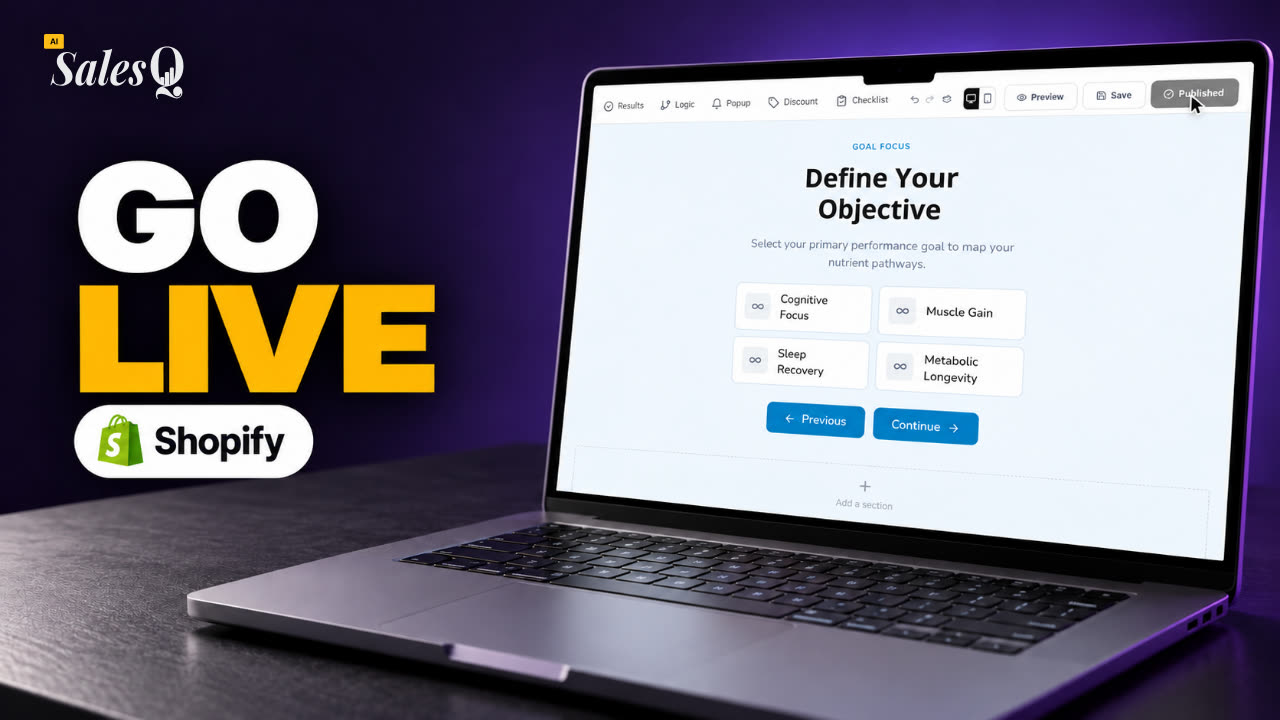 1:48How to Add a Quiz to Your Shopify Store (Publish & Embed)
- 05
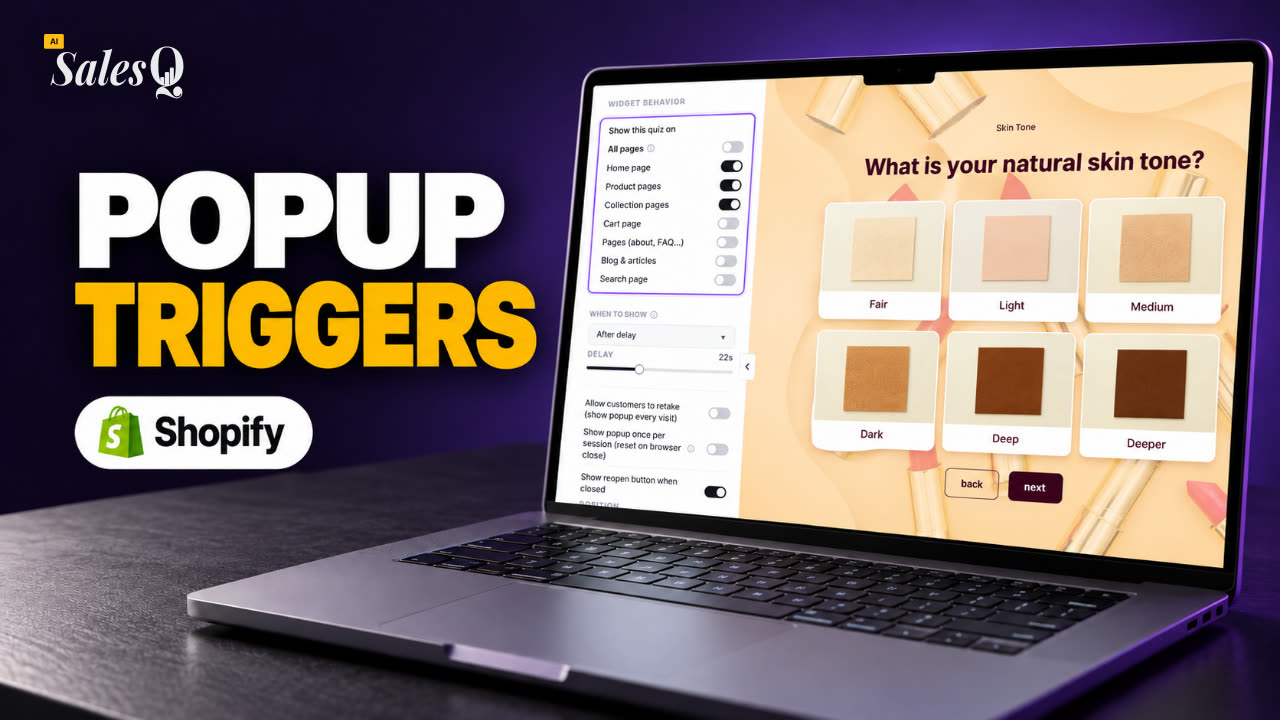 1:56Shopify Quiz Popup: Triggers, Timing & Page Targeting
- 06
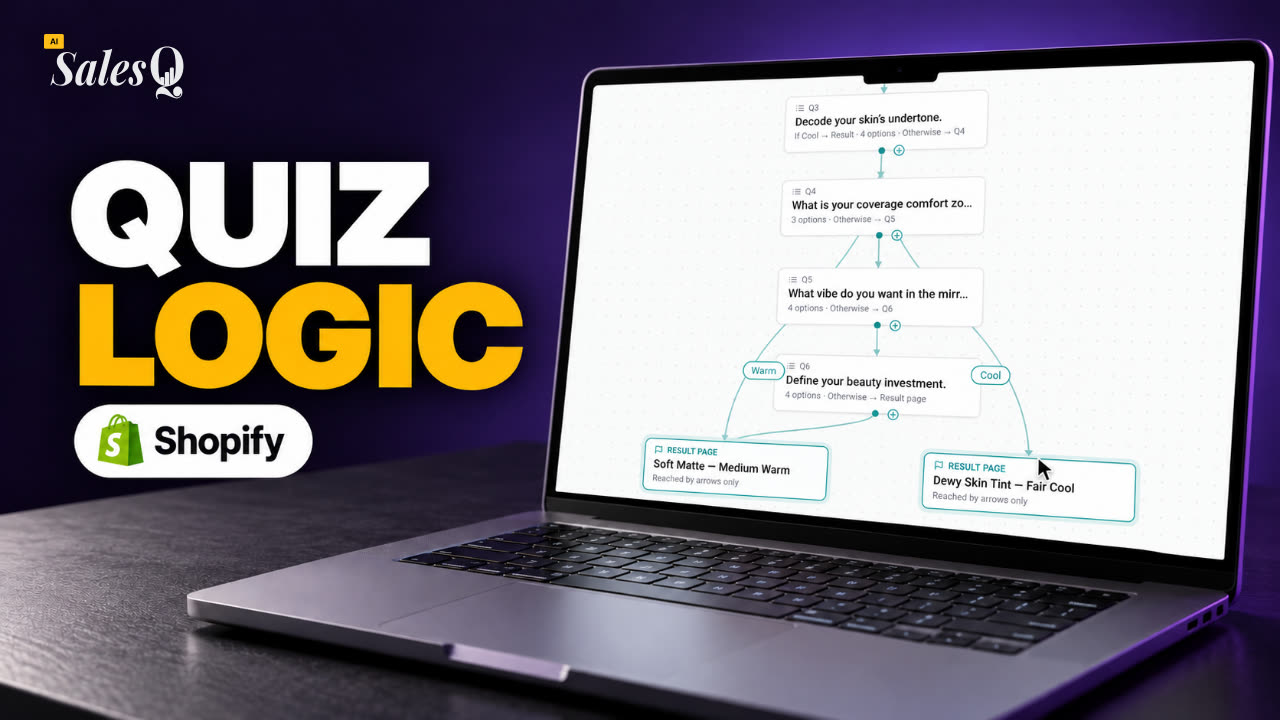 1:44Shopify Quiz Logic & Branching: Send Shoppers to the Right Product
- 07
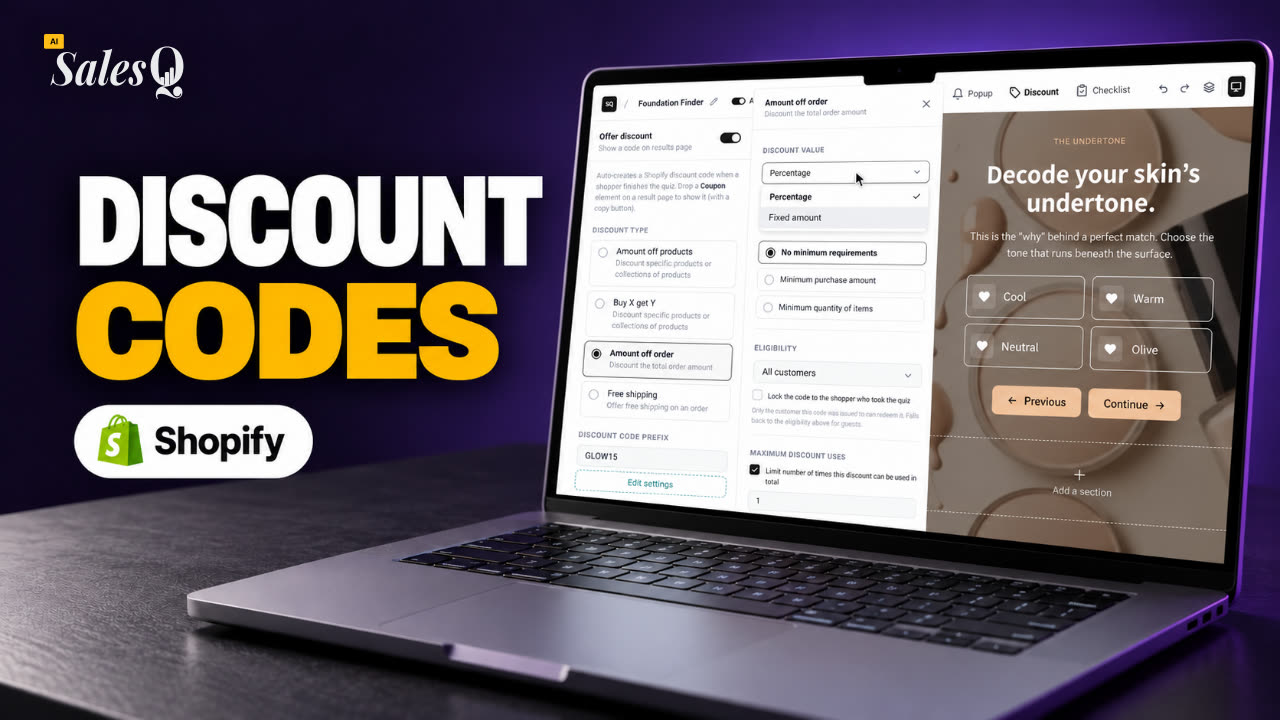 1:42Shopify Quiz Discount Codes: Unique Codes That Convert
- 08
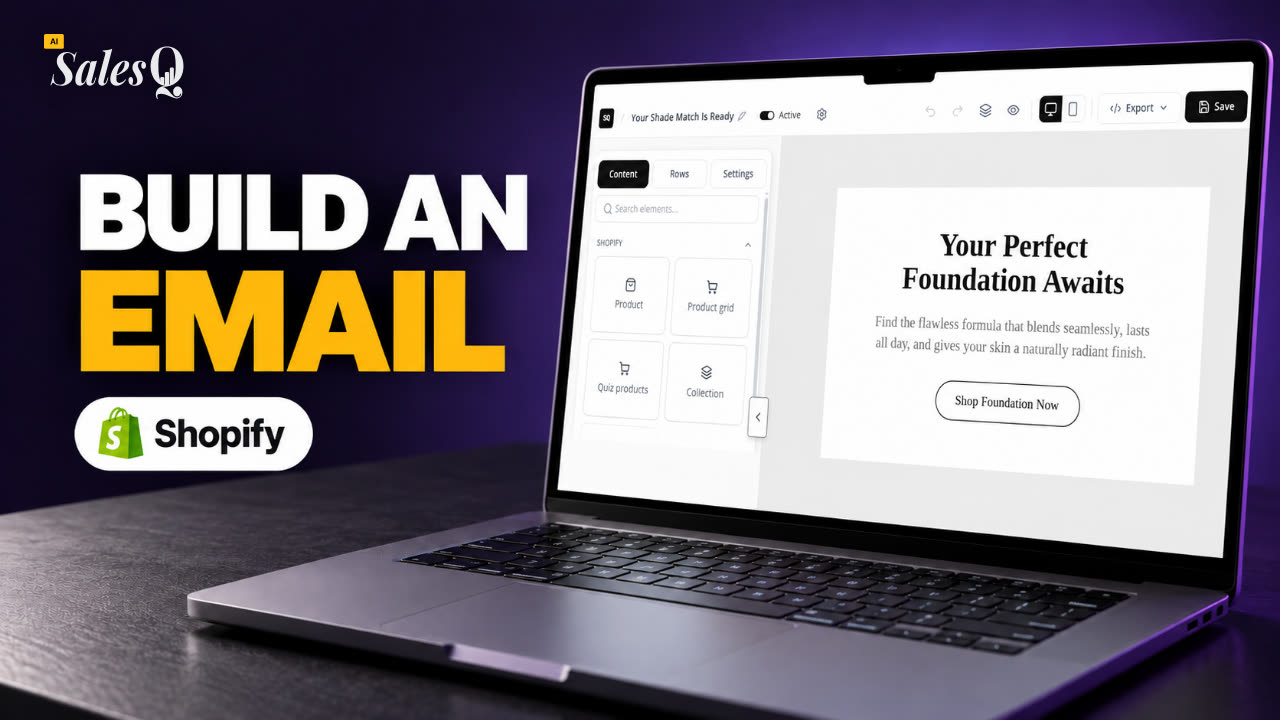 1:44Shopify Email Marketing: Create a Quiz Follow-Up Email
- 09
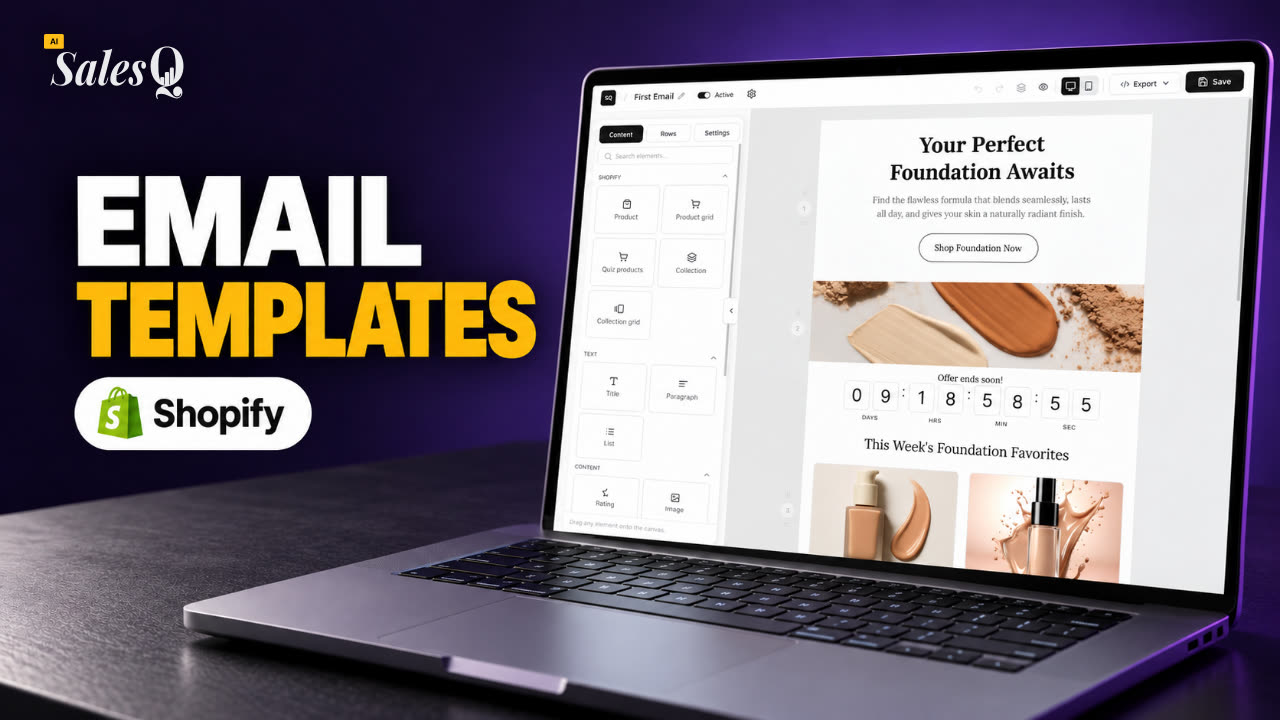 1:36Shopify Email Templates for Quiz Follow-Ups (Ready to Use)
- 10
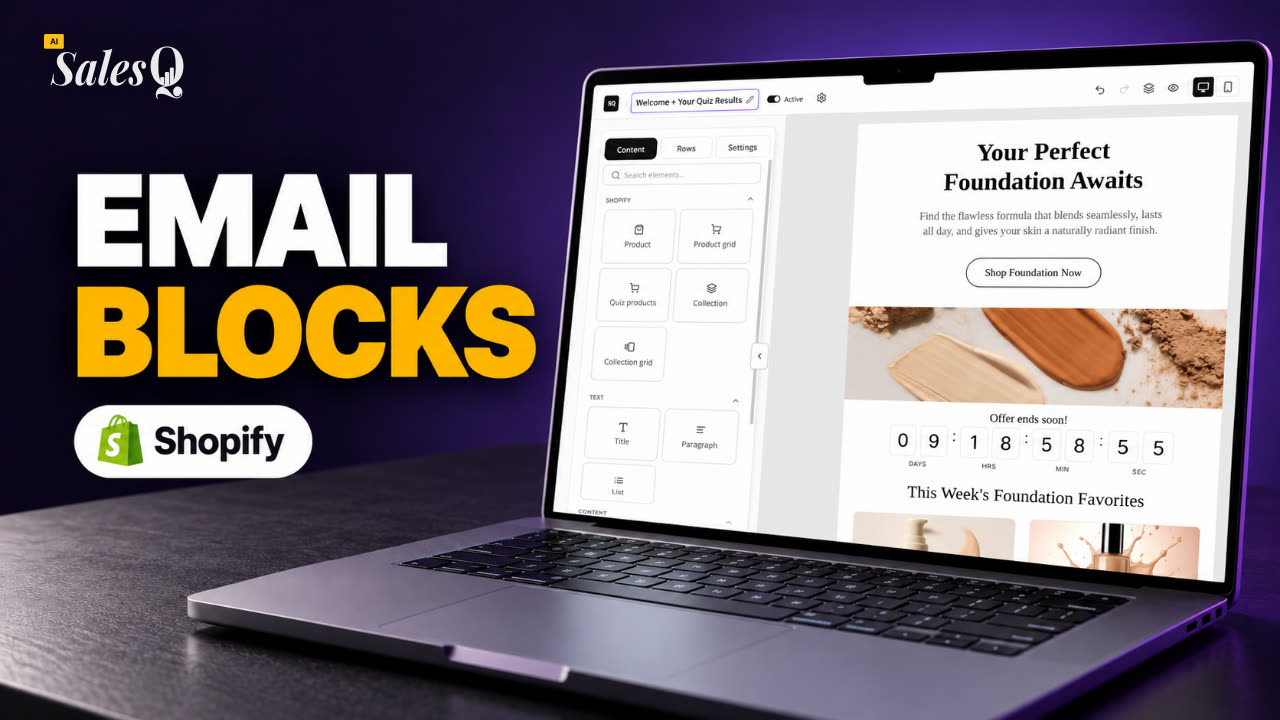 1:51Shopify Email Builder Tutorial: Drag-and-Drop Blocks
- 11
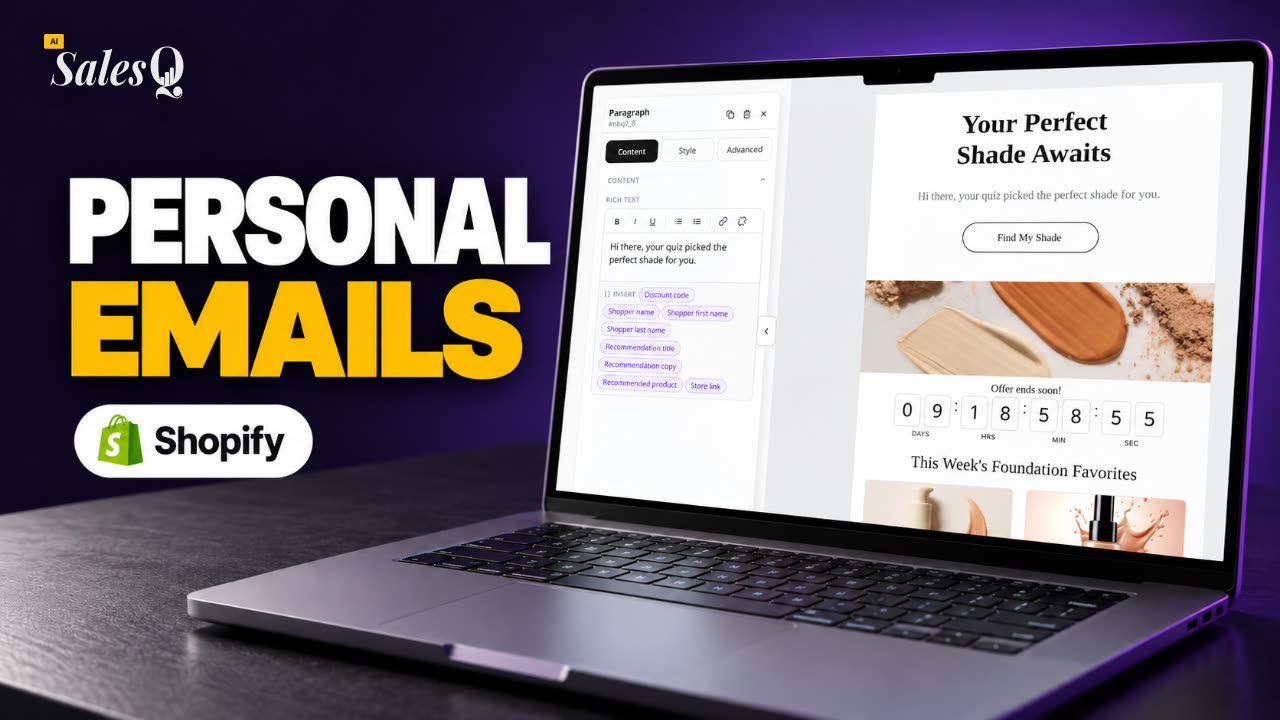 1:49Personalize Shopify Emails With Quiz Answers (Merge Tags)
- 12
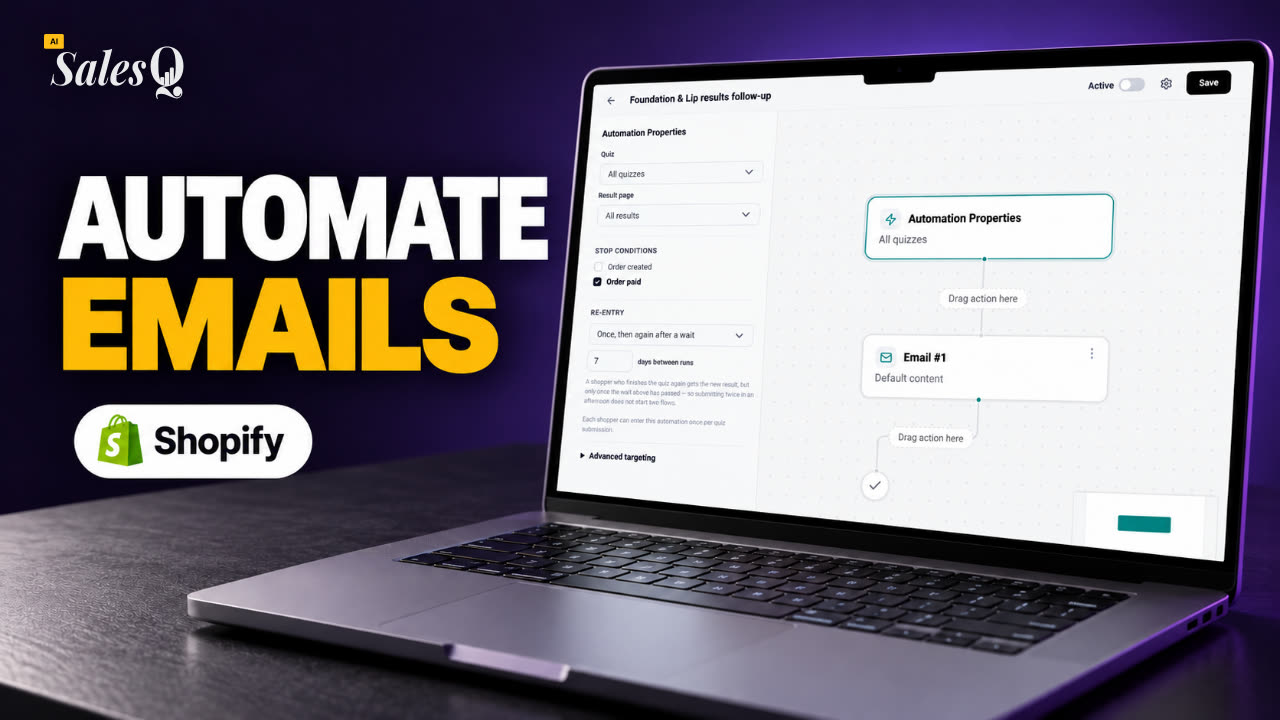 1:32Shopify Email Automation: Quiz Follow-Up Flow Step by Step
- 13
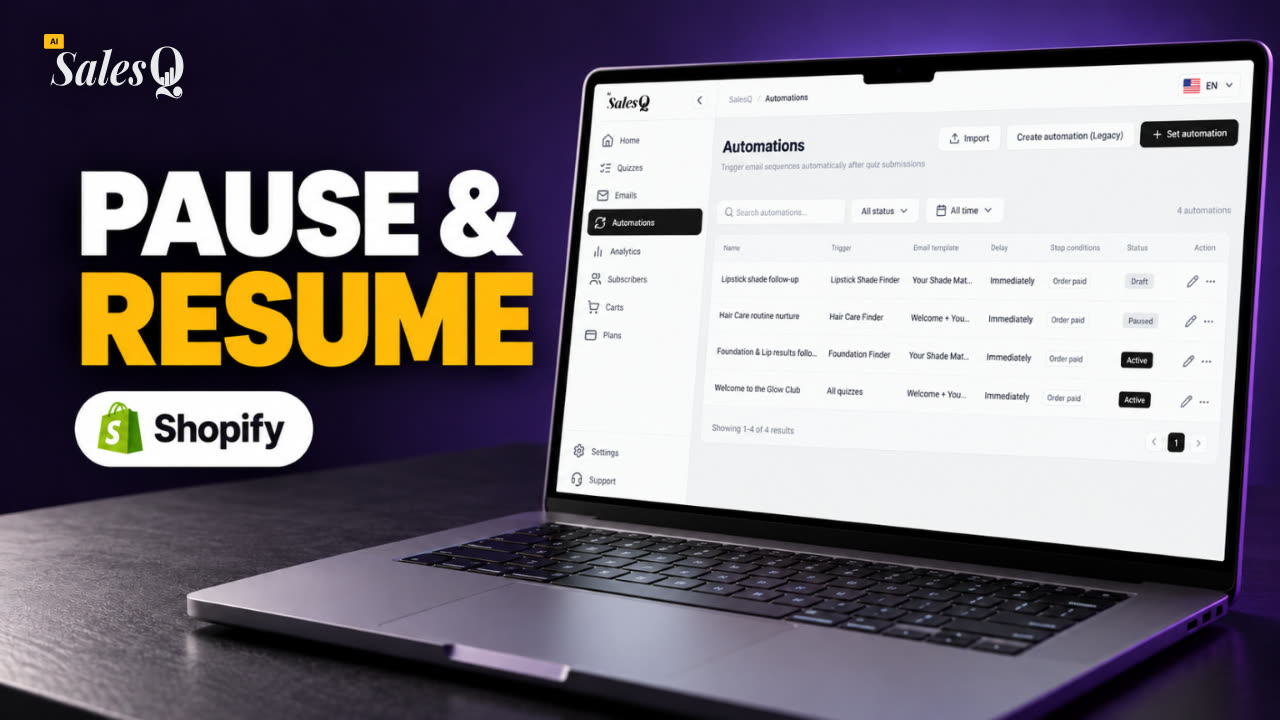 1:29Manage Shopify Email Automations: Pause, Resume & Edit Flows
- 14
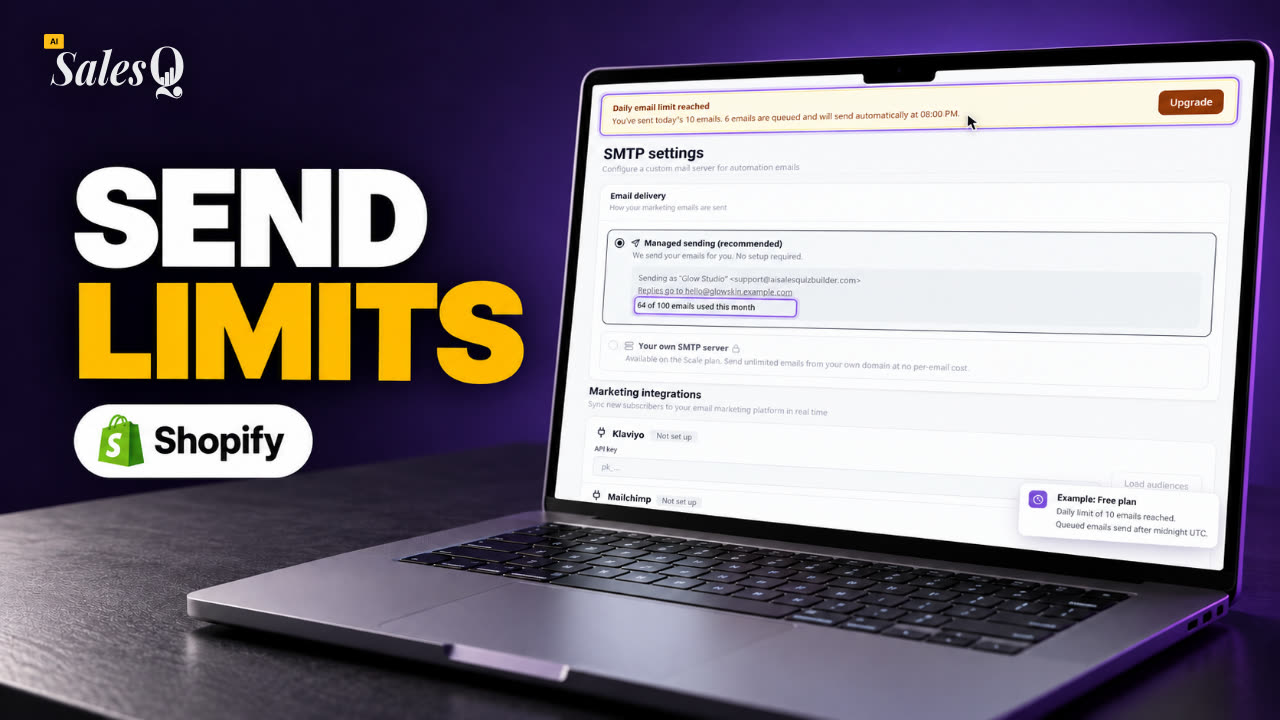 1:41Shopify Email Sending Limits Explained (Quiz Emails)
- 15
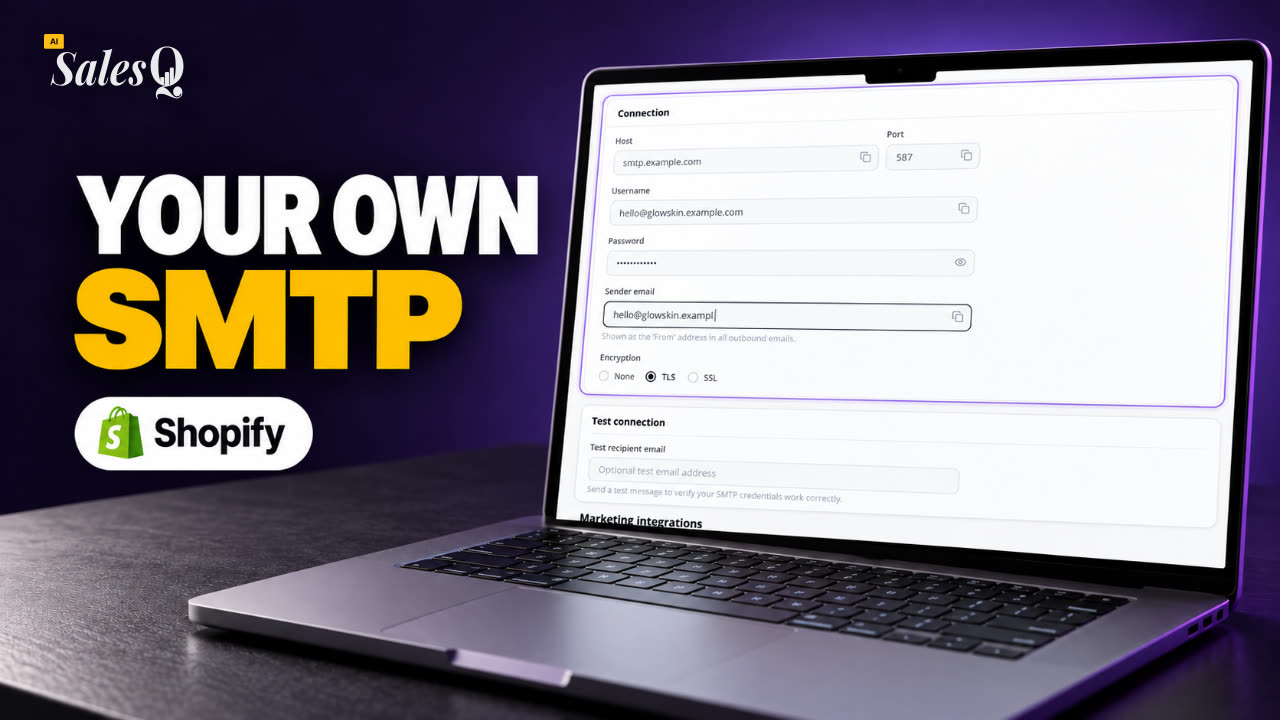 1:31Send Shopify Emails From Your Own SMTP Server
- 16
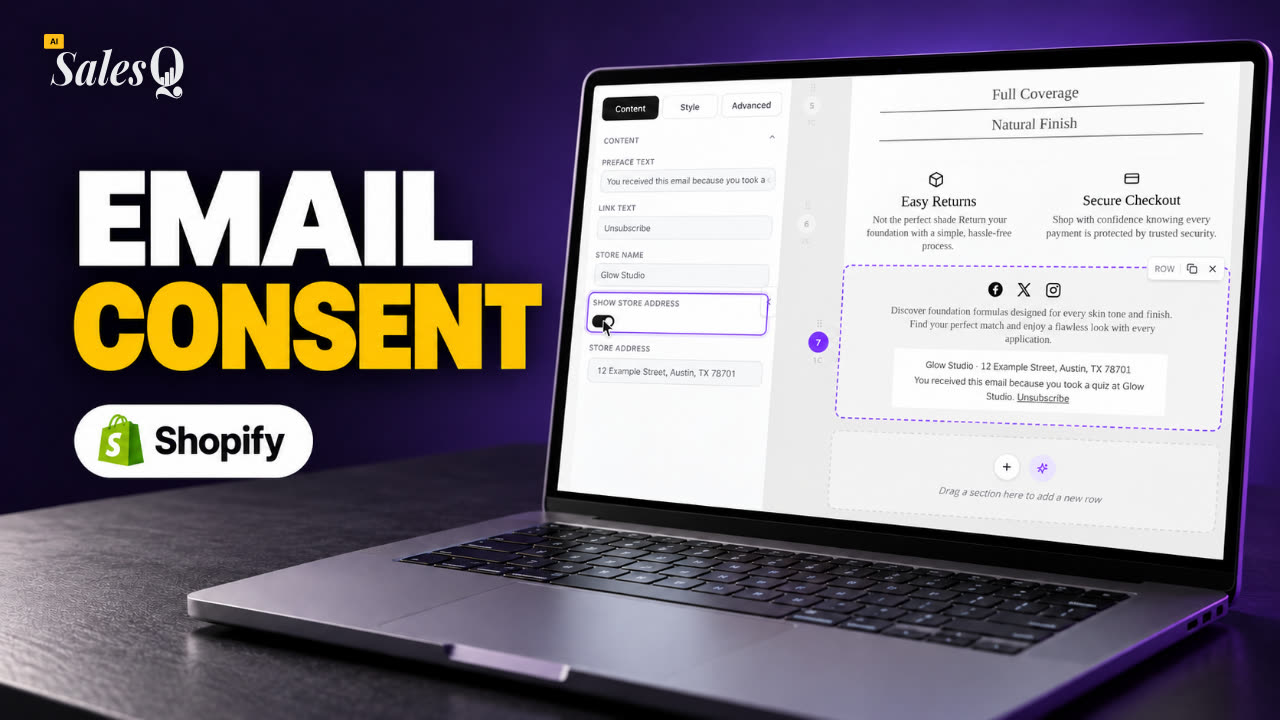 1:43Shopify Email Consent & Unsubscribe Link Explained
- 17
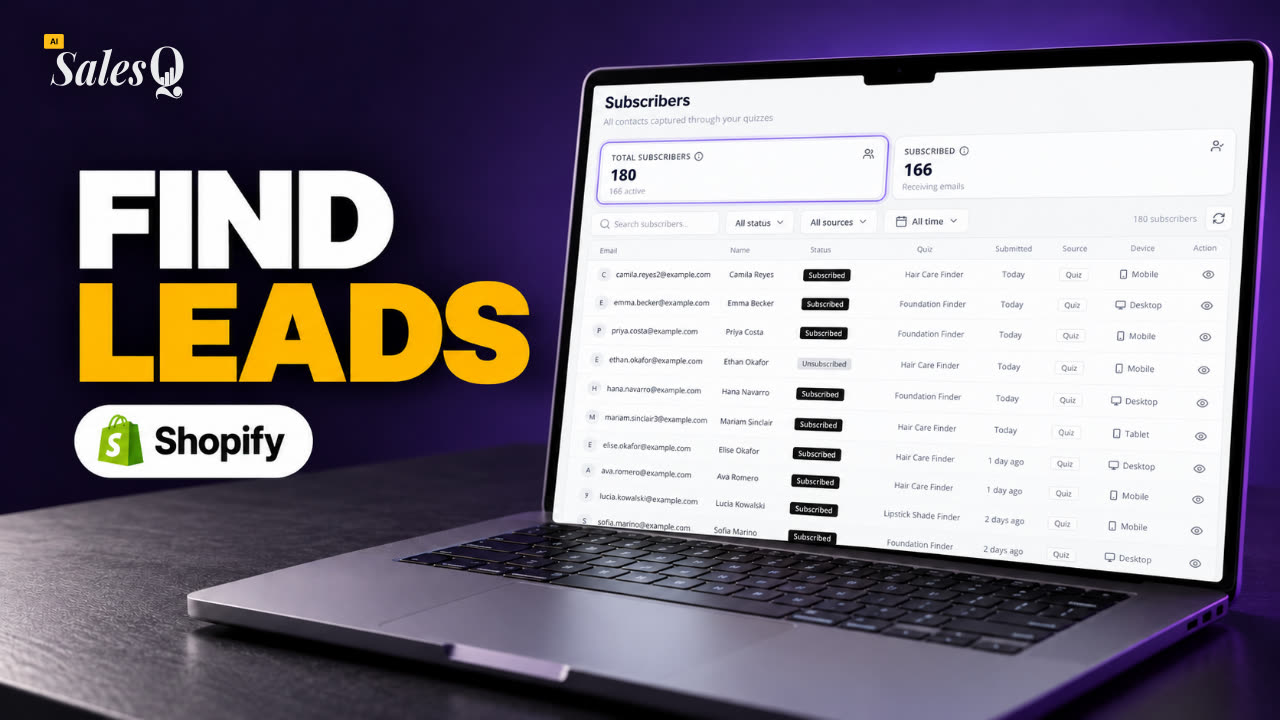 1:46Shopify Quiz Subscribers: Search, Filter & View Profiles
- 18
 1:45Shopify Quiz Analytics: Track Revenue, Conversions & Emails
- 19
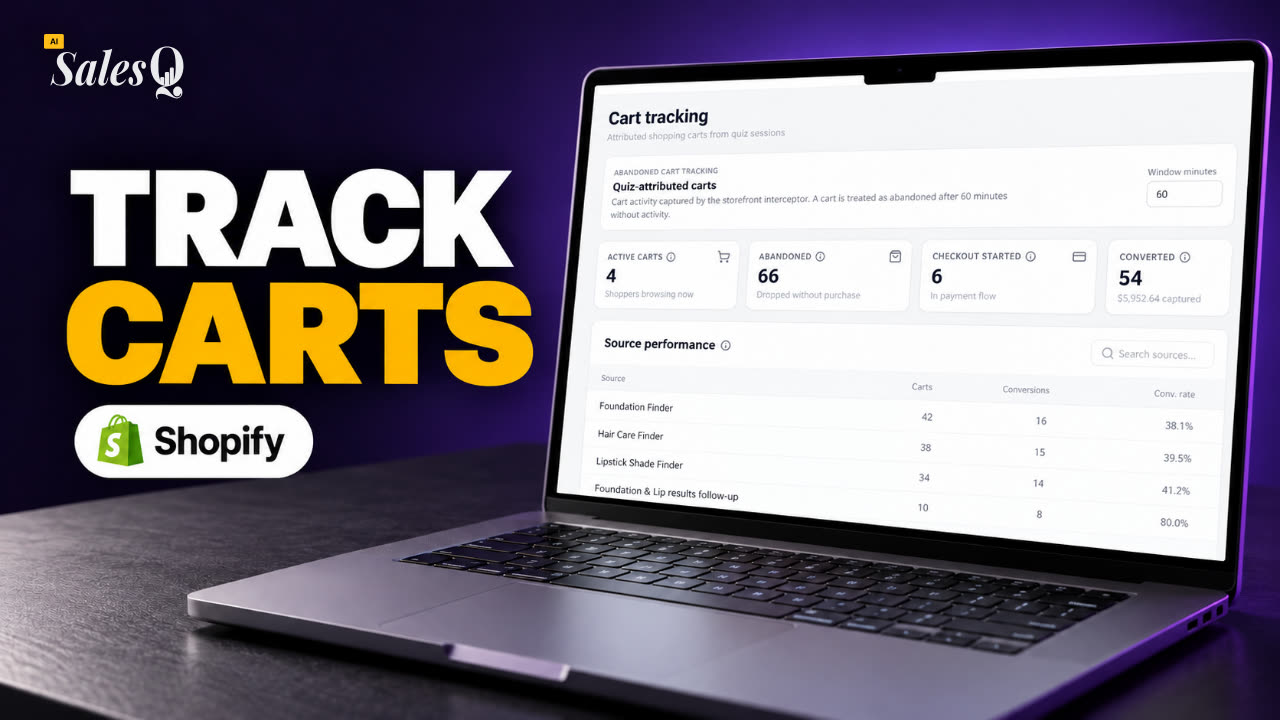 1:44Shopify Abandoned Cart Tracking for Quiz Shoppers
- 20
 1:42Klaviyo Shopify Integration: Send Quiz Subscribers to Klaviyo
- 21
 1:43Best Shopify Quiz App Pricing: AI Sales Quiz Builder Plans Compared
Learn more
Related articles
- Create your first quizStart a quiz from a template or a blank page, add your questions, connect the answers to products, then save and preview it.→
- Results and productsBuild the pages shoppers see at the end of the quiz, and choose how products are picked: one page per outcome, or products attached to each answer.→
- Discount codesEvery new quiz gives shoppers a Shopify discount code when they finish. Change the offer, show the code on the result page, or turn it off.→
Was this page helpful?
Still need help?
Can't find what you need? Talk to the people who build the app.