Quiz builder
Offer a discount code on results
Every new quiz gives shoppers a Shopify discount code when they finish. Change the offer, show the code on the result page, or turn it off.
5 min read·Updated October 20, 2026·All plans
In the appSalesQ/Quizzes/Edit/Discount
In this guide
- 01Change the discount type, value and code prefix
- 02Turn the quiz discount off
- 03Show the code on the result page and apply it at checkout
- 04Decide what happens when a shopper takes the quiz again
Before you start
- –A quiz with a result page. See Create your first quiz
- –A way to collect emails. See Capture emails in your quiz
When a shopper finishes your quiz and gives their email, AISalesQ creates a discount code for them in Shopify. Each shopper gets their own code. You can show it on the result page, apply it at checkout and add it to your follow-up emails.
Change or turn off the discount
- 1
Open the Discount tab
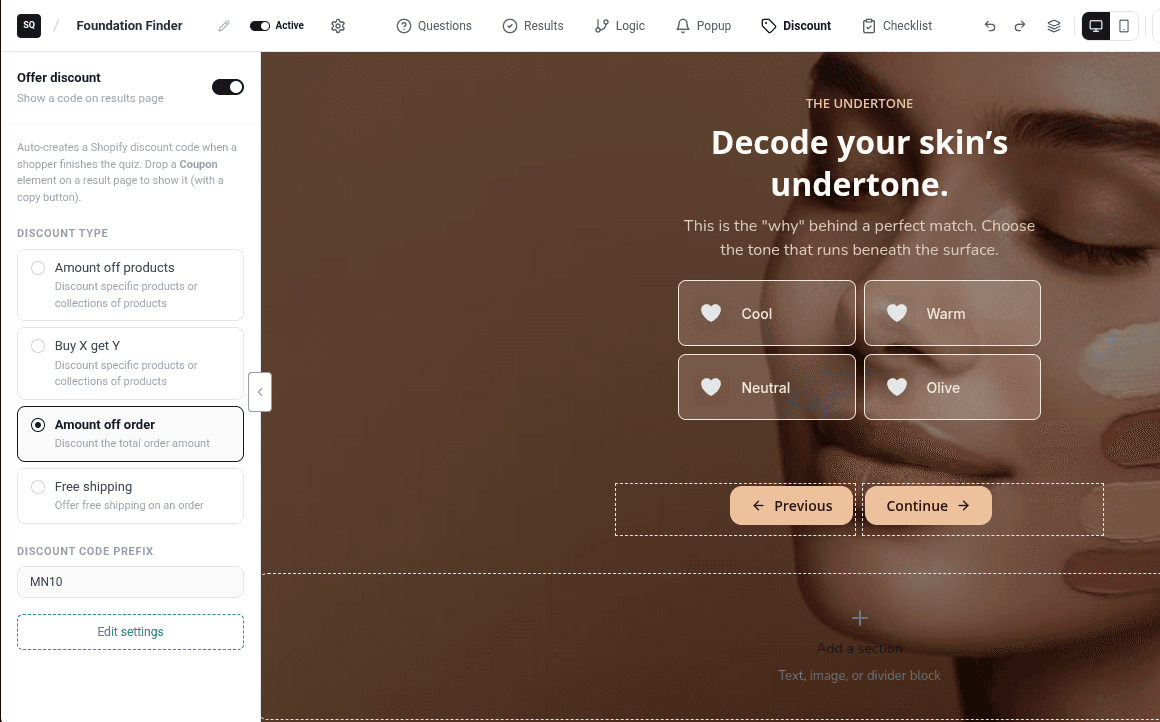
In the quiz editor, click Discount in the top bar. The panel shows Offer discount with its switch, and the Discount type cards.
- 2
Turn it off, if you prefer
Switch Offer discount off and click Save. The quiz stops creating codes.
- 3
Or pick a discount type
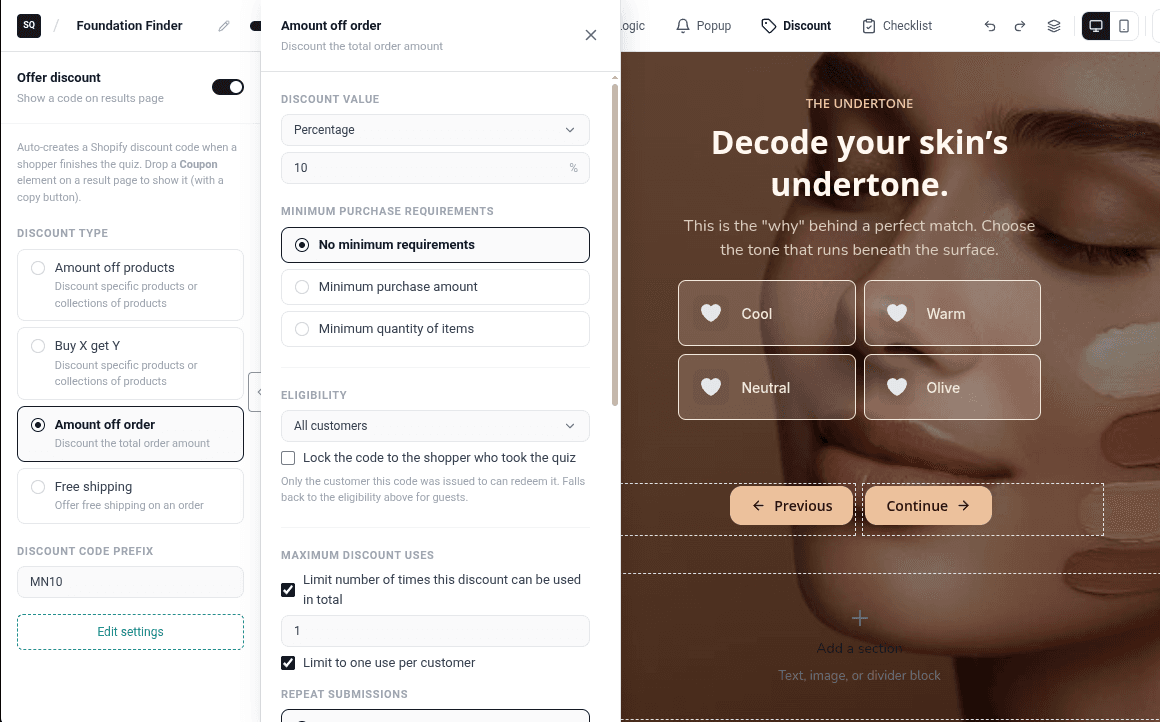
Click a Discount type card. Its settings open in a second panel next to it. Click Edit settings to open it again later.
- 4
Set the offer
Fill in the settings for that type, described below. Then click Save.
| Discount type | What the shopper gets |
|---|---|
| Amount off order | A percentage or fixed amount off the whole order. This is the default. |
| Amount off products | A discount on chosen products or collections, or on the products the quiz recommended. |
| Buy X get Y | A free or discounted item when they buy a set quantity or amount. |
| Free shipping | Free shipping to all or selected countries. |
Discount settings
| Setting | What it does | Default |
|---|---|---|
| Discount code prefix | The start of every code. Letters and numbers only, up to 12 characters. Codes look like QUIZ- followed by 10 characters. | QUIZ |
| Discount value | Percentage or Fixed amount. | 10% |
| Applies to | For Amount off products: Specific products or Specific collections, or turn on Use the shopper's recommended products. | All items |
| Minimum purchase requirements | No minimum requirements, Minimum purchase amount or Minimum quantity of items. | No minimum |
| Eligibility | All customers or Specific customer segments. Turn on Lock the code to the shopper who took the quiz so only they can use it. | All customers |
| Maximum discount uses | How many times each code can be used, and Limit to one use per customer. | 1 use, one per customer |
| Combinations | Whether the code combines with other Product discounts, Order discounts or Shipping discounts. | None |
| Active dates | When the code starts and ends. Choose Expires a number of days after the shopper takes the quiz or Expires on a fixed date. | Starts when issued, no end date |
When a shopper takes the quiz again
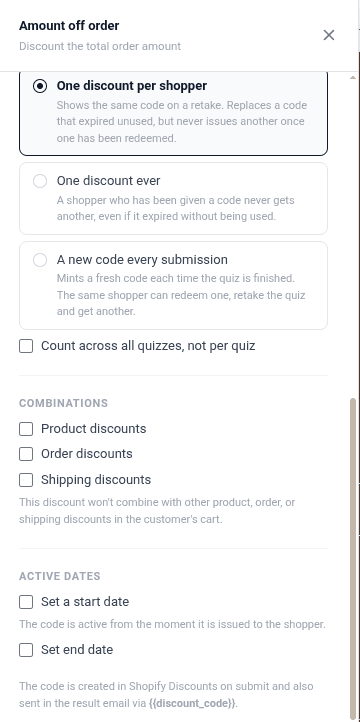
Under Repeat submissions, choose what a returning shopper gets:
| Option | What happens |
|---|---|
| One discount per shopper (default) | They see the same code again. If it expired unused, they get a new one. Once they've used a code, they don't get another. |
| One discount ever | A shopper who was given a code never gets another, even if it expired unused. |
| A new code every submission | They get a fresh code every time they finish the quiz. |
These rules count per quiz. Turn on Count across all quizzes, not per quiz to apply them across every quiz in your store.
Show the code to shoppers
- 1
Add a Coupon element
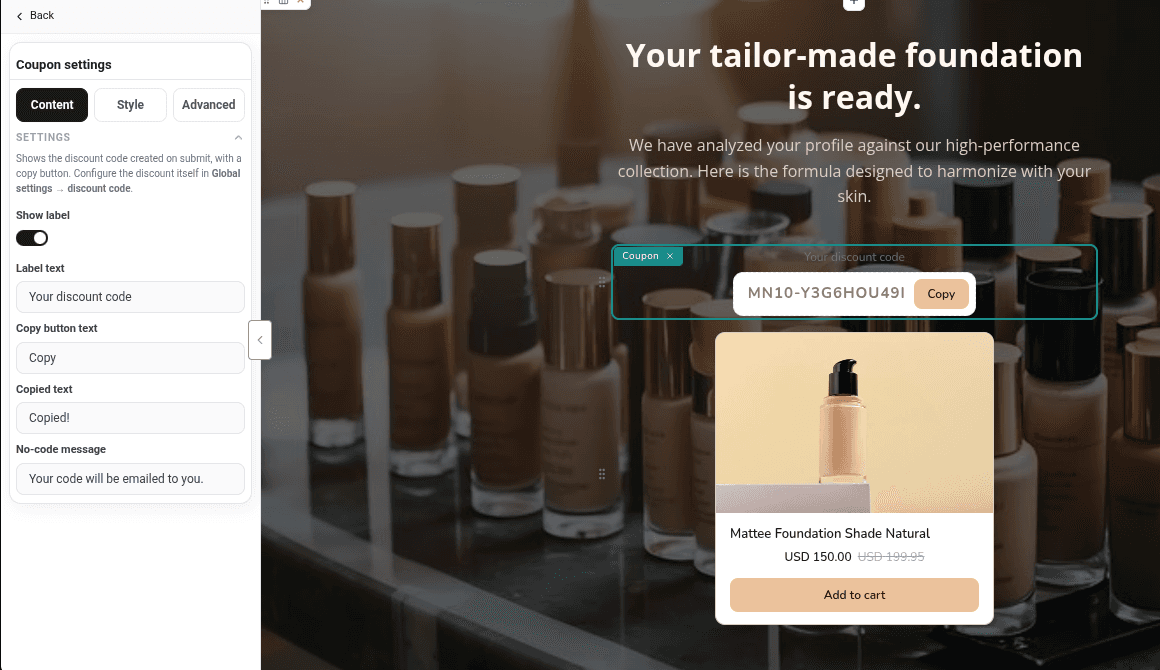
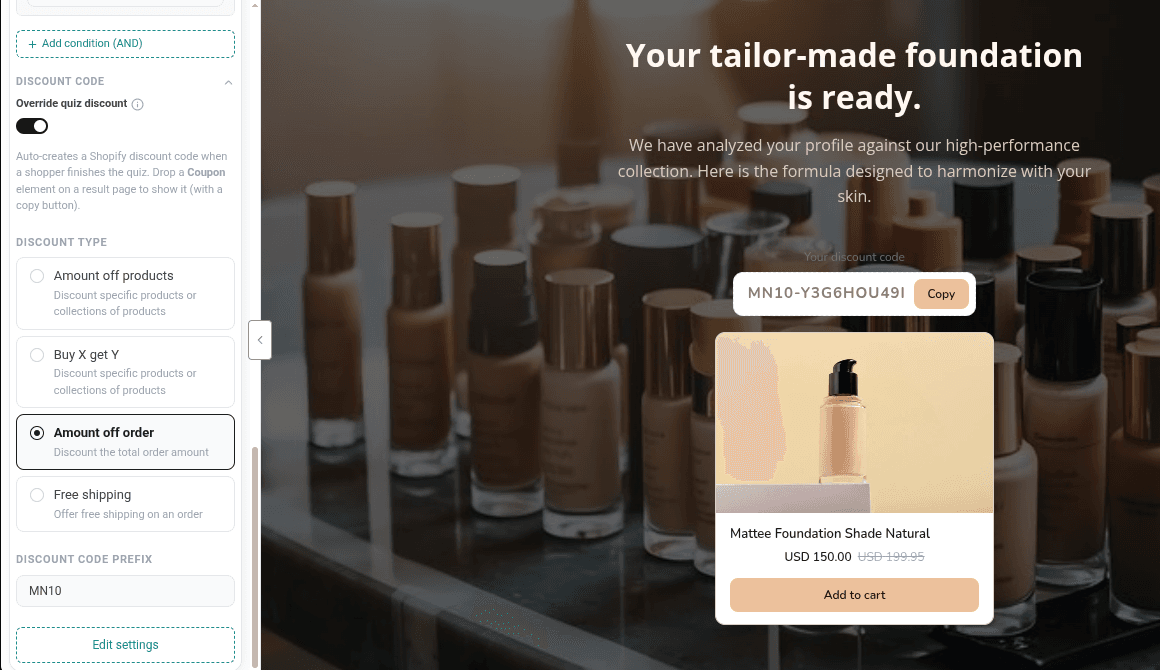
Open Results, click the Elements sub-tab and drag Coupon onto each result page. New result pages don't include one, so add it yourself.
- 2
Set its text
Click the coupon to change Label text (default Your discount code), Copy button text, Copied text and No-code message, which shows when there's no code to display.
- 3
Apply it at checkout
The Cart/checkout button on the result page applies the shopper's code for them, so they don't need to copy it.
- 4
Send it by email
Add {{discount_code}} to a follow-up email to include the code. See Personalise emails with merge tags.
Use a different discount on one result page
- 1
Open the result page settings
In Results, click Settings on the page's row and scroll to Discount code.
- 2
Override the quiz discount
Turn on Override quiz discount. The full discount form appears and applies only to this result page.
Good to know
- Codes are created only when a shopper finishes the quiz on your store and gives an email. Preview never creates a code, so test on your storefront.
- Each code appears in your Shopify admin under Discounts.
- If you change the discount settings, a shopper who still holds an unused code gets a new code with the new terms the next time they finish the quiz.
- With Answer mapping, a code is only created when at least one of the shopper's answers has a recommendation.
Video tutorials
Watch the series in order, or jump to the one you need.
- 01
 1:32How to Install a Shopify Quiz App: AI Sales Quiz Builder Setup & Tour
- 02
 1:38How to Create a Product Recommendation Quiz on Shopify (Step by Step)
- 03
 1:44Shopify Quiz Templates: Build a Product Quiz in Minutes
- 04
 1:48How to Add a Quiz to Your Shopify Store (Publish & Embed)
- 05
 1:56Shopify Quiz Popup: Triggers, Timing & Page Targeting
- 06
 1:44Shopify Quiz Logic & Branching: Send Shoppers to the Right Product
- 07
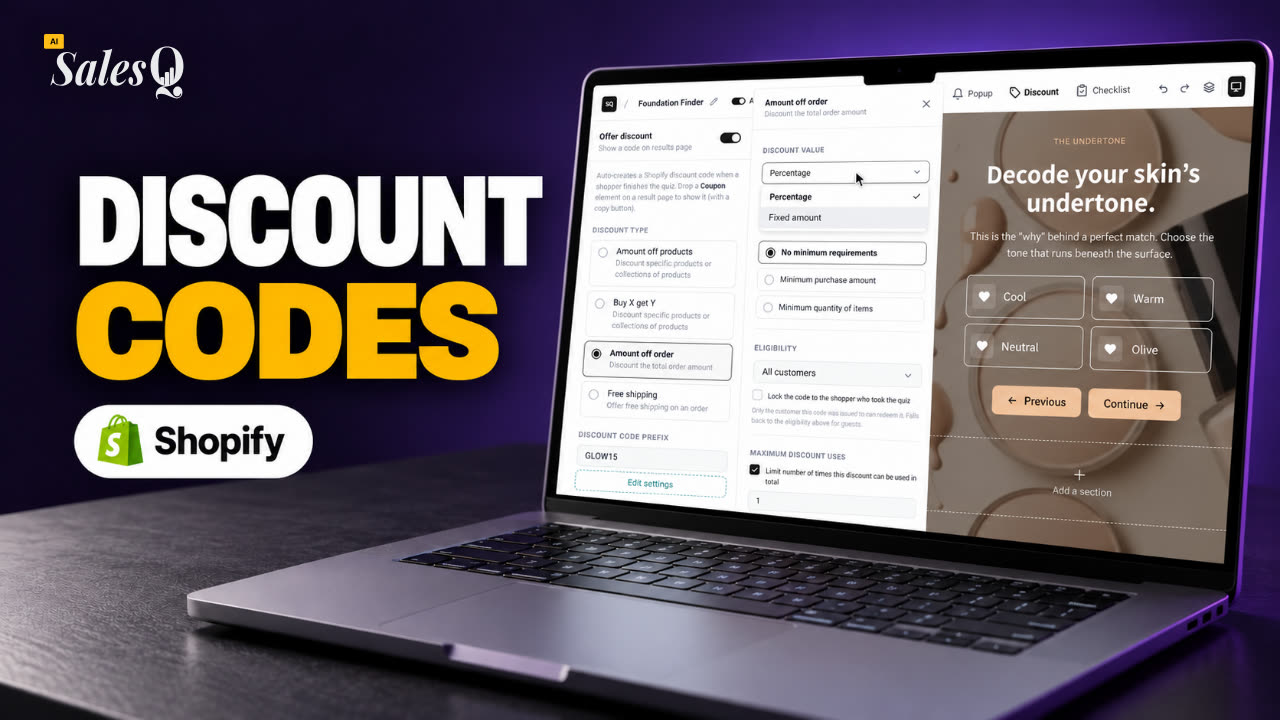 1:42Shopify Quiz Discount Codes: Unique Codes That ConvertNow playing
- 08
 1:44Shopify Email Marketing: Create a Quiz Follow-Up Email
- 09
 1:36Shopify Email Templates for Quiz Follow-Ups (Ready to Use)
- 10
 1:51Shopify Email Builder Tutorial: Drag-and-Drop Blocks
- 11
 1:49Personalize Shopify Emails With Quiz Answers (Merge Tags)
- 12
 1:32Shopify Email Automation: Quiz Follow-Up Flow Step by Step
- 13
 1:29Manage Shopify Email Automations: Pause, Resume & Edit Flows
- 14
 1:41Shopify Email Sending Limits Explained (Quiz Emails)
- 15
 1:31Send Shopify Emails From Your Own SMTP Server
- 16
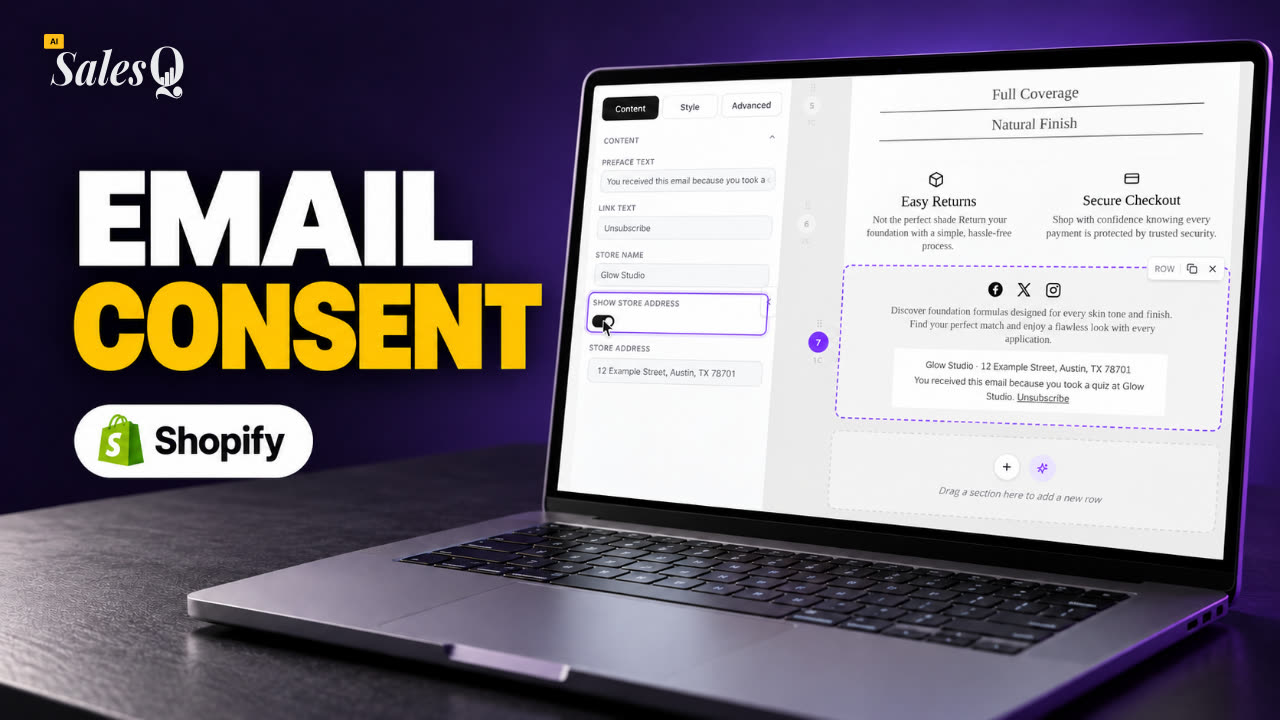 1:43Shopify Email Consent & Unsubscribe Link Explained
- 17
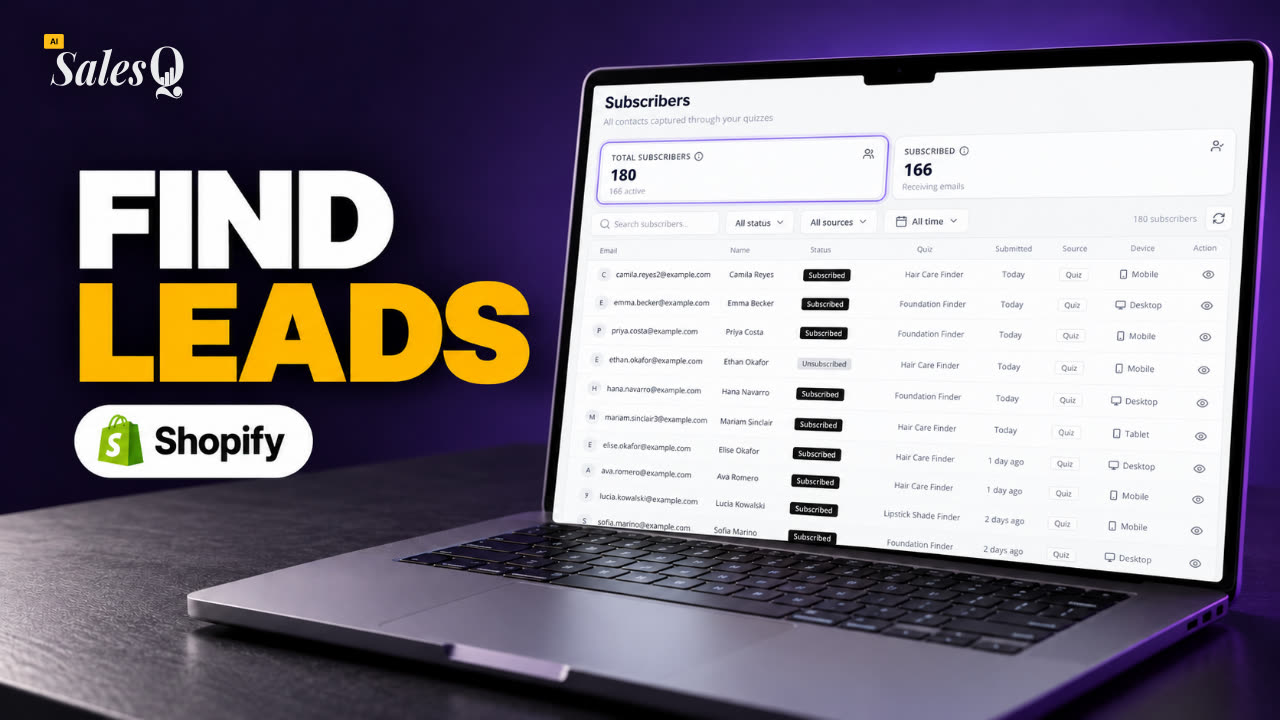 1:46Shopify Quiz Subscribers: Search, Filter & View Profiles
- 18
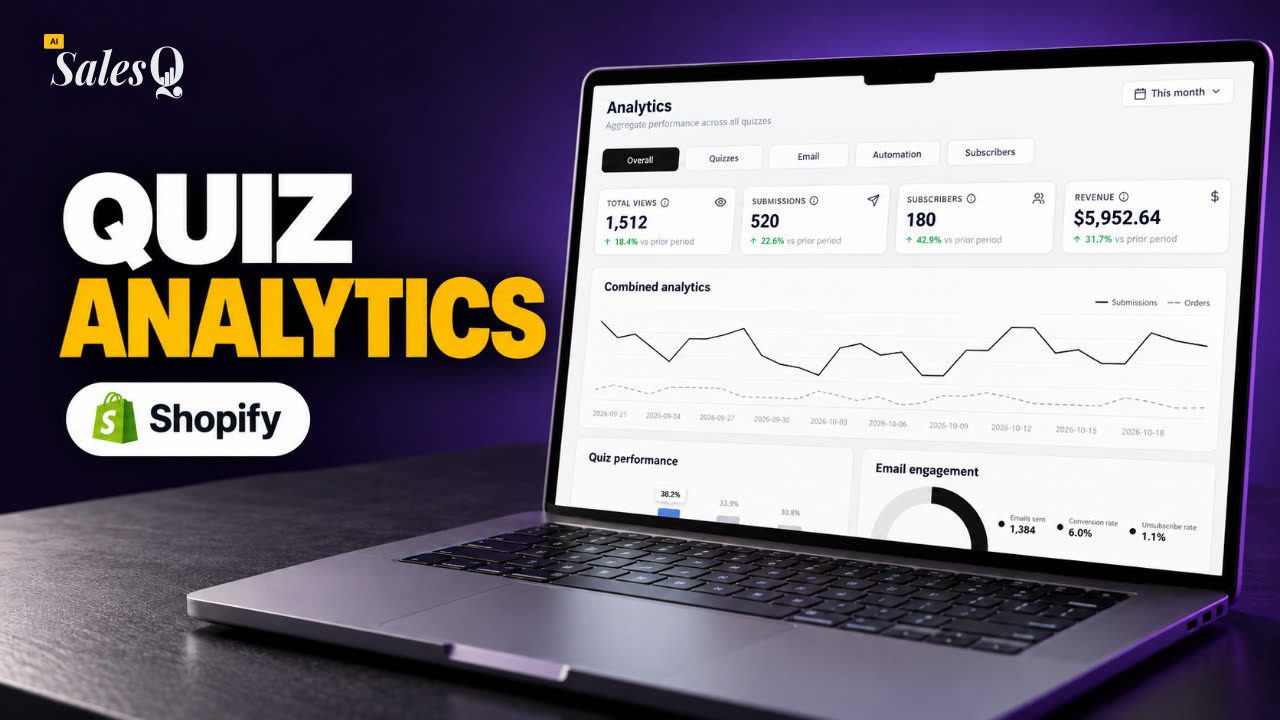 1:45Shopify Quiz Analytics: Track Revenue, Conversions & Emails
- 19
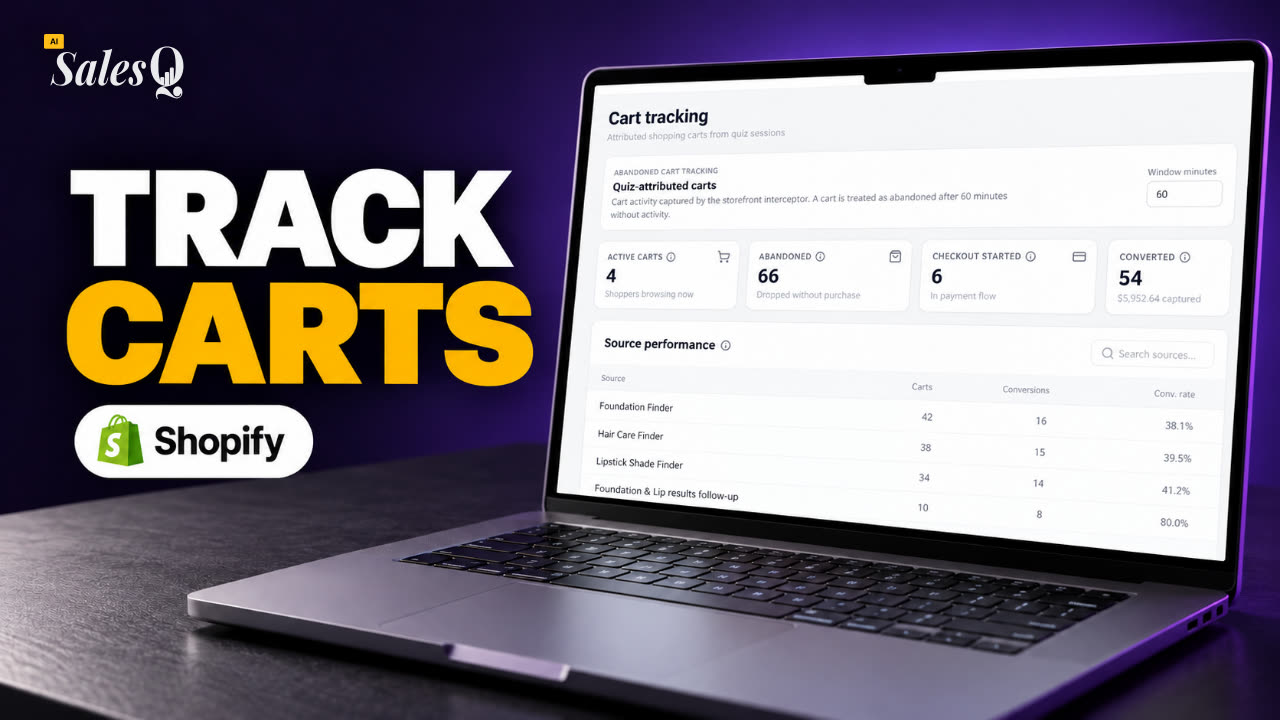 1:44Shopify Abandoned Cart Tracking for Quiz Shoppers
- 20
 1:42Klaviyo Shopify Integration: Send Quiz Subscribers to Klaviyo
- 21
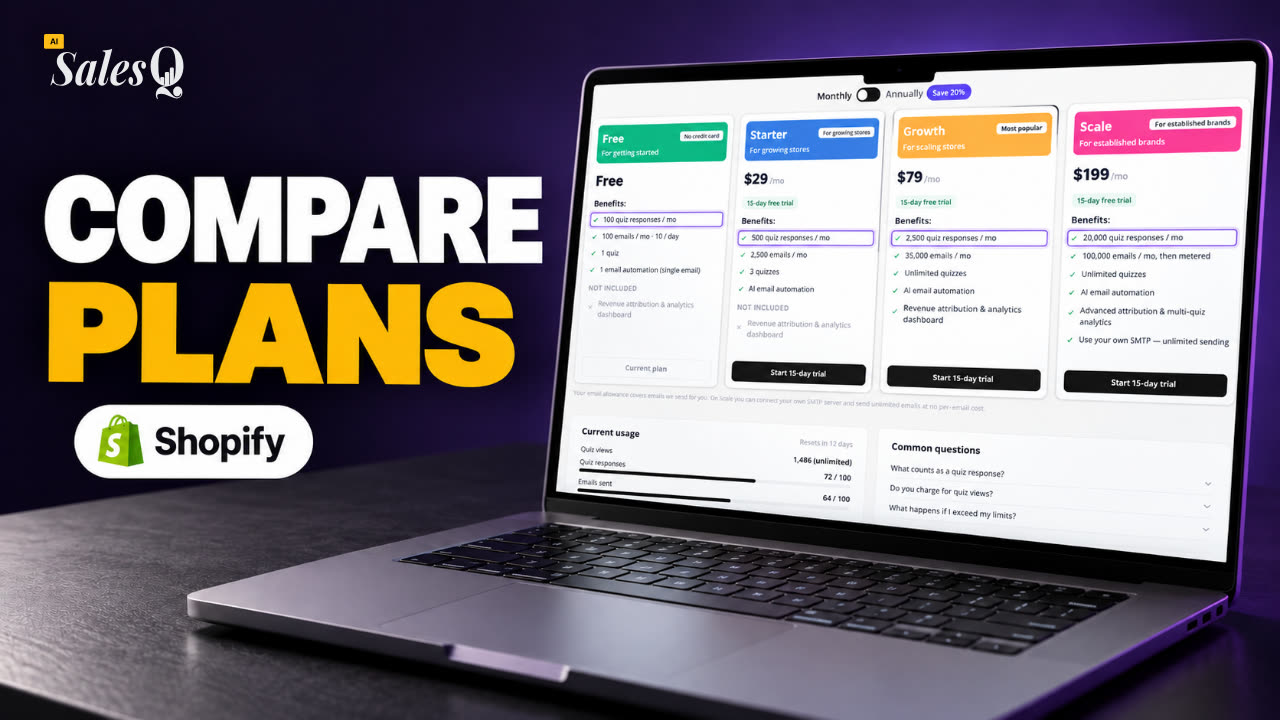 1:43Best Shopify Quiz App Pricing: AI Sales Quiz Builder Plans Compared
Learn more
Related articles
- Results and productsBuild the pages shoppers see at the end of the quiz, and choose how products are picked: one page per outcome, or products attached to each answer.→
- Capture emailsAdd an email page before the result, or ask for the email inside a question, and collect names, phone numbers and marketing consent.→
- Personalise emailsAdd the shopper's name, quiz result, discount code and recommended products to an email, filled in for each shopper when it sends.→
Was this page helpful?
Still need help?
Can't find what you need? Talk to the people who build the app.