Subscribers & analytics
Track quiz carts and abandoned carts
See the carts shoppers start after a quiz, which ones were abandoned or converted, and which quizzes they came from.
3 min read·Updated October 20, 2026·All plans
In the appSalesQ/Carts
In this guide
- 01Read the cart statuses and the four summary cards
- 02Choose when a cart counts as abandoned
- 03See which quizzes and emails bring in carts
- 04Open or delete a single cart
Before you start
- –The AISalesQ app embed switched on in your theme. See Install AISalesQ.
- –A published quiz on your store. See Publish your quiz on your store.
The Carts page follows what happens after a shopper takes your quiz: what they add to their cart, whether they start checkout and whether they buy. It's available on every plan.
What is tracked
While the AISalesQ app embed is on in your theme, it records cart activity on your storefront: adding and changing items, emptying the cart and starting checkout. When the shopper came through one of your quizzes, follow-up emails or campaigns, the cart is linked to that source. When a paid order comes in for that cart, the cart is marked as converted.
Open cart tracking
- 1
Go to Carts
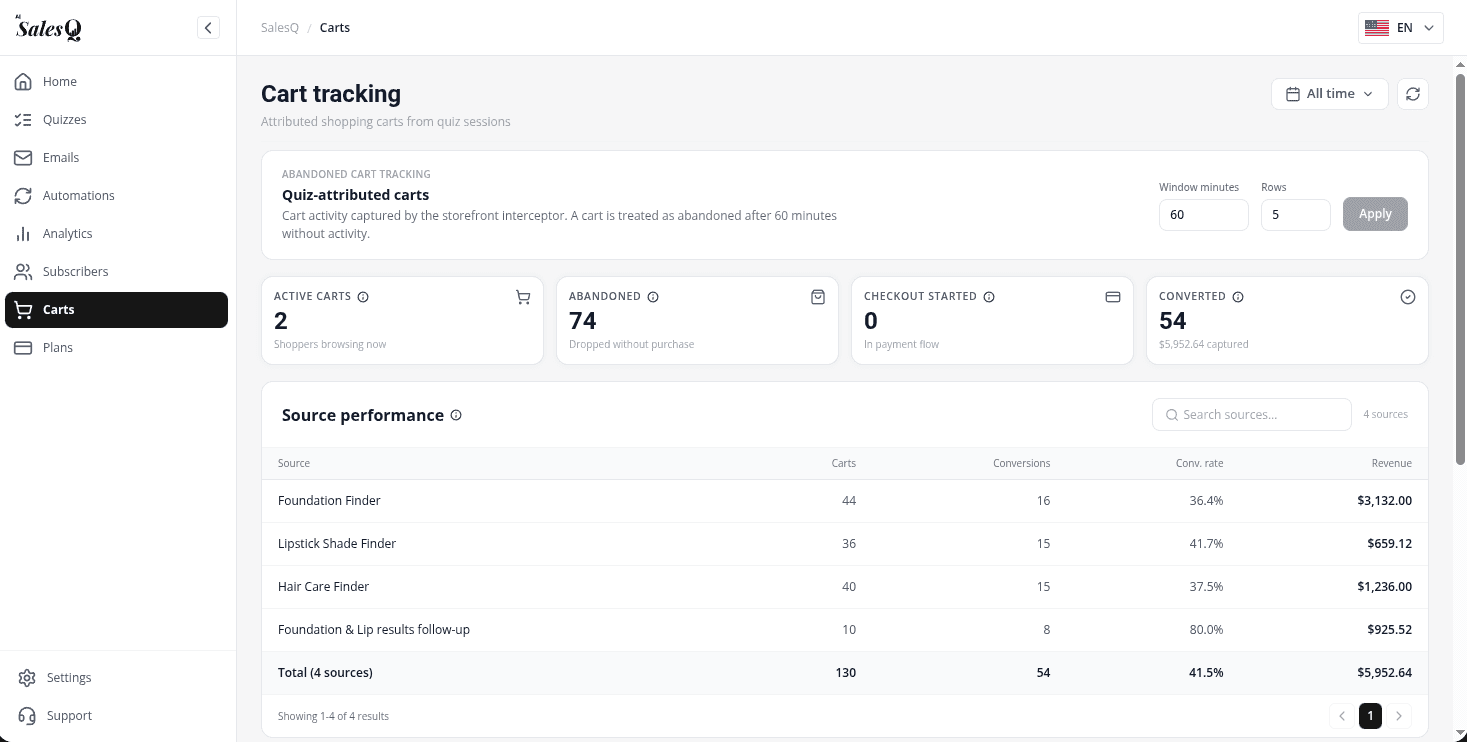
Click Carts in the app menu. The page is called Cart tracking.
- 2
Pick a date range
Use the date menu at the top to limit everything on the page to a period. It shows All time by default.
- 3
Read the four cards
Active carts are shoppers browsing now. Abandoned carts went idle without a purchase. Checkout started carts are in Shopify checkout but not paid yet. Converted carts became orders, with the revenue they brought in.
Cart statuses
| Status | Meaning |
|---|---|
| Active | The shopper has recently added or changed items. |
| Checkout started | The shopper began Shopify checkout but hasn't paid yet. |
| Abandoned | An active or checkout-started cart with no order and no activity for longer than the abandonment window. |
| Converted | The cart became a paid order. |
| Cleared | The shopper emptied the cart. |
Set when a cart counts as abandoned
- 1
Find the settings panel
Under Abandoned cart tracking, the panel explains how long a cart can sit without activity before it counts as abandoned. The default is 60 minutes.

- 2
Change the window
Enter a number between 15 and 10,080 (one week) in Window minutes. You can also change how many carts each table shows per page in Rows.
- 3
Apply
Click Apply. The cards and tables recalculate with the new window.
See which quizzes bring in carts
The Source performance table groups carts by the quiz, automation or campaign they came from, with Carts, Conversions, Conv. rate and Revenue for each, plus a total row. Carts that couldn't be linked to a source are grouped under Unattributed. Use Search sources… to find one source.
Look at individual carts
- 1
Find a cart
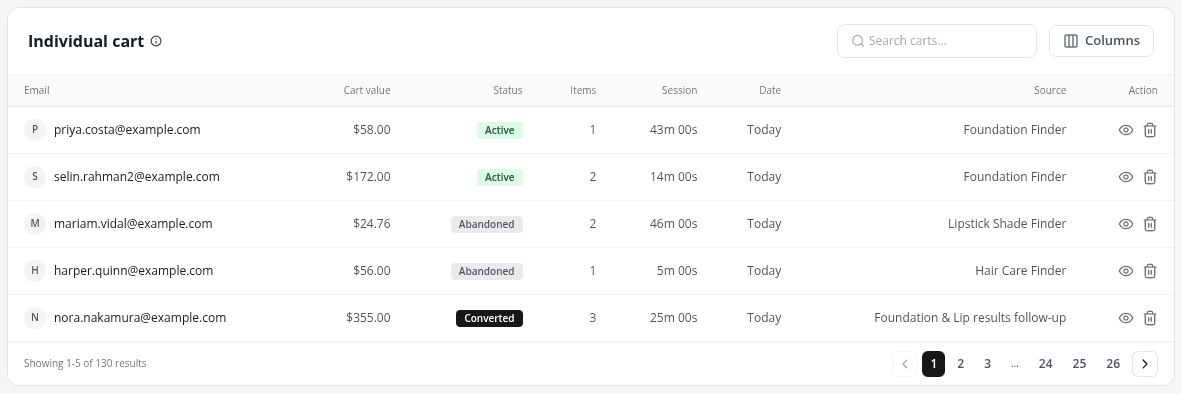
In the Individual cart table, type in Search carts… to find a cart by email, phone, name or source.
- 2
Choose columns
Click Columns to show or hide Cart value, Status, Items, Session, Date, Source, Customer and Location. Your choice is remembered in this browser.
- 3
Open a cart
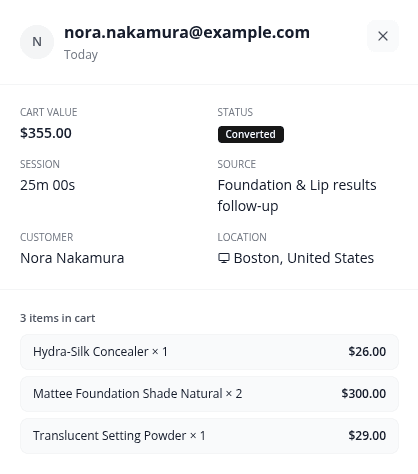
Click View on a row to see the cart's value, status, session length, source, customer, location and every item in it.
- 4
Delete a cart record
To remove a cart from the list, click the bin icon and confirm with Delete. This can't be undone.
Video tutorials
Watch the series in order, or jump to the one you need.
- 01
 1:32How to Install a Shopify Quiz App: AI Sales Quiz Builder Setup & Tour
- 02
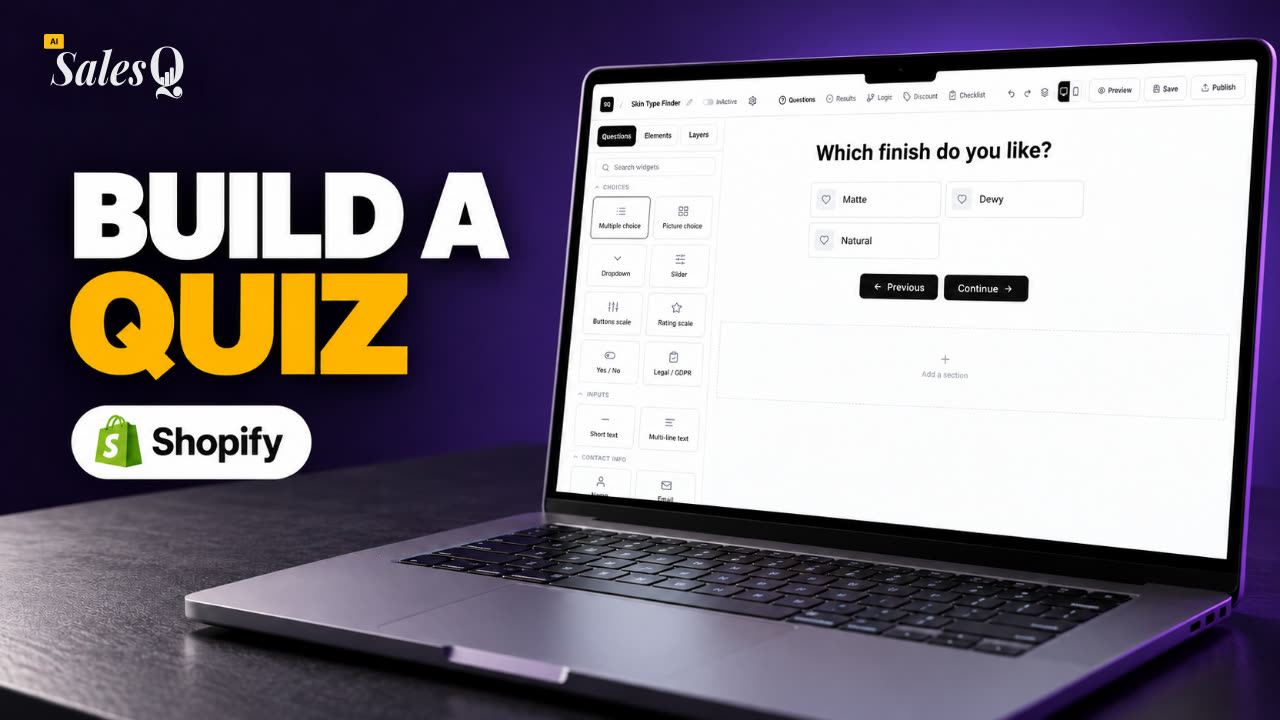 1:38How to Create a Product Recommendation Quiz on Shopify (Step by Step)
- 03
 1:44Shopify Quiz Templates: Build a Product Quiz in Minutes
- 04
 1:48How to Add a Quiz to Your Shopify Store (Publish & Embed)
- 05
 1:56Shopify Quiz Popup: Triggers, Timing & Page Targeting
- 06
 1:44Shopify Quiz Logic & Branching: Send Shoppers to the Right Product
- 07
 1:42Shopify Quiz Discount Codes: Unique Codes That Convert
- 08
 1:44Shopify Email Marketing: Create a Quiz Follow-Up Email
- 09
 1:36Shopify Email Templates for Quiz Follow-Ups (Ready to Use)
- 10
 1:51Shopify Email Builder Tutorial: Drag-and-Drop Blocks
- 11
 1:49Personalize Shopify Emails With Quiz Answers (Merge Tags)
- 12
 1:32Shopify Email Automation: Quiz Follow-Up Flow Step by Step
- 13
 1:29Manage Shopify Email Automations: Pause, Resume & Edit Flows
- 14
 1:41Shopify Email Sending Limits Explained (Quiz Emails)
- 15
 1:31Send Shopify Emails From Your Own SMTP Server
- 16
 1:43Shopify Email Consent & Unsubscribe Link Explained
- 17
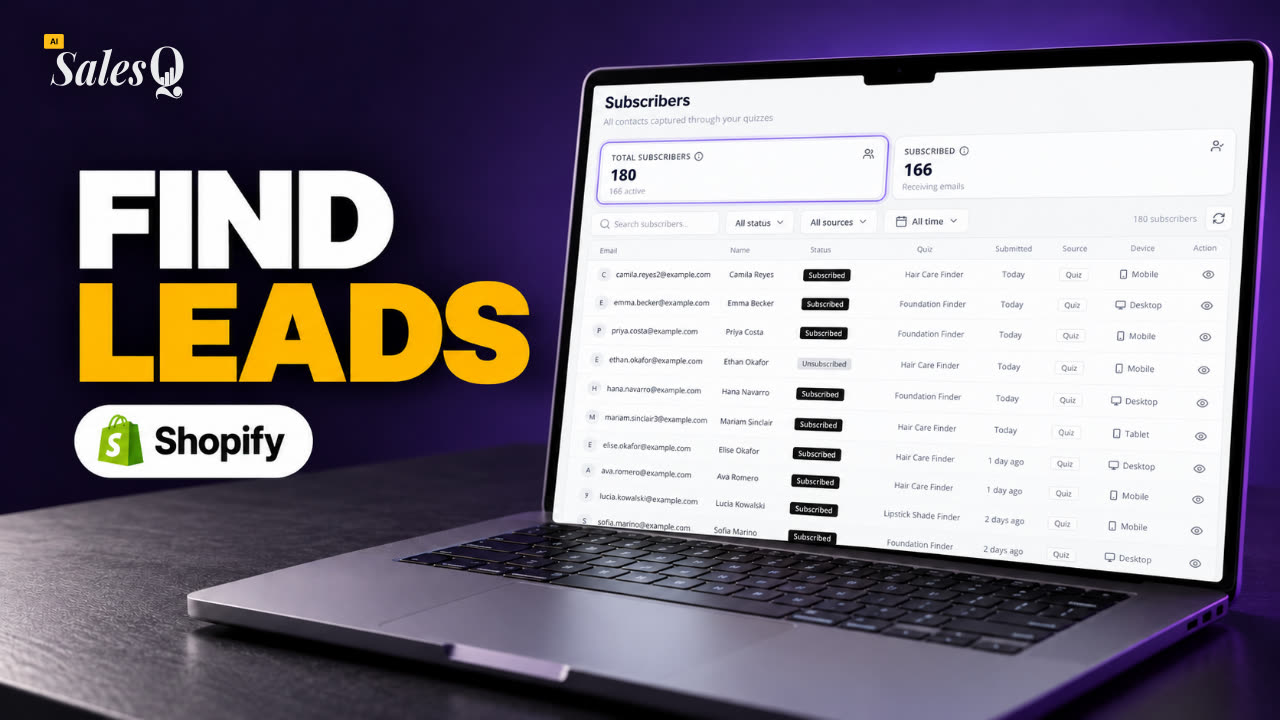 1:46Shopify Quiz Subscribers: Search, Filter & View Profiles
- 18
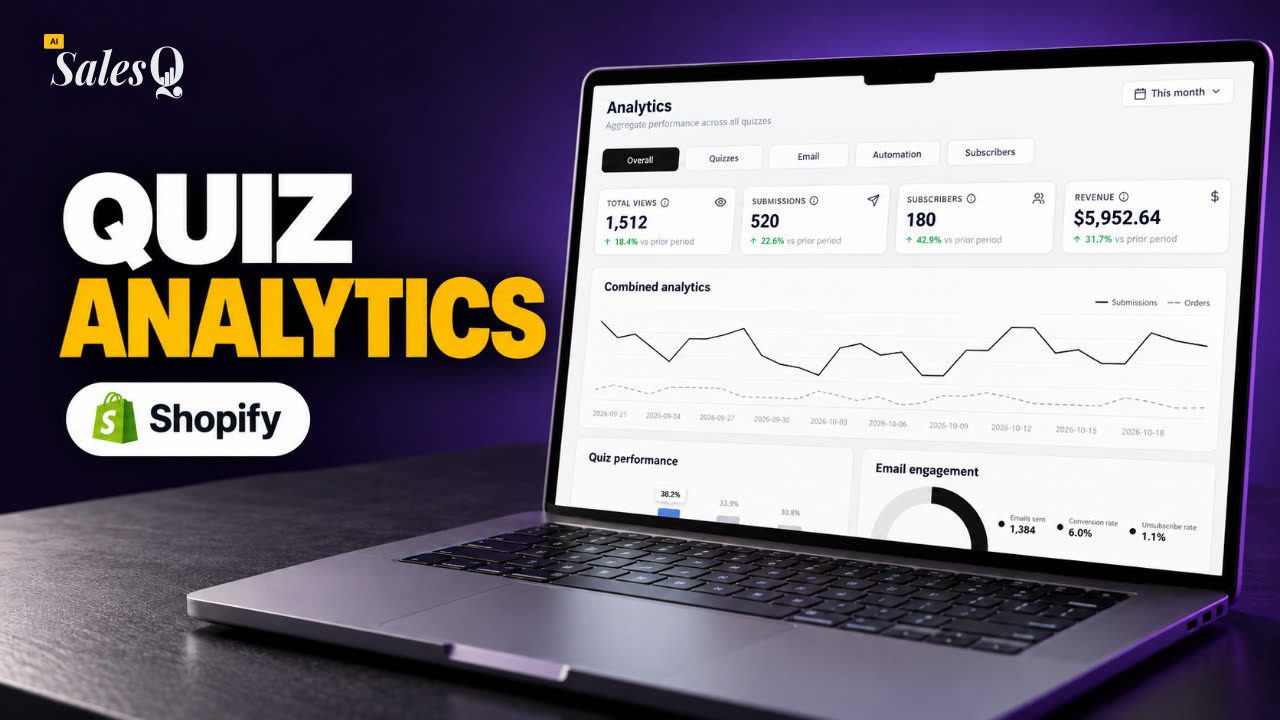 1:45Shopify Quiz Analytics: Track Revenue, Conversions & Emails
- 19
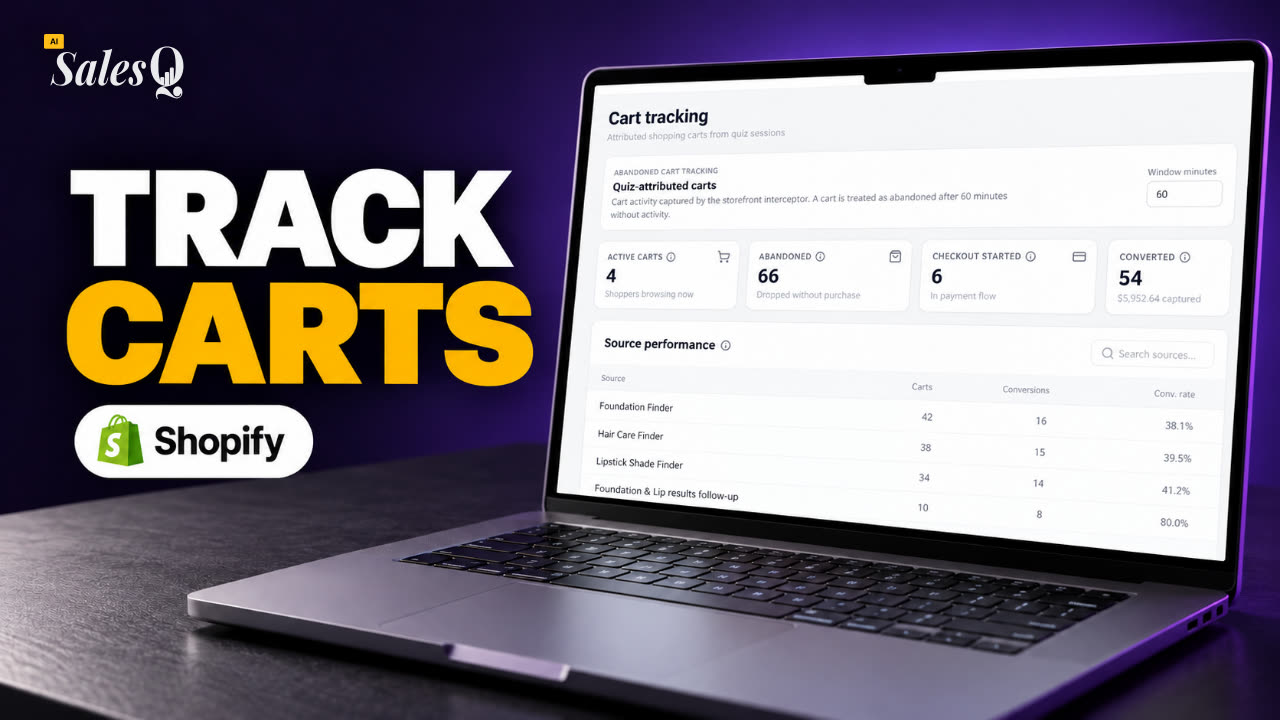 1:44Shopify Abandoned Cart Tracking for Quiz ShoppersNow playing
- 20
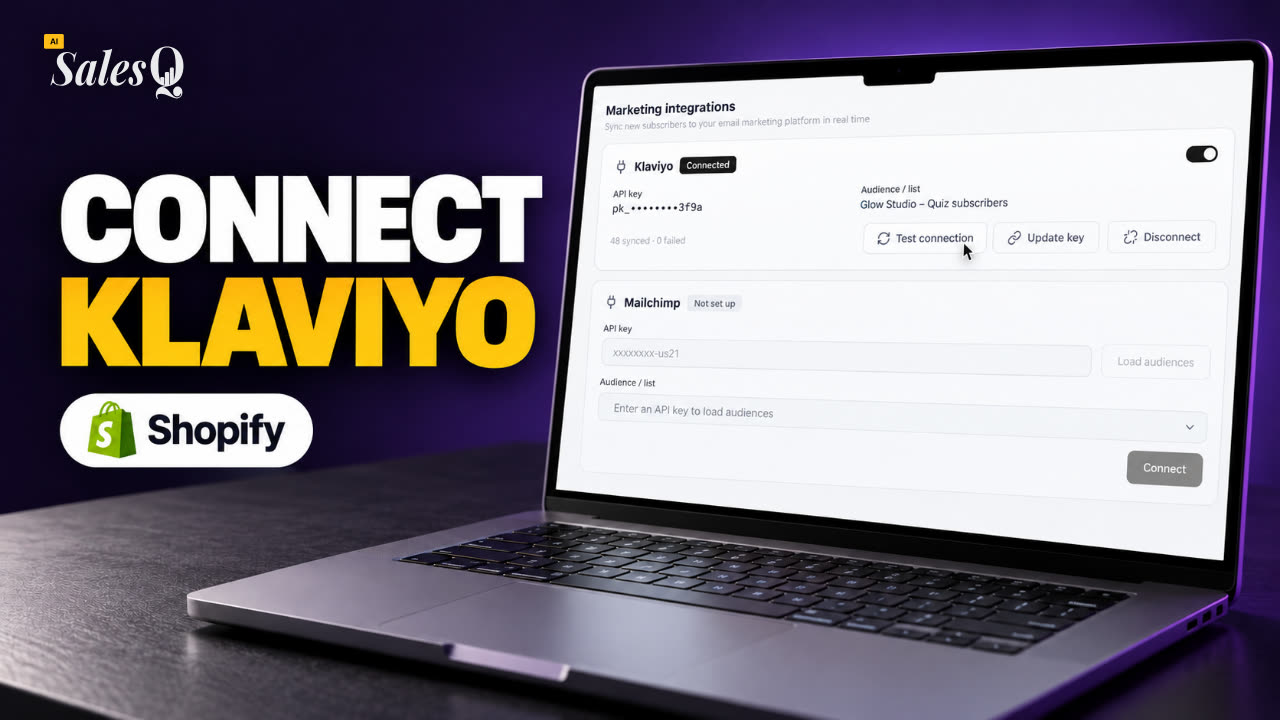 1:42Klaviyo Shopify Integration: Send Quiz Subscribers to Klaviyo
- 21
 1:43Best Shopify Quiz App Pricing: AI Sales Quiz Builder Plans Compared
Learn more
Related articles
- Revenue attributionHow AISalesQ decides which orders and revenue to credit to a quiz, and where you'll see those numbers in the app.→
- Quiz performance on HomeCompare all your quizzes on the Home page: views, submissions, subscribers, carts, orders, revenue and products sold.→
- Per-quiz analyticsOpen one quiz's analytics to see its views, submissions, revenue and products sold, read each response and export them as a CSV file.→
Was this page helpful?
Still need help?
Can't find what you need? Talk to the people who build the app.