Subscribers & analytics
A subscriber's profile: answers, consent and Shopify data
See a subscriber's quiz answers, discount codes, marketing consent and Shopify orders, and unsubscribe or re-subscribe them.
3 min read·Updated October 20, 2026·All plans
In the appSalesQ/Subscribers/View
In this guide
- 01Read a subscriber's quiz answers and discount codes
- 02See their Shopify orders, spend and marketing consent
- 03Unsubscribe or re-subscribe a contact
- 04Retry a failed Shopify sync
Before you start
- –At least one subscriber. See View and filter your quiz subscribers.
Each subscriber has a profile that brings together what they told your quiz and what Shopify knows about them as a customer. You can also change their email consent from here.
Open a profile
- 1
Find the subscriber
Go to Subscribers and search for the contact. See View and filter your quiz subscribers.
- 2
Open it
Click their row or View. The profile slides in from the right. Press Esc or click outside it to close it.
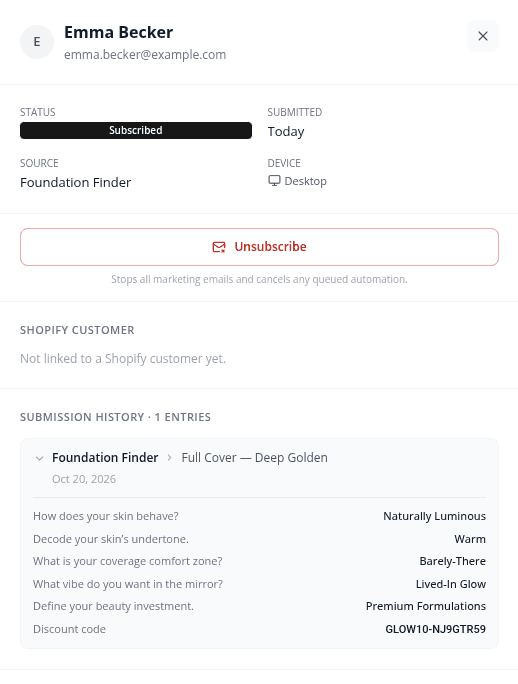
At the top you'll see the contact's name or email and phone number, followed by their Status, when they Submitted, the Source (the quiz that captured them) and their Device.
Quiz answers and discount codes
Submission history lists every time this contact completed one of your quizzes, newest first. The latest one is open; click any other entry to expand it.
- The quiz name and the result they reached, with the date.
- Each question with the answer they chose.
- The Discount code the quiz gave them, if it gave one.
- An Ordered label when that shopper went on to place a paid order after getting the quiz discount code.
Shopify customer data
When a shopper submits a quiz, AISalesQ finds the matching customer in Shopify by email or phone, or creates one. The Shopify customer section then shows live details from Shopify:
| Field | What it shows |
|---|---|
| Orders | How many orders the customer has placed in your store. |
| Total spent | What they've spent in total. |
| Email marketing | Their email marketing consent in Shopify: Subscribed, Unsubscribed or Not subscribed. |
| SMS marketing | Their SMS marketing consent in Shopify. |
| Location | City, region and country. |
| Customer since | When the customer was created in Shopify. |
| Tags | The customer's Shopify tags. |
Below it, Last order shows their most recent order with its total, date and items. It's hidden if the customer hasn't ordered yet. Click View in Shopify at the top of the profile to open the customer in your Shopify admin.
If the contact has used more than one email address or phone number in your quizzes, the extra ones are listed under Also seen as.
How marketing consent works
- When a shopper submits their details, AISalesQ records their marketing consent on their Shopify customer, as a single opt-in.
- If your quiz has a consent checkbox and the shopper leaves it unticked, no consent is recorded.
- If you change a customer's marketing consent in Shopify, the change is copied back to their subscriber status in AISalesQ.
- If a contact unsubscribes using the link in one of your emails, their status changes to Unsubscribed here and in Shopify.
Unsubscribe or re-subscribe a contact
- 1
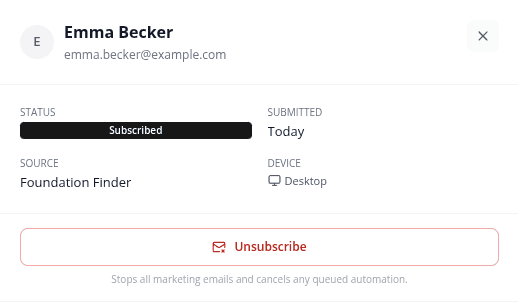
Click Unsubscribe
In the profile of a subscribed contact, click Unsubscribe.
- 2
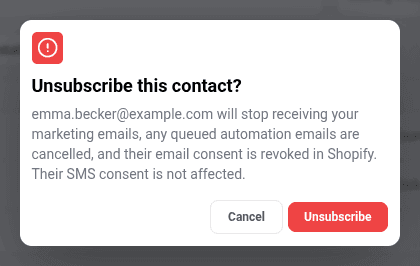
Confirm
Read the confirmation and click Unsubscribe. The contact stops receiving your marketing emails, any queued automation emails are cancelled and their email consent is removed in Shopify. Their SMS consent doesn't change.
- 3
Re-subscribe if needed
For an unsubscribed contact, the button reads Re-subscribe. Click it and confirm to turn their marketing emails back on and update their consent in Shopify.
If you've connected Klaviyo or Mailchimp, the change is sent there too. See Connect Klaviyo and Connect Mailchimp.
Learn more
Related articles
- View subscribersFind everyone who left their email or phone number in a quiz, and narrow the list by status, source and date.→
- Revenue attributionHow AISalesQ decides which orders and revenue to credit to a quiz, and where you'll see those numbers in the app.→
- Connect KlaviyoSend new quiz subscribers to a Klaviyo list automatically, and check, pause or disconnect the connection.→
Was this page helpful?
Still need help?
Can't find what you need? Talk to the people who build the app.