Quiz builder
A tour of the quiz editor
What each part of the quiz editor does: the top bar, the six tabs, the left panel and the canvas.
4 min read·Updated October 20, 2026·All plans
In the appSalesQ/Quizzes/Edit
In this guide
- 01Find your way around the editor's top bar and tabs
- 02Use the left panel to add questions and change settings
- 03Lay out a screen in rows and columns on the canvas
- 04Undo mistakes and save your work
Before you start
- –A quiz to open. See Create your first quiz
The quiz editor opens full screen when you click New quiz, or the pencil icon (Edit) next to a quiz on the Quizzes page. It has a top bar, a left panel for lists and settings, and a canvas that shows the selected screen.
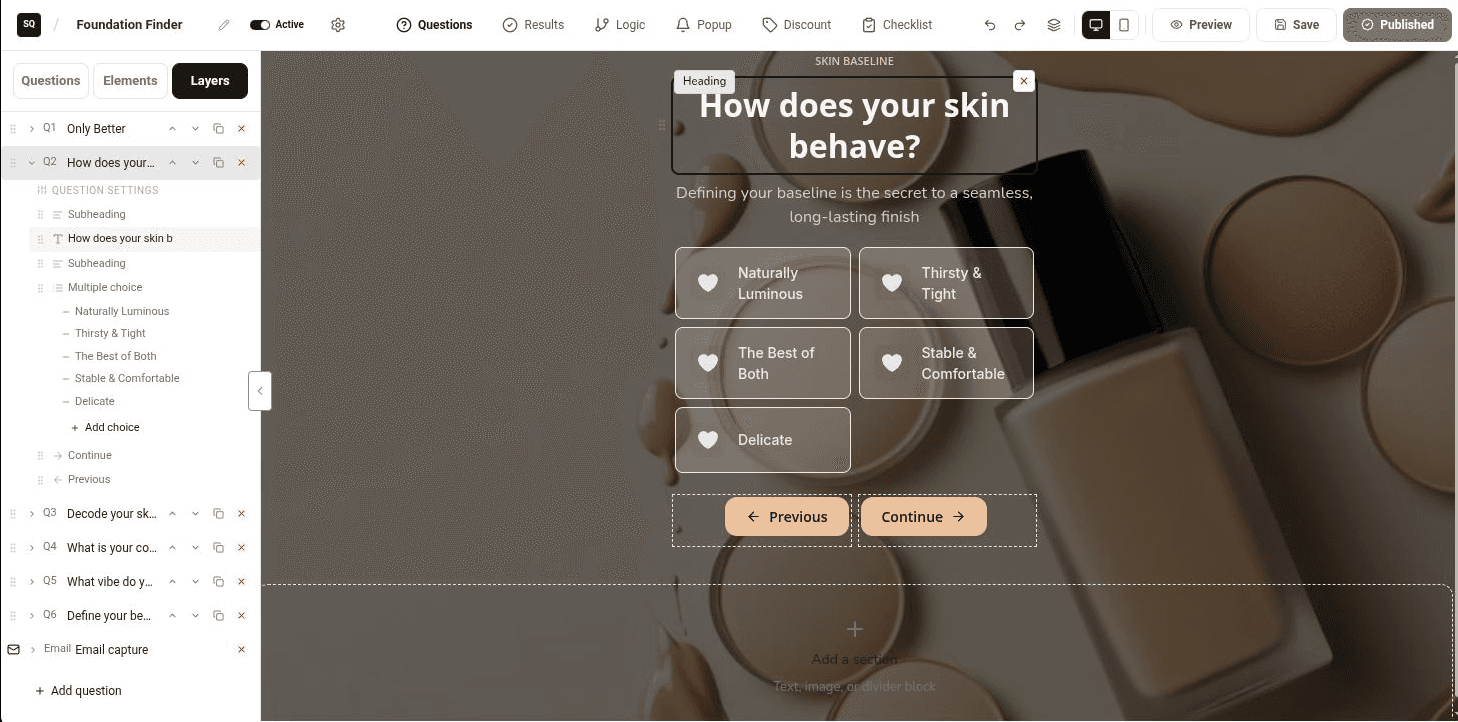
The top bar
On the left
| Control | What it does |
|---|---|
| Quiz name | Click to rename the quiz. A blank name becomes today's date when you save. |
| Active / InActive switch | Puts the quiz on your store or takes it off. It saves the quiz straight away. |
| Gear icon (Global settings) | Opens the settings that apply to the whole quiz: fonts, colors, size, progress bar, result mode and more. |
In the middle: the tabs
| Tab | What you do there |
|---|---|
| Questions | Add questions, drag in elements and edit each screen. |
| Results | Build the result pages and choose their products. |
| Logic | Send answers to the right question or result in a flow diagram. |
| Popup | Choose the pages the popup shows on, when it opens, and its reopen and close buttons. |
| Discount | Set up the discount code shoppers get at the end. |
| Checklist | See which setup steps are done. |
On the right
| Control | What it does |
|---|---|
| Undo (Ctrl+Z) / Redo (Ctrl+Y) | Steps back or forward through your recent changes. |
| Layers / structure | Shows the rows and columns of the current screen, so you can reorder, copy or remove them. |
| Desktop preview / Mobile preview | Switches the canvas between a desktop and a phone view. Many style settings can be set separately for mobile. |
| Preview | Opens the quiz as a shopper sees it, including your unsaved changes. |
| Save | Saves the quiz. You'll see Quiz saved. |
| Publish | Makes the quiz Active and saves it. It shows Published once the quiz is live. |
The left panel
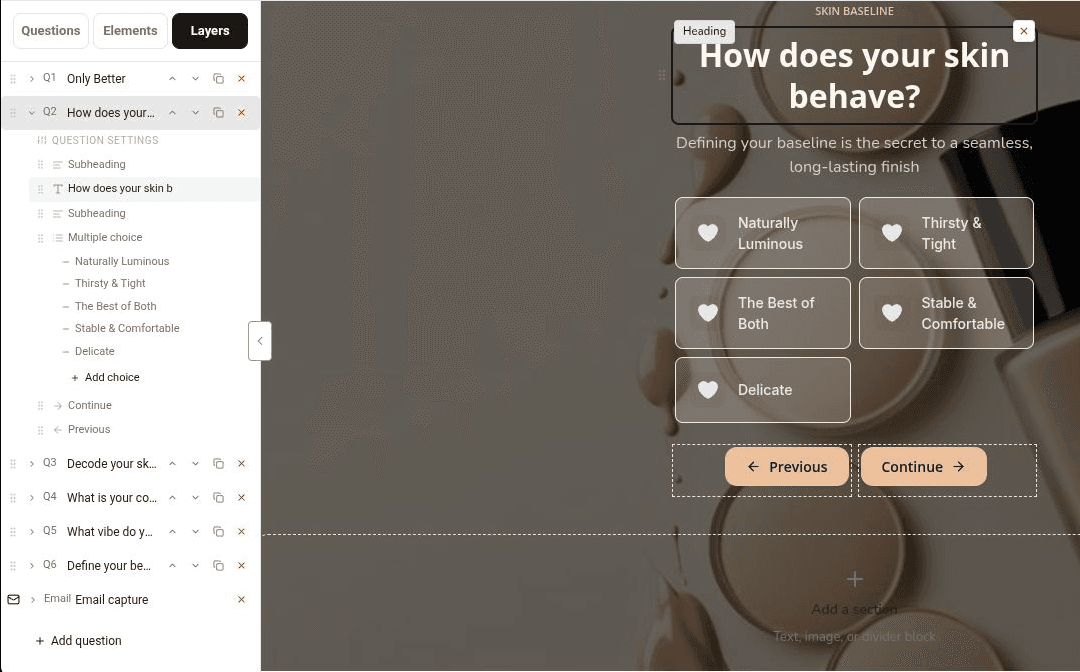
Everything you edit opens in the left panel. In the Questions tab it has three sub-tabs:
| Sub-tab | What it holds |
|---|---|
| Questions | The question types. Click one to add a whole new question screen. |
| Elements | Single building blocks, such as Image, Text or Video. Drag them onto a screen. |
| Layers | Every question in order, with its blocks and answers. The panel opens here. |
- 1
Open an item's settings
Click a question, a block or an answer in Layers, or click it on the canvas. Its settings replace the list. Click Back at the top to return.
- 2
Resize or hide the panel
Drag the panel's edge to make it wider or narrower. Click the arrow on its side to collapse it and give the canvas more room.
The Results tab works the same way, with Results and Elements sub-tabs.
The canvas
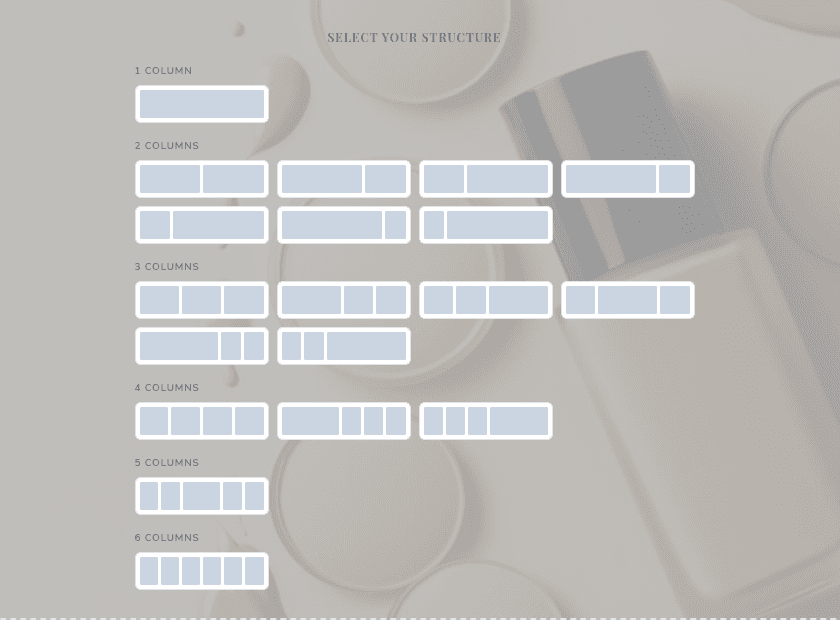
The canvas shows the selected screen, with its position above it, for example Q2 of 5. Each screen is made of rows, and each row can have up to six columns.
- 1
Add a row
Click Add a section at the bottom of the screen and choose a layout, such as 1 column, 2 equal or 3 equal.
- 2
Move blocks
Drag a block by its handle to reorder it, or drop it into another column. Click the X on a block to remove it.
- 3
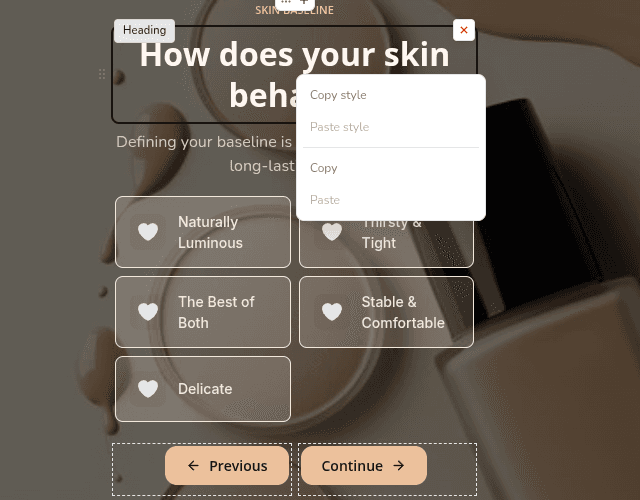
Copy and paste
Right-click a block for Copy, Paste, Copy style and Paste style. Copying a style is a quick way to make two buttons or headings match.
Blocks you hide on desktop or on mobile are dimmed on the canvas. Shoppers on that device don't see them.
The Checklist tab
The Checklist tab shows your setup progress. Items tick themselves off as you work. You can't click them.
| Item | Done when |
|---|---|
| Results added | The quiz has a result page. |
| Logic rules configured | Any question has a jump or skip rule. |
| Theme customized | You've changed the quiz design in Global settings. |
| Popup configured | You've changed the reopen button in the Popup tab. |
| Discount code configured | You've changed any discount setting. |
| Published to store | The quiz is Active. This doesn't check your theme's app embed. |
Good to know
- Every quiz needs at least one question and one result page, so you can't delete the last of either.
- Undo and redo don't work while you're typing in a text field. Click outside the field first.
- To leave the editor, close the full-screen window with Shopify's close button. Save first.
Learn more
Related articles
- Question typesEvery question type and building block you can add to a quiz screen, and how to set answers, limits and layout.→
- Create your first quizStart a quiz from a template or a blank page, add your questions, connect the answers to products, then save and preview it.→
- Design and brandingSet your fonts, colors, quiz size, progress bar, animations and celebration in Global settings, then fine-tune single questions and elements.→
Was this page helpful?
Still need help?
Can't find what you need? Talk to the people who build the app.