Plans & billing
Upgrade, downgrade or cancel your plan
Move to a bigger or smaller plan, or cancel your subscription, and see what happens to quizzes, templates and automations above the new plan's limits.
3 min read·Updated October 20, 2026·All plans
In the appSalesQ/Plans
In this guide
- 01Upgrade to a bigger plan
- 02Downgrade to a smaller plan
- 03Cancel your subscription
- 04Know what happens to quizzes, templates and automations above a limit
Before you start
- –A paid plan, if you want to downgrade or cancel. See Compare plans and limits.
You can change your plan at any time from the Plans page. Billing runs through Shopify, so every change is confirmed there.
Upgrade to a bigger plan
- 1
Open Plans
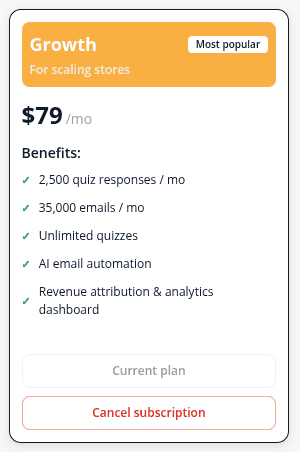
Click Plans in the app menu. Your current plan shows a Current plan button.
- 2
Choose the new plan
On the plan you want, click Upgrade to Growth (or the plan's name). If you haven't used your free trial yet, the button reads Start 15-day trial instead.
- 3
Approve in Shopify
Approve the charge on the Shopify page that opens. You're taken back to the app with a confirmation.
Upgrades take effect immediately, and Shopify adjusts what you pay for the rest of the billing period.
Downgrade to a smaller paid plan
- 1
Choose the smaller plan
On the Plans page, click Downgrade to Starter (or the plan's name).
- 2
Confirm
Read the confirmation and click Downgrade plan. Then approve the change in Shopify.
Downgrades follow Shopify's billing rules for plan changes, which usually means the smaller plan starts at the end of your current billing period.
Cancel your subscription
- 1
Click Cancel subscription
On your current plan's card, click Cancel subscription. You can also click Downgrade to Free on the Free card.
- 2
Confirm
Read the confirmation and click Cancel subscription, or Keep my plan to stay where you are. Your store moves to the Free plan.
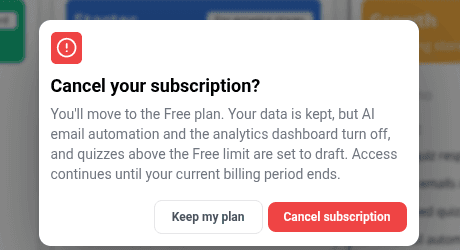
Your data is kept when you cancel: quizzes, subscribers, responses and reports stay in the app. Free plan limits then apply, and the Analytics pages are locked again.
What happens to items above the new limit
When your new plan allows fewer quizzes, email templates or automations than you have, AISalesQ keeps the ones you changed most recently and switches off the rest:
| Item | What happens to the extras |
|---|---|
| Published quizzes | Unpublished and taken off your storefront. Free allows 1 and Starter 3. |
| Active email templates | Set to draft. Free allows 1 and Starter 3. |
| Automations | Paused. Free allows 1. |
Nothing is deleted. To change which quiz stays live, unpublish the one you don't need and publish the one you do. See Publish your quiz on your store.
Learn more
Related articles
Was this page helpful?
Still need help?
Can't find what you need? Talk to the people who build the app.