Quiz builder
Popup triggers and page targeting
Choose which pages your quiz popup shows on, when it opens, how often shoppers see it, and how its reopen and close buttons look.
5 min read·Updated October 20, 2026·All plans
In the appSalesQ/Quizzes/Edit/Popup
In this guide
- 01Show the popup only on the page types you choose
- 02Open it after a delay, on scroll, on exit or straight away
- 03Control how often a shopper sees it
- 04Style the reopen button and the close button
Before you start
- –The Ai Sales Quiz app embed switched on in your theme. See Publish your quiz on your store
When your quiz runs as a popup, the Popup tab decides where and when it opens. These settings only affect the popup. A quiz placed inside a page with the section block shows whenever that page loads.
Choose the pages
- 1
Open the Popup tab
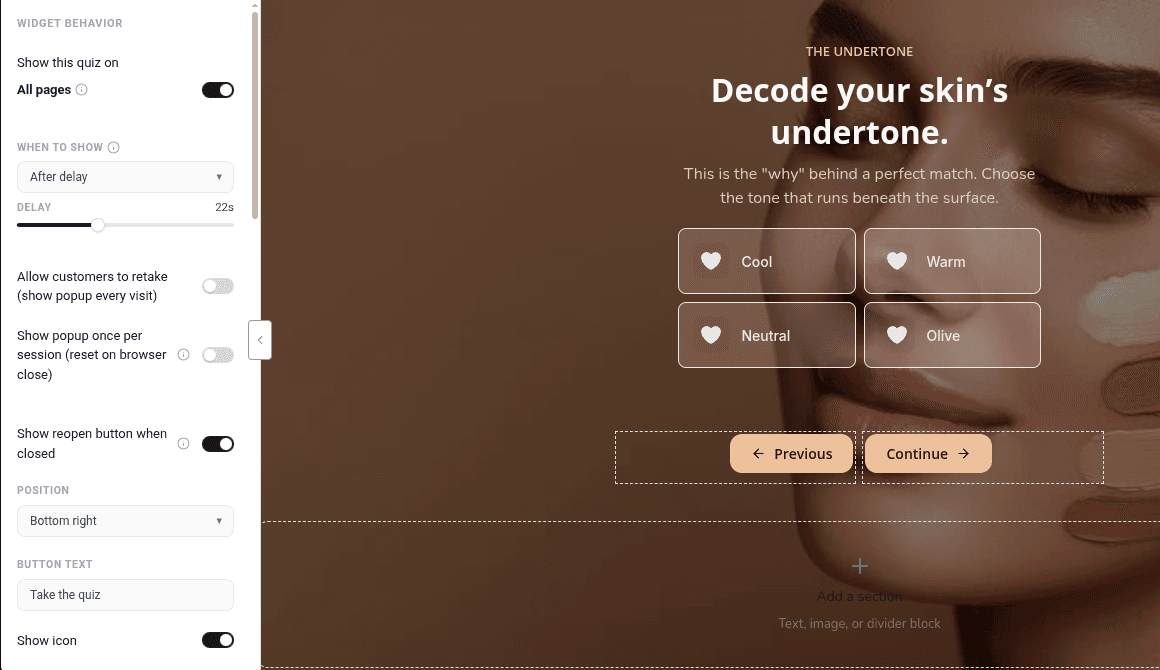
In the quiz editor, click Popup in the top bar. The panel is headed Widget behavior.
- 2
Pick the page types
Under Show this quiz on, All pages is on for new quizzes. Turn it off to pick page types: Home page, Product pages, Collection pages, Cart page, Pages (about, FAQ…), Blog & articles and Search page.
- 3
Match your theme
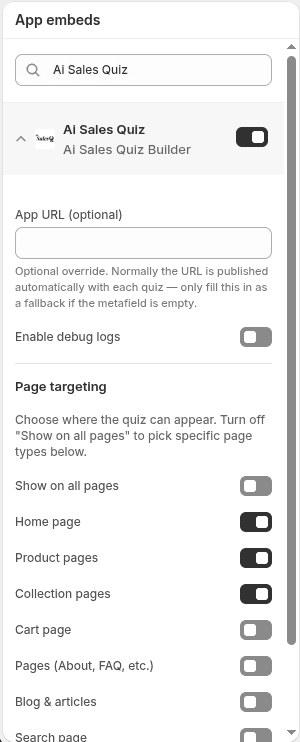
In the Shopify theme editor, open App embeds → Ai Sales Quiz and check that the same page types are ticked under Page targeting. Then click Save there.
Choose when it opens
Under When to show, pick a trigger:
| Trigger | When the popup opens |
|---|---|
| Immediately | As soon as the page loads. |
| After delay (default) | After the number of seconds in Delay, from 0 to 60. New quizzes wait 22 seconds. |
| On scroll | Once the visitor scrolls down by the Scroll depth you set, for example 50%. Pages too short to scroll open it right away. |
| Exit intent | When the visitor moves the cursor toward the top of the window, as if leaving. Desktop only: it never opens this way on phones or tablets. |
Choose how often shoppers see it
| Setting | What happens |
|---|---|
| Both options off (default) | The popup opens on each page load until the shopper finishes the quiz. After that, it doesn't open by itself again in that browser. |
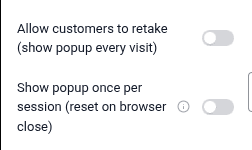
| Allow customers to retake (show popup every visit) | The popup opens every time, even for shoppers who already finished it. |
| Show popup once per session (reset on browser close) | Once the shopper has seen or closed it, it doesn't open again until they close the browser and come back. |
The popup opens by itself at most once per page load. Shoppers close it with the ✕ button. Clicking outside the popup doesn't close it, so a stray click won't lose their answers.
The reopen button
After a shopper closes the popup, a small floating button lets them open it again. It starts the quiz from the beginning.
- 1
Turn it on or off
Show reopen button when closed is on for new quizzes. Turn it off to hide the button.
- 2
Place it
Pick a Position: Top left, Top right, Bottom left or Bottom right (the default).
- 3
Set the text and icon
Type the Button text (default Take the quiz). Leave it empty to show only the icon. Turn Show icon on and choose an Icon, or paste an image link in Or icon image URL.
- 4
Style it
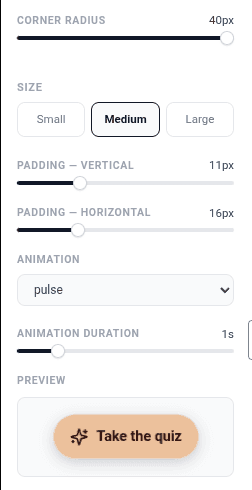
Set Background color, Text / icon color, Corner radius, Size, padding and an Animation. The Preview below the settings shows the result.
The close button
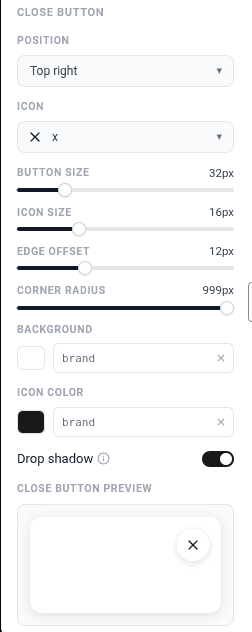
Under Close button, set the ✕ button's Position (top right or top left), Icon, Button size, Icon size, Edge offset, Corner radius, Background, Icon color and Drop shadow. The close button is always shown, so shoppers can always leave the quiz.
Running more than one quiz
Only one quiz pops up on a page. If several Active quizzes could show on the same page, a quiz set to specific page types wins over one set to All pages. For example, set a skincare quiz to Product pages and a general quiz to All pages: product pages show the skincare quiz and every other page shows the general one.
Click Save after changing popup settings. If the quiz is Active, your store updates straight away.
Video tutorials
Watch the series in order, or jump to the one you need.
- 01
 1:32How to Install a Shopify Quiz App: AI Sales Quiz Builder Setup & Tour
- 02
 1:38How to Create a Product Recommendation Quiz on Shopify (Step by Step)
- 03
 1:44Shopify Quiz Templates: Build a Product Quiz in Minutes
- 04
 1:48How to Add a Quiz to Your Shopify Store (Publish & Embed)
- 05
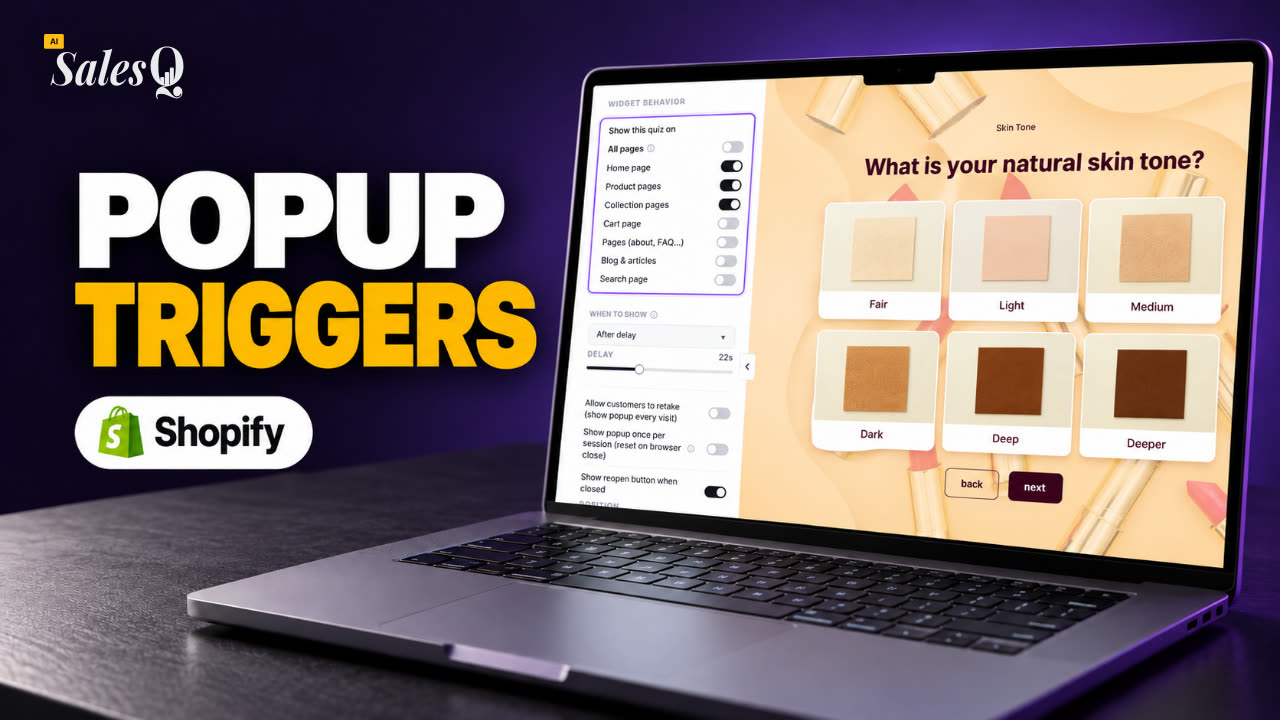 1:56Shopify Quiz Popup: Triggers, Timing & Page TargetingNow playing
- 06
 1:44Shopify Quiz Logic & Branching: Send Shoppers to the Right Product
- 07
 1:42Shopify Quiz Discount Codes: Unique Codes That Convert
- 08
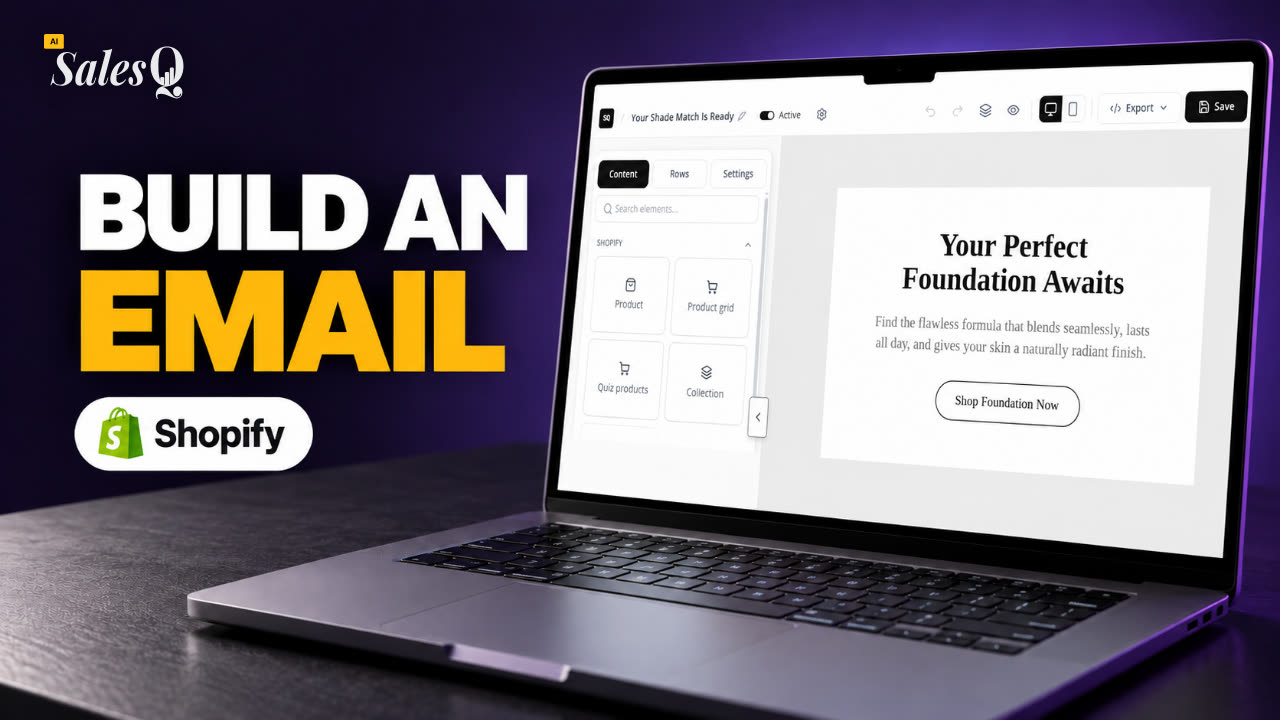 1:44Shopify Email Marketing: Create a Quiz Follow-Up Email
- 09
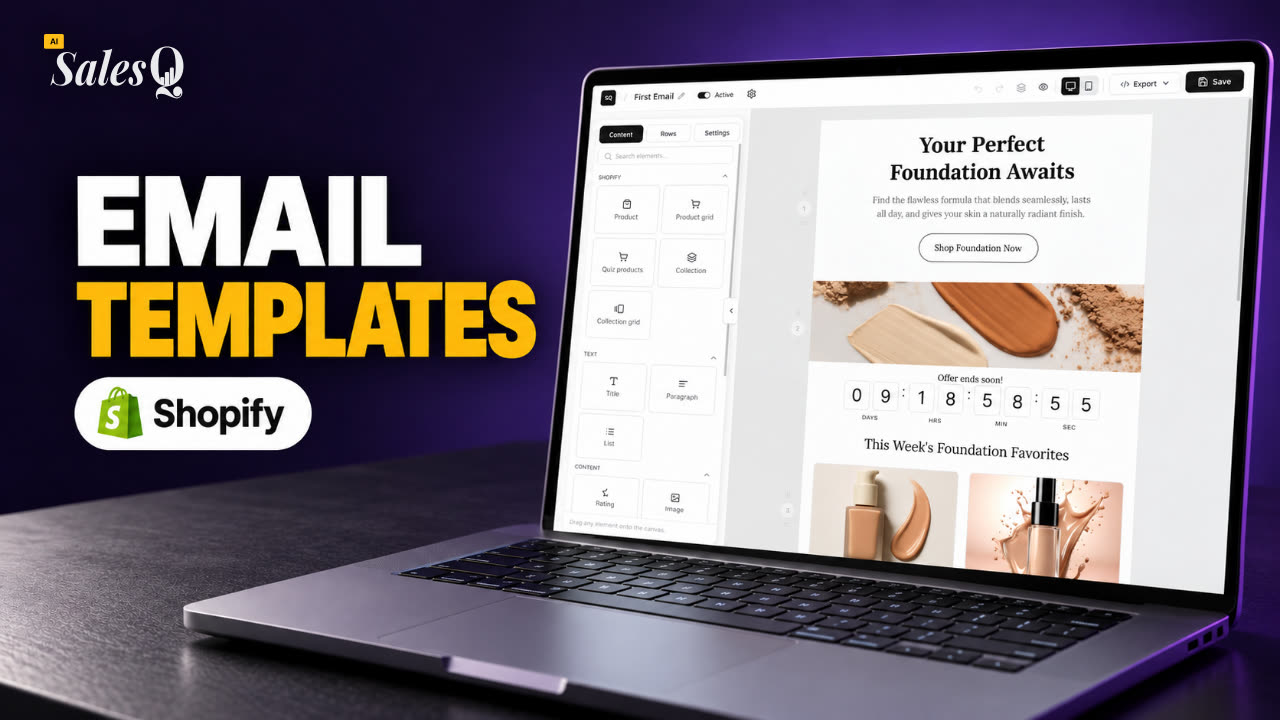 1:36Shopify Email Templates for Quiz Follow-Ups (Ready to Use)
- 10
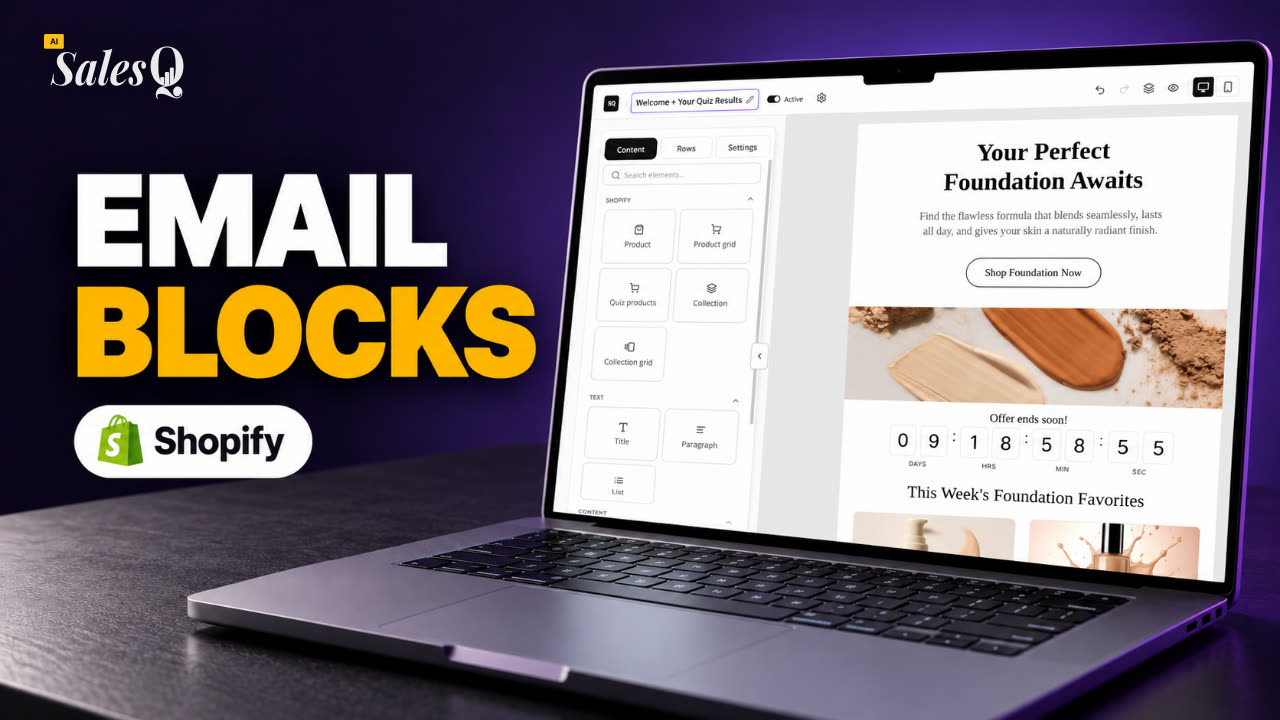 1:51Shopify Email Builder Tutorial: Drag-and-Drop Blocks
- 11
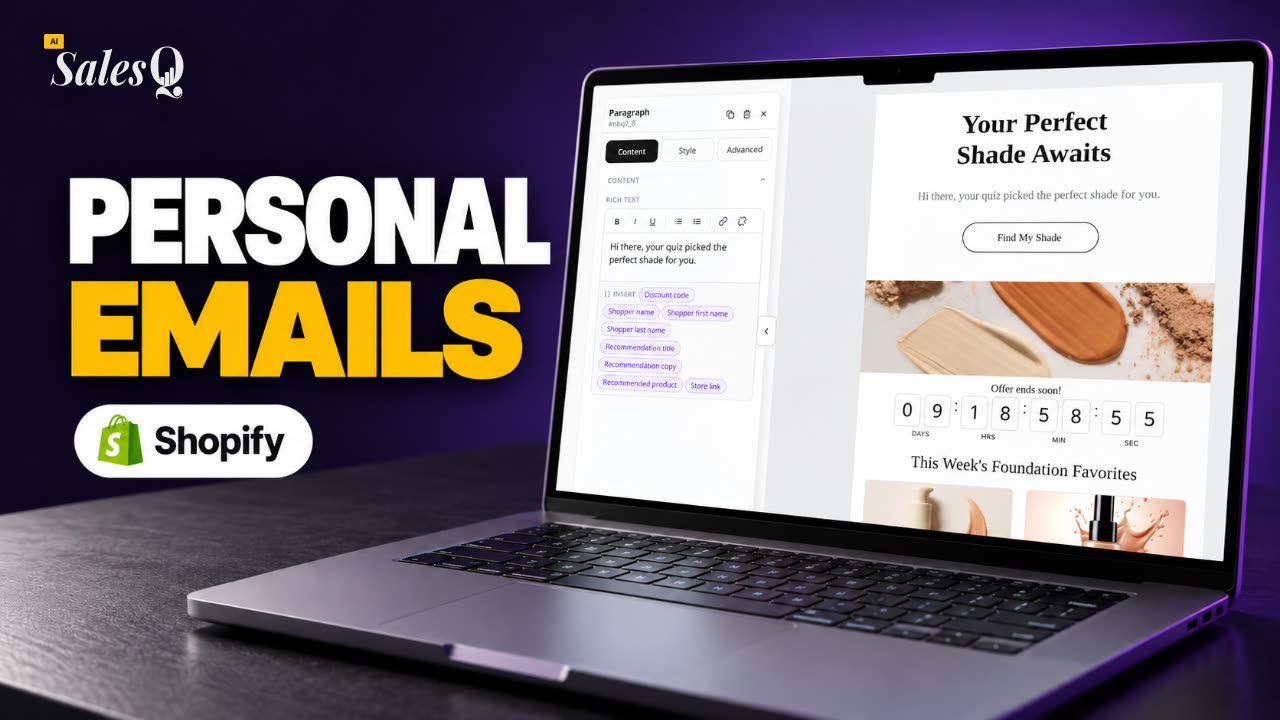 1:49Personalize Shopify Emails With Quiz Answers (Merge Tags)
- 12
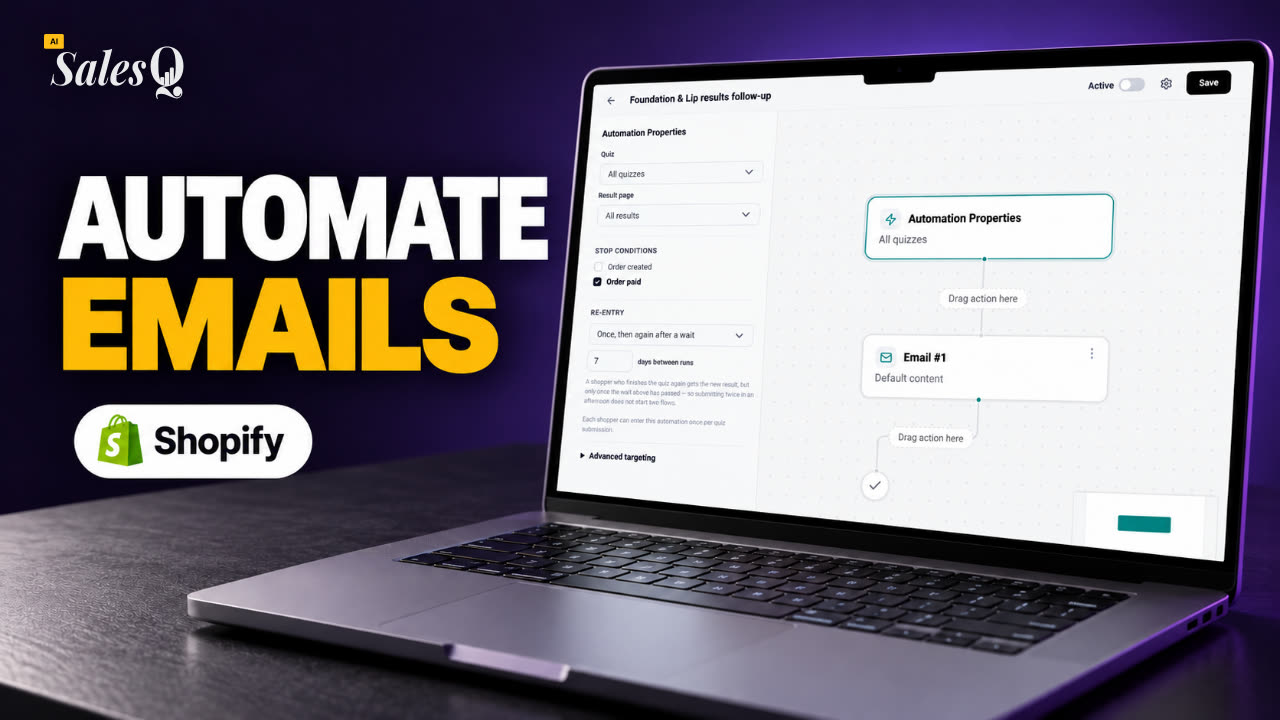 1:32Shopify Email Automation: Quiz Follow-Up Flow Step by Step
- 13
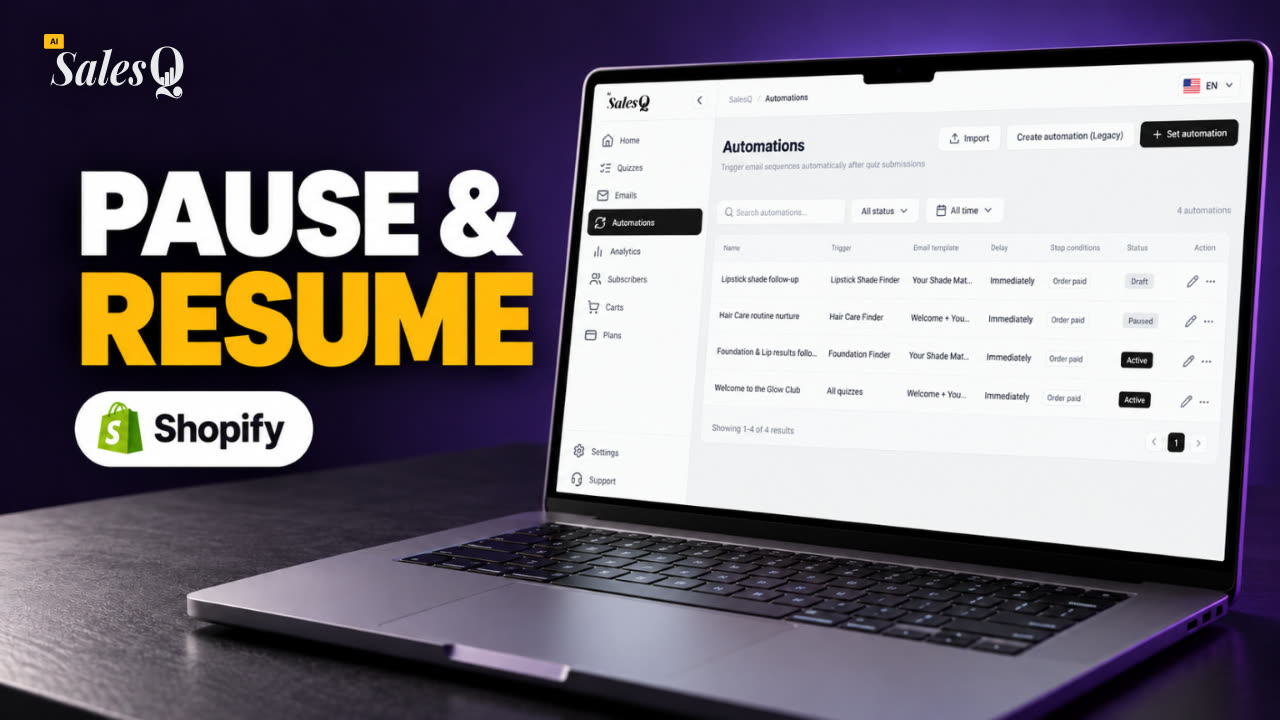 1:29Manage Shopify Email Automations: Pause, Resume & Edit Flows
- 14
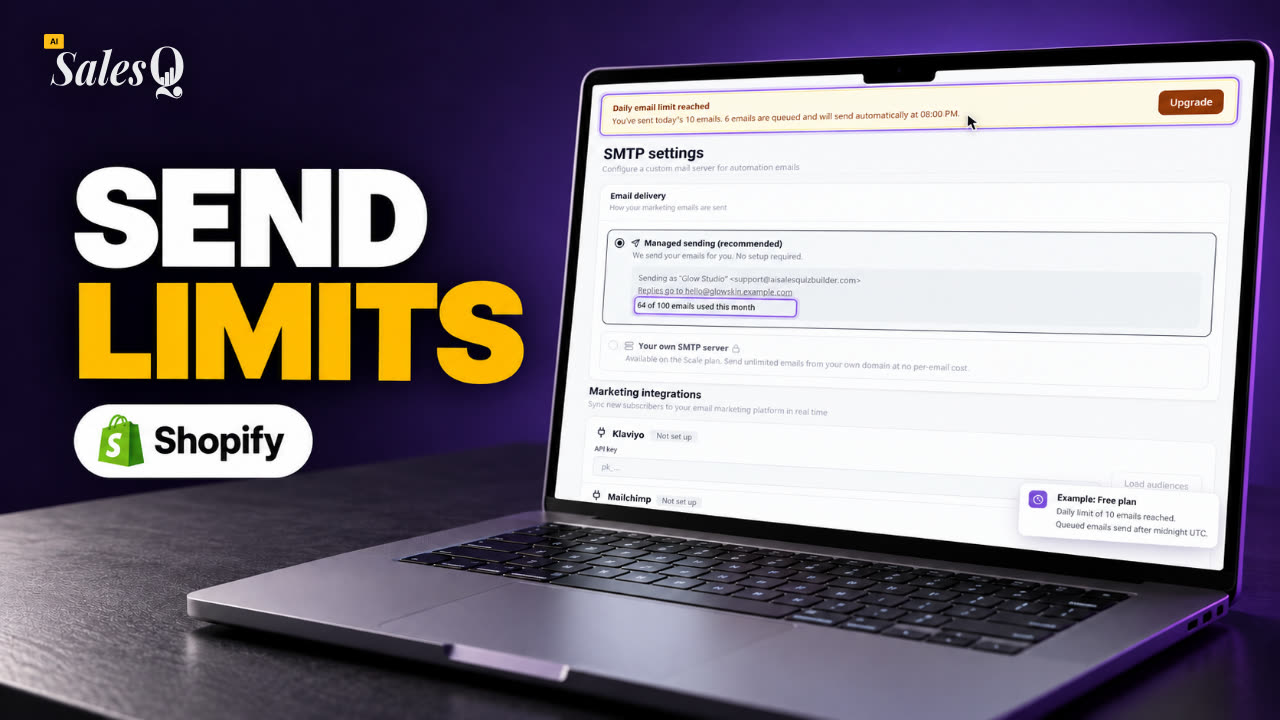 1:41Shopify Email Sending Limits Explained (Quiz Emails)
- 15
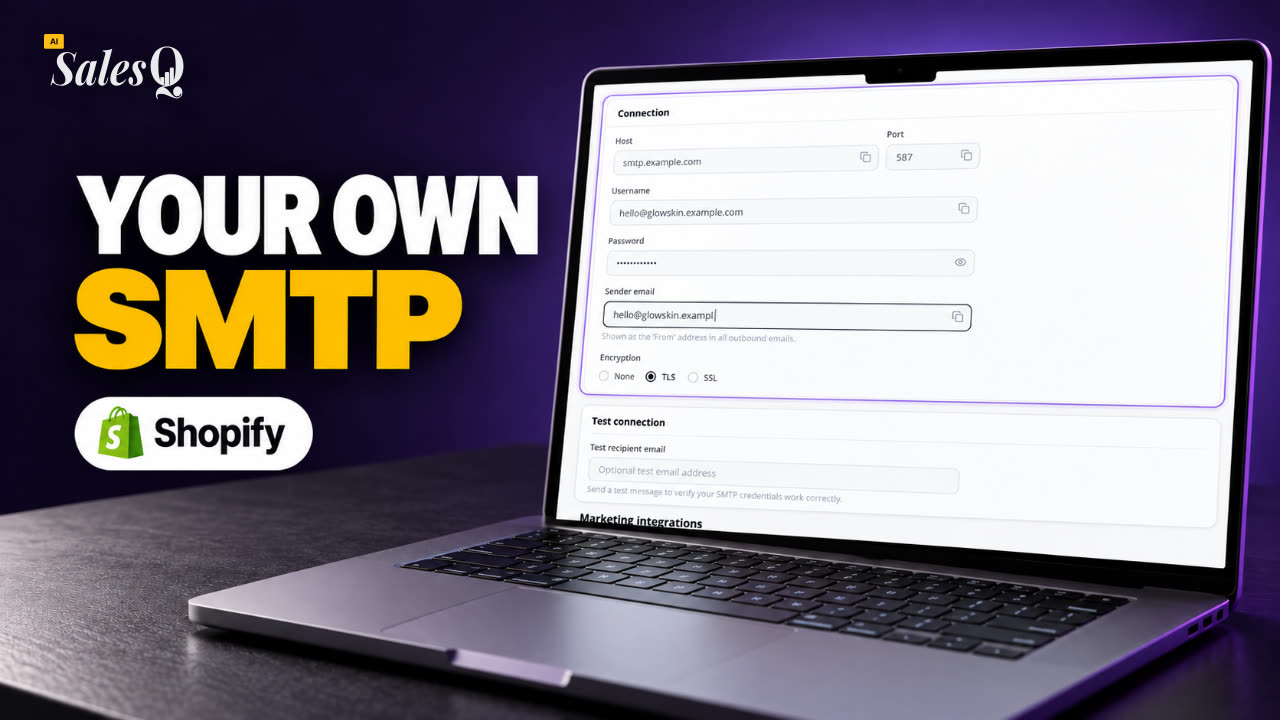 1:31Send Shopify Emails From Your Own SMTP Server
- 16
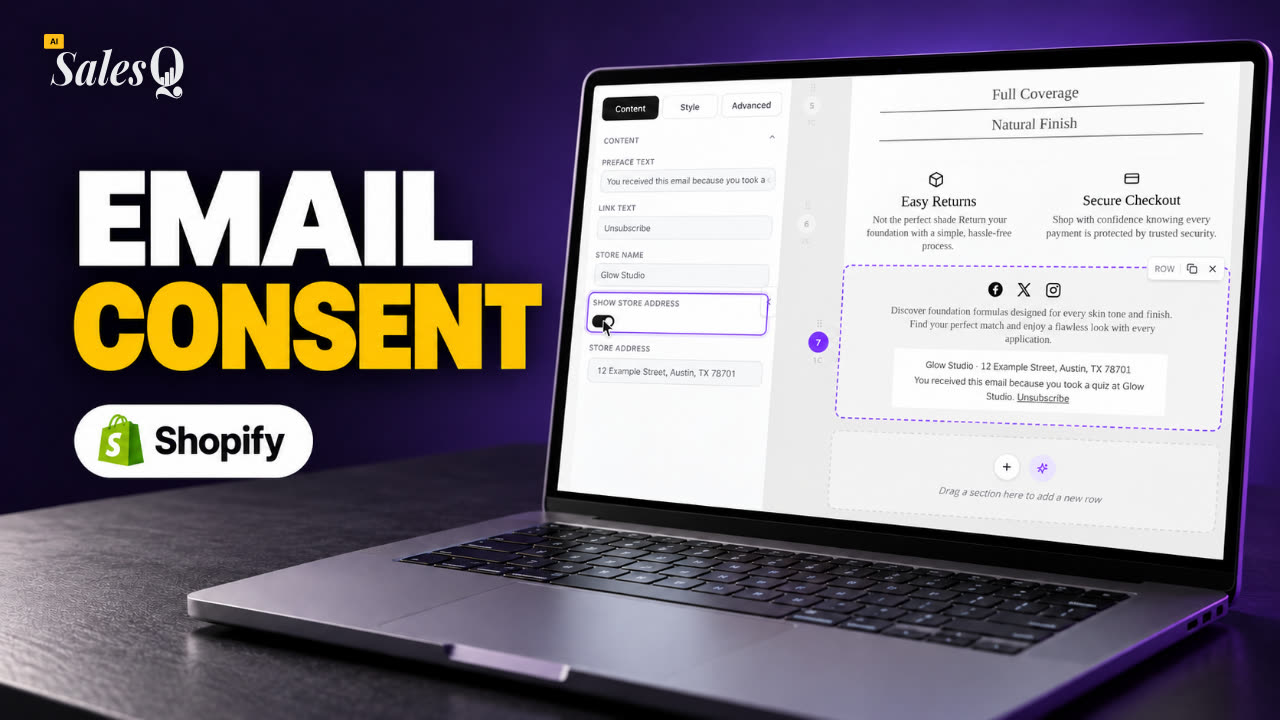 1:43Shopify Email Consent & Unsubscribe Link Explained
- 17
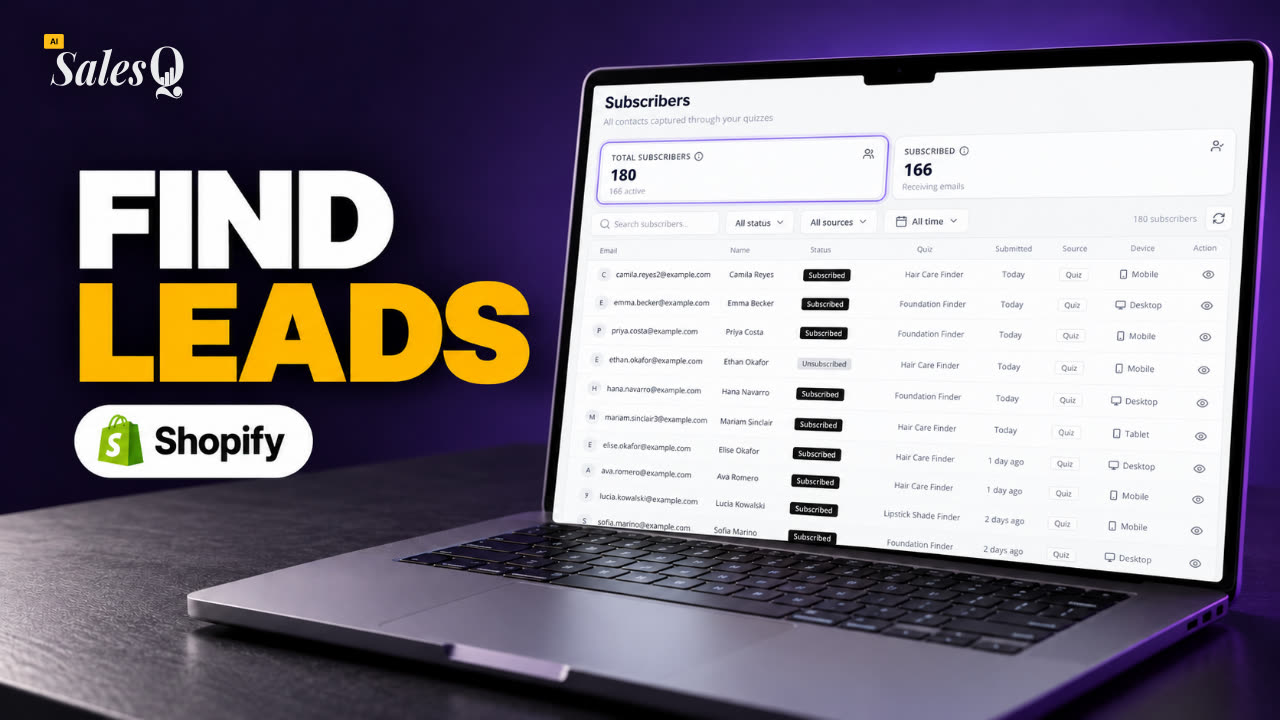 1:46Shopify Quiz Subscribers: Search, Filter & View Profiles
- 18
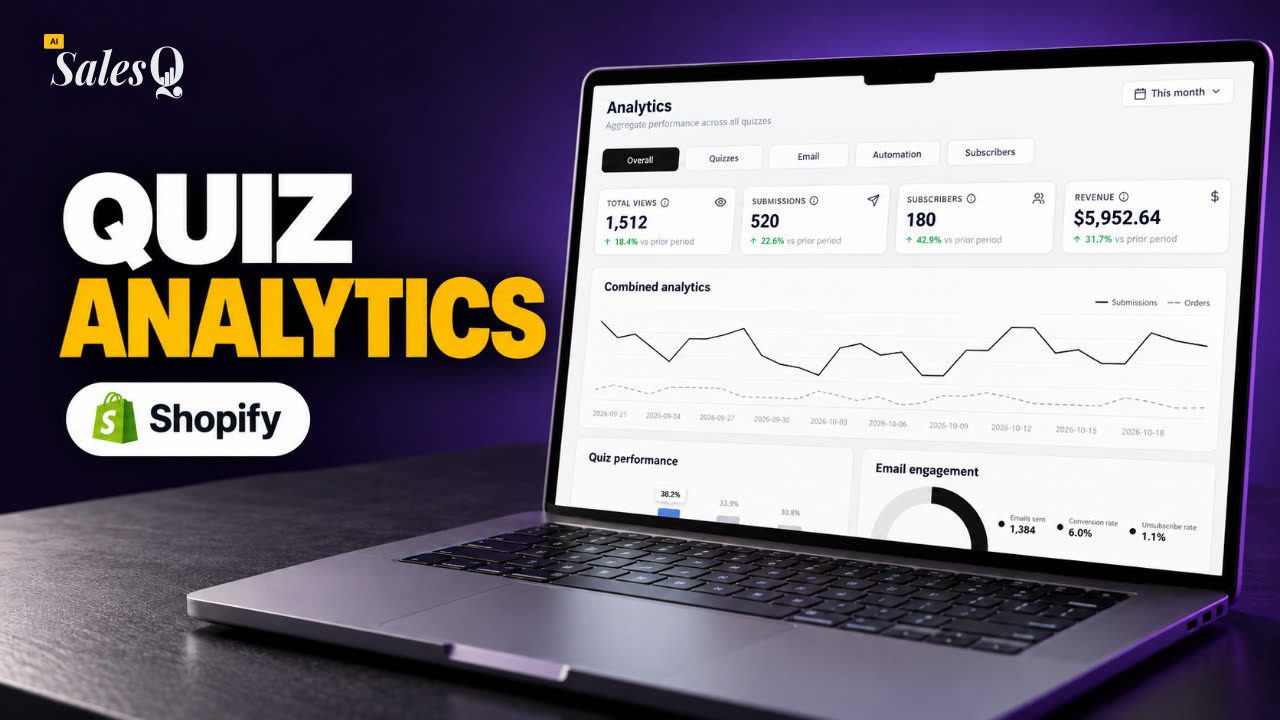 1:45Shopify Quiz Analytics: Track Revenue, Conversions & Emails
- 19
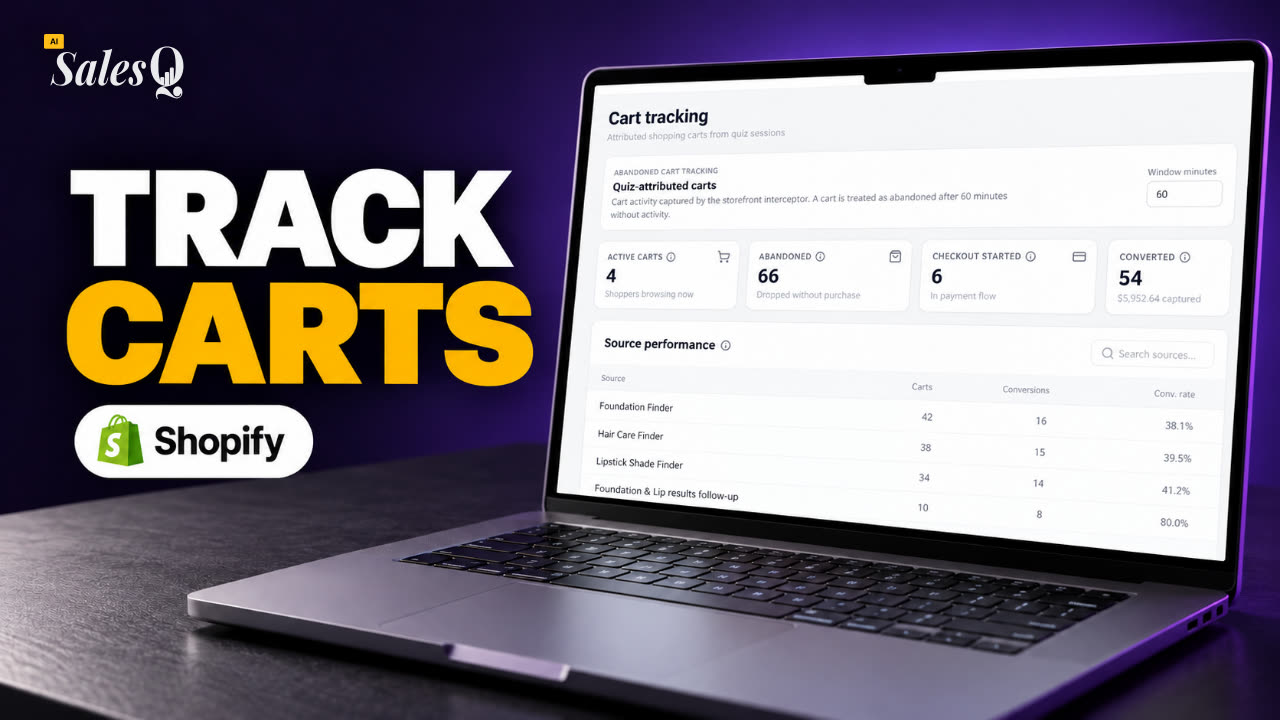 1:44Shopify Abandoned Cart Tracking for Quiz Shoppers
- 20
 1:42Klaviyo Shopify Integration: Send Quiz Subscribers to Klaviyo
- 21
 1:43Best Shopify Quiz App Pricing: AI Sales Quiz Builder Plans Compared
Learn more
Related articles
- Publish your quizMake your quiz Active, choose whether it shows as a popup, a section or a button in your theme, and test it on your storefront.→
- Design and brandingSet your fonts, colors, quiz size, progress bar, animations and celebration in Global settings, then fine-tune single questions and elements.→
- Install AISalesQInstall the app from the Shopify App Store, then switch on the AISalesQ app embed in your theme so quizzes can appear on your store.→
Was this page helpful?
Still need help?
Can't find what you need? Talk to the people who build the app.