Getting started
A tour of the AISalesQ app
What each item in the AISalesQ menu does, so you know where to build quizzes, write emails, follow subscribers and check results.
2 min read·Updated October 20, 2026·All plans
In the appShopify admin/Apps/Ai Sales Quiz Builder/SalesQ
In this guide
- 01What each item in the AISalesQ menu is for
- 02How the app's menu maps to Shopify's own sidebar
- 03Where to switch the app between English and German
- 04What the plan banners at the top of the app mean
Before you start
- –Install AISalesQ on your store
AISalesQ has its own menu on the left side of the app. Everything you do, from building a quiz to seeing what it sold, starts from one of these items.
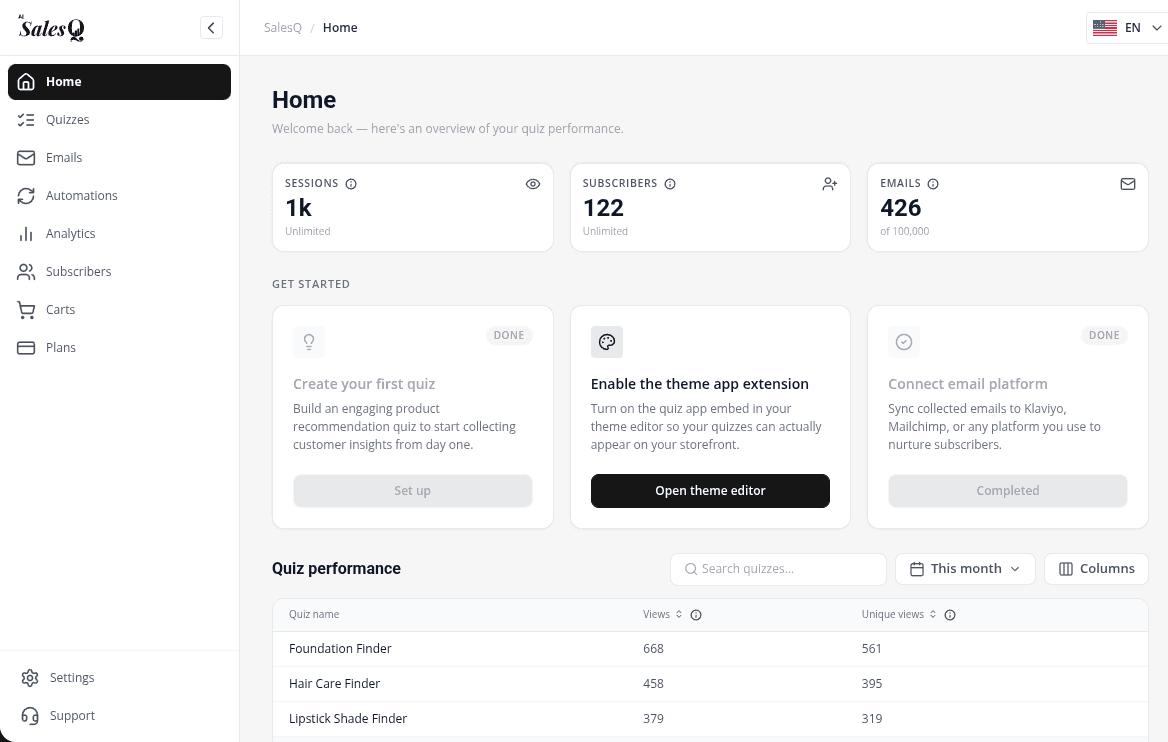
The menu
| Menu item | What you do there |
|---|---|
| Home | This month's usage, the Get started checklist and a Quiz performance table for all quizzes. |
| Quizzes | Create, edit, preview and publish quizzes, or start from a template. |
| Emails | Design the emails your follow-ups send, with Shopify product blocks. |
| Automations | Set up the follow-up sequences that send those emails after a quiz. |
| Analytics | Quiz, email and revenue results in detail (Growth and Scale plans). |
| Subscribers | Everyone who left their details in a quiz, with their answers, consent and source. |
| Carts | Carts started by quiz shoppers, so you can see what they added and what was abandoned. |
| Plans | Your plan, this month's usage and upgrades. |
| Settings | Email delivery and the Klaviyo and Mailchimp connections. |
| Support | Send the AISalesQ team a message and read common questions. |
The top bar
At the top of every page you'll see where you are (for example SalesQ / Subscribers) and, on the right, the language switcher. The app is available in English and German.
On smaller screens
On a tablet the menu shrinks to icons only. On a phone it hides behind the menu button in the top bar. On a desktop you can collapse it yourself with the arrow at the bottom of the menu.
Banners about your plan
When you get close to a monthly limit on your plan, a banner appears above every page except Plans, with a link to upgrade. Your quiz keeps working and every response is still recorded.
Learn more
Related articles
- Install AISalesQInstall the app from the Shopify App Store, then switch on the AISalesQ app embed in your theme so quizzes can appear on your store.→
- Create your first quizStart a quiz from a template or a blank page, add your questions, connect the answers to products, then save and preview it.→
- Publish your quizMake your quiz Active, choose whether it shows as a popup, a section or a button in your theme, and test it on your storefront.→
Was this page helpful?
Still need help?
Can't find what you need? Talk to the people who build the app.