Emails & automations
Unsubscribes and email consent
Who receives your automation emails, how shoppers unsubscribe, and what happens to their emails after they do.
3 min read·Updated October 20, 2026·All plans
In the appSalesQ/Emails/Edit/Content/Unsubscribe
In this guide
- 01Know which shoppers receive your automation emails
- 02Style the unsubscribe footer with the Unsubscribe block
- 03See what shoppers see when they unsubscribe
- 04Understand what changes after someone unsubscribes
Before you start
- –A quiz that asks for marketing consent (Create your first quiz)
AISalesQ only emails shoppers who agreed to receive marketing email, and every email includes a way to unsubscribe. Here's how both work.
Who receives your emails
Any shopper who submits a quiz with an email address can enter an automation. Before each email sends, AISalesQ checks the shopper's email consent. Shoppers who didn't tick the marketing consent box in your quiz, or who unsubscribed later, aren't emailed.
The unsubscribe footer
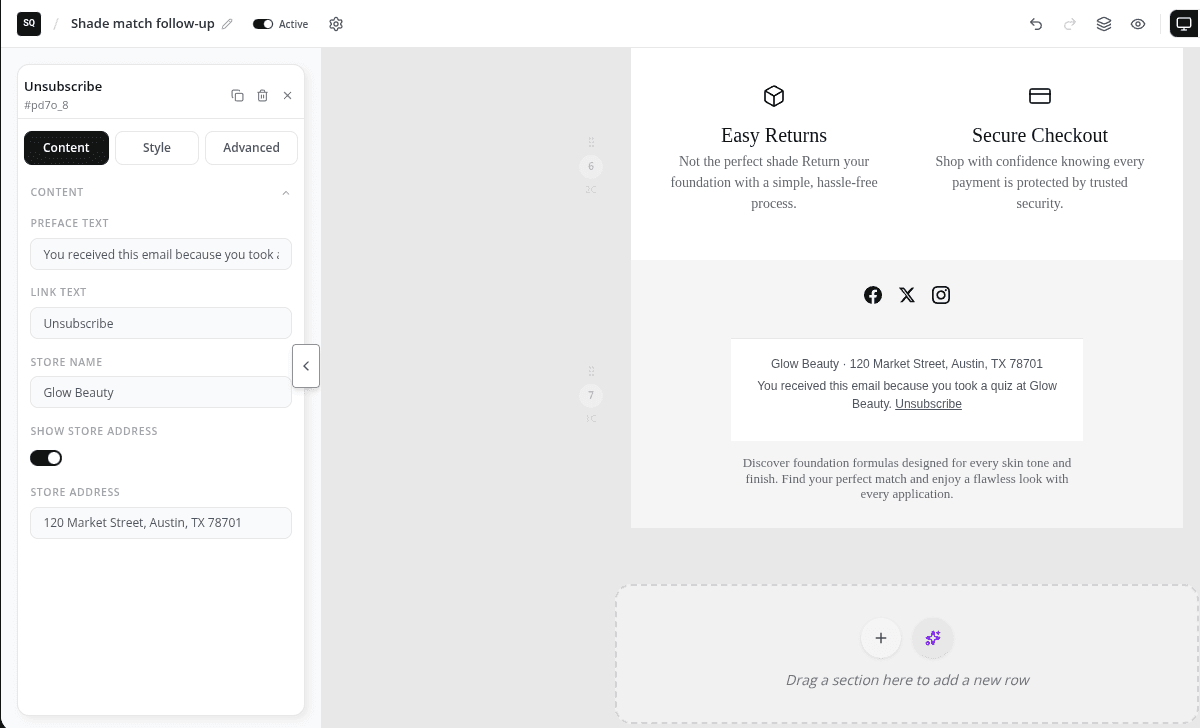
Every automation email has an unsubscribe footer, and it can't be removed. If your template has no Unsubscribe block, a standard footer is added at the end. It shows your store name and address and the line "You received this email because you took a quiz at" your store, followed by an Unsubscribe link.
- 1
Add the Unsubscribe block
To style the footer yourself, open the template in the builder and drag Unsubscribe from Content to where the footer should go, usually the bottom of the email.
- 2
Change the text and style
Edit the Preface text and Link text, choose whether to show your store address, and set the alignment, font and colours.
- 3
Save
Click Save. In emails from this template, your block takes the place of the standard footer.
Emails also support one-click unsubscribe, which inbox providers such as Gmail and Yahoo can show next to the sender's name.
What shoppers see when they unsubscribe
- 1
They click Unsubscribe
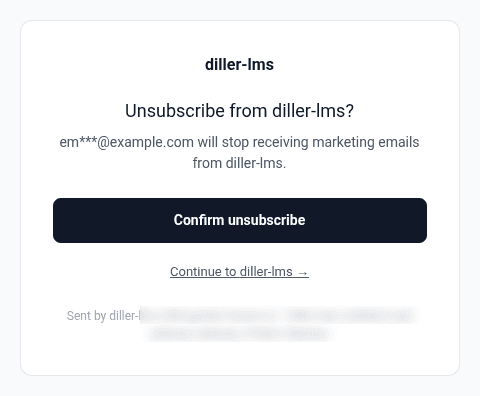
The link opens a page that asks if they want to unsubscribe from your store. Opening the link on its own doesn't unsubscribe anyone.
- 2
They confirm
They click Confirm unsubscribe and see You've been unsubscribed. The page explains that only email from your store is affected and their SMS preferences stay the same.
- 3
They can change their mind
On the same page, they can click Changed your mind? Resubscribe to get your emails again.
The page shows your store's name, not AISalesQ's, and links back to your store. It's shown in English.
What happens after someone unsubscribes
- No more automation emails are sent to their address.
- Any automation they're in stops straight away.
- Their email marketing consent is updated in Shopify too. SMS consent isn't changed.
- If they resubscribe, they can get emails again from their next quiz. Automations that stopped don't restart.
The same happens when a shopper's email marketing consent is removed in your Shopify admin.
Video tutorials
Watch the series in order, or jump to the one you need.
- 01
 1:32How to Install a Shopify Quiz App: AI Sales Quiz Builder Setup & Tour
- 02
 1:38How to Create a Product Recommendation Quiz on Shopify (Step by Step)
- 03
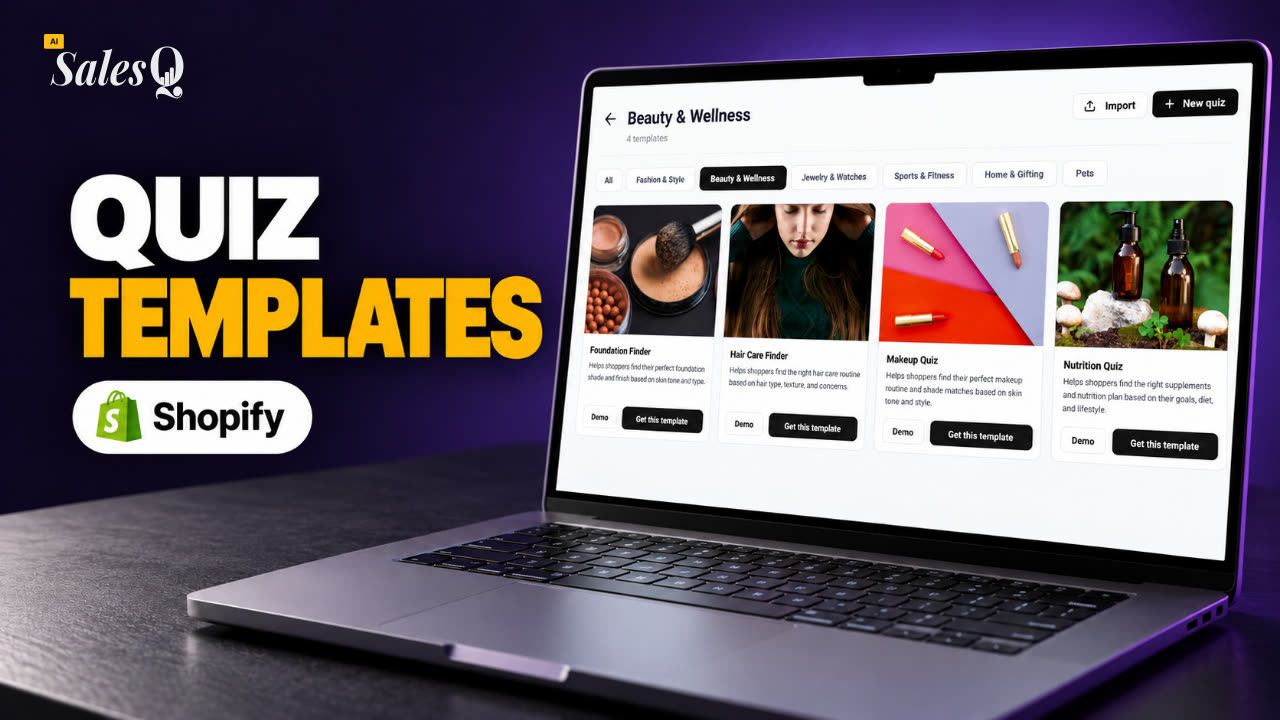 1:44Shopify Quiz Templates: Build a Product Quiz in Minutes
- 04
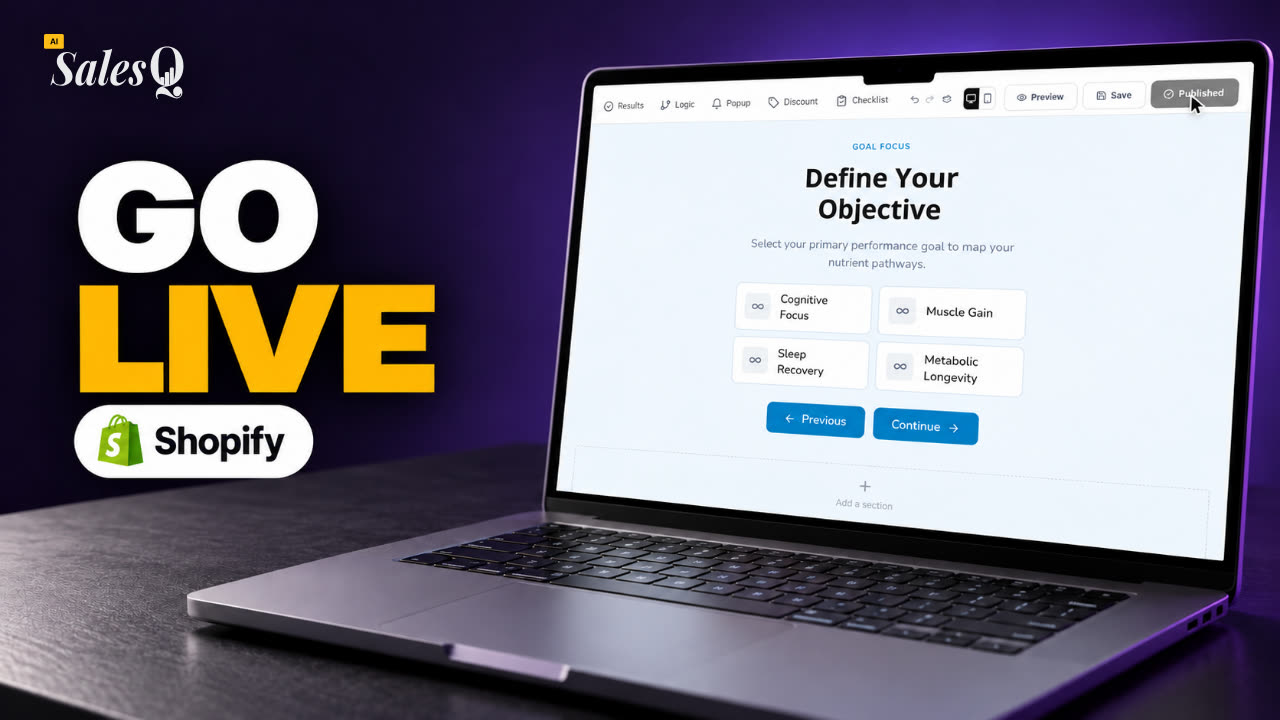 1:48How to Add a Quiz to Your Shopify Store (Publish & Embed)
- 05
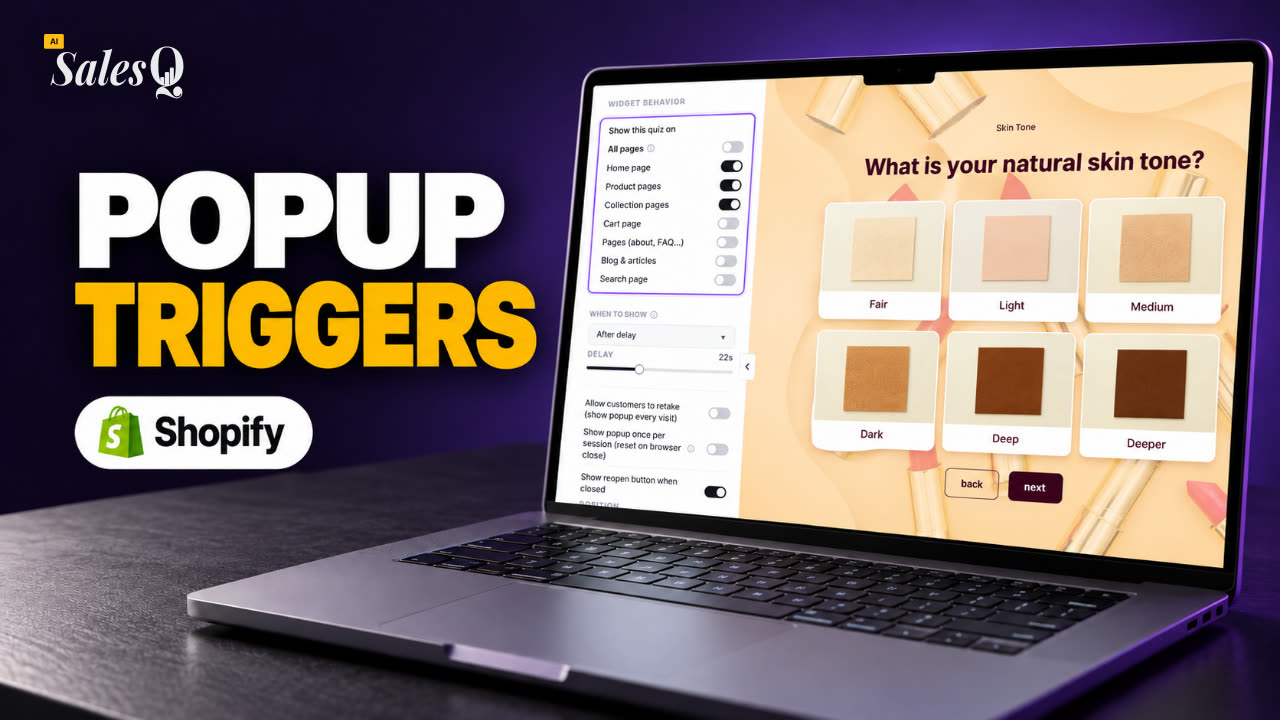 1:56Shopify Quiz Popup: Triggers, Timing & Page Targeting
- 06
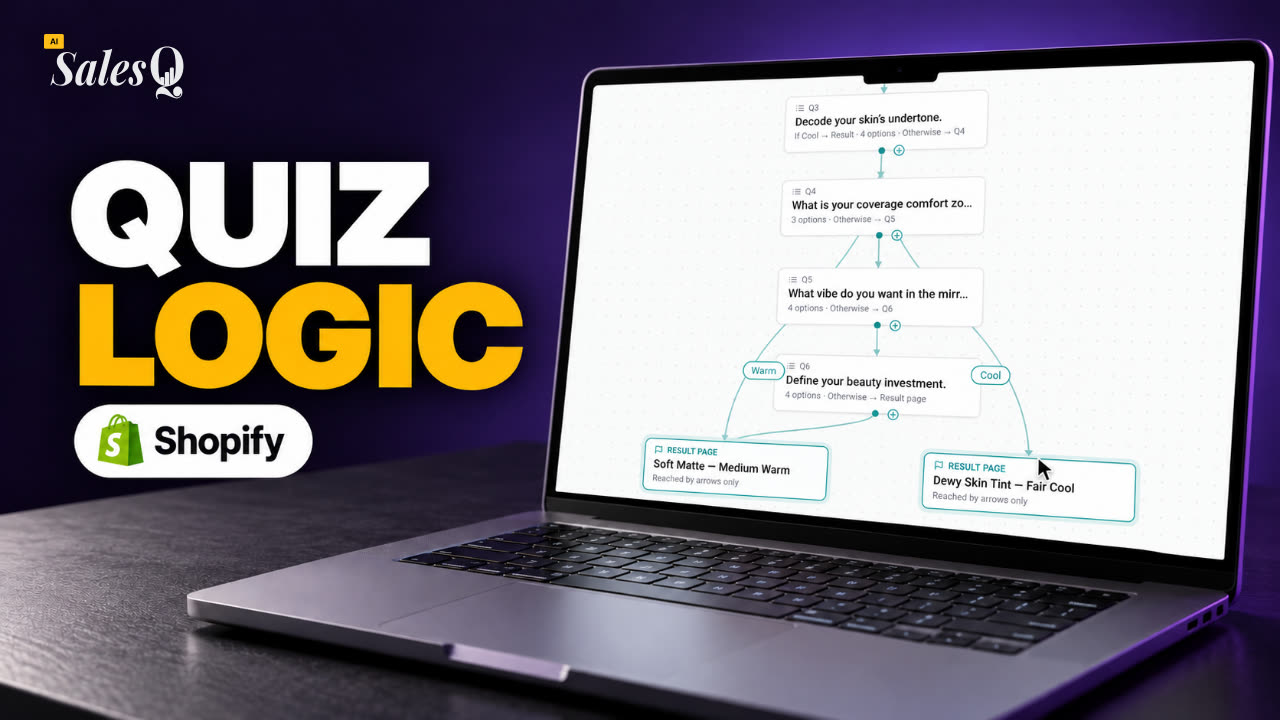 1:44Shopify Quiz Logic & Branching: Send Shoppers to the Right Product
- 07
 1:42Shopify Quiz Discount Codes: Unique Codes That Convert
- 08
 1:44Shopify Email Marketing: Create a Quiz Follow-Up Email
- 09
 1:36Shopify Email Templates for Quiz Follow-Ups (Ready to Use)
- 10
 1:51Shopify Email Builder Tutorial: Drag-and-Drop Blocks
- 11
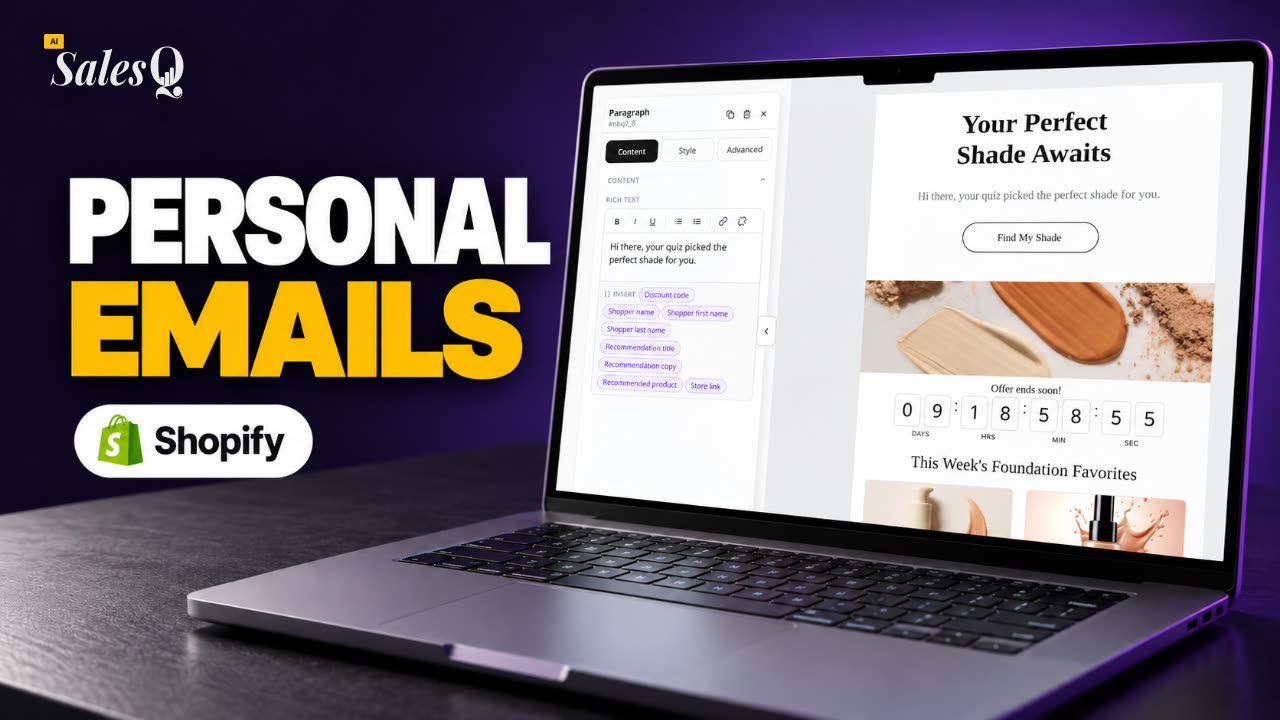 1:49Personalize Shopify Emails With Quiz Answers (Merge Tags)
- 12
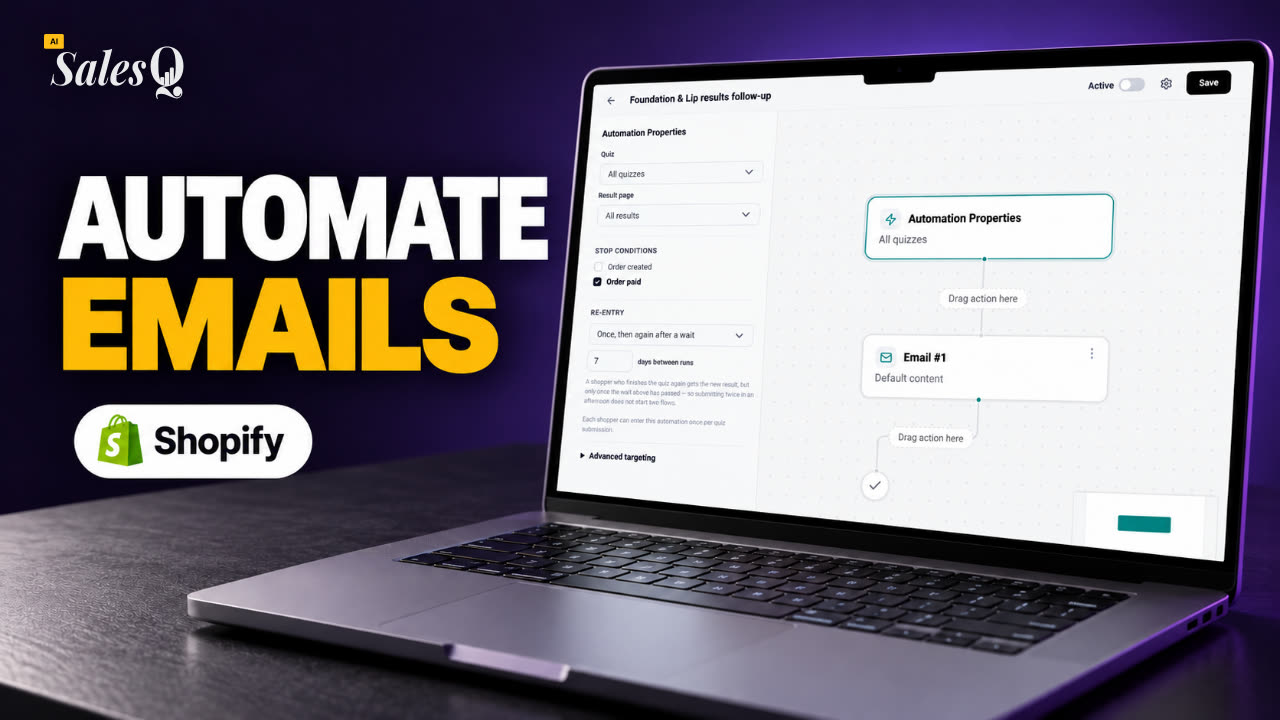 1:32Shopify Email Automation: Quiz Follow-Up Flow Step by Step
- 13
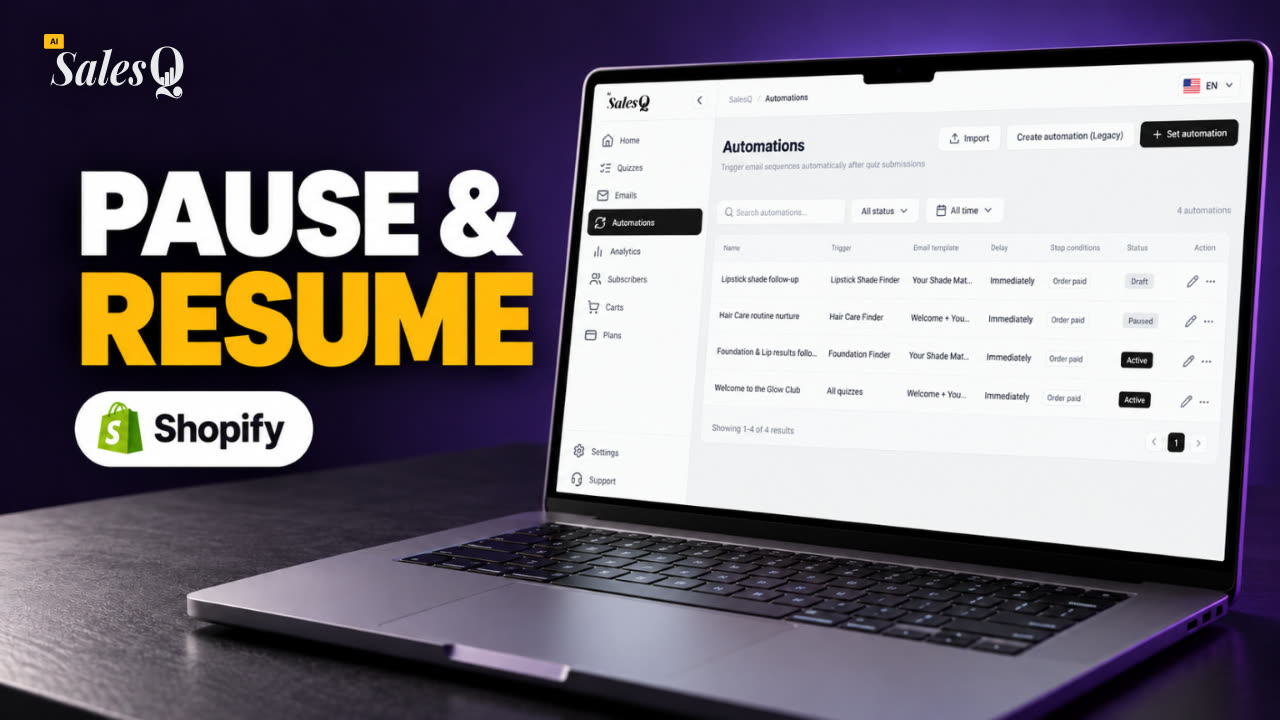 1:29Manage Shopify Email Automations: Pause, Resume & Edit Flows
- 14
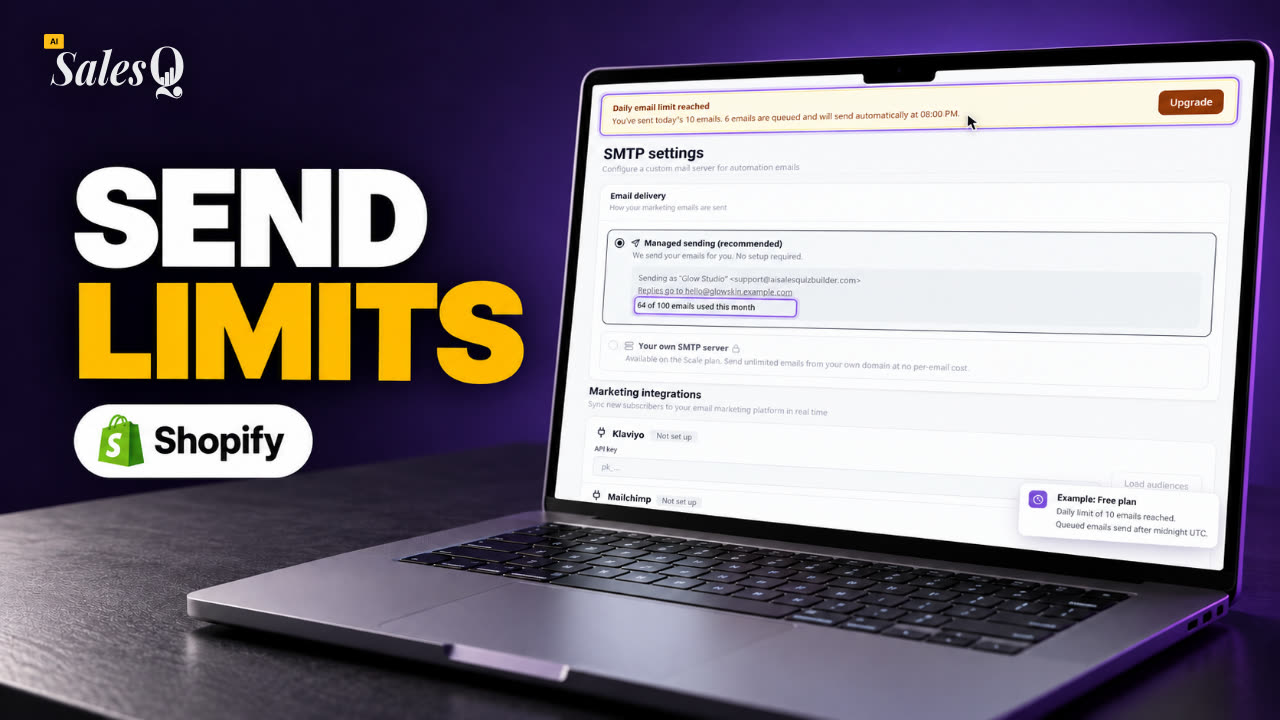 1:41Shopify Email Sending Limits Explained (Quiz Emails)
- 15
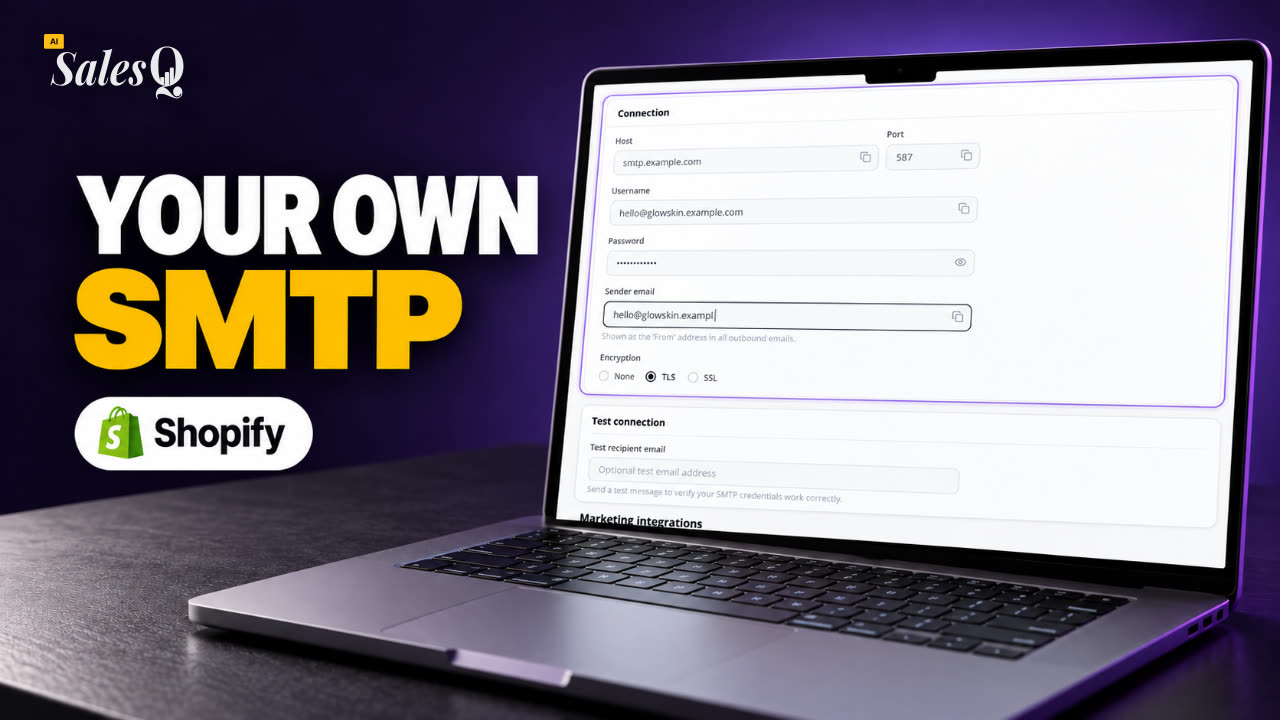 1:31Send Shopify Emails From Your Own SMTP Server
- 16
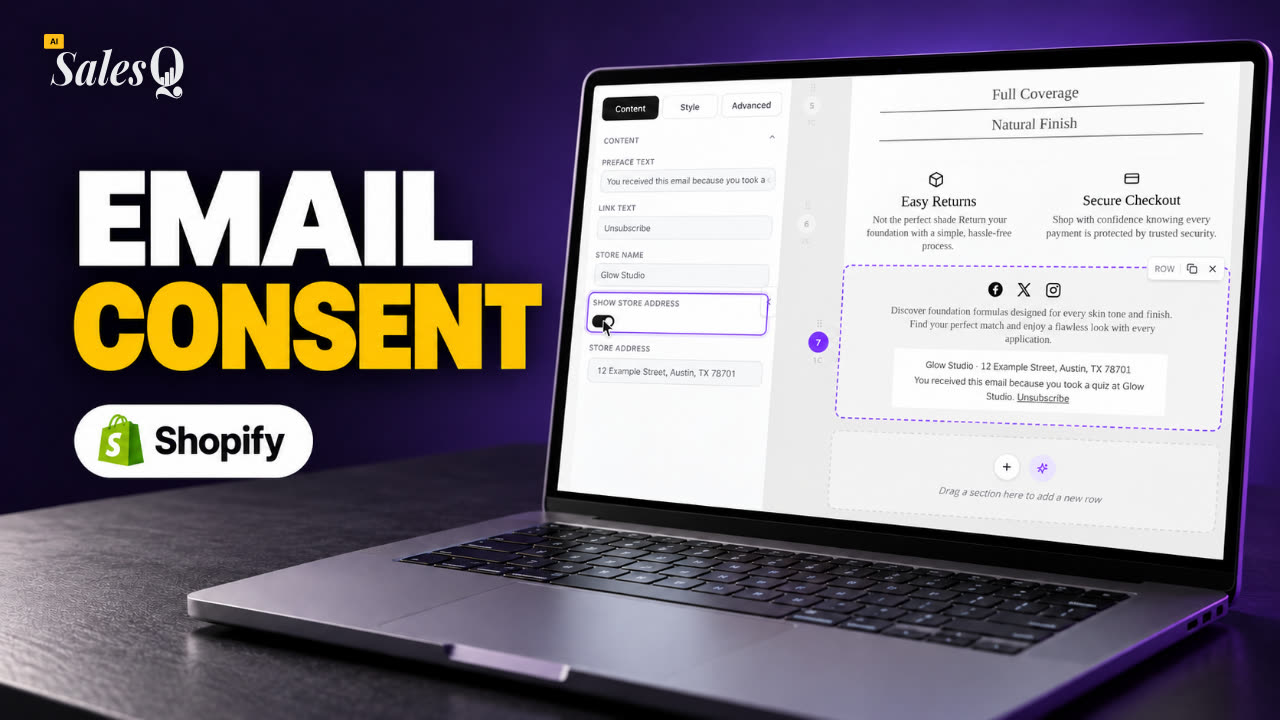 1:43Shopify Email Consent & Unsubscribe Link ExplainedNow playing
- 17
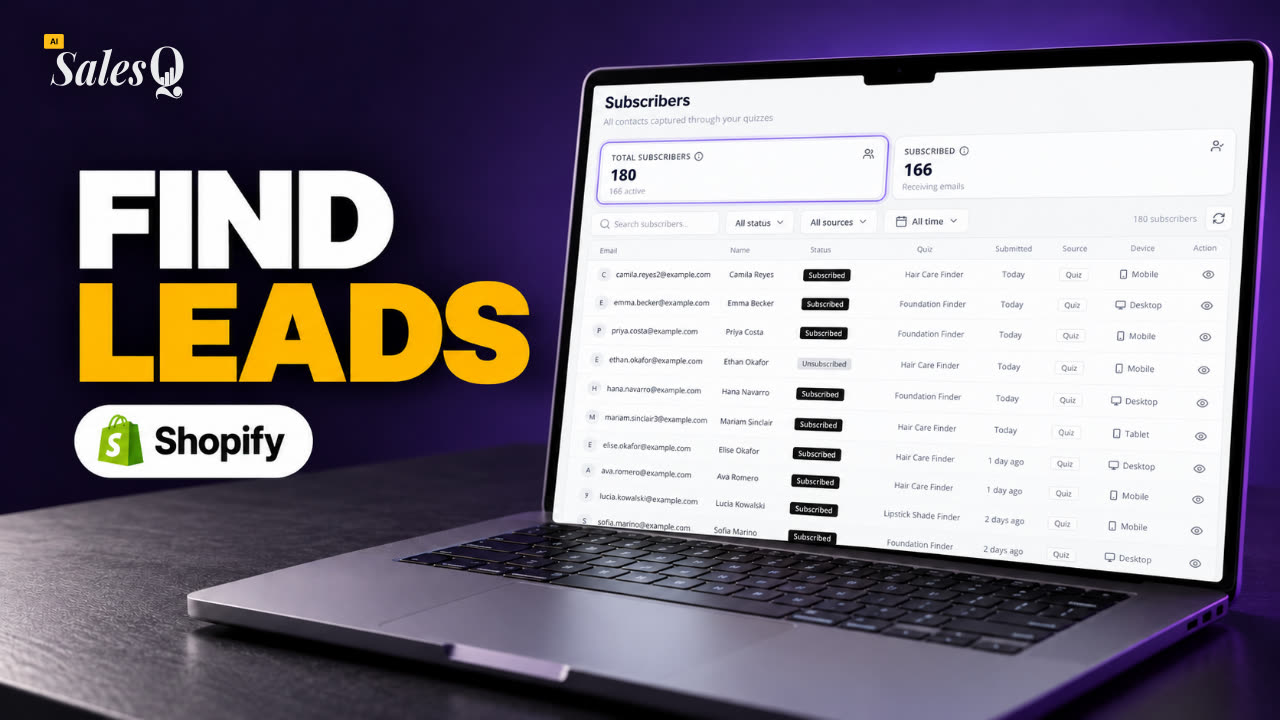 1:46Shopify Quiz Subscribers: Search, Filter & View Profiles
- 18
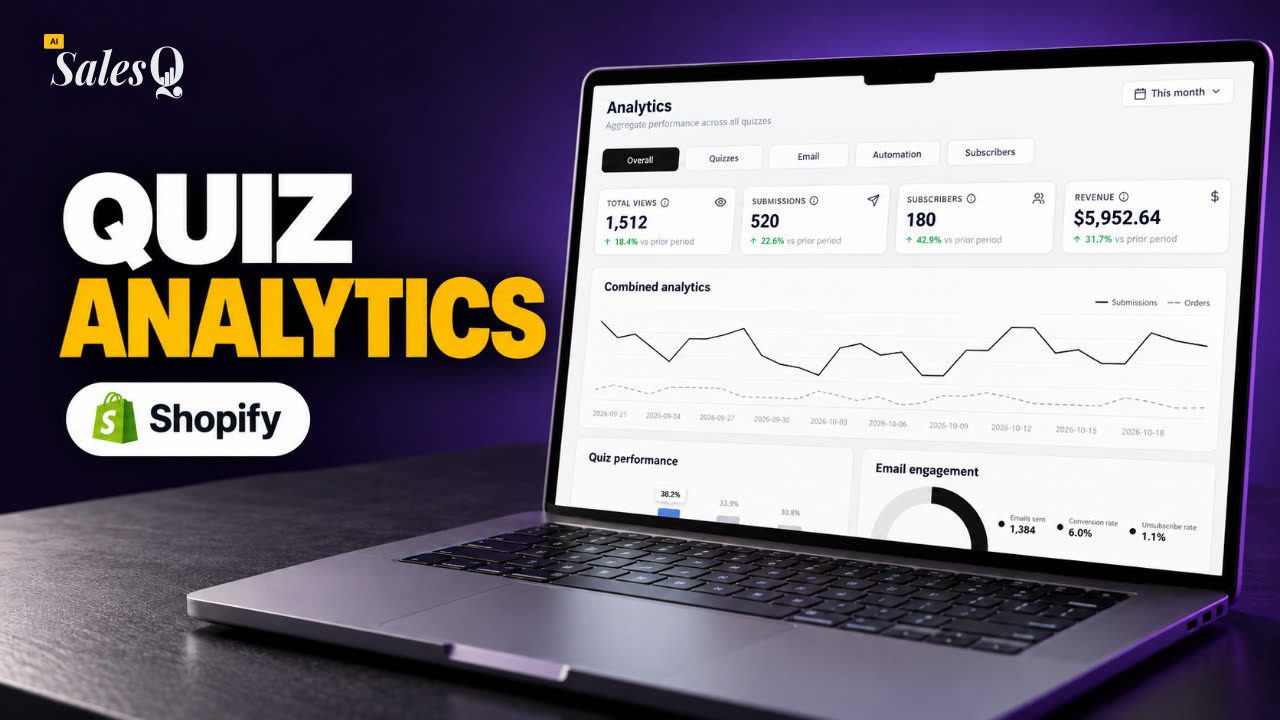 1:45Shopify Quiz Analytics: Track Revenue, Conversions & Emails
- 19
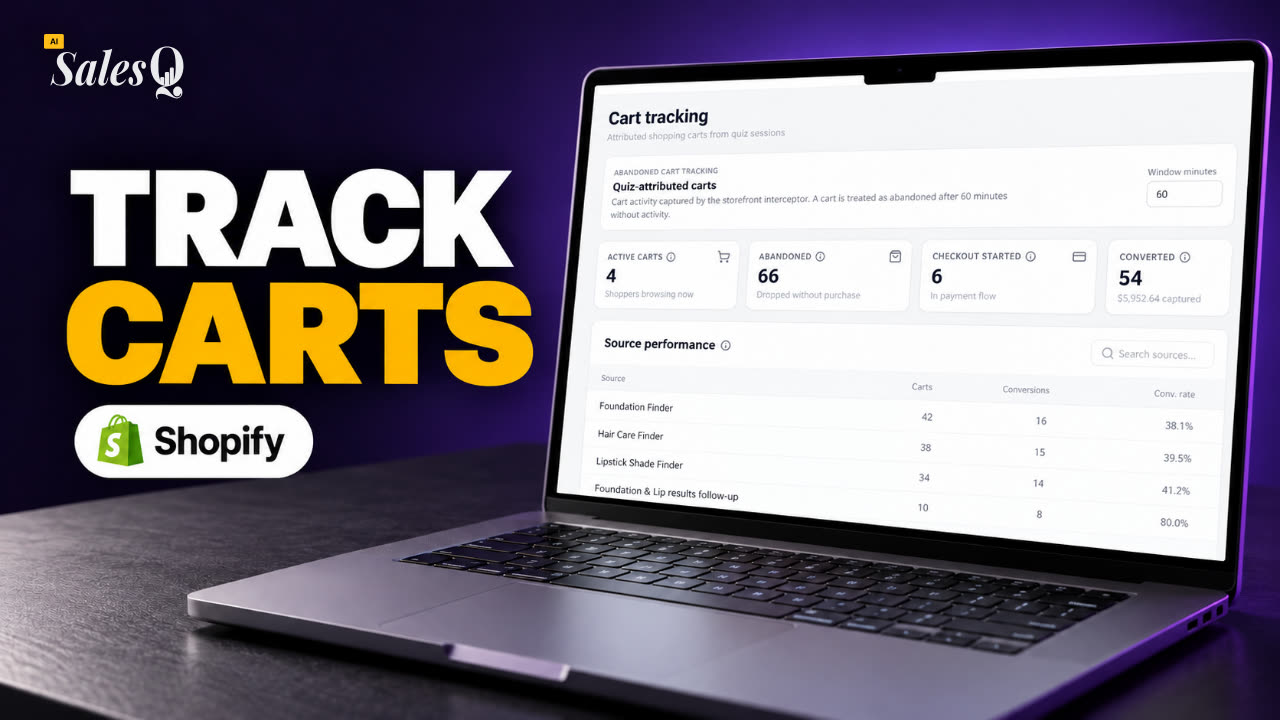 1:44Shopify Abandoned Cart Tracking for Quiz Shoppers
- 20
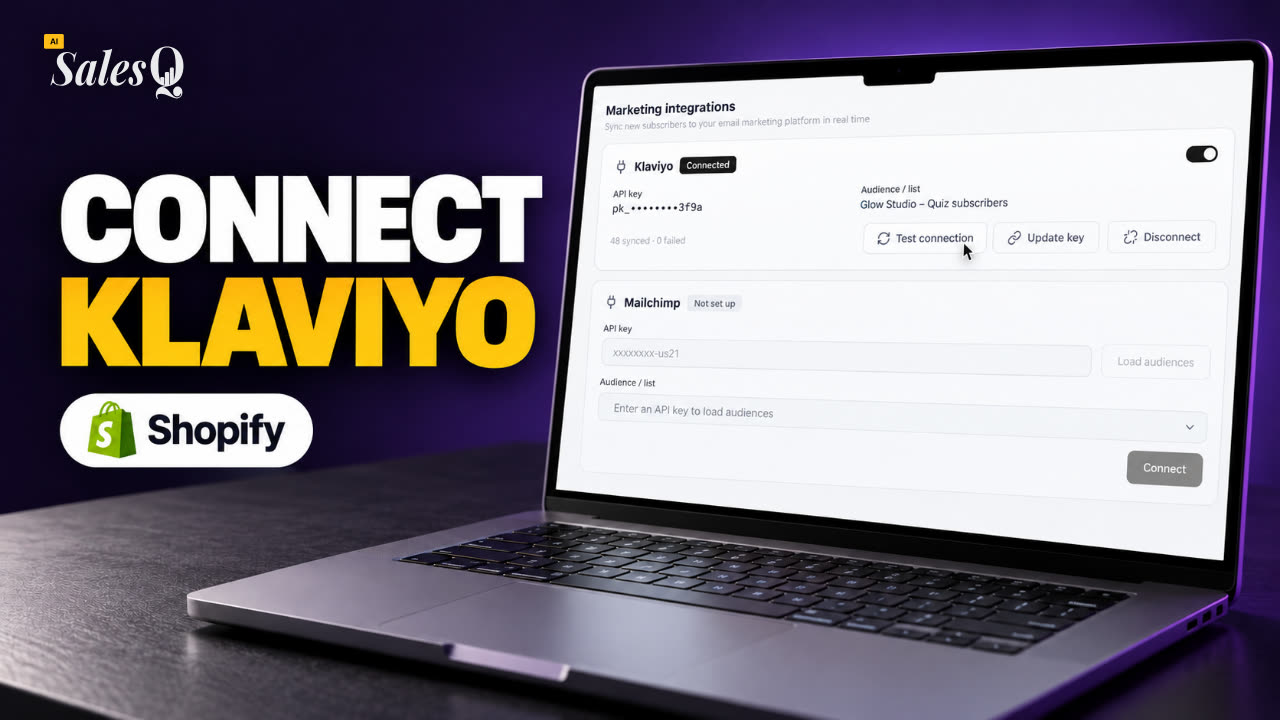 1:42Klaviyo Shopify Integration: Send Quiz Subscribers to Klaviyo
- 21
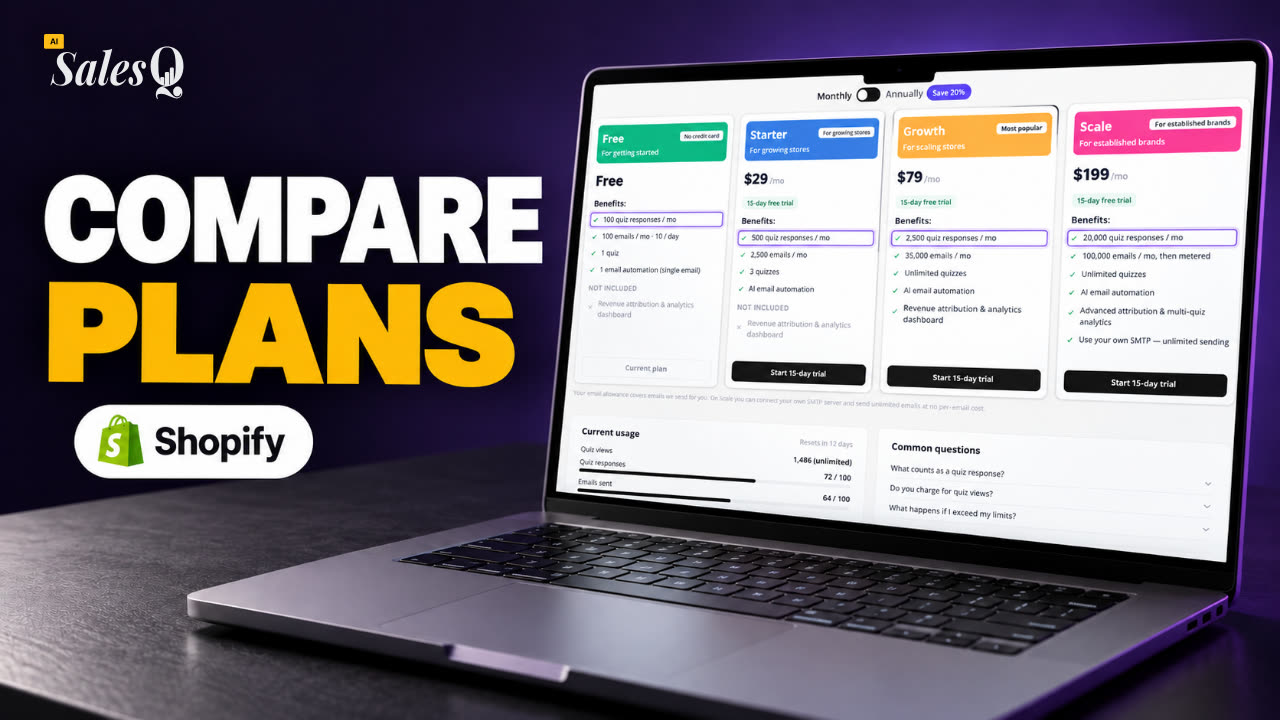 1:43Best Shopify Quiz App Pricing: AI Sales Quiz Builder Plans Compared
Learn more
Related articles
- Create an automationSend emails automatically after a shopper finishes a quiz: choose the quiz, add emails and waits, and stop the sequence when the shopper buys.→
- Email builder and blocksWhat each part of the email builder does: the toolbar, rows and columns, content blocks, block settings and the email's global settings.→
- Sending and limitsHow AISalesQ delivers your automation emails, how many you can send on each plan, and what happens when you reach a limit.→
Was this page helpful?
Still need help?
Can't find what you need? Talk to the people who build the app.