Quiz builder
Match the quiz to your brand
Set your fonts, colors, quiz size, progress bar, animations and celebration in Global settings, then fine-tune single questions and elements.
4 min read·Updated October 20, 2026·All plans
In the appSalesQ/Quizzes/Edit/Global settings
In this guide
- 01Use your brand fonts and colors across the whole quiz
- 02Set the quiz size, corners and background
- 03Style the progress bar, transitions and finish celebration
- 04Change the look of one question or element on its own
Before you start
- –A quiz open in the editor. See A tour of the quiz editor
- –Your brand colors and font names to hand
Most of the quiz's look is set once, in Global settings, and applies to every screen. You can then change single questions or elements where you need to.
Open Global settings
- 1
Click the gear icon
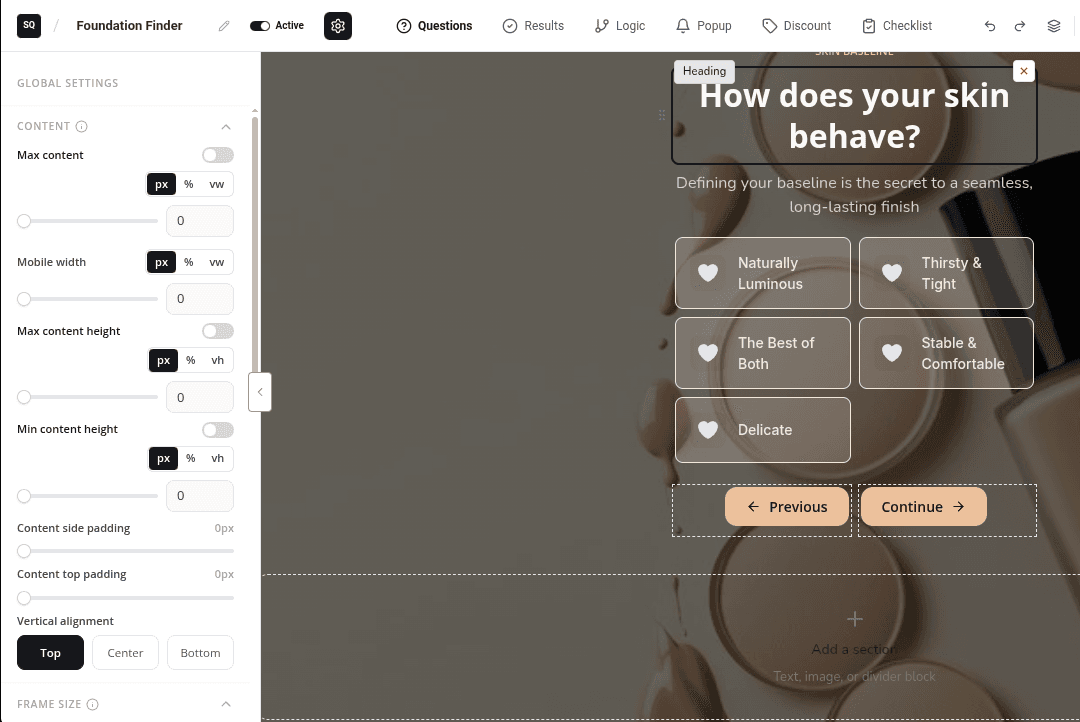
In the editor's top bar, click the gear icon next to the Active switch. Global settings opens in the left panel, with sections you can open and close. Click the gear again to close it.
| Section | What you set |
|---|---|
| Content | How wide the content is (Max content), its padding and Vertical alignment. |
| Advanced: Frame size | The outer size of the quiz box. For a popup, this is the popup's size. |
| Canvas height | The quiz height on desktop and mobile. |
| Canvas border | Border style, width, color and Border radius for rounded corners. |
| Row gap | The space between rows on each screen. |
| Branding & loader | The loading animation shown while the result is prepared, and your logo. |
| Typography | The fonts for Headings and Body text. |
| Global colors | Colors for headings, text, buttons, borders, links and error messages. |
| Background | A color, image or video behind the whole quiz. |
| Navigation | The progress bar or step indicator. |
| Transitions | The animation between screens. |
| Success celebration | Confetti or another effect when the result appears. |
Result mode, Scoring and No name fallback are also here. They control how results are chosen and how names show, not the design. See Result pages and product recommendations.
Fonts and colors
- 1
Pick your fonts
Open Typography and choose a font for Headings and one for Body.
- 2
Set your colors
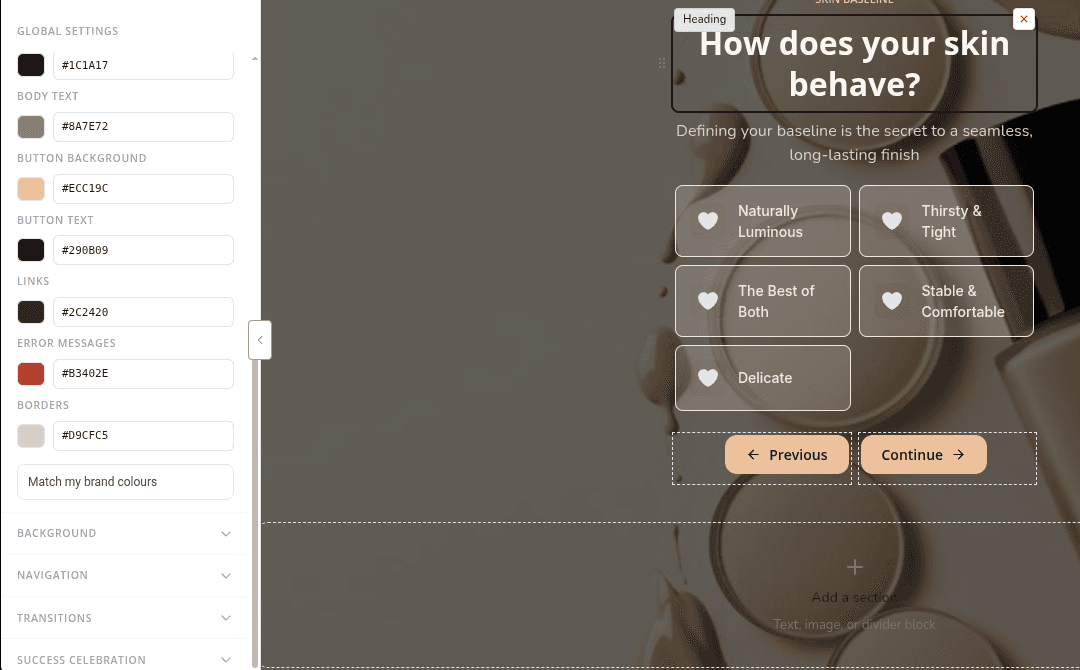
Open Global colors and set Headings, Body text, Button background, Button text, Links, Error messages and Borders.
- 3
Clear one-off colors
If some elements still show old colors, click Match my brand colours. It removes the colors set on single elements so everything uses your global colors.
Size, shape and background
- 1
Set the width
In Content, turn on Max content and set the width, for example 560 px. Set a separate Mobile width if you need one.
- 2
Set the height
In Canvas height, set Desktop height and Mobile height.
- 3
Round the corners
In Canvas border, set Border radius. Add a border with Border style, Border width and Border color.
- 4
Add a background
In Background, choose a color, or add an image or a video.
Progress bar and animations
- 1
Style the progress bar
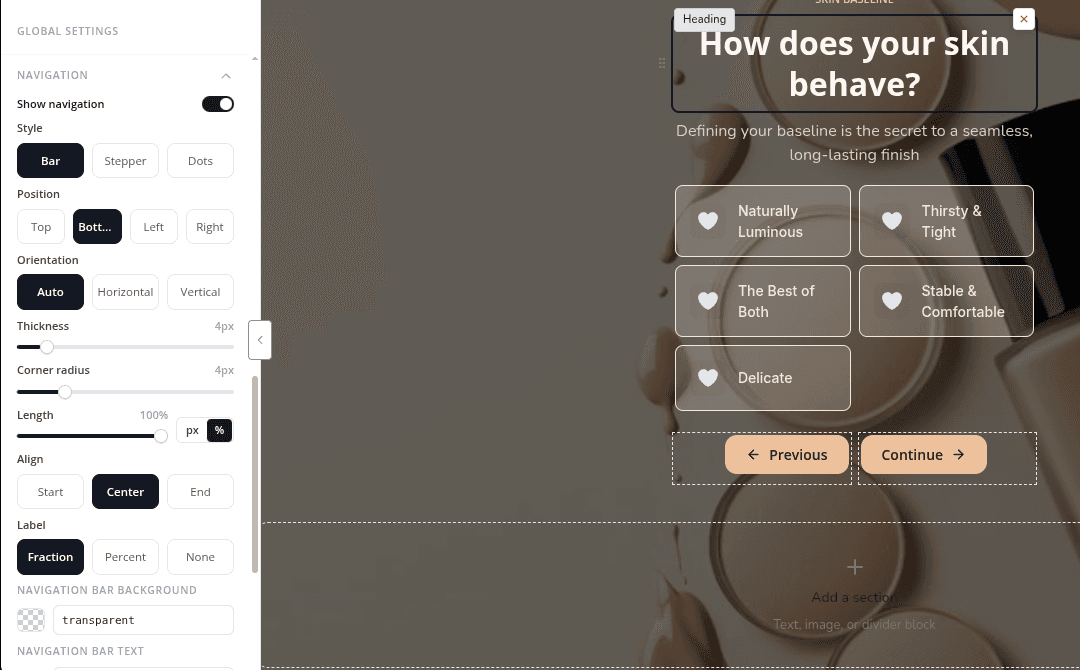
Open Navigation. Choose a Style (Bar, Stepper or Dots), a Position, and whether to show a Label as a fraction or a percent. Turn off Show navigation to hide it.
- 2
Choose a transition
In Transitions, pick how one screen moves to the next, for example Slide left/right.
- 3
Add a celebration
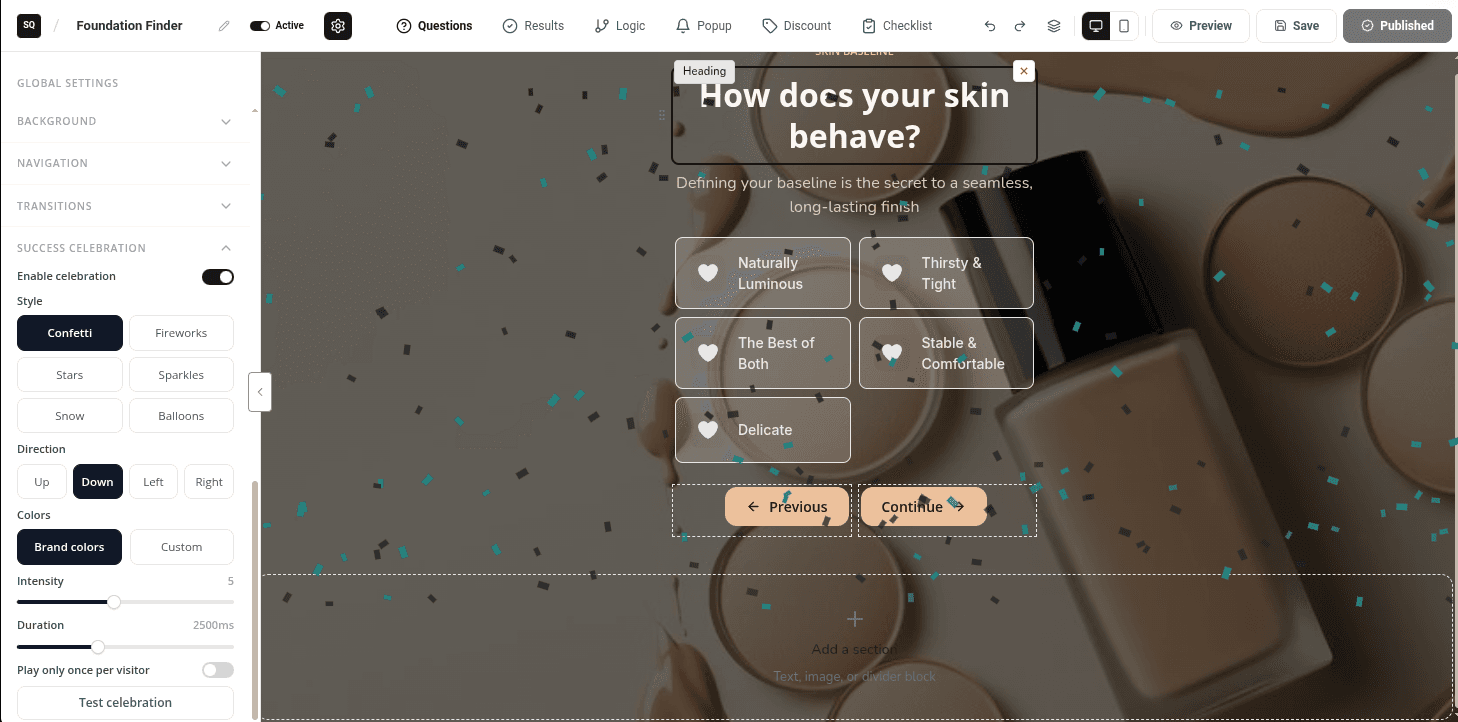
In Success celebration, turn on Enable celebration and pick a Style such as Confetti or Balloons. Click Test celebration to see it.
- 4
Set the loader
In Branding & loader, keep Show loading animation on submit on, choose a Loader style and add Loading text if you like. Click Test loader to see it.
Style one question or element
- 1
Change one question
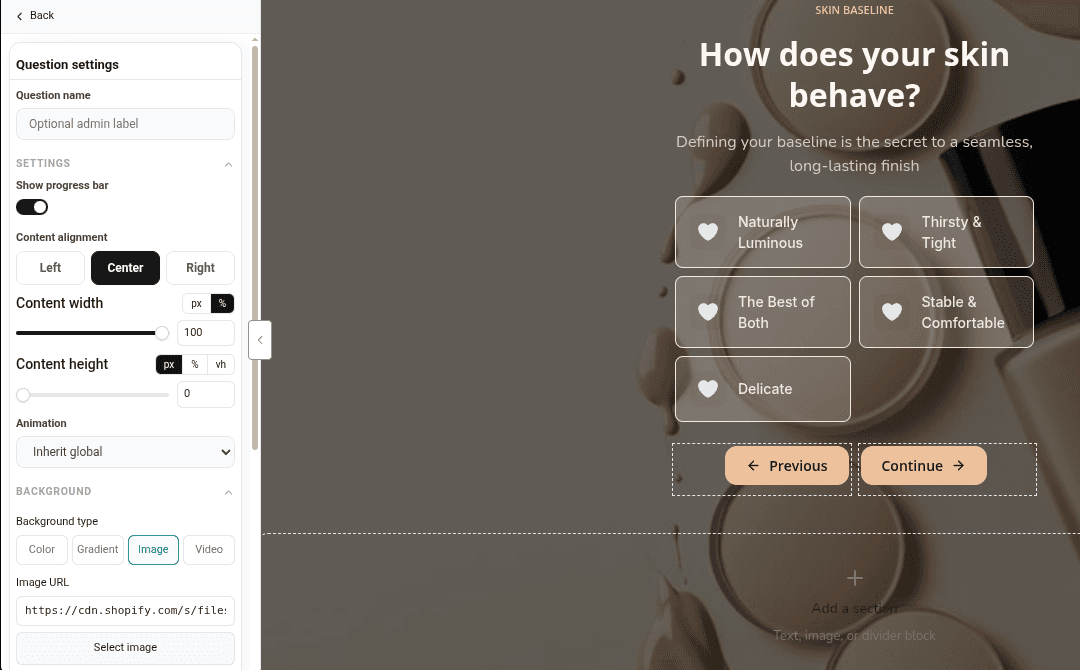
In Layers, click Question settings under a question. Set its own Background, Content alignment, Content width or Animation. Leave Color empty to keep the global background.
- 2
Change one element
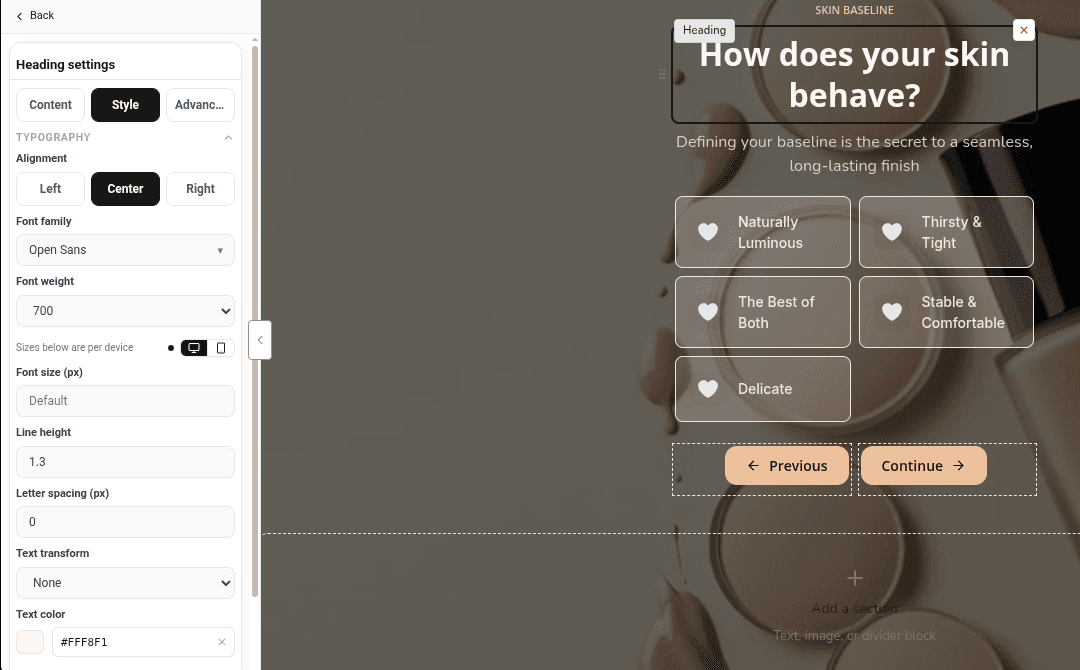
Click a block on the canvas and open its Style tab. Change its font, colors, borders and spacing.
- 3
Set a mobile value
Many style settings have a desktop and a phone icon. Switch to the phone icon to set a different value for mobile, or click Reset to desktop to match desktop again.
Learn more
Related articles
- Editor tourWhat each part of the quiz editor does: the top bar, the six tabs, the left panel and the canvas.→
- Question typesEvery question type and building block you can add to a quiz screen, and how to set answers, limits and layout.→
- Popup triggers and pagesChoose which pages your quiz popup shows on, when it opens, how often shoppers see it, and how its reopen and close buttons look.→
Was this page helpful?
Still need help?
Can't find what you need? Talk to the people who build the app.