Getting started
Install AISalesQ and turn on the app embed
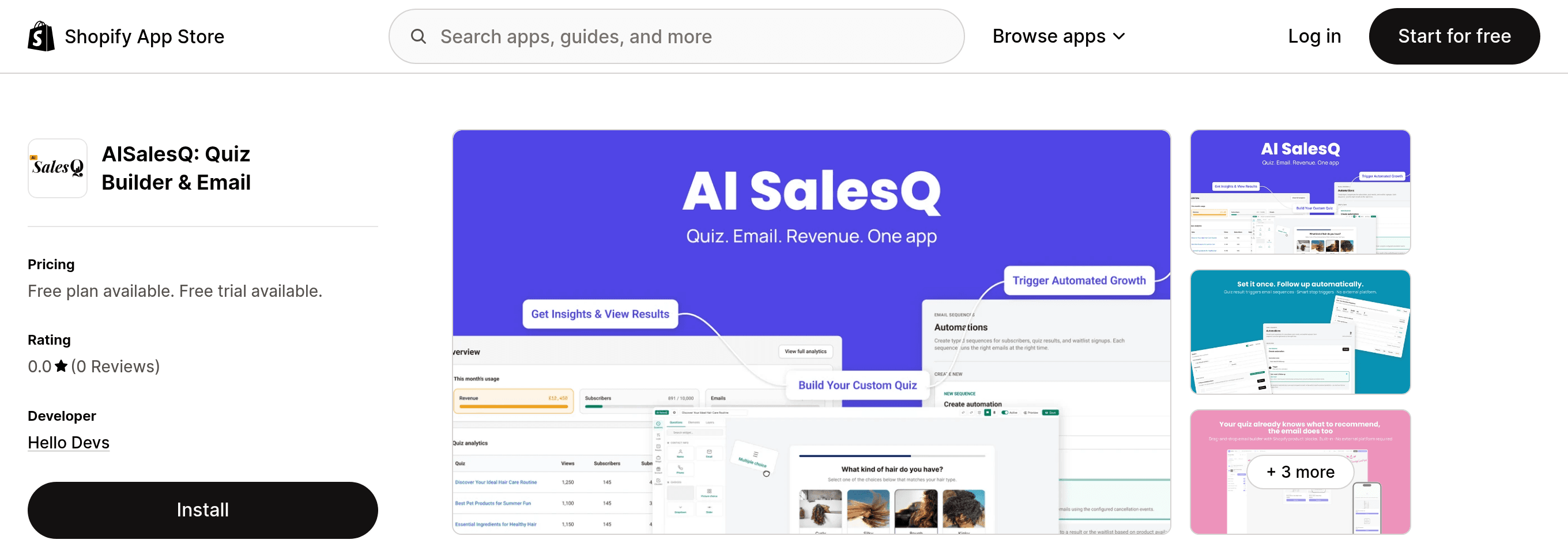
Install the app from the Shopify App Store, then switch on the AISalesQ app embed in your theme so quizzes can appear on your store.
3 min read·Updated October 20, 2026·All plans
In the appShopify App Store/Install/SalesQ/Get started
In this guide
- 01Install AISalesQ on your Shopify store
- 02Approve the permissions the app needs, and why it needs them
- 03Switch on the app embed so quizzes can appear on your store
- 04Choose which pages a quiz may show on
Before you start
- –A Shopify store where you can install apps (store owner or staff with app permissions)
- –An Online Store theme (the embed works with any Online Store 2.0 theme)
Getting AISalesQ running takes two parts: installing the app in your Shopify admin, and switching on its app embed in your theme. The embed is what lets a published quiz appear on your storefront.
Install the app
- 1
- 2
Approve the permissions
Shopify shows what the app can access. AISalesQ needs your products (for recommendations), customers (to save quiz subscribers and their marketing consent), orders (to match sales to quizzes) and discounts (to create quiz discount codes). Click Install to approve.
- 3
Land on Home
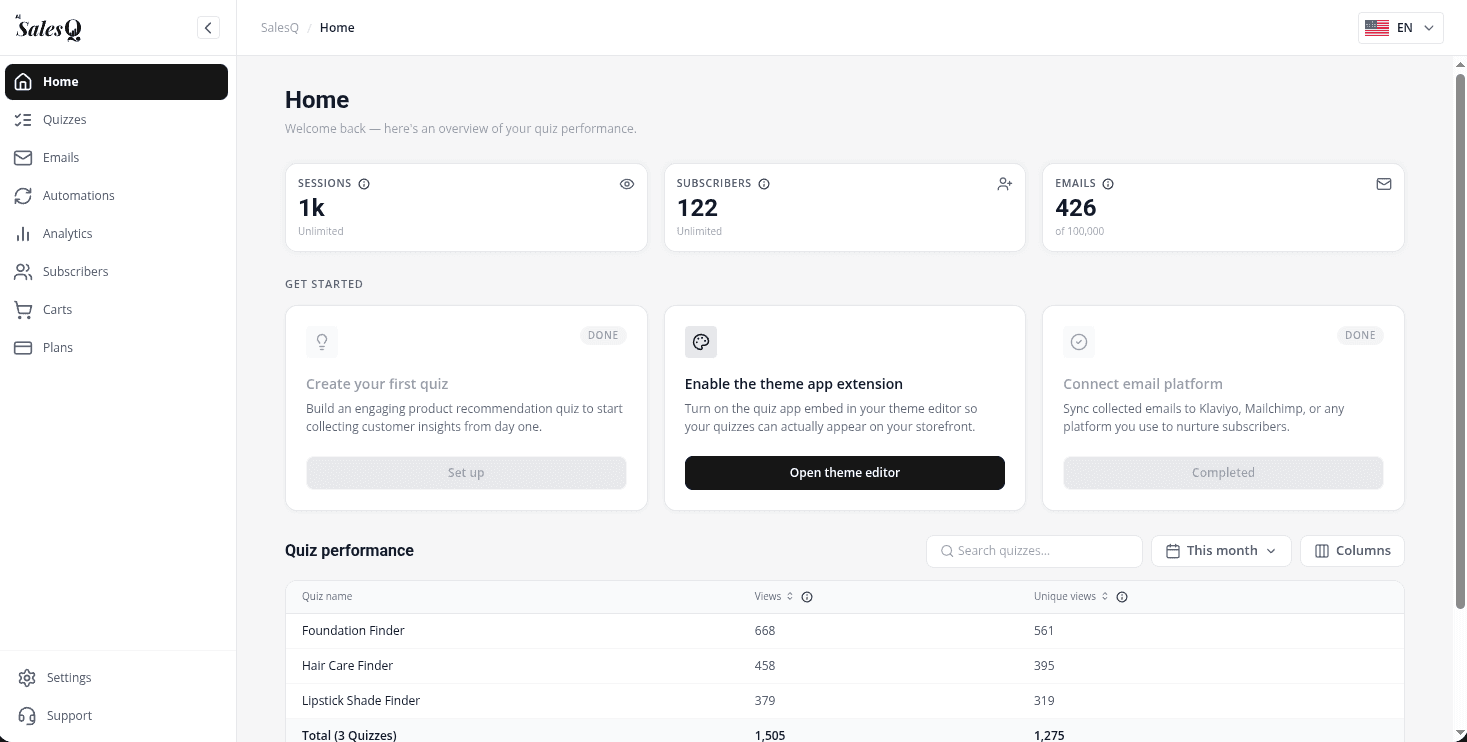
The app opens on Home, with your usage at the top and a Get started checklist below it.
Turn on the app embed
- 1
Open the theme editor from Home
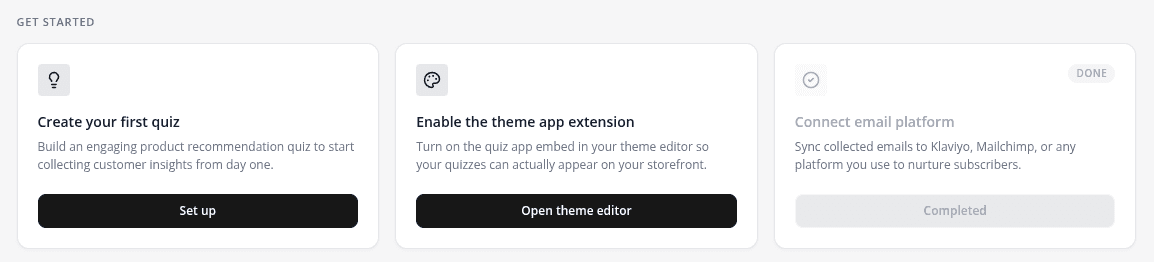
In the Get started checklist, find Enable the theme app extension and click Open theme editor. Your live theme opens with the App embeds panel already showing AISalesQ.
- 2
Switch on Ai Sales Quiz
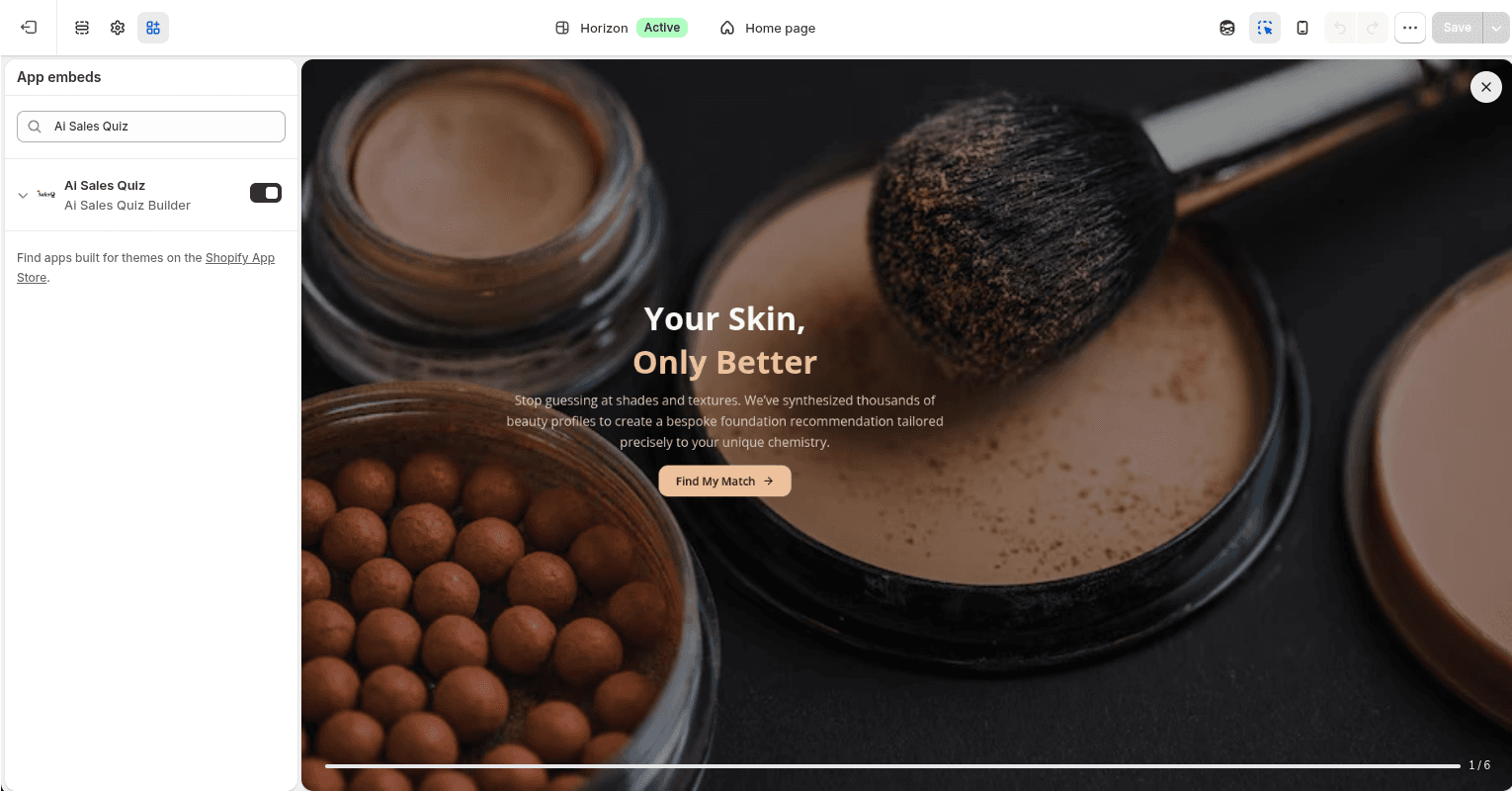
In App embeds, turn on Ai Sales Quiz.
- 3
Choose where it can appear
Under Page targeting, choose the pages a quiz may show on. Home page, Product pages and Collection pages are on by default; Show on all pages, Cart page, Pages (About, FAQ, etc.), Blog & articles and Search page are off.
- 4
Save the theme
Click Save in the top-right corner of the theme editor. The embed is now live, and it stays invisible until you publish a quiz.
What to do next
- Take the tour of the app to see where everything is.
- Create your first quiz from a template or from scratch.
- Publish the quiz on your store as a popup, a section or a button.
Video tutorials
Watch the series in order, or jump to the one you need.
- 01
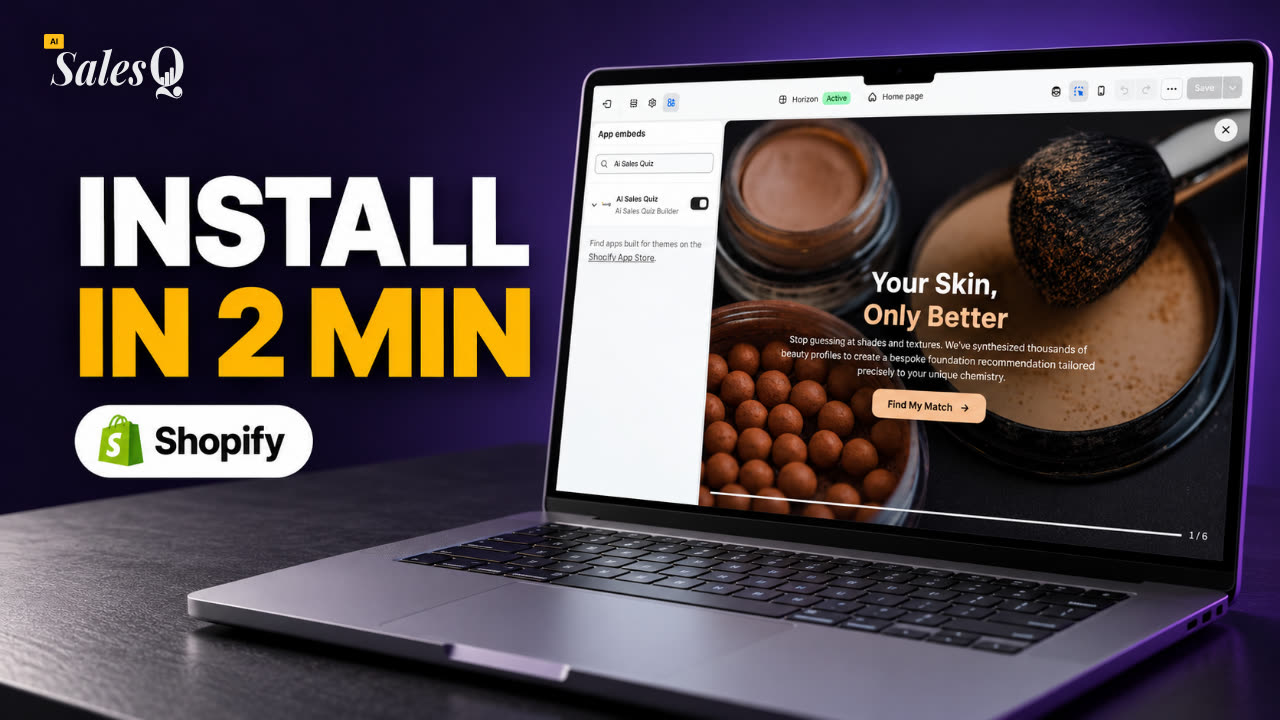 1:32How to Install a Shopify Quiz App: AI Sales Quiz Builder Setup & TourNow playing
- 02
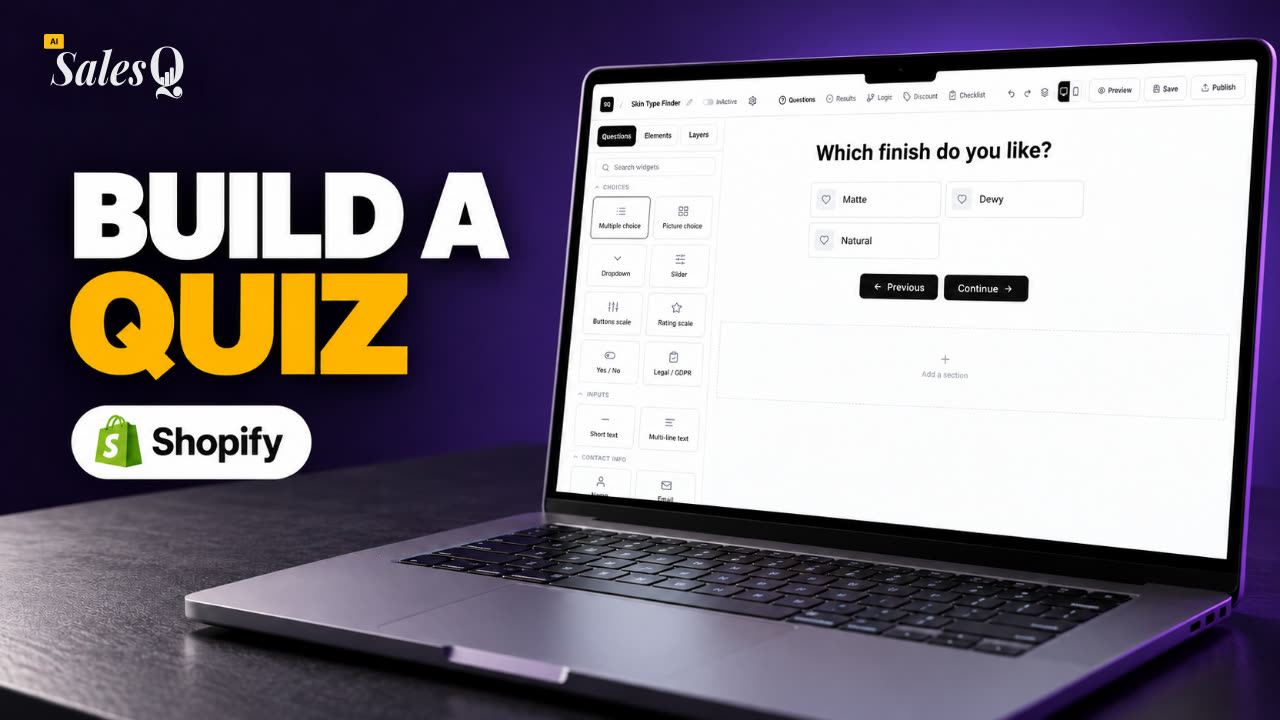 1:38How to Create a Product Recommendation Quiz on Shopify (Step by Step)
- 03
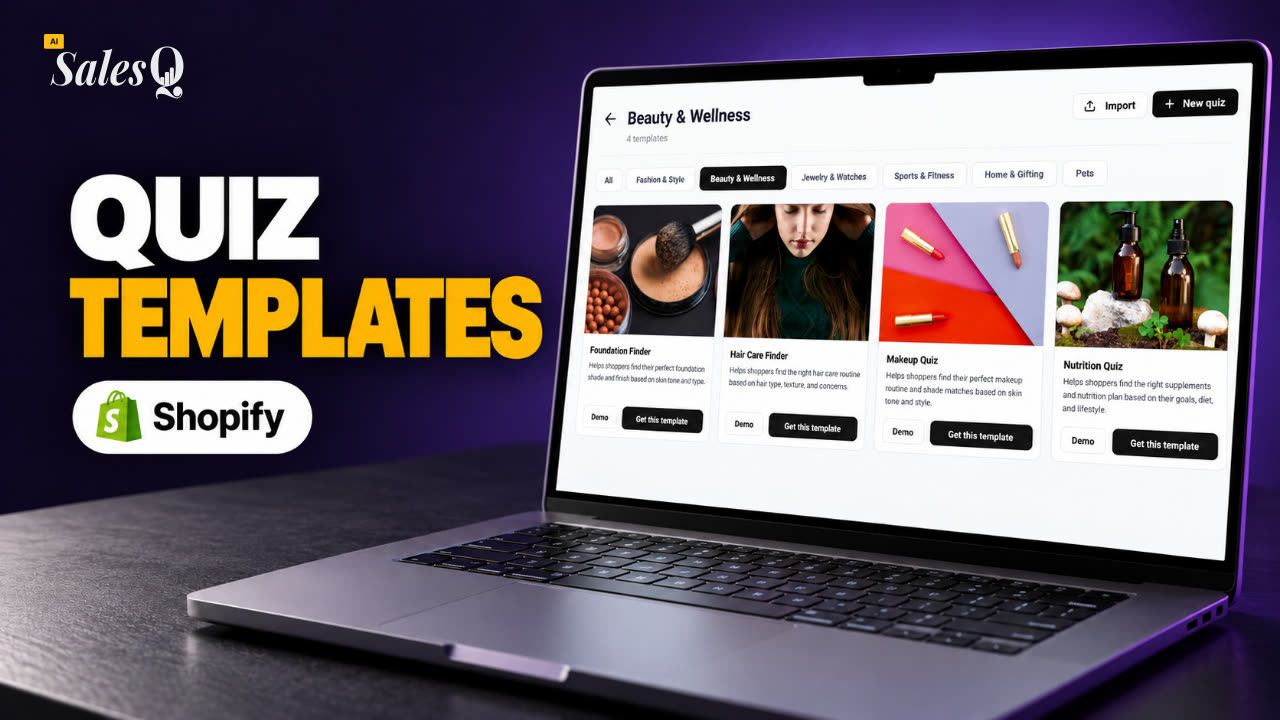 1:44Shopify Quiz Templates: Build a Product Quiz in Minutes
- 04
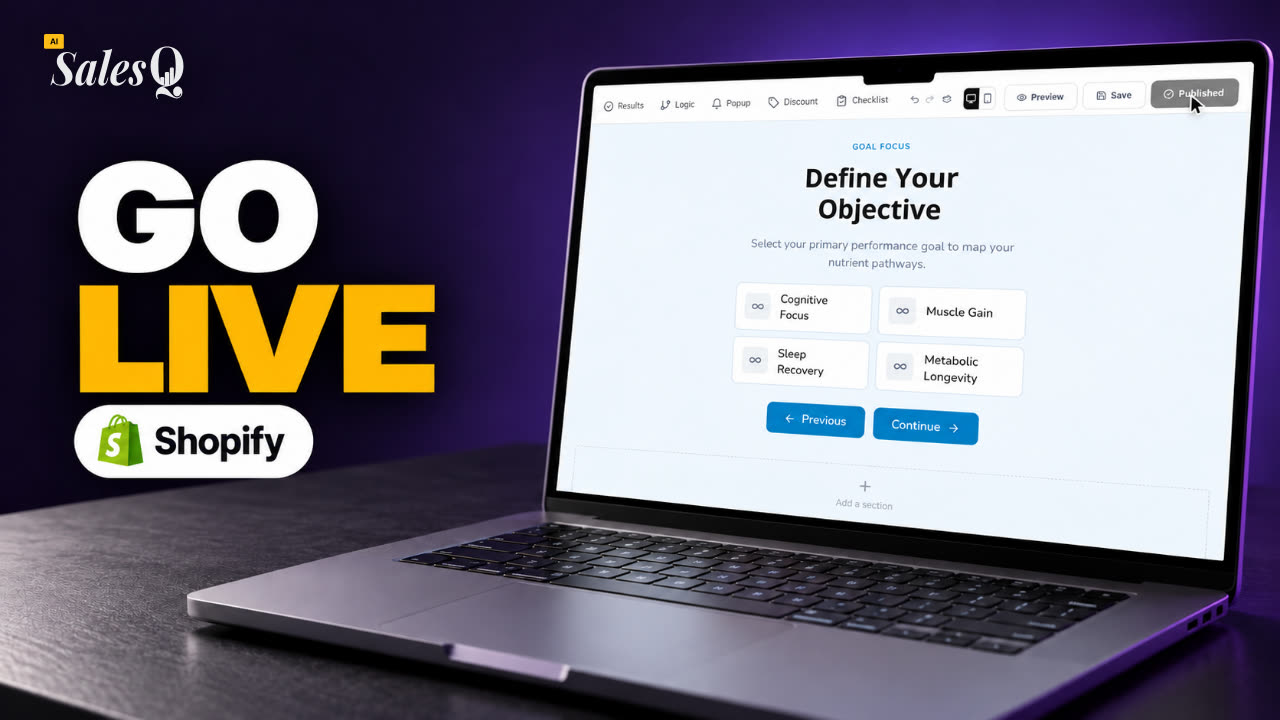 1:48How to Add a Quiz to Your Shopify Store (Publish & Embed)
- 05
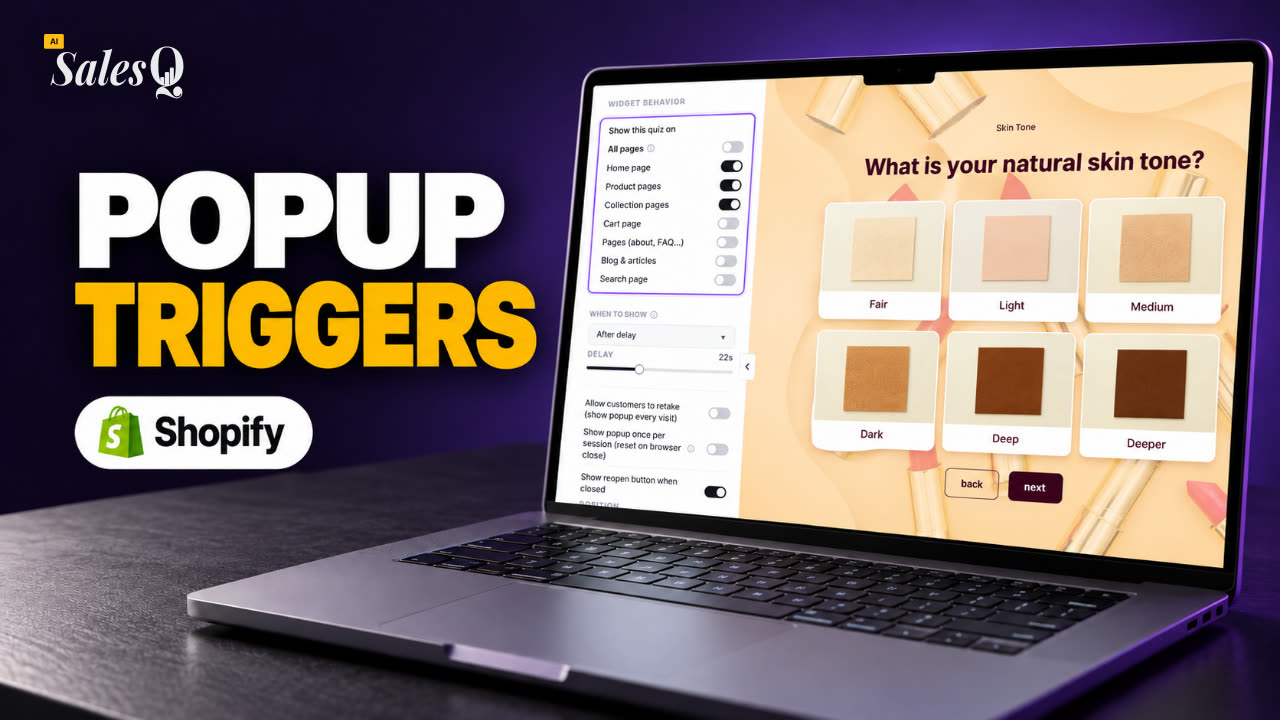 1:56Shopify Quiz Popup: Triggers, Timing & Page Targeting
- 06
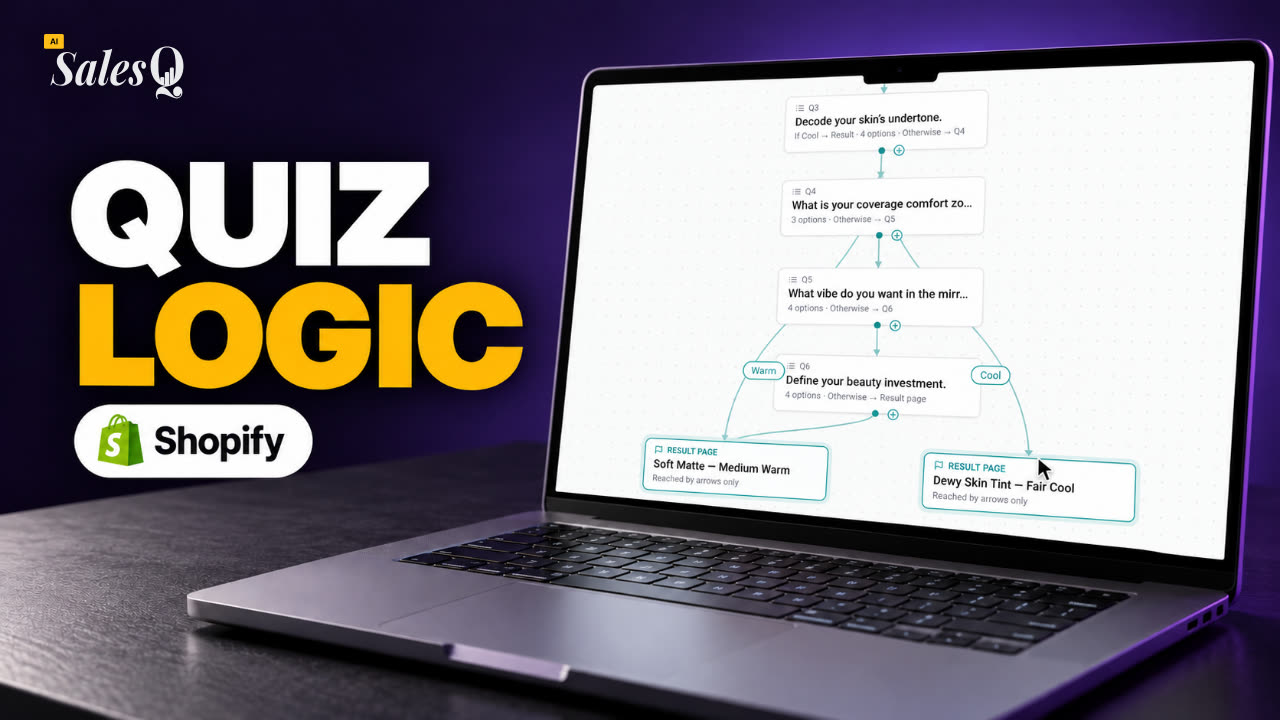 1:44Shopify Quiz Logic & Branching: Send Shoppers to the Right Product
- 07
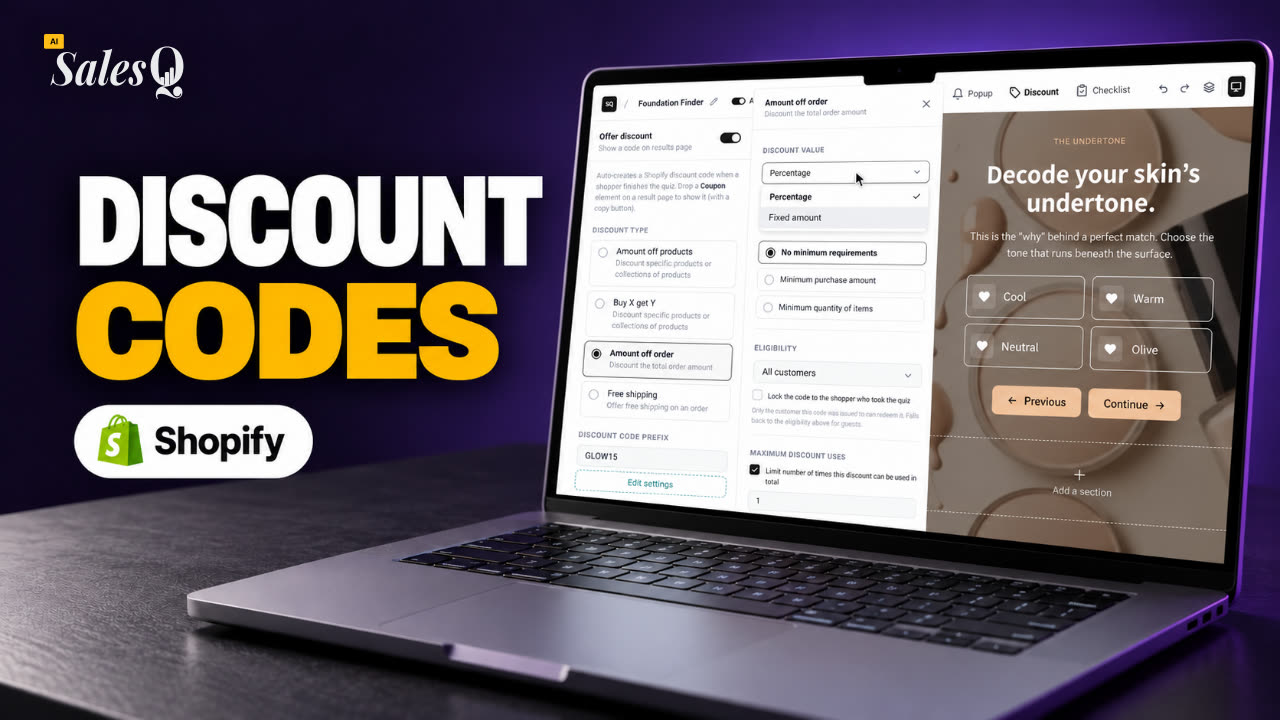 1:42Shopify Quiz Discount Codes: Unique Codes That Convert
- 08
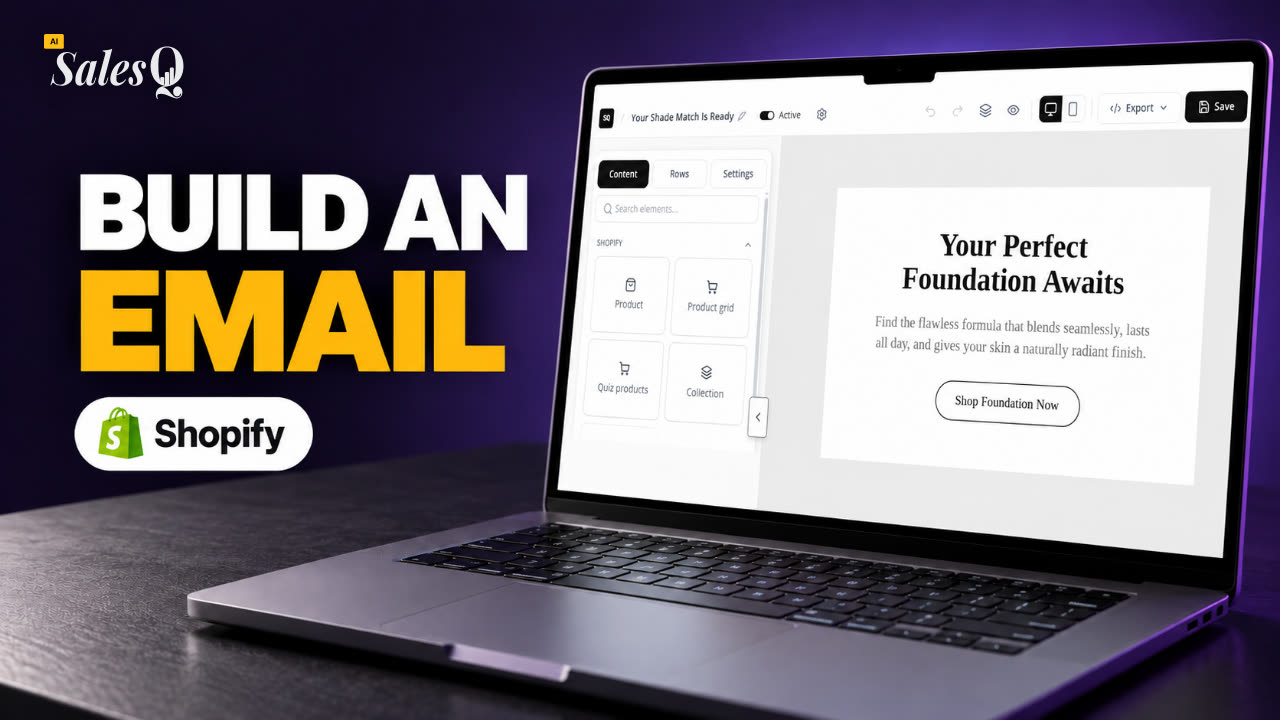 1:44Shopify Email Marketing: Create a Quiz Follow-Up Email
- 09
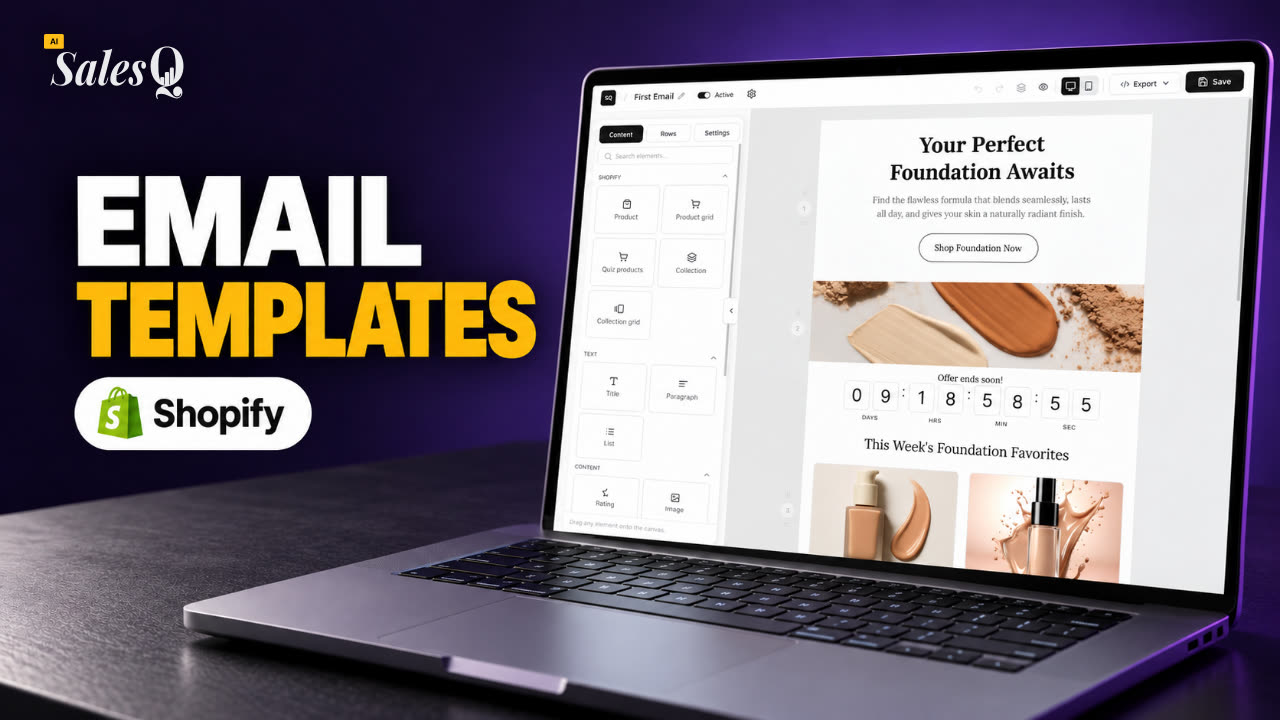 1:36Shopify Email Templates for Quiz Follow-Ups (Ready to Use)
- 10
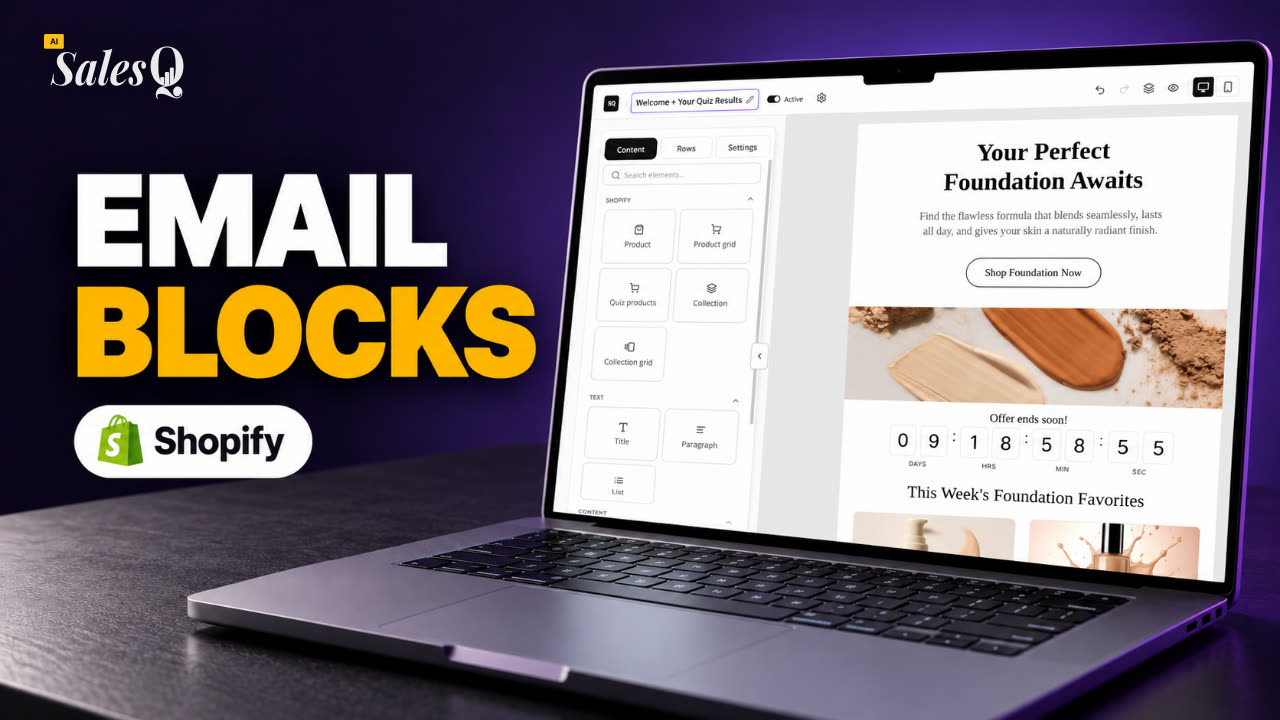 1:51Shopify Email Builder Tutorial: Drag-and-Drop Blocks
- 11
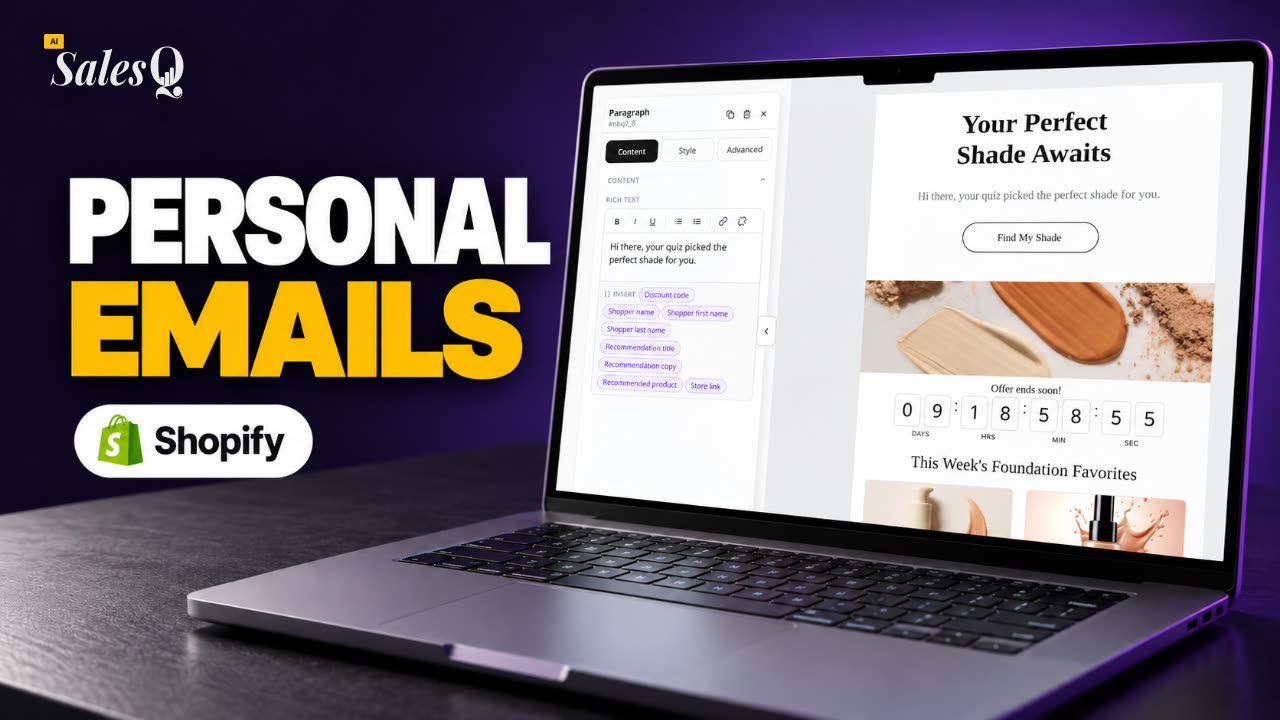 1:49Personalize Shopify Emails With Quiz Answers (Merge Tags)
- 12
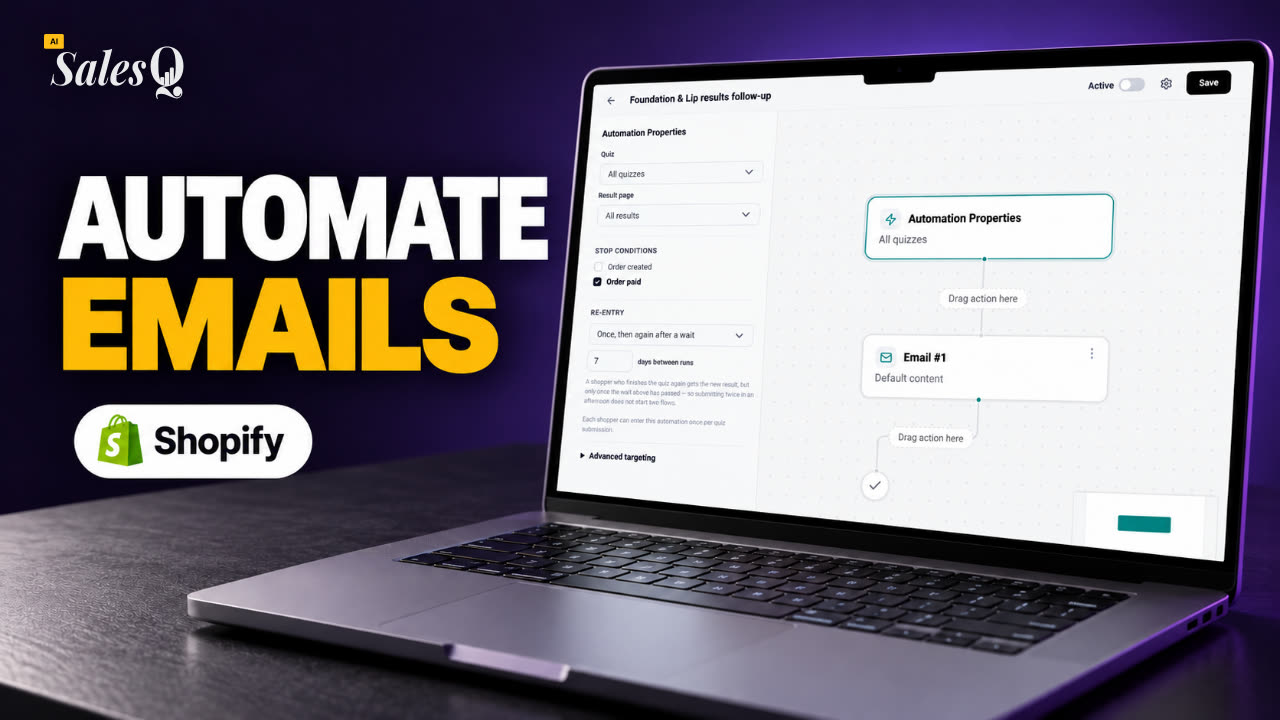 1:32Shopify Email Automation: Quiz Follow-Up Flow Step by Step
- 13
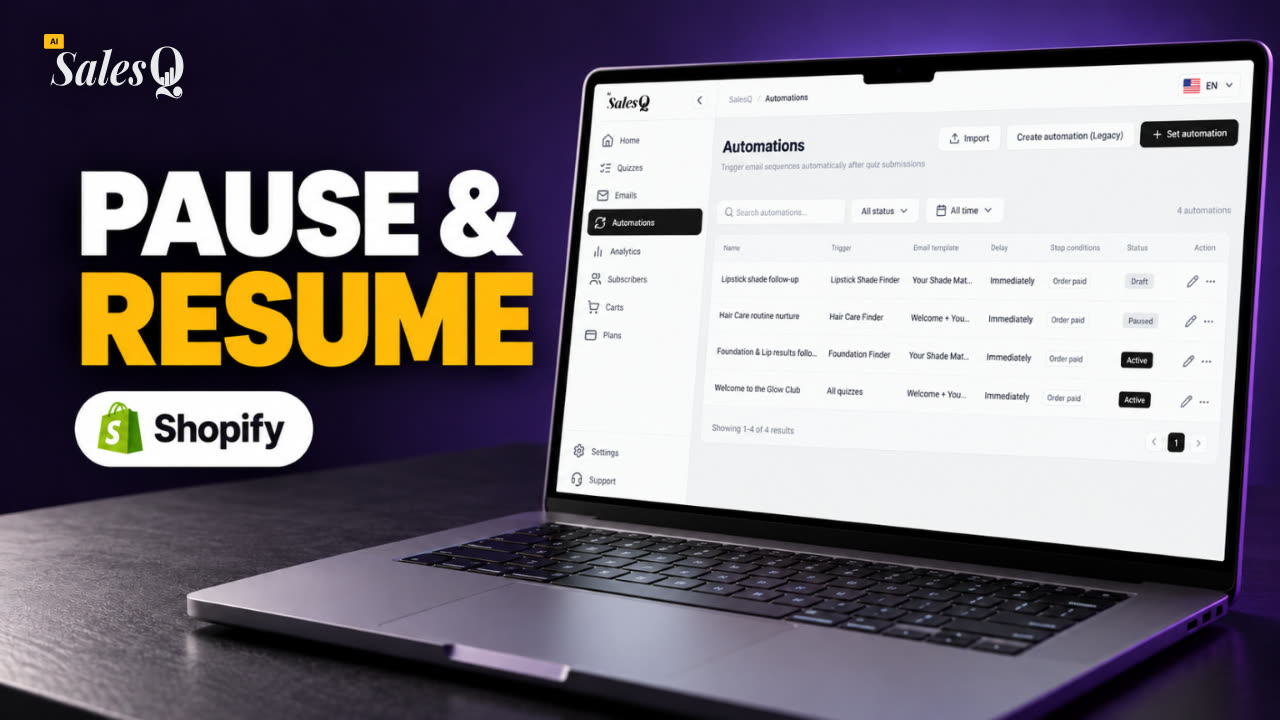 1:29Manage Shopify Email Automations: Pause, Resume & Edit Flows
- 14
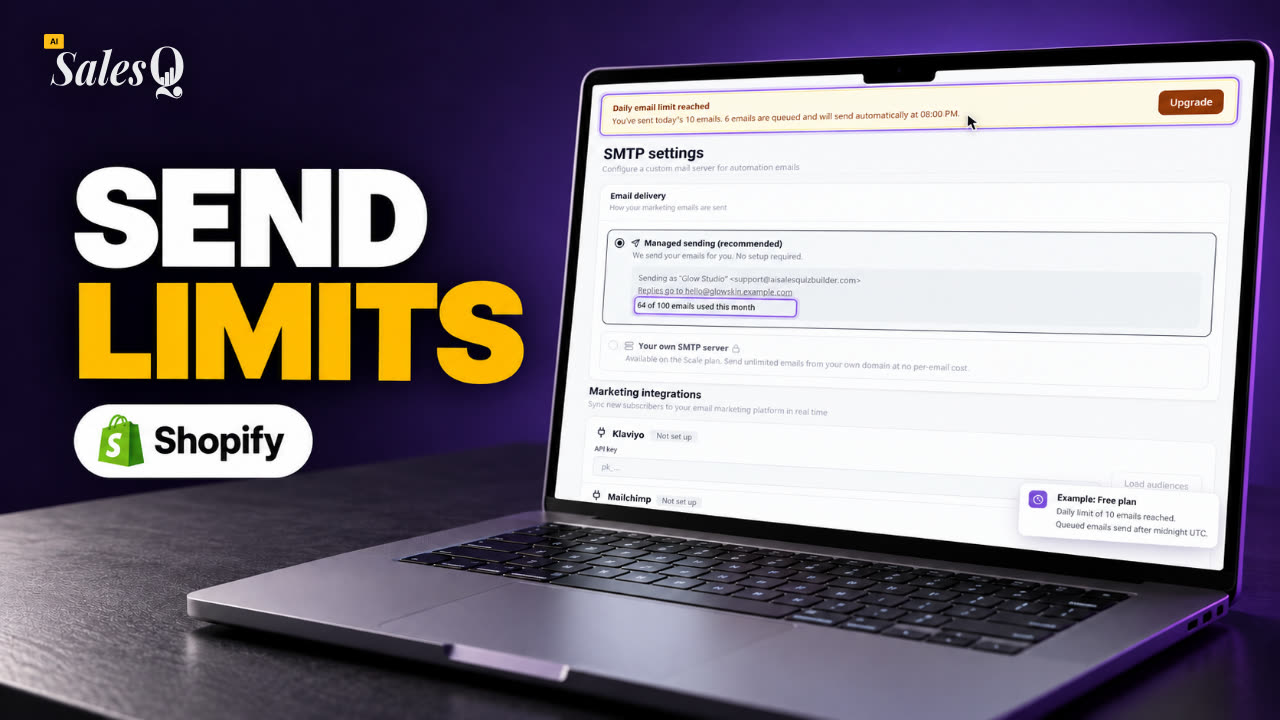 1:41Shopify Email Sending Limits Explained (Quiz Emails)
- 15
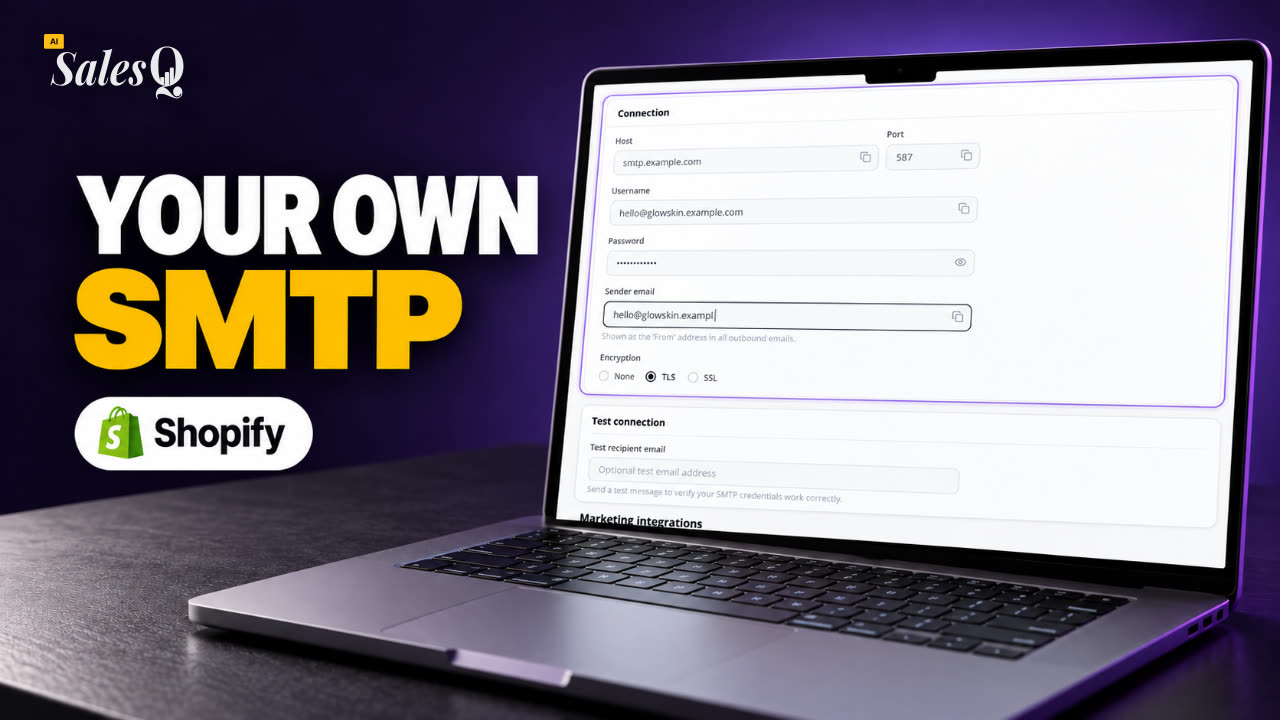 1:31Send Shopify Emails From Your Own SMTP Server
- 16
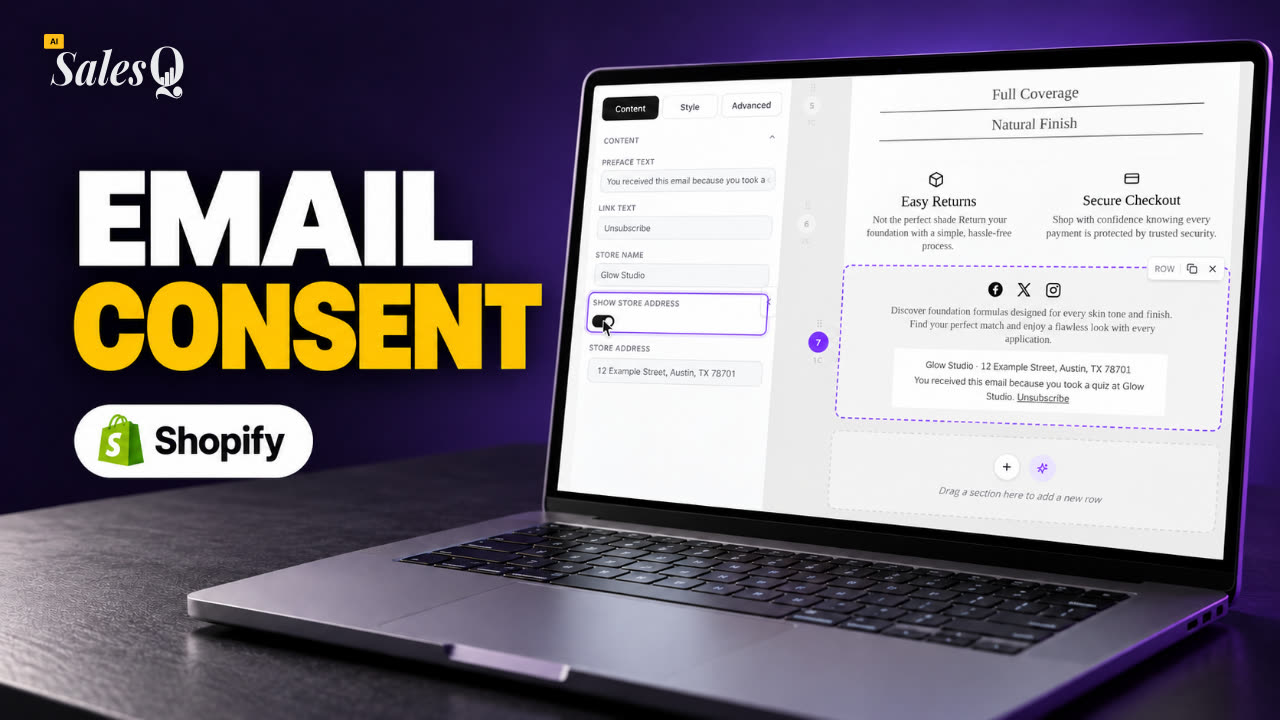 1:43Shopify Email Consent & Unsubscribe Link Explained
- 17
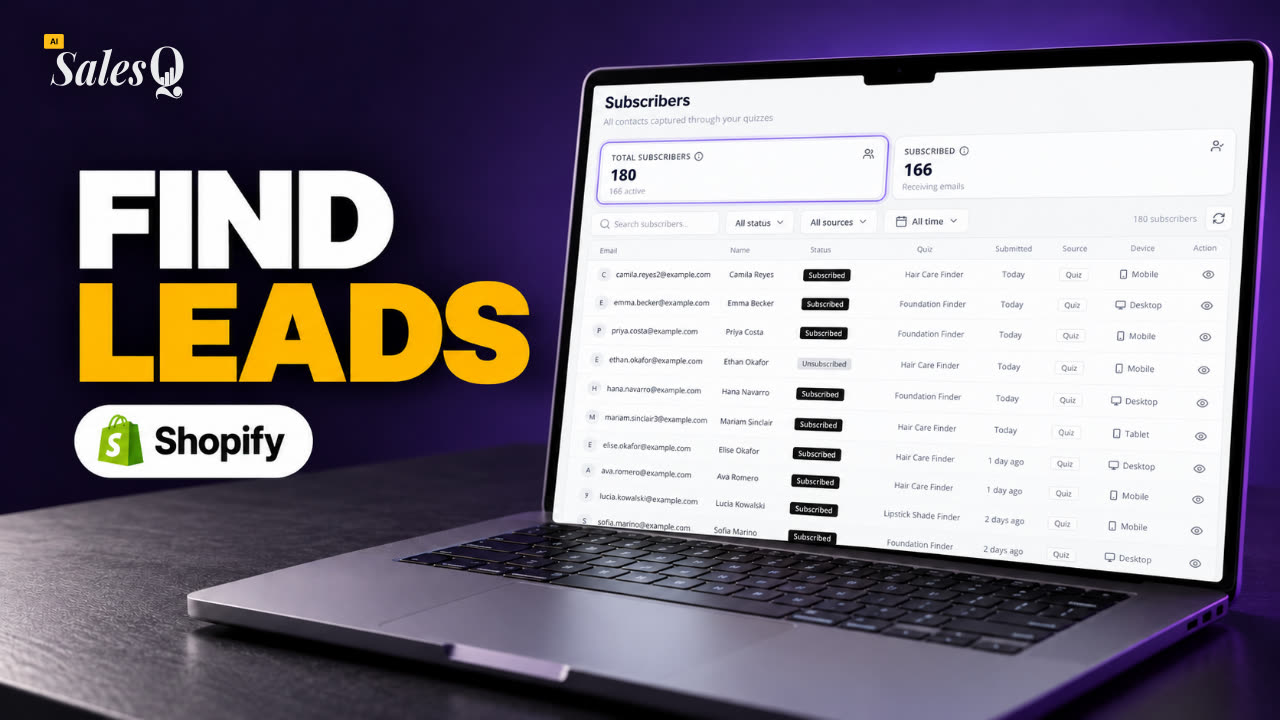 1:46Shopify Quiz Subscribers: Search, Filter & View Profiles
- 18
 1:45Shopify Quiz Analytics: Track Revenue, Conversions & Emails
- 19
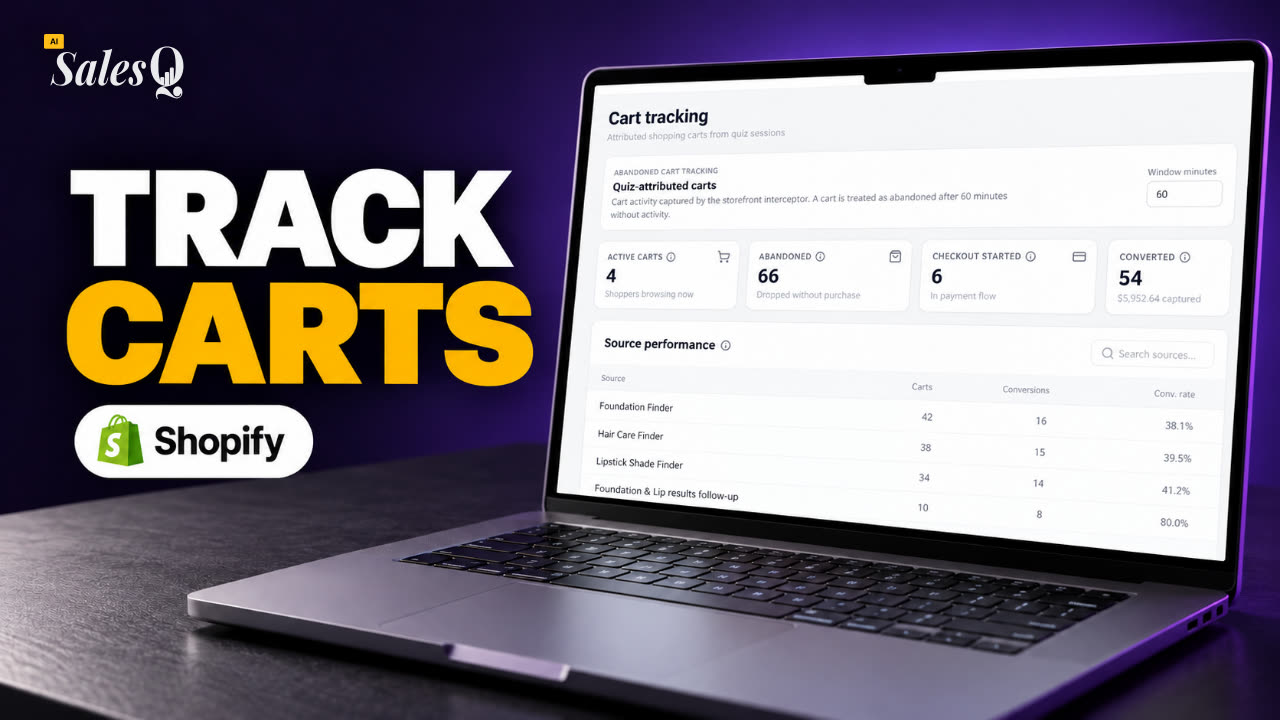 1:44Shopify Abandoned Cart Tracking for Quiz Shoppers
- 20
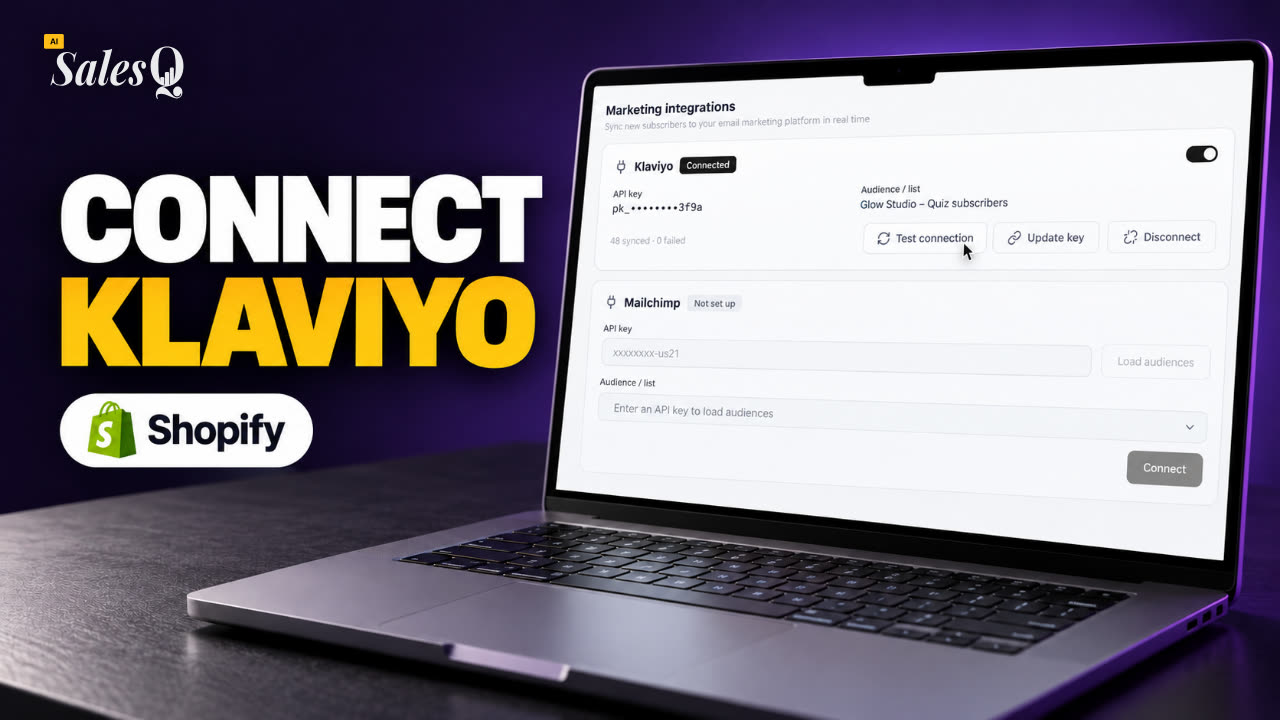 1:42Klaviyo Shopify Integration: Send Quiz Subscribers to Klaviyo
- 21
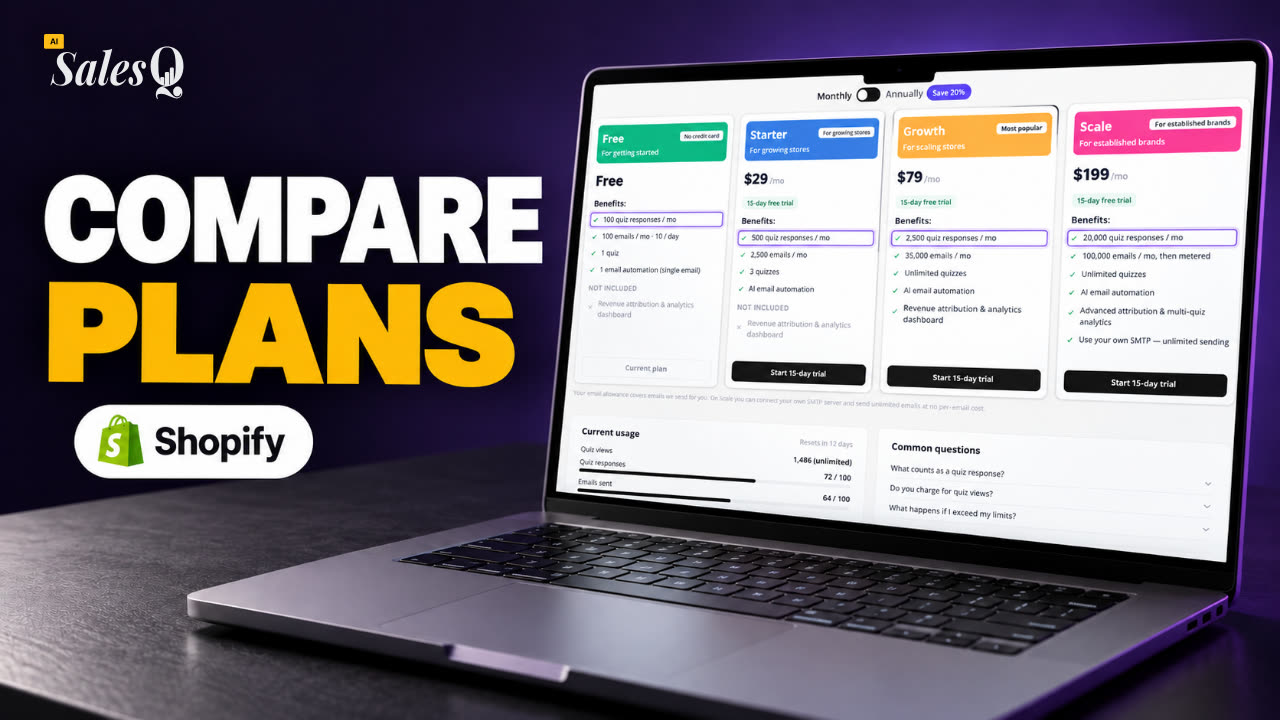 1:43Best Shopify Quiz App Pricing: AI Sales Quiz Builder Plans Compared
Learn more
- Install AISalesQThe app's listing on the Shopify App Store, with plans and screenshots.Shopify App Store
- App embeds in your themeShopify's own guide to app embeds and app blocks in the theme editor.Shopify Help Center
- How it worksThe whole AISalesQ flow, from quiz to follow-up email to revenue.→
- How to add a quiz to ShopifyOur step-by-step blog guide, from choosing an app to testing the quiz.→
Related articles
- App tourWhat each item in the AISalesQ menu does, so you know where to build quizzes, write emails, follow subscribers and check results.→
- Create your first quizStart a quiz from a template or a blank page, add your questions, connect the answers to products, then save and preview it.→
- Publish your quizMake your quiz Active, choose whether it shows as a popup, a section or a button in your theme, and test it on your storefront.→
Was this page helpful?
Still need help?
Can't find what you need? Talk to the people who build the app.