Integrations & settings
Connect Klaviyo
Send new quiz subscribers to a Klaviyo list automatically, and check, pause or disconnect the connection.
3 min read·Updated October 20, 2026·All plans
In the appSalesQ/Settings/Marketing integrations/Klaviyo
In this guide
- 01Create a Klaviyo private API key
- 02Connect Klaviyo and choose a list
- 03Know what is sent to Klaviyo
- 04Fix, pause or disconnect the connection
Before you start
- –A Klaviyo account with a list for your quiz subscribers.
- –Access to create API keys in Klaviyo.
Connect Klaviyo to add every new quiz subscriber to a Klaviyo list as soon as they submit your quiz, so you can reach them from your Klaviyo flows and campaigns. You can connect Klaviyo on any plan.
Before you start
You'll need a Klaviyo private API key. It starts with pk_. In Klaviyo, open your account settings, go to API keys and create a private key. Full access is the simplest choice. If you set custom access instead, give it access to lists, profiles and subscriptions.
Connect Klaviyo
- 1
Open Settings
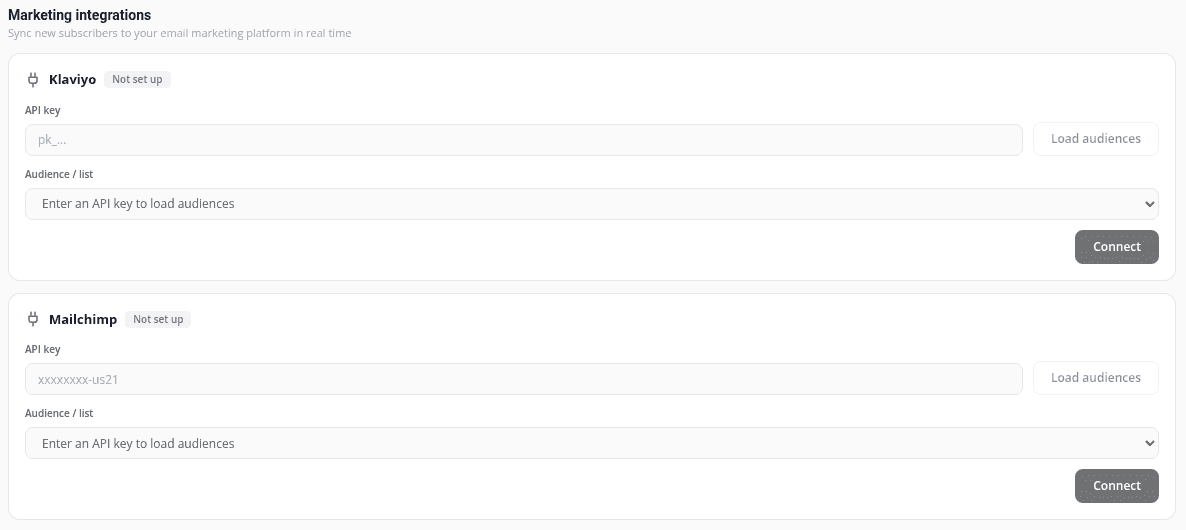
Click Settings at the bottom of the app menu and scroll to Marketing integrations. In Shopify's own admin menu, this page is called SMTP Settings.
- 2
Paste your key
In the Klaviyo card, paste your private key into API key.
- 3
Load your lists
Click Load audiences. AISalesQ checks the key and loads your Klaviyo lists. If the key isn't accepted, you'll see That API key was rejected by the provider.
- 4
Choose a list
Under Audience / list, choose the list new subscribers should join.
- 5
Connect
Click Connect. When it's done, you'll see Integration connected. and the card's status changes to Connected.
Once connected, the card shows a masked version of your key, the list you chose and how many contacts have been sent, for example 12 synced · 0 failed.
What is sent to Klaviyo
- Each new subscriber's email address and, if they gave one, their phone number, subscribed to email and SMS marketing on your chosen list.
- The source they came from, such as “quiz”.
- Changes in consent: when you unsubscribe or re-subscribe a contact in AISalesQ, or they unsubscribe from one of your emails, the change is sent to Klaviyo too.
- Contacts who left your quiz's consent box unticked are not sent.
Check the connection
Click Test connection at any time. If everything works, you'll see Connection verified.
If the status says Action needed
If Klaviyo stops accepting the key, for example because it was deleted, the status changes to Action needed and the card shows Your Klaviyo API key is not working. Your quizzes keep capturing subscribers as usual; they just aren't sent to Klaviyo until you fix the key.
- 1
Update the key
Click Update key and paste a new private key.
- 2
Load and connect
Click Load audiences, choose your list and click Connect.
- 3
Or test again
If you fixed the key in Klaviyo itself, click Test connection. Once it passes, the status goes back to Connected.
Pause or disconnect
- To stop sending for a while, switch off the Active toggle. The status changes to Paused and nothing is sent until you switch it back on.
- To remove the connection, click Disconnect. Your key is removed from AISalesQ. Contacts already in Klaviyo stay there.
Video tutorials
Watch the series in order, or jump to the one you need.
- 01
 1:32How to Install a Shopify Quiz App: AI Sales Quiz Builder Setup & Tour
- 02
 1:38How to Create a Product Recommendation Quiz on Shopify (Step by Step)
- 03
 1:44Shopify Quiz Templates: Build a Product Quiz in Minutes
- 04
 1:48How to Add a Quiz to Your Shopify Store (Publish & Embed)
- 05
 1:56Shopify Quiz Popup: Triggers, Timing & Page Targeting
- 06
 1:44Shopify Quiz Logic & Branching: Send Shoppers to the Right Product
- 07
 1:42Shopify Quiz Discount Codes: Unique Codes That Convert
- 08
 1:44Shopify Email Marketing: Create a Quiz Follow-Up Email
- 09
 1:36Shopify Email Templates for Quiz Follow-Ups (Ready to Use)
- 10
 1:51Shopify Email Builder Tutorial: Drag-and-Drop Blocks
- 11
 1:49Personalize Shopify Emails With Quiz Answers (Merge Tags)
- 12
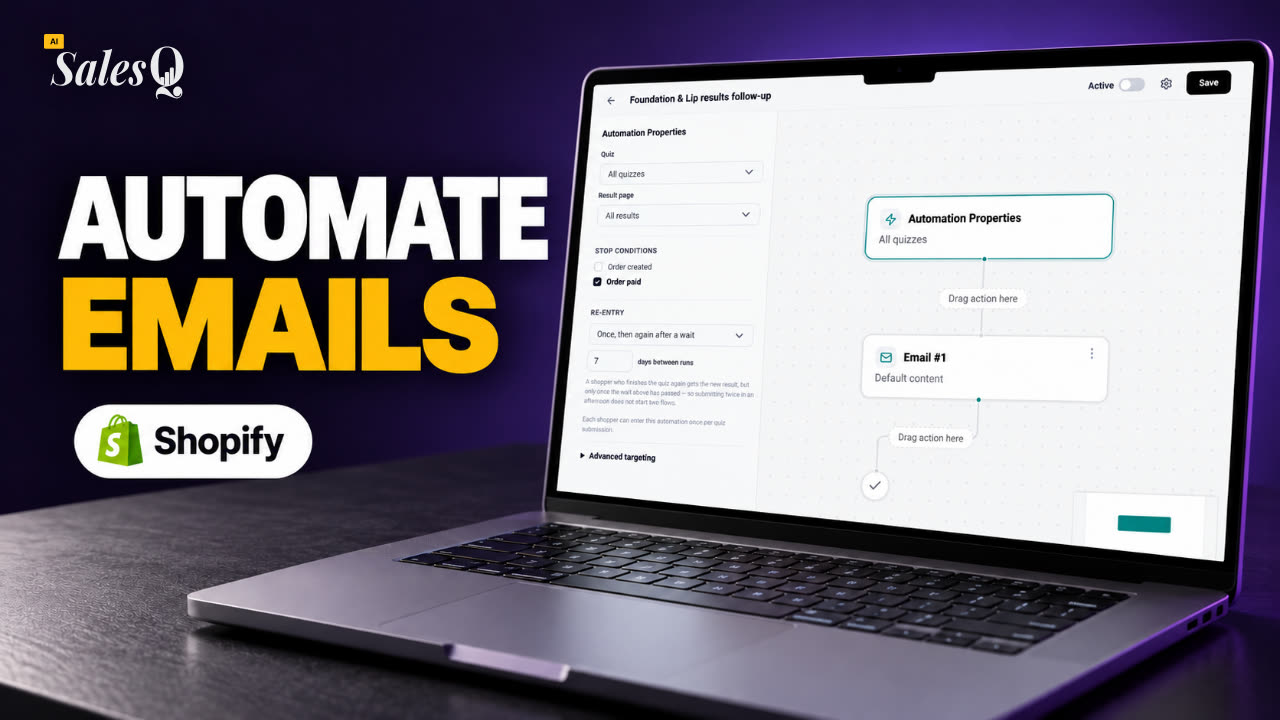 1:32Shopify Email Automation: Quiz Follow-Up Flow Step by Step
- 13
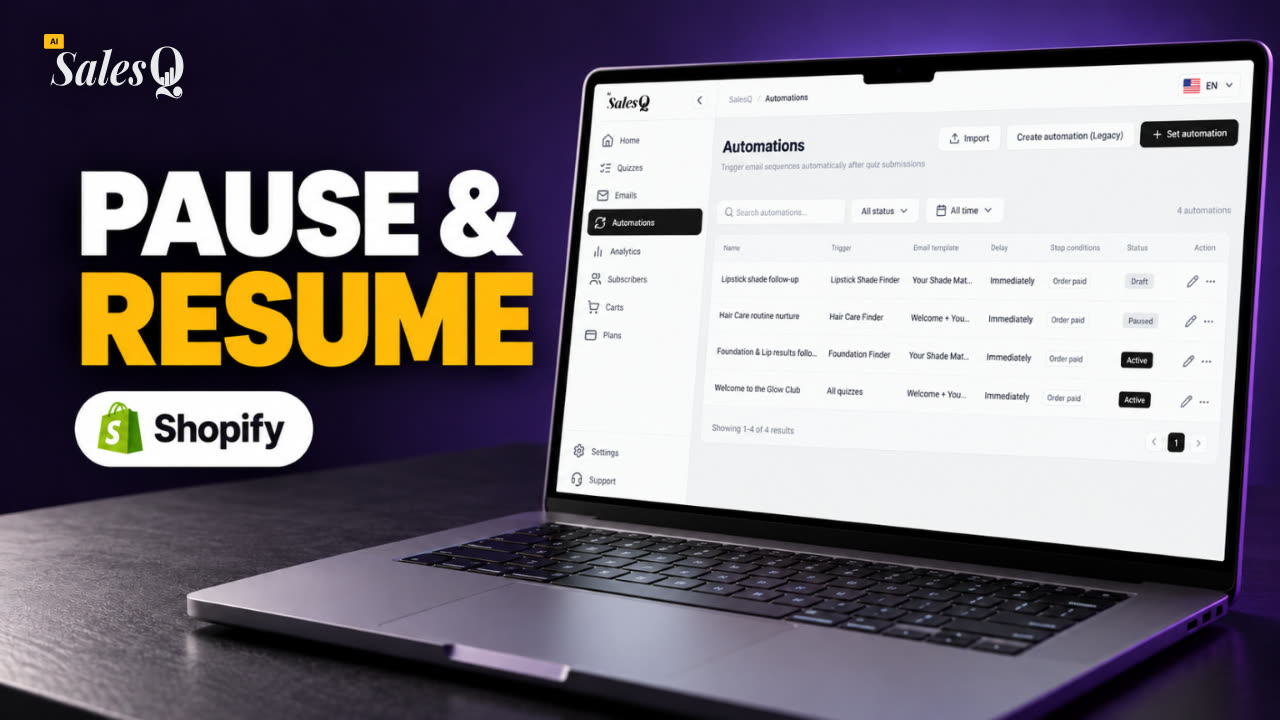 1:29Manage Shopify Email Automations: Pause, Resume & Edit Flows
- 14
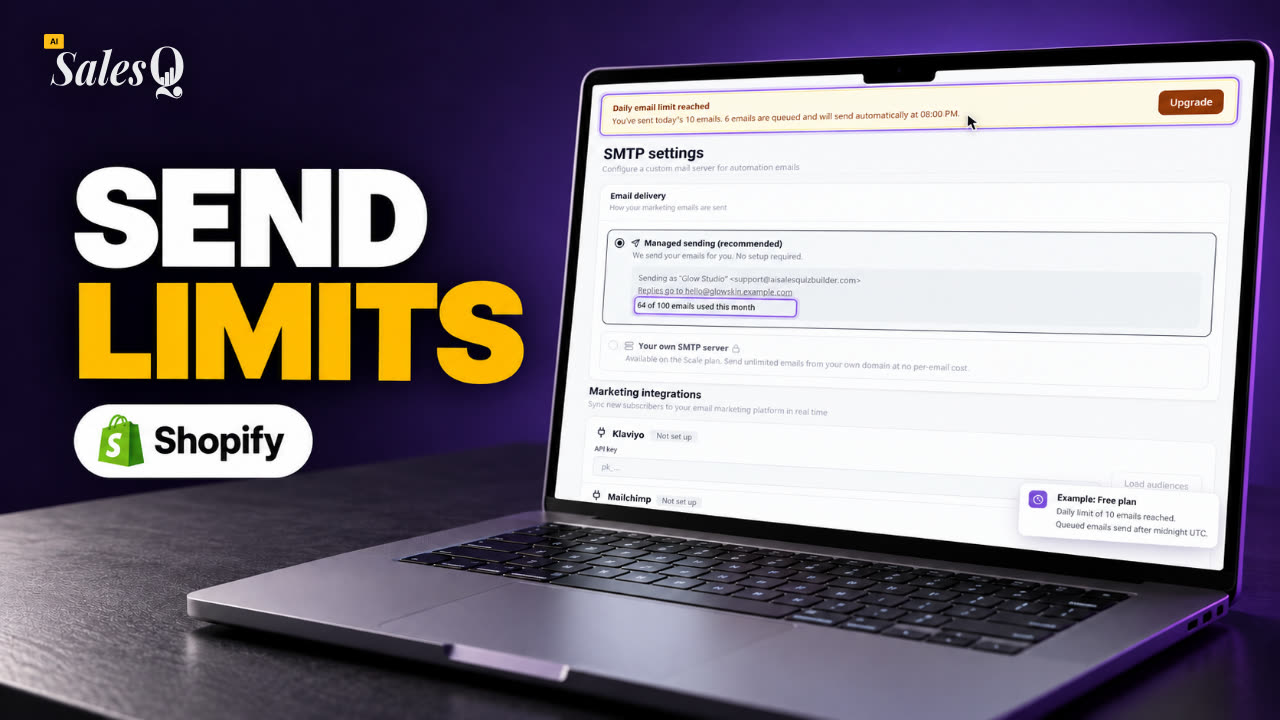 1:41Shopify Email Sending Limits Explained (Quiz Emails)
- 15
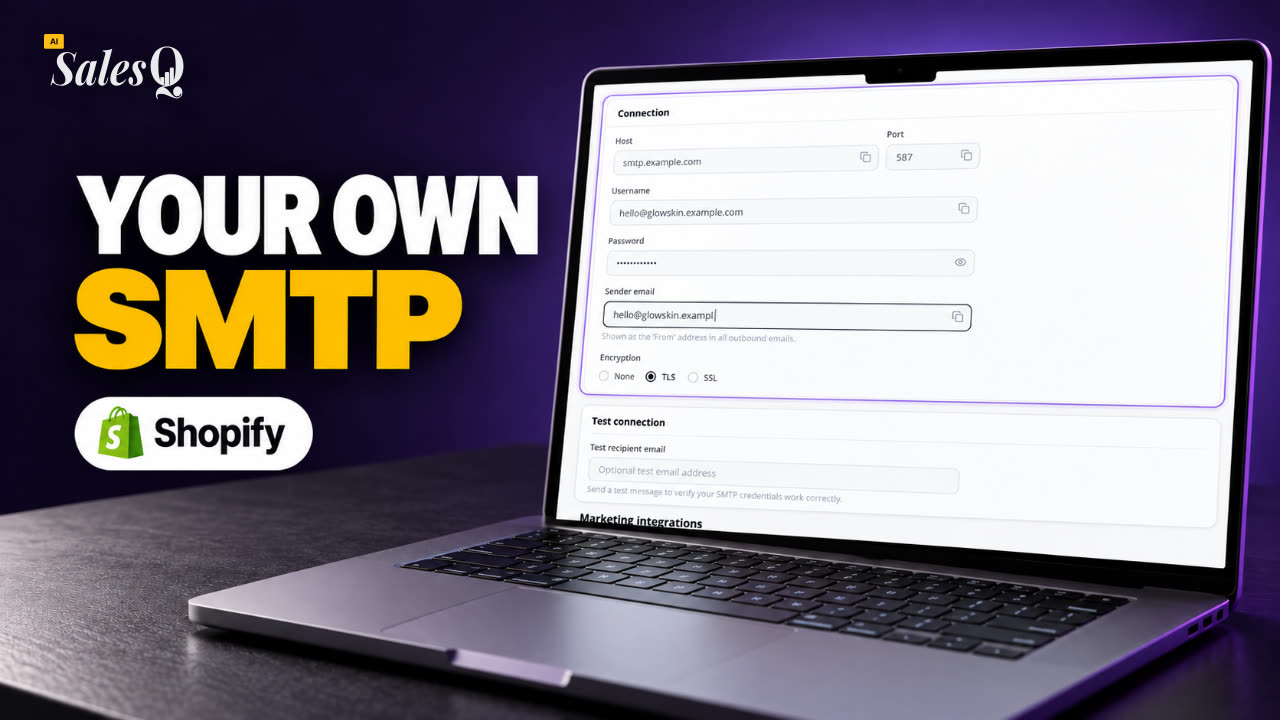 1:31Send Shopify Emails From Your Own SMTP Server
- 16
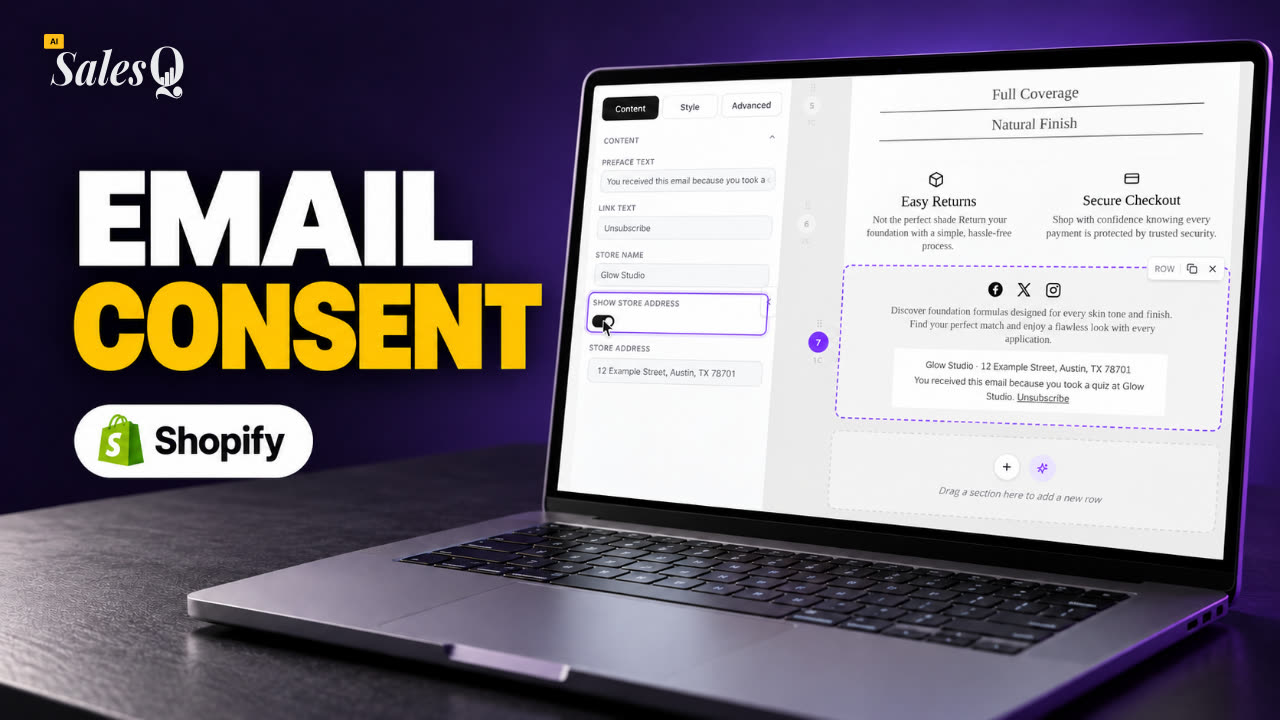 1:43Shopify Email Consent & Unsubscribe Link Explained
- 17
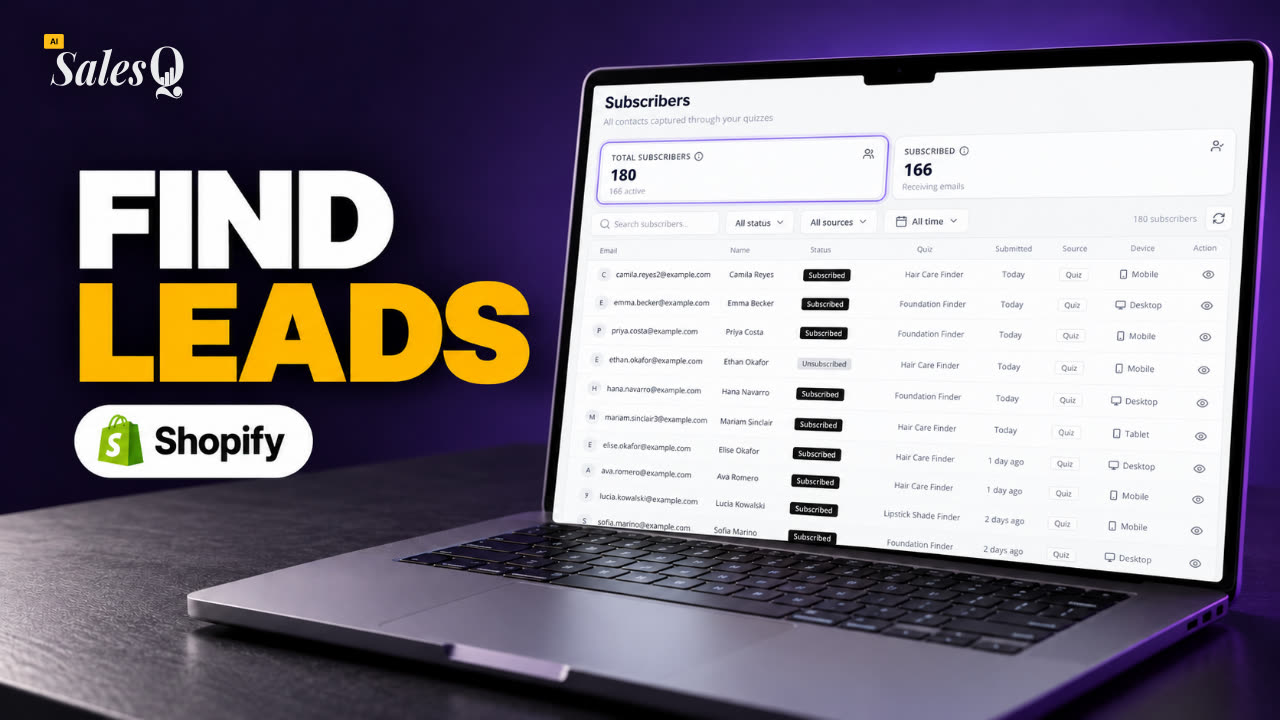 1:46Shopify Quiz Subscribers: Search, Filter & View Profiles
- 18
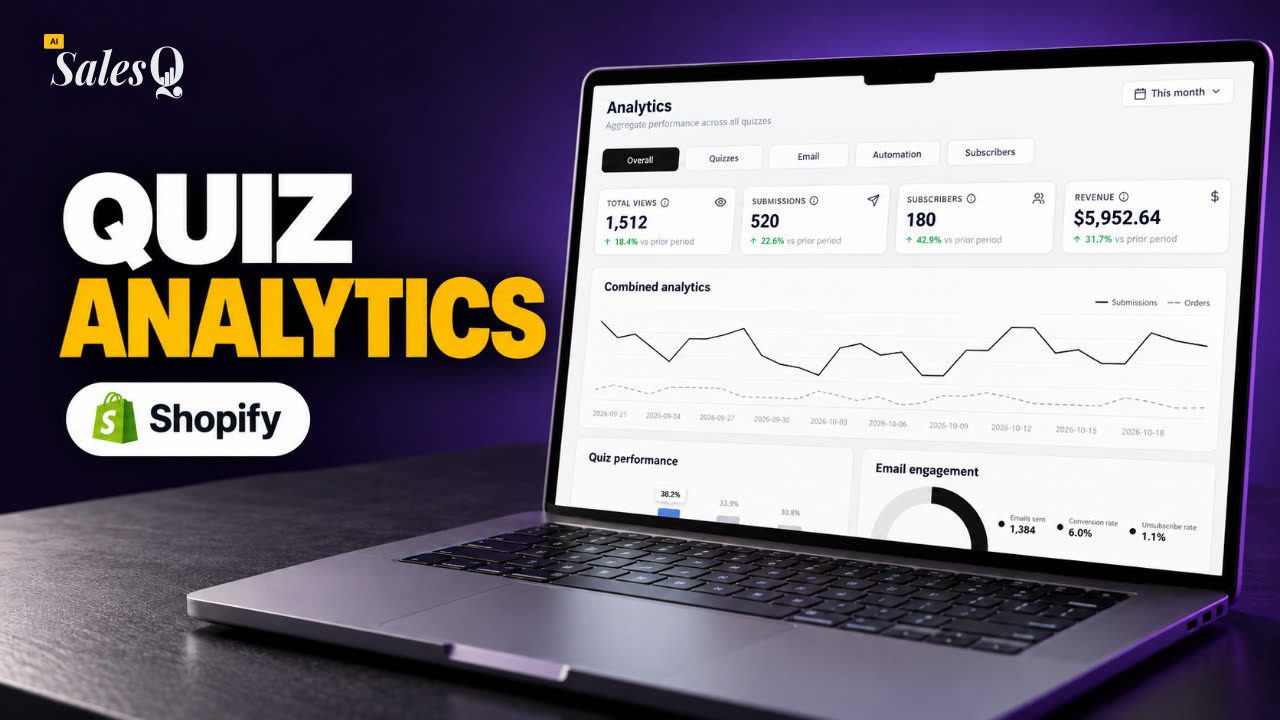 1:45Shopify Quiz Analytics: Track Revenue, Conversions & Emails
- 19
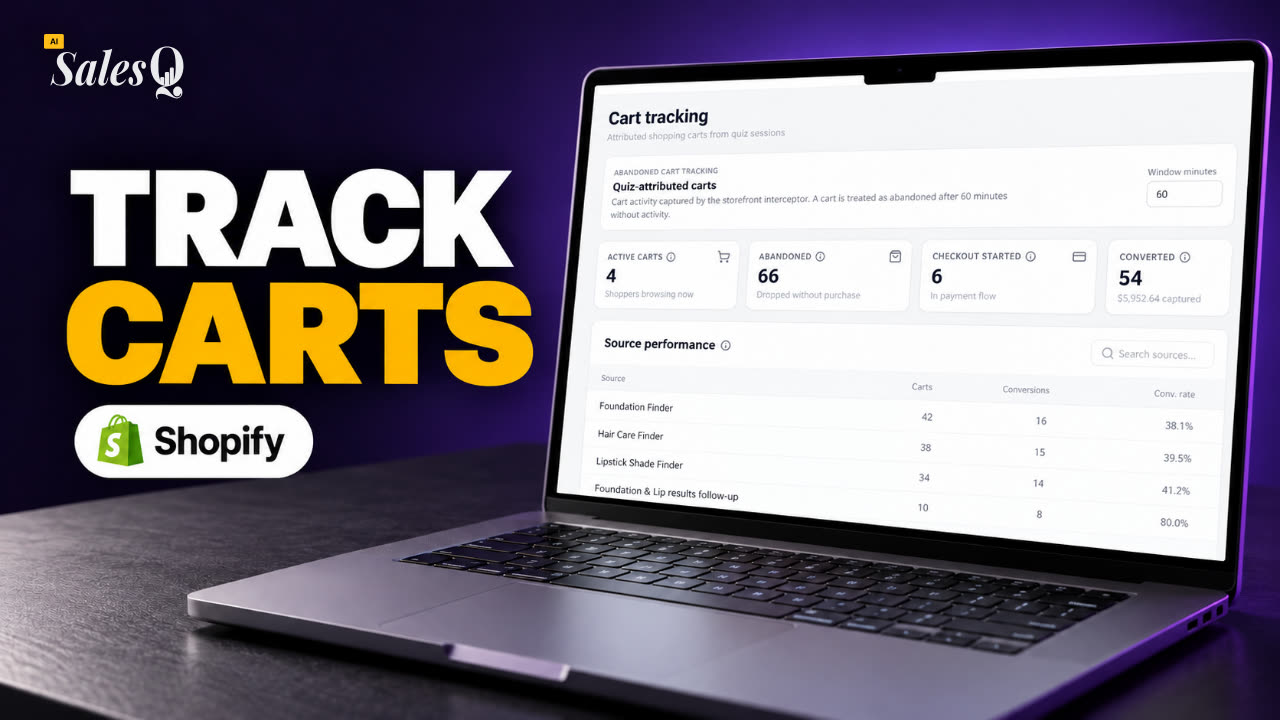 1:44Shopify Abandoned Cart Tracking for Quiz Shoppers
- 20
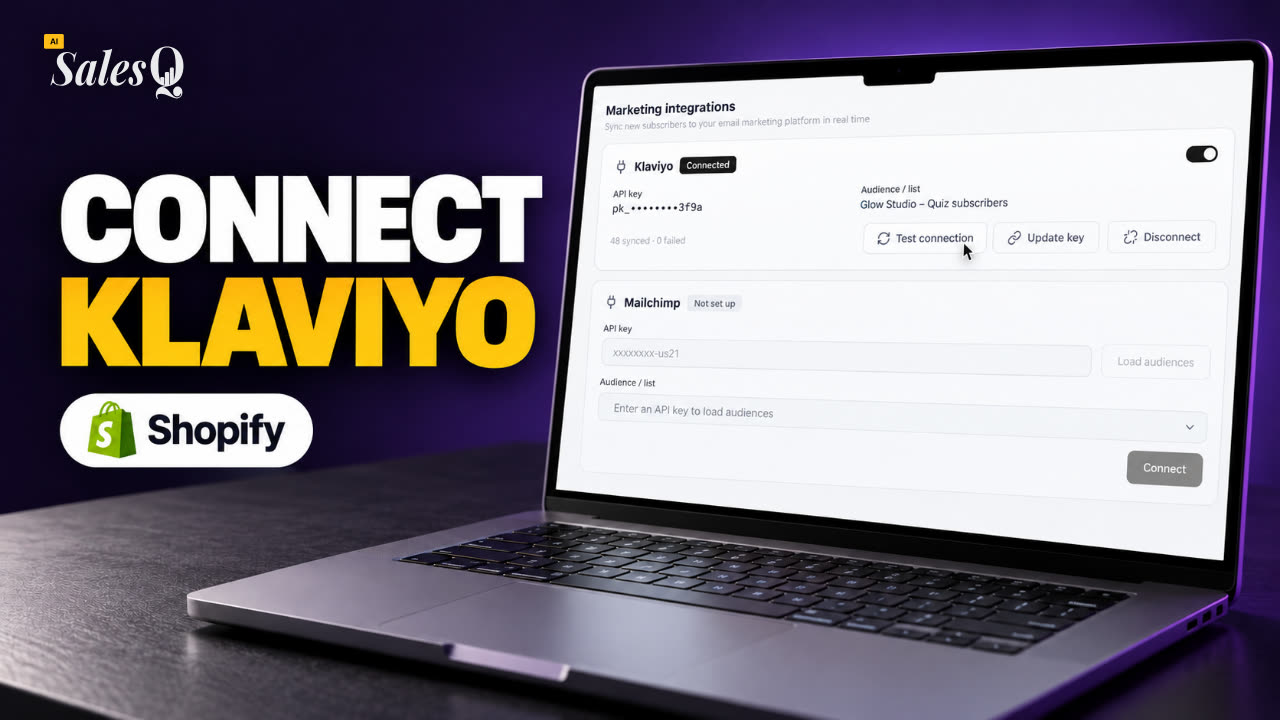 1:42Klaviyo Shopify Integration: Send Quiz Subscribers to KlaviyoNow playing
- 21
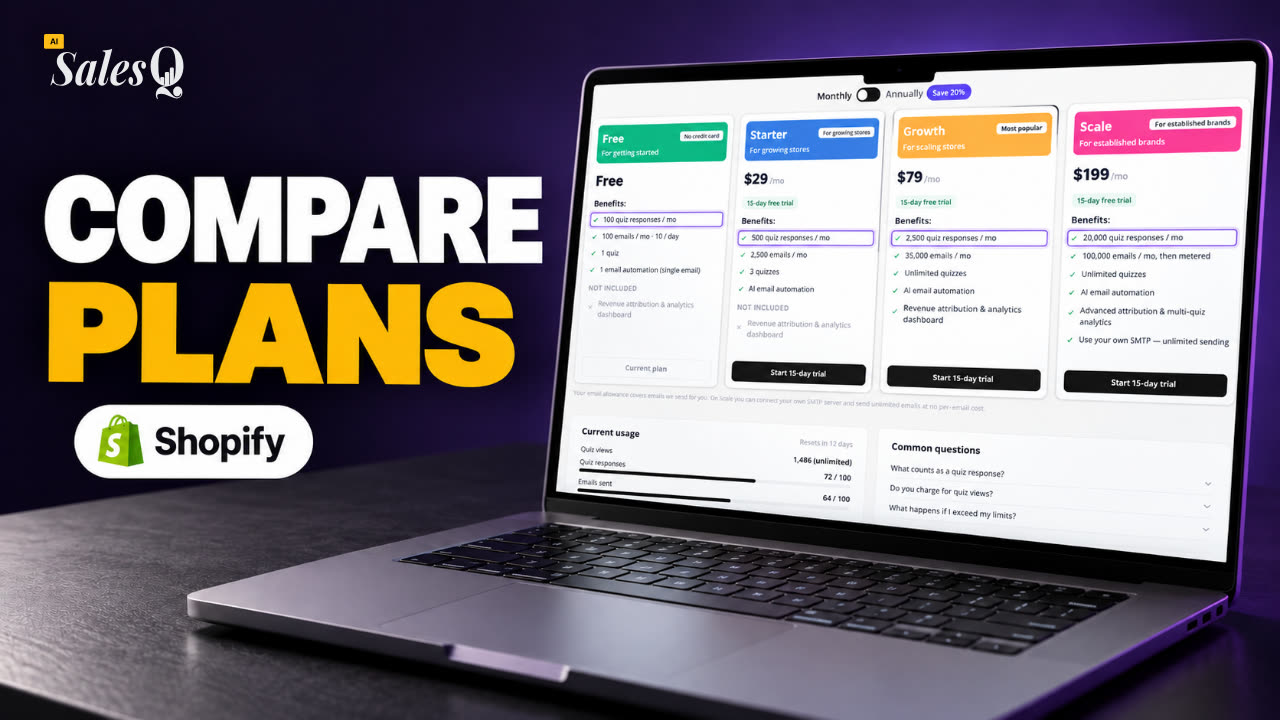 1:43Best Shopify Quiz App Pricing: AI Sales Quiz Builder Plans Compared
Learn more
Related articles
- Connect MailchimpSend new quiz subscribers to a Mailchimp audience automatically, and learn what is synced and what each status means.→
- Subscriber profileSee a subscriber's quiz answers, discount codes, marketing consent and Shopify orders, and unsubscribe or re-subscribe them.→
- View subscribersFind everyone who left their email or phone number in a quiz, and narrow the list by status, source and date.→
Was this page helpful?
Still need help?
Can't find what you need? Talk to the people who build the app.