Getting started
Publish your quiz on your store
Make your quiz Active, choose whether it shows as a popup, a section or a button in your theme, and test it on your storefront.
6 min read·Updated October 20, 2026·All plans
In the appSalesQ/Quizzes/Edit/Publish
In this guide
- 01Make a quiz Active so your store can show it
- 02Show it as a popup, inside a page, or behind a button
- 03Choose the pages it appears on and when it opens
- 04Test the quiz on your storefront like a shopper
Before you start
- –A saved quiz. See Create your first quiz
- –The AISalesQ app embed switched on in your theme. See Install AISalesQ
Publishing takes two parts. First you make the quiz Active in the app. Then you choose how it appears in your theme: as a popup, as a section inside a page, or as a button that opens the popup.
Make the quiz Active
- 1
Publish from the editor
Open the quiz and click Publish in the top-right corner. The button changes to Published and you'll see Quiz activated.

- 2
Or use the switch or the list
You can also turn on the Active switch at the top left of the editor. On the Quizzes page, clicking a quiz's Draft status changes it to Active, and clicking Active changes it back.
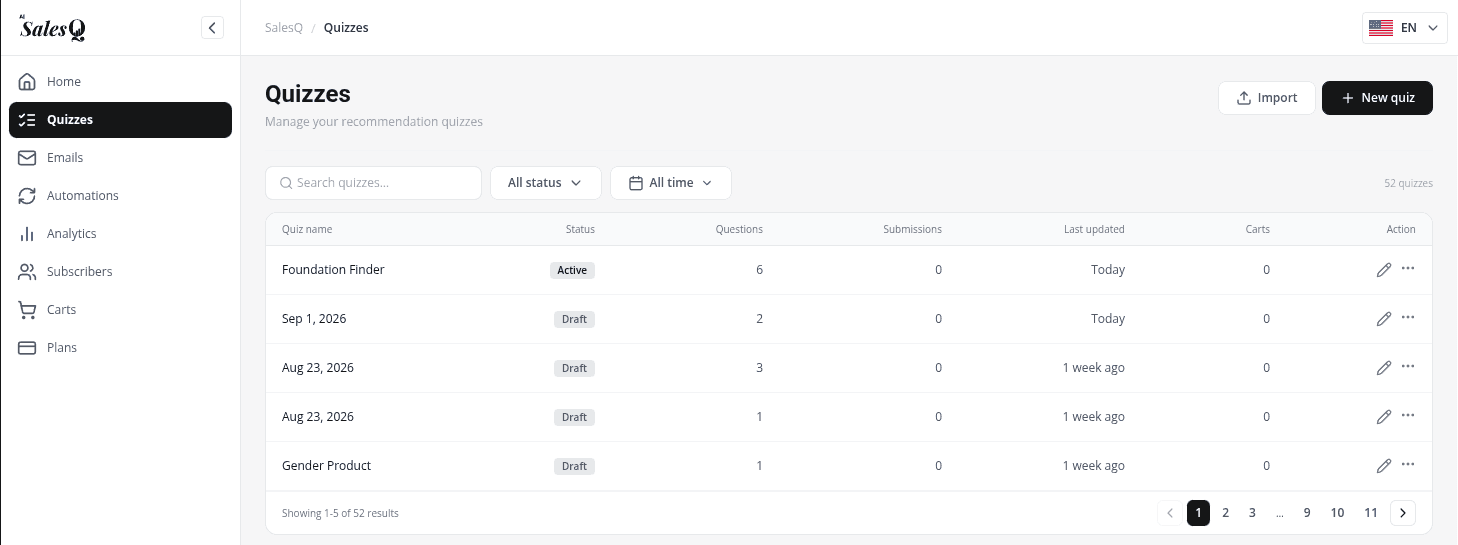
To take a quiz off your store, switch it to InActive in the editor. You'll see Quiz set to draft. Draft quizzes never appear on your storefront.
Choose how it appears
| Placement | Name in the theme editor | Best for |
|---|---|---|
| Popup | Ai Sales Quiz under App embeds | Opening the quiz on chosen page types, after a delay, on scroll or on exit. |
| Section in a page | Ai Sales Quiz app block | A quiz page, or a quiz inside your home or product page. |
| Button | Ai Sales Quiz — Button app block | A "Take the quiz" button anywhere in your theme that opens the popup. |
You can use more than one placement for the same quiz.
Show it as a popup
- 1
Open the theme editor
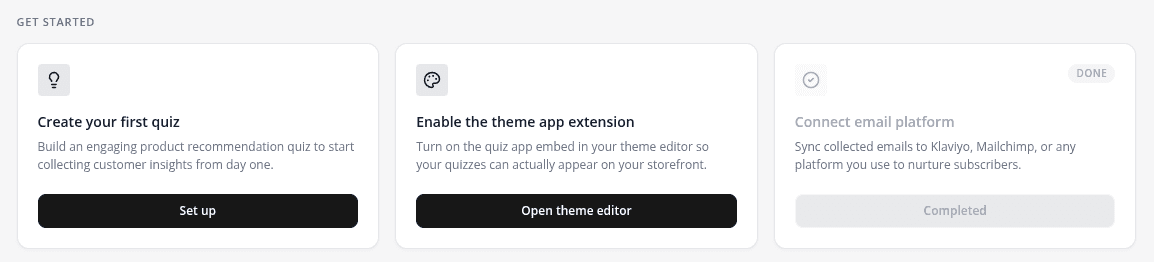
In Shopify admin, go to Online Store → Themes and click Customize. Or, on the app's Home, click Open theme editor on the Enable the theme app extension card.
- 2
Switch on the embed
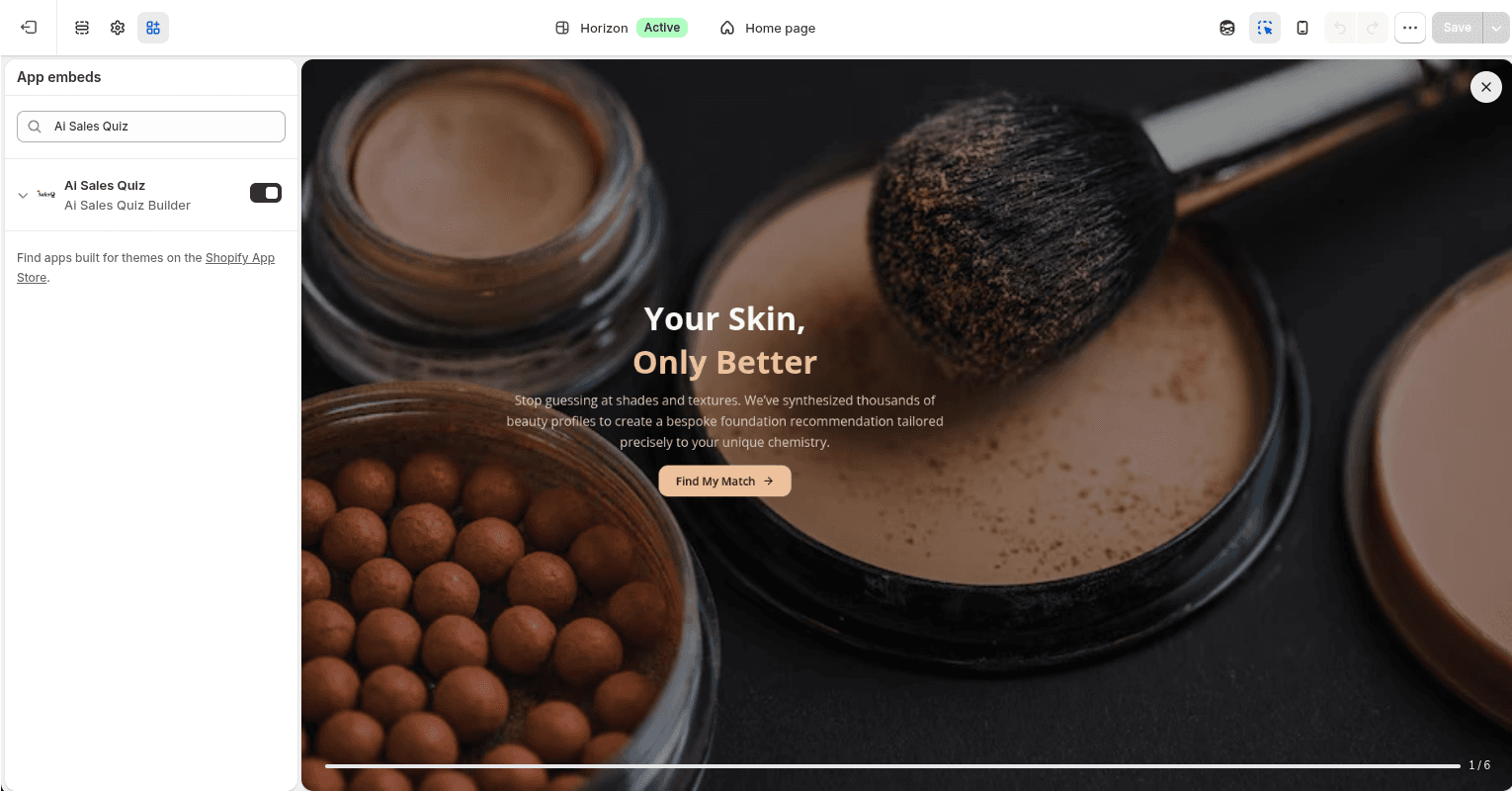
Open App embeds and turn on Ai Sales Quiz.
- 3
Allow the right pages
Under Page targeting, tick the page types the popup may use. Home page, Product pages and Collection pages are on by default. Tick Show on all pages to allow every page.
- 4
Save the theme
Click Save in the top-right corner of the theme editor.
- 5
Set pages and timing in the app
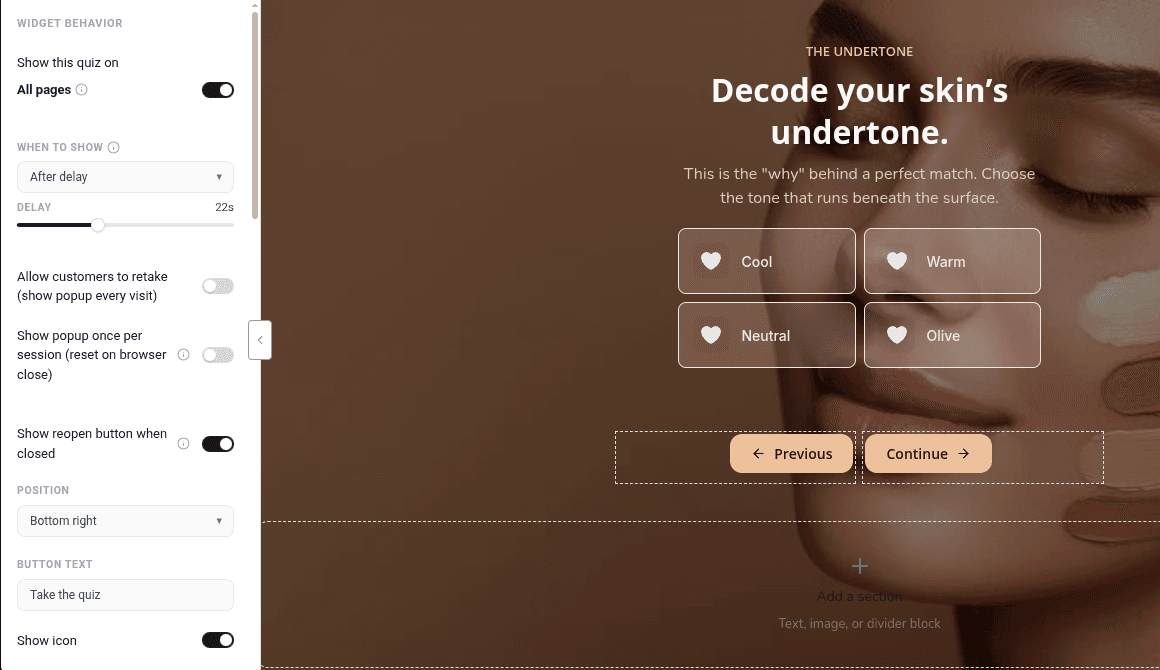
Back in the quiz editor, open the Popup tab. Under Show this quiz on, choose the pages, and under When to show, choose when it opens. New quizzes open After delay, 22 seconds after the page loads.
Add it inside a page
- 1
Open the page template
In the theme editor, use the page selector at the top to open the template you want, for example a page, a product or the home page.
- 2
Add the app block
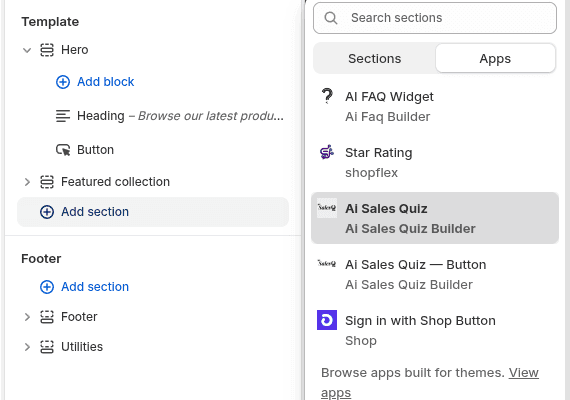
Where the quiz should go, click Add section, open the Apps tab and choose Ai Sales Quiz. If your theme lets you add app blocks inside a section, you can also click Add block there and pick it under Apps.
- 3
Name the quiz
In Quiz, type the quiz name exactly as it appears in the app. If you leave it empty, the block shows the quiz targeted to that page.
- 4
Save the theme
Click Save. The quiz now shows inside the page, not as a popup.
The section block works on its own, even if the Ai Sales Quiz app embed is off.
Add a quiz button
- 1
Add the button block
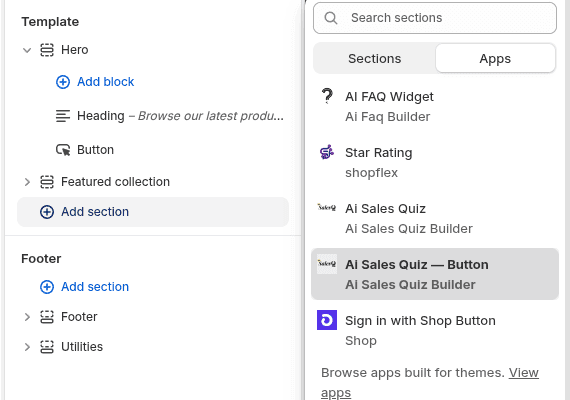
In the theme editor, click Add section, open the Apps tab and choose Ai Sales Quiz — Button. In themes that allow app blocks inside sections, Add block works too.
- 2
Set the text and quiz
Change Button text if you like (the default is Take the quiz) and type the quiz name in Quiz.
- 3
Style it
Adjust Background color, Text color, Corner radius, Font size, Alignment and Full width so it fits your theme.
- 4
Save the theme
Click Save. Clicking the button opens the quiz as a popup, even on pages where the popup doesn't open by itself.
Test it on your storefront
- 1
Open your store in a private window
Use a private or incognito browser window, and go to a page the popup is allowed on.
- 2
Wait for the popup
With the default settings it opens after 22 seconds. To test faster, set When to show to Immediately in the Popup tab, save, and change it back later.
- 3
Finish the quiz
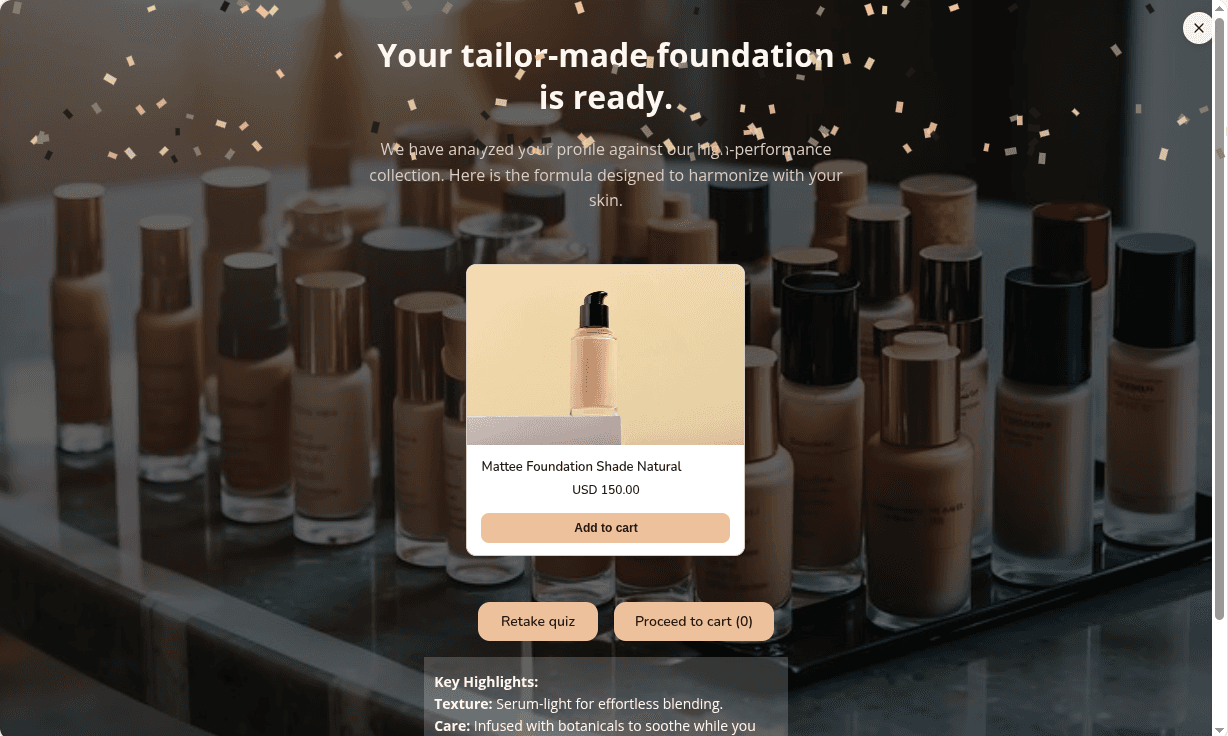
Answer the questions and enter a test email. Check the result page, the products and the discount code, then look for your test entry under Subscribers in the app.
Video tutorials
Watch the series in order, or jump to the one you need.
- 01
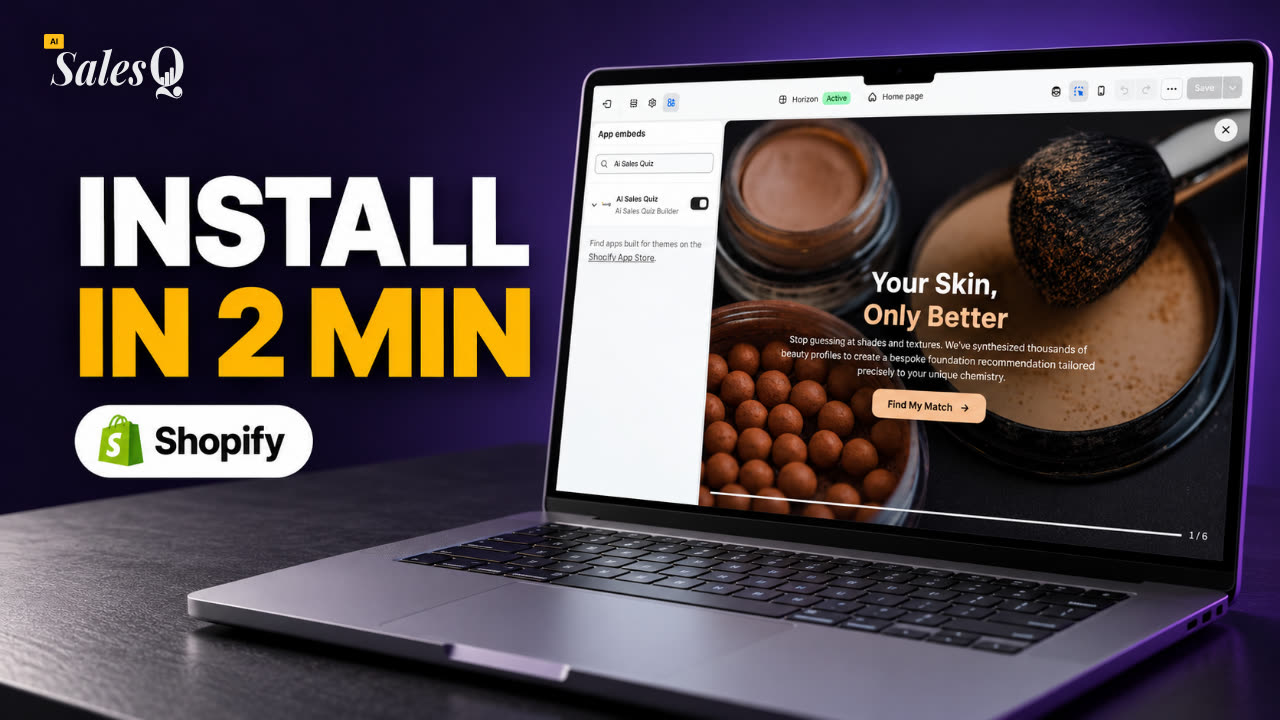 1:32How to Install a Shopify Quiz App: AI Sales Quiz Builder Setup & Tour
- 02
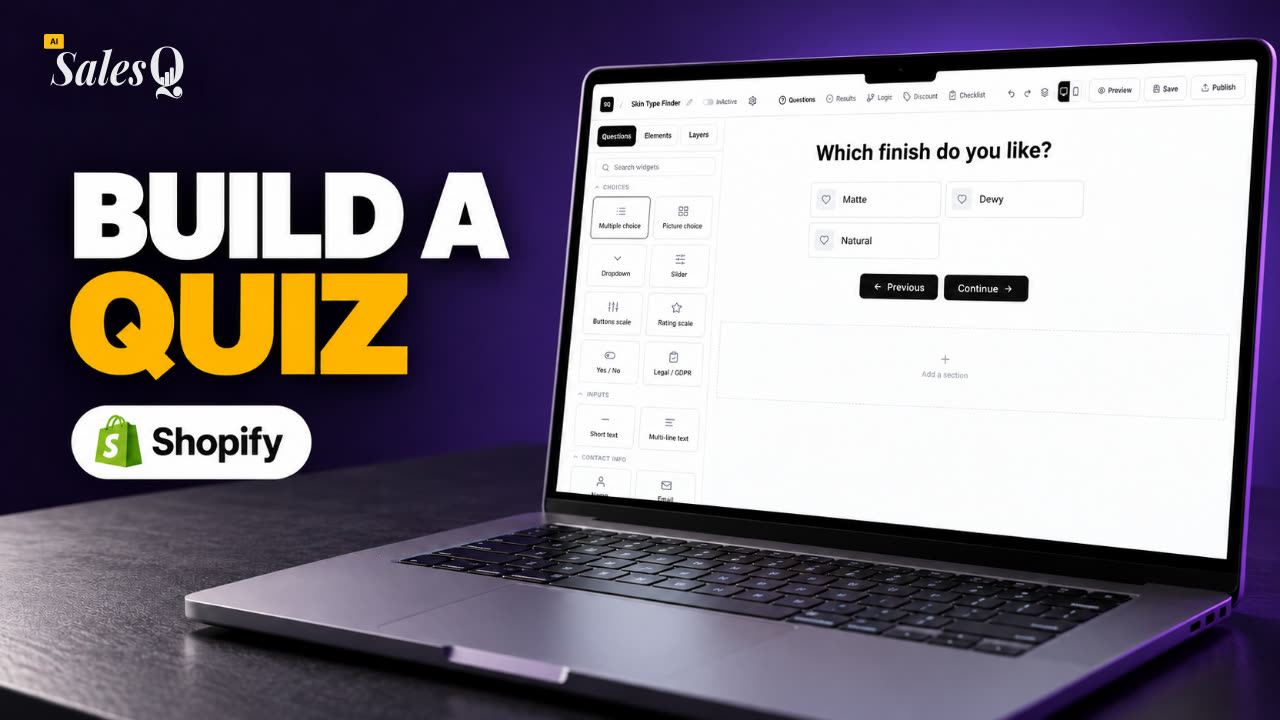 1:38How to Create a Product Recommendation Quiz on Shopify (Step by Step)
- 03
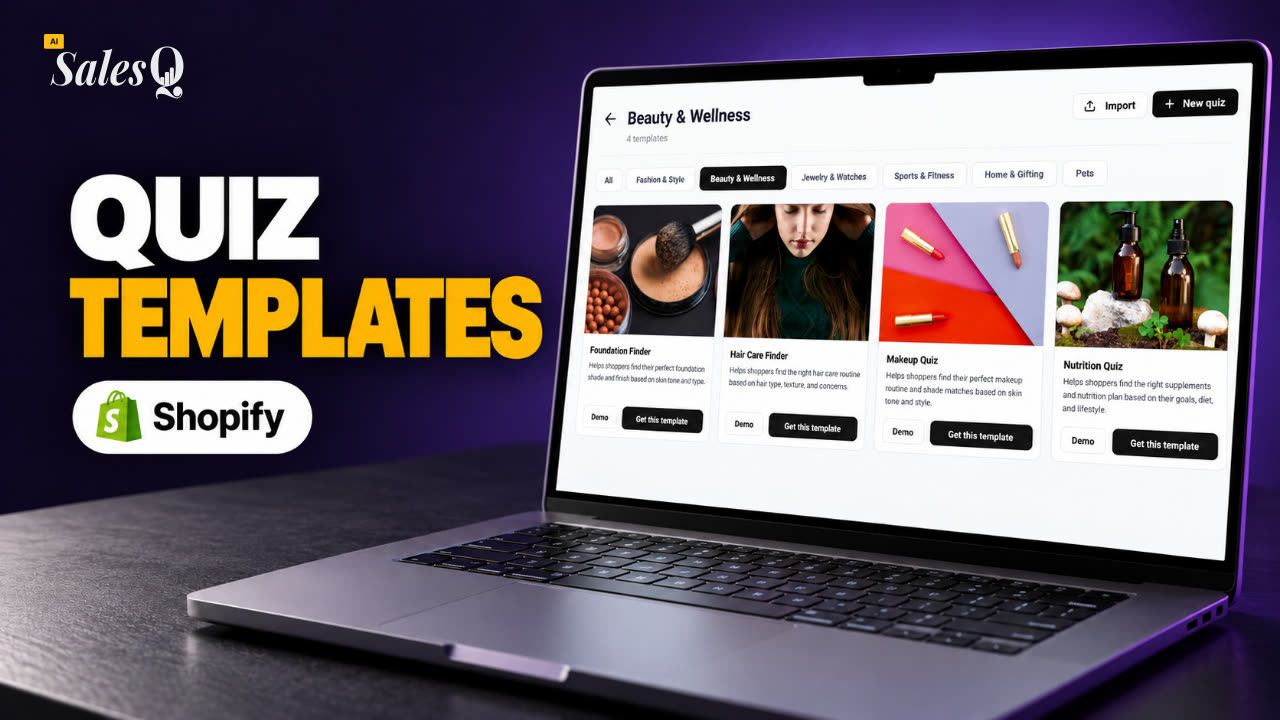 1:44Shopify Quiz Templates: Build a Product Quiz in Minutes
- 04
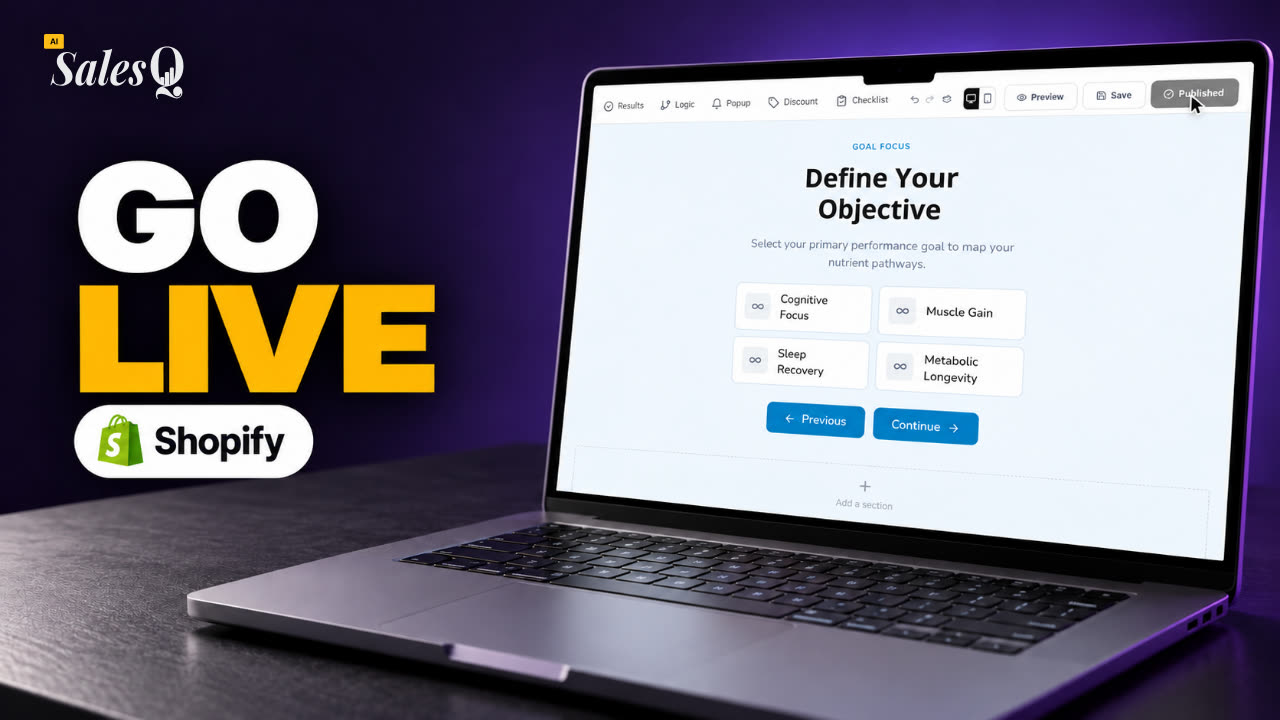 1:48How to Add a Quiz to Your Shopify Store (Publish & Embed)Now playing
- 05
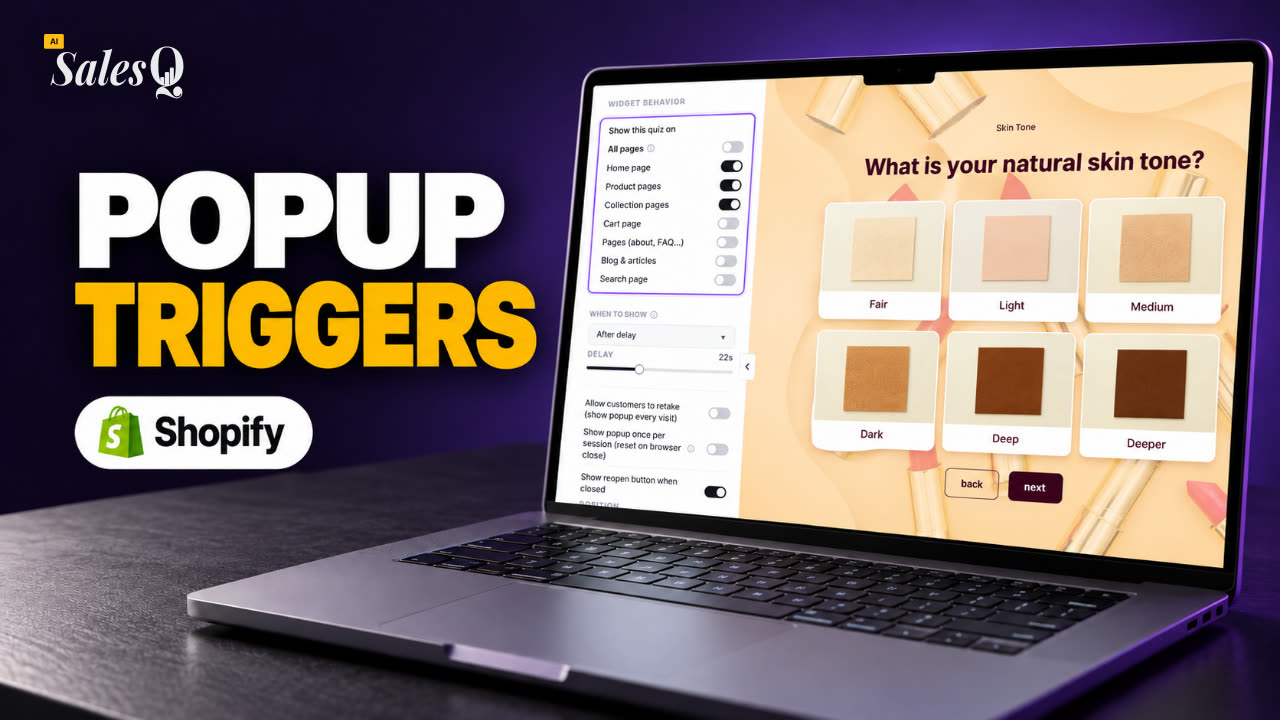 1:56Shopify Quiz Popup: Triggers, Timing & Page Targeting
- 06
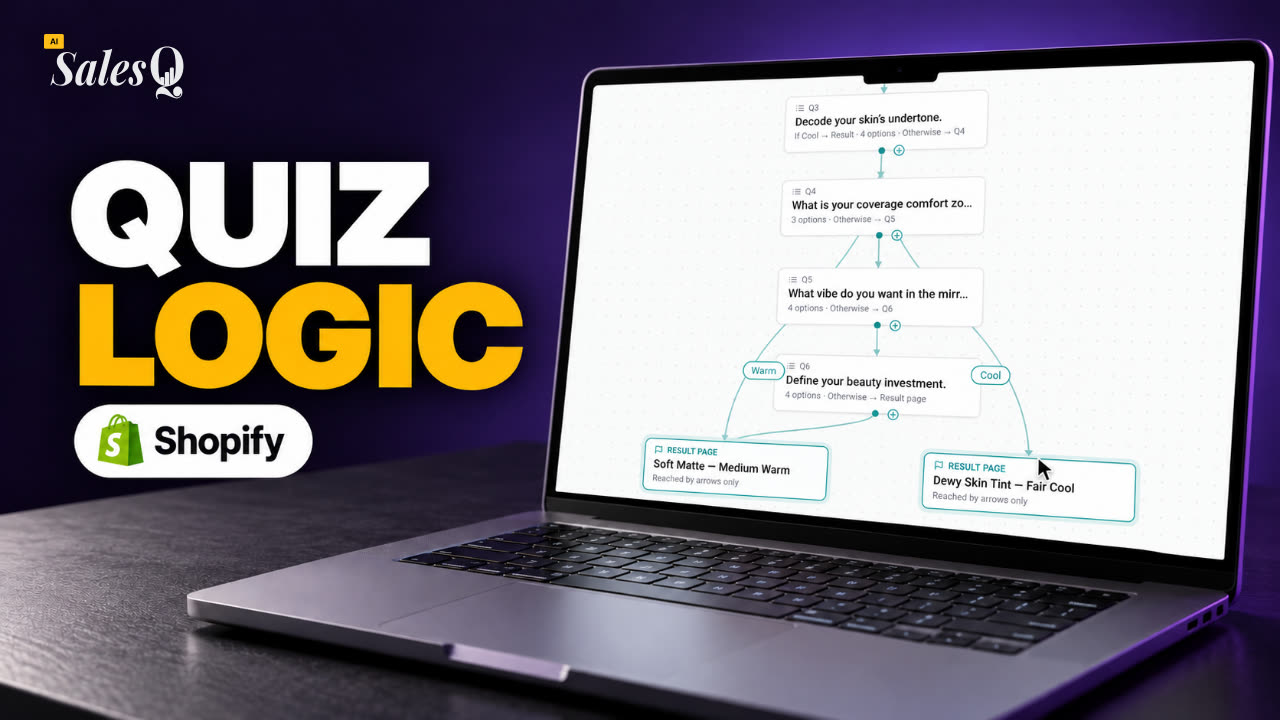 1:44Shopify Quiz Logic & Branching: Send Shoppers to the Right Product
- 07
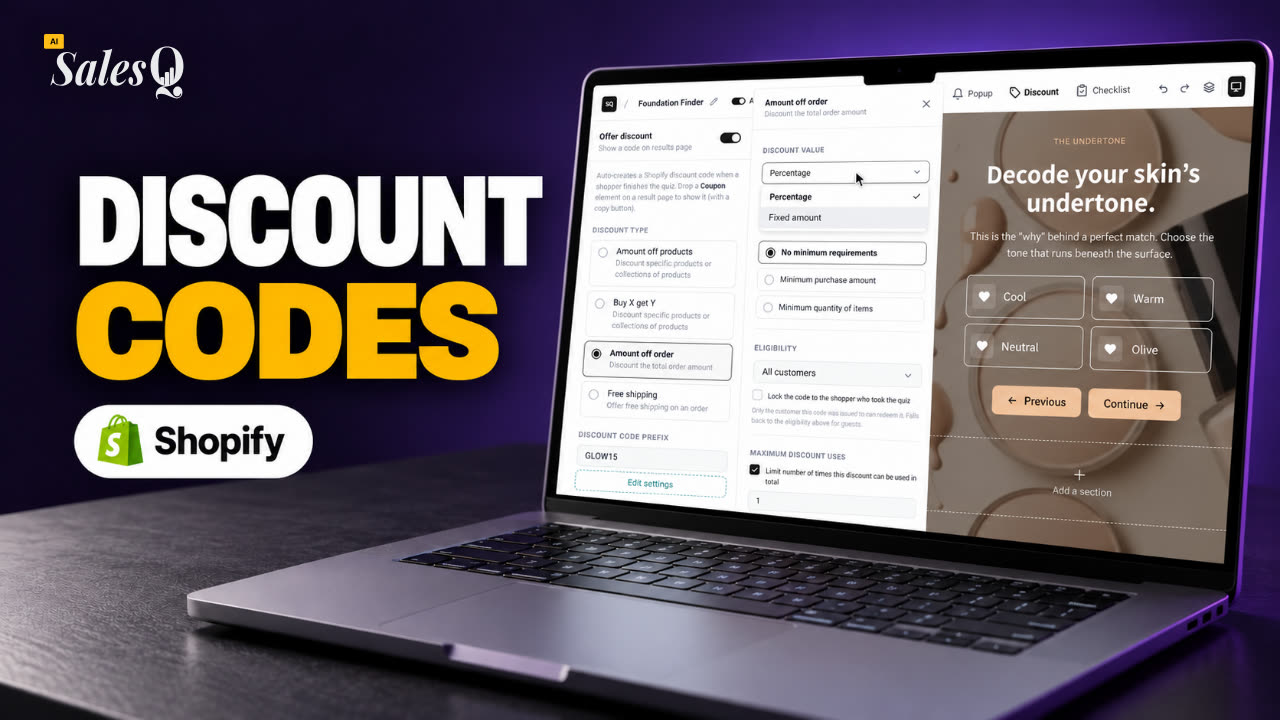 1:42Shopify Quiz Discount Codes: Unique Codes That Convert
- 08
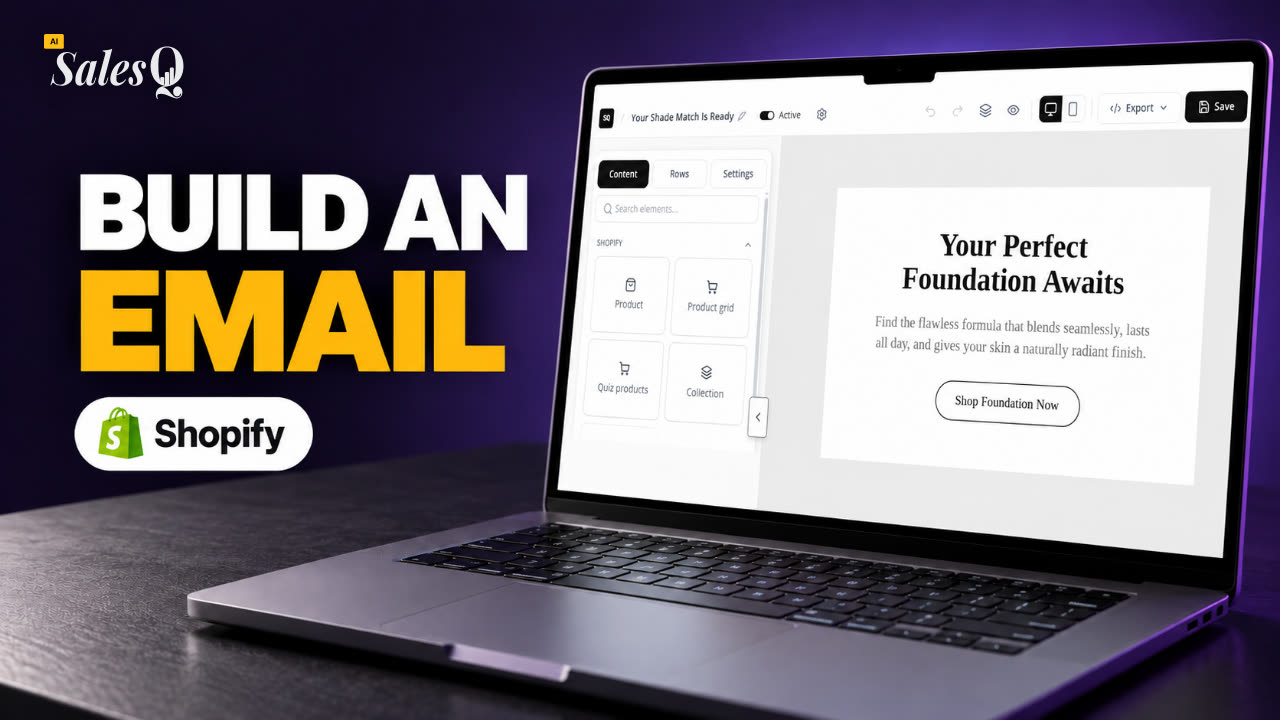 1:44Shopify Email Marketing: Create a Quiz Follow-Up Email
- 09
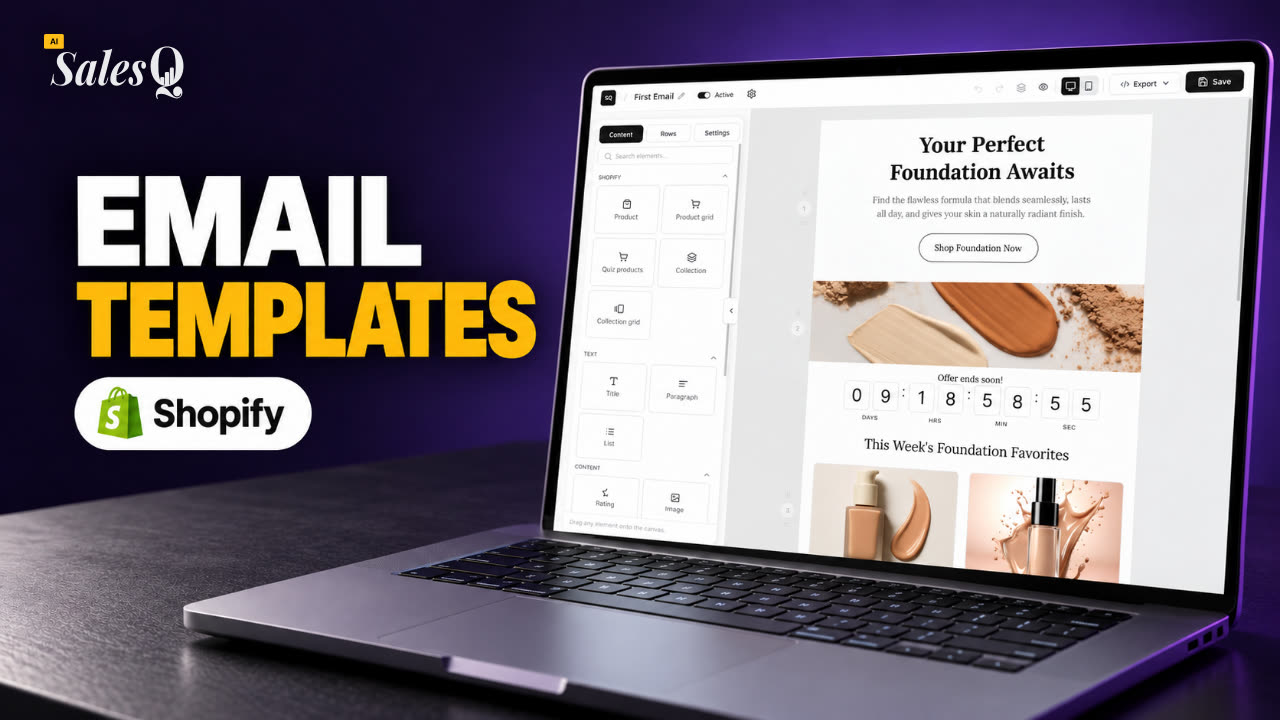 1:36Shopify Email Templates for Quiz Follow-Ups (Ready to Use)
- 10
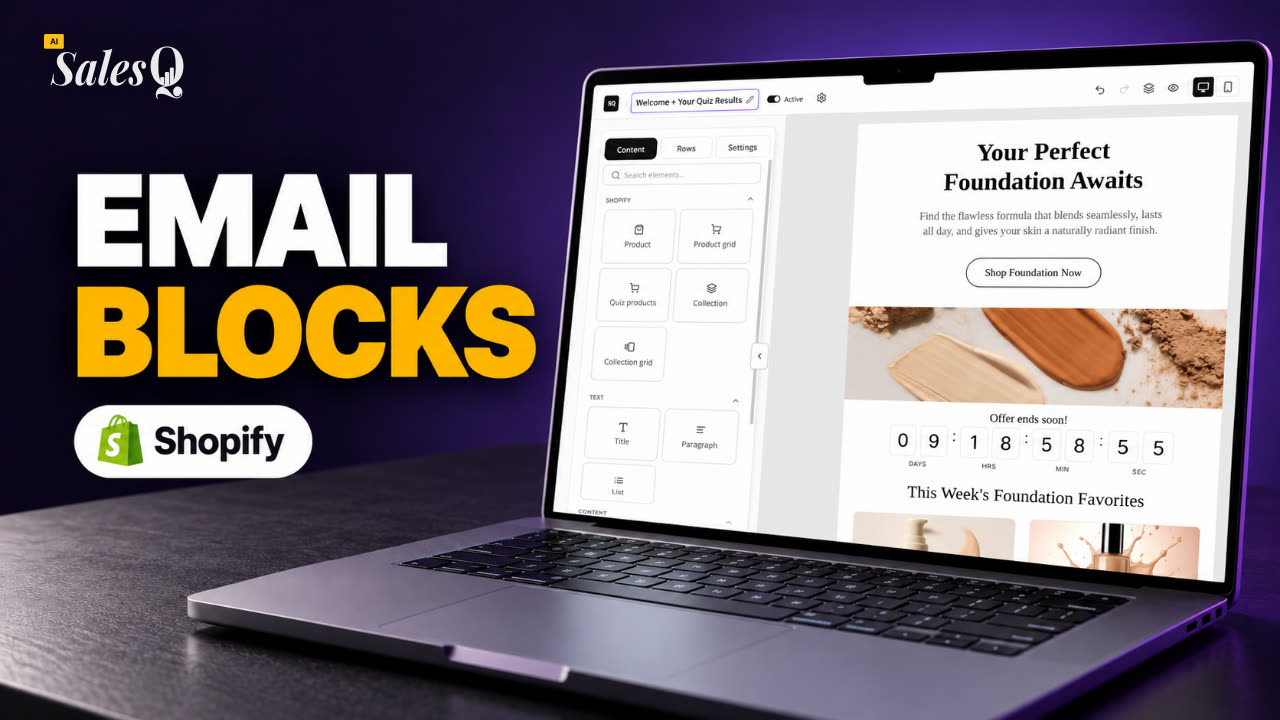 1:51Shopify Email Builder Tutorial: Drag-and-Drop Blocks
- 11
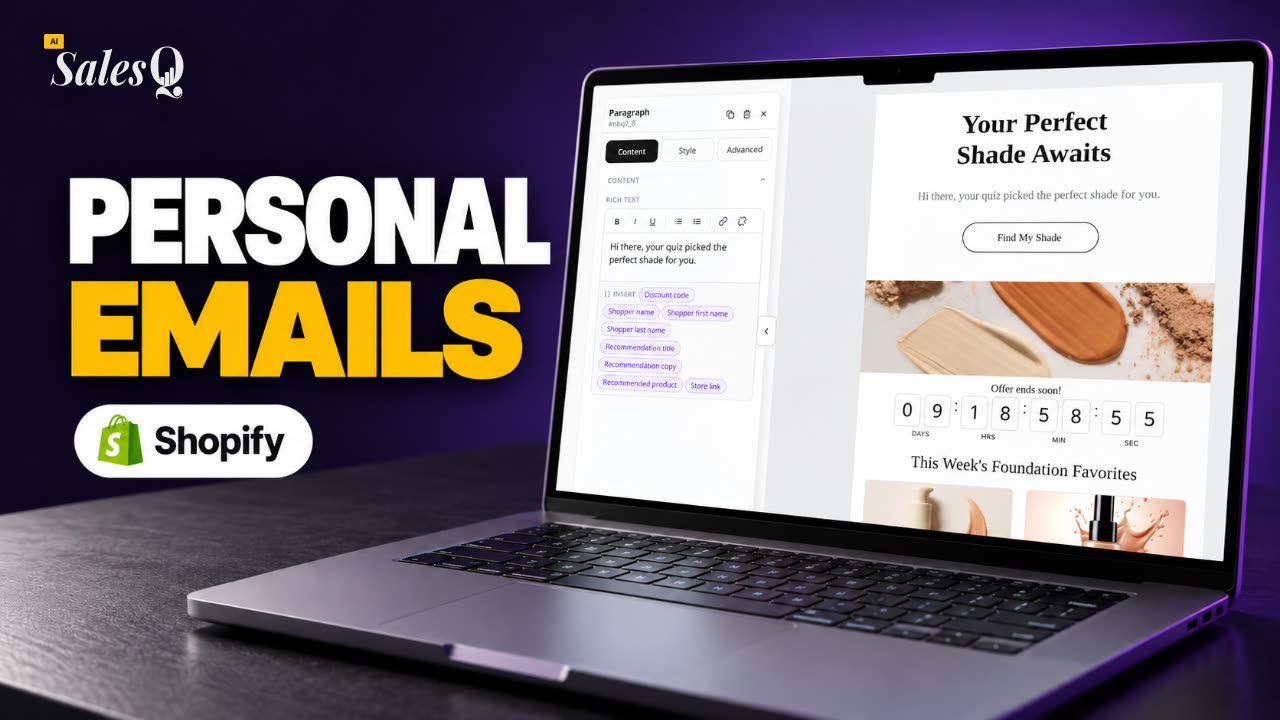 1:49Personalize Shopify Emails With Quiz Answers (Merge Tags)
- 12
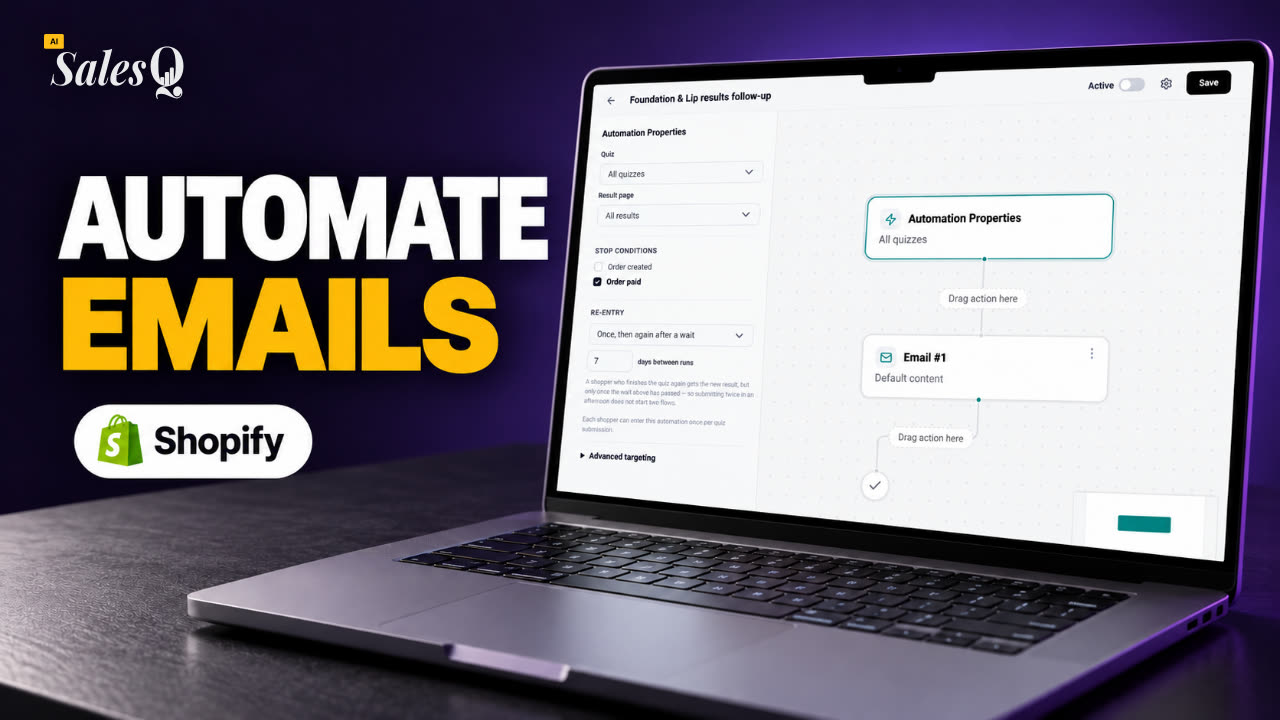 1:32Shopify Email Automation: Quiz Follow-Up Flow Step by Step
- 13
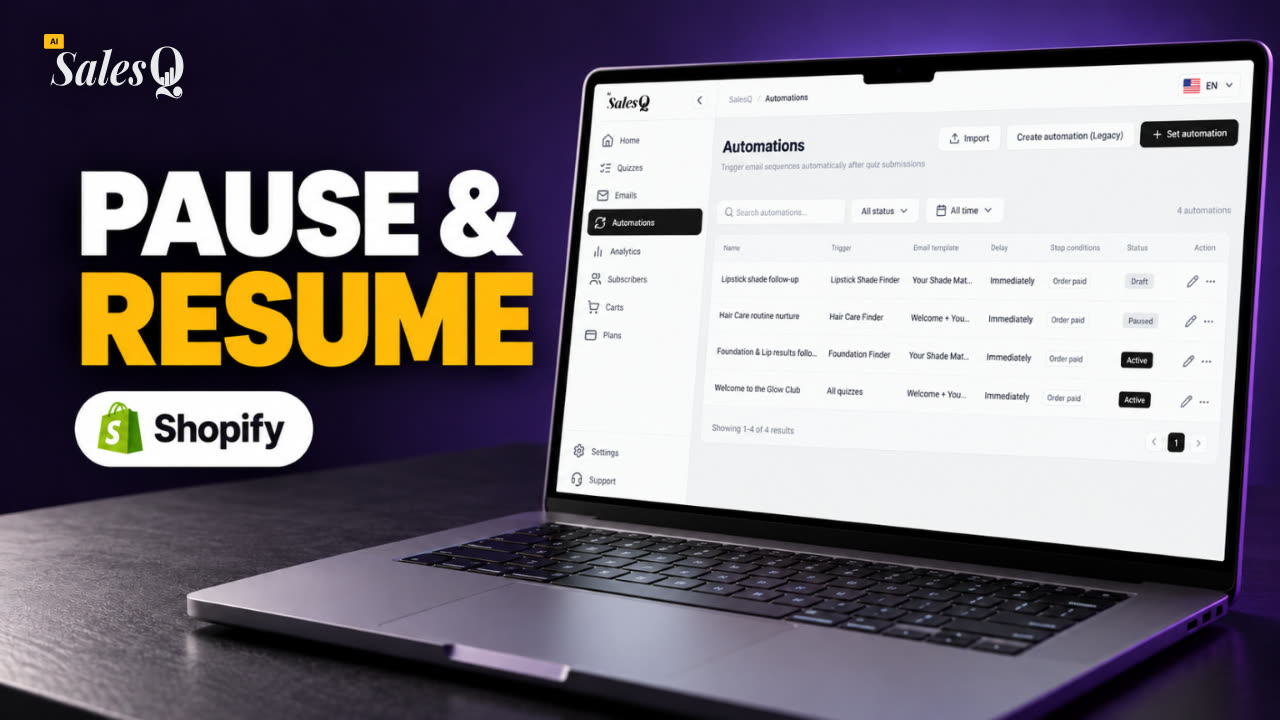 1:29Manage Shopify Email Automations: Pause, Resume & Edit Flows
- 14
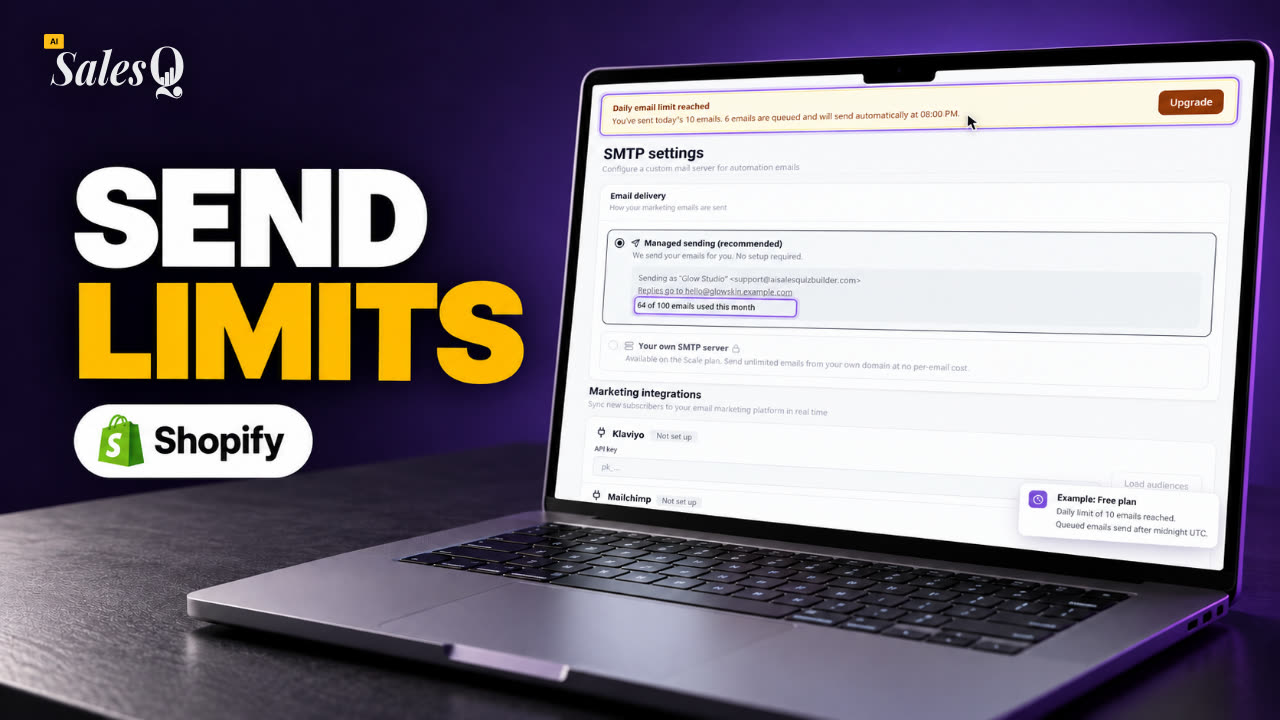 1:41Shopify Email Sending Limits Explained (Quiz Emails)
- 15
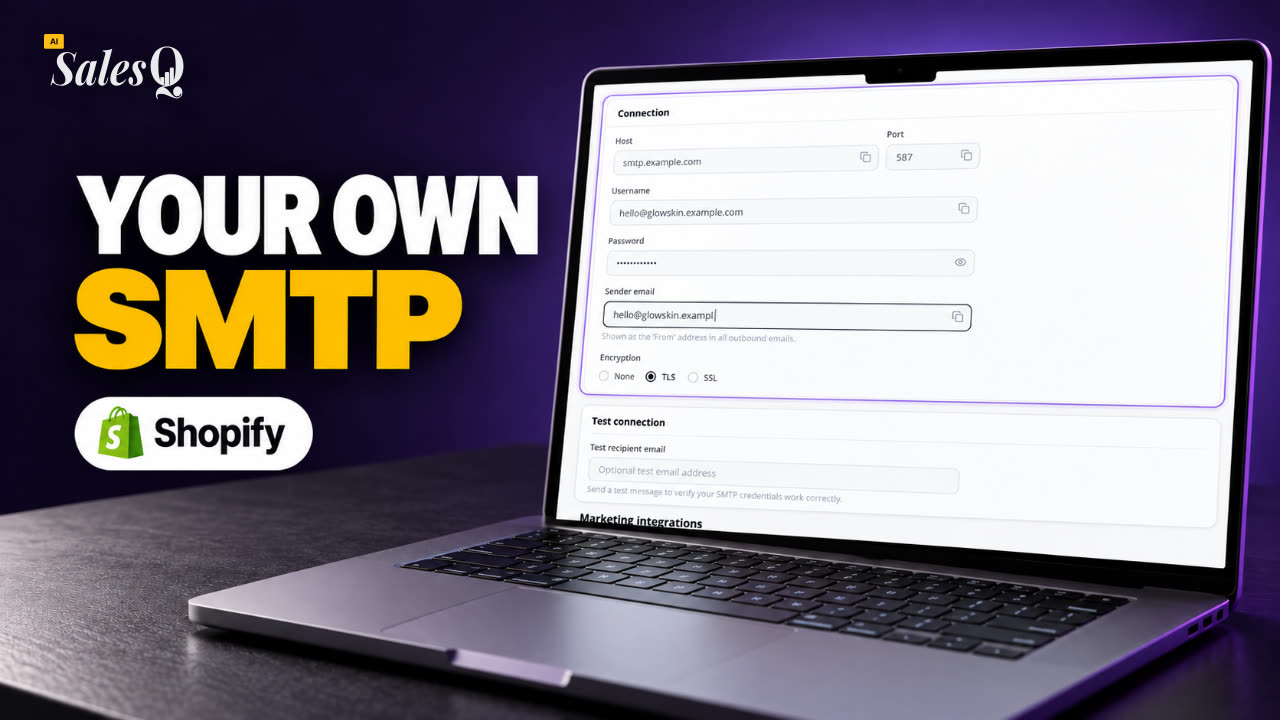 1:31Send Shopify Emails From Your Own SMTP Server
- 16
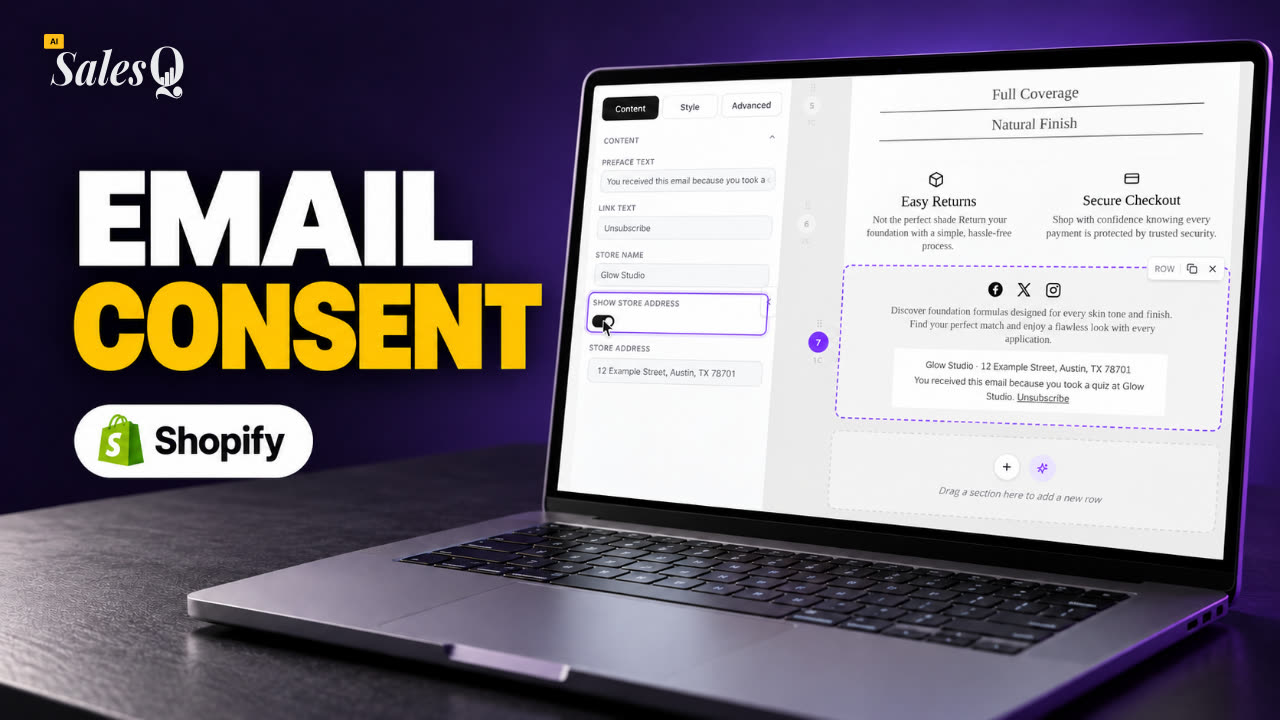 1:43Shopify Email Consent & Unsubscribe Link Explained
- 17
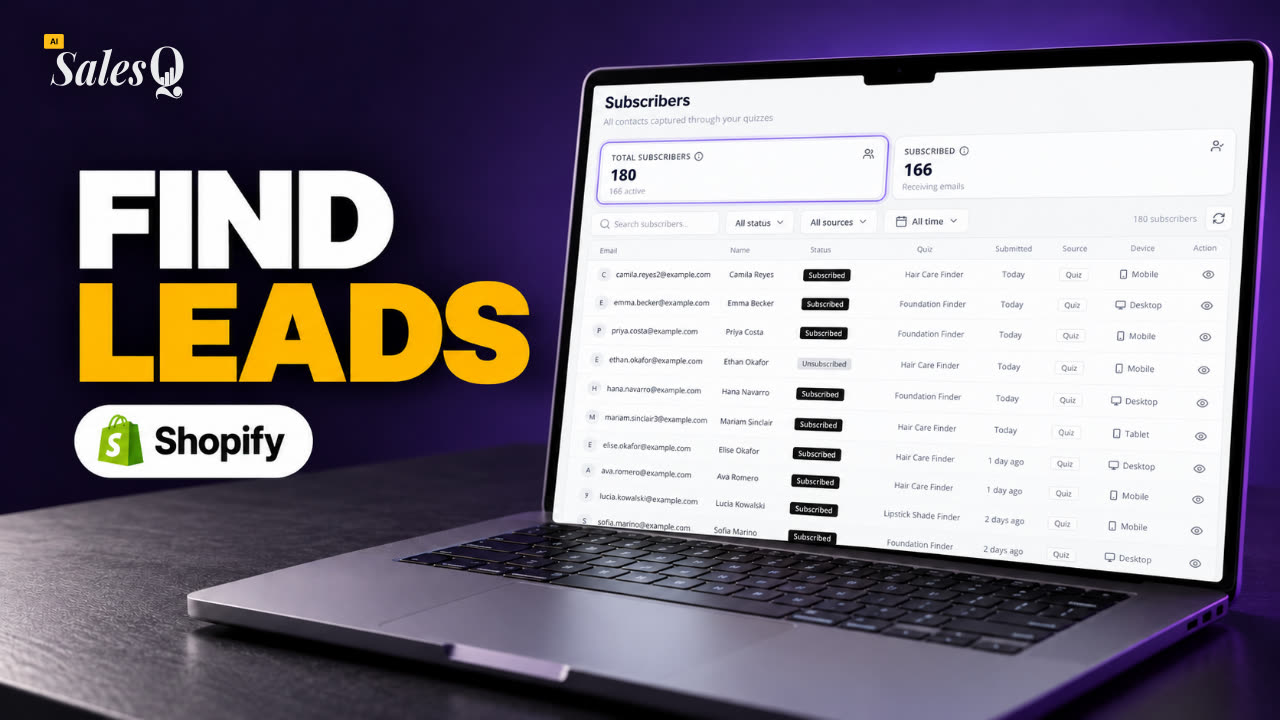 1:46Shopify Quiz Subscribers: Search, Filter & View Profiles
- 18
 1:45Shopify Quiz Analytics: Track Revenue, Conversions & Emails
- 19
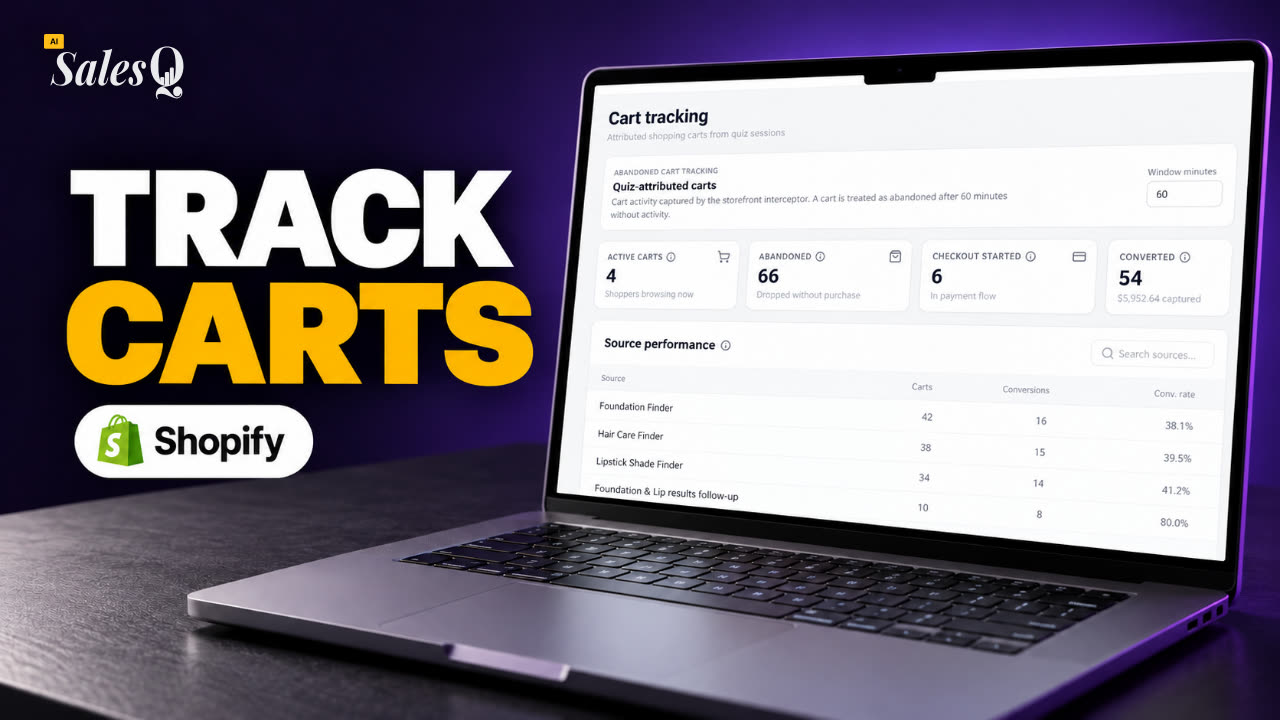 1:44Shopify Abandoned Cart Tracking for Quiz Shoppers
- 20
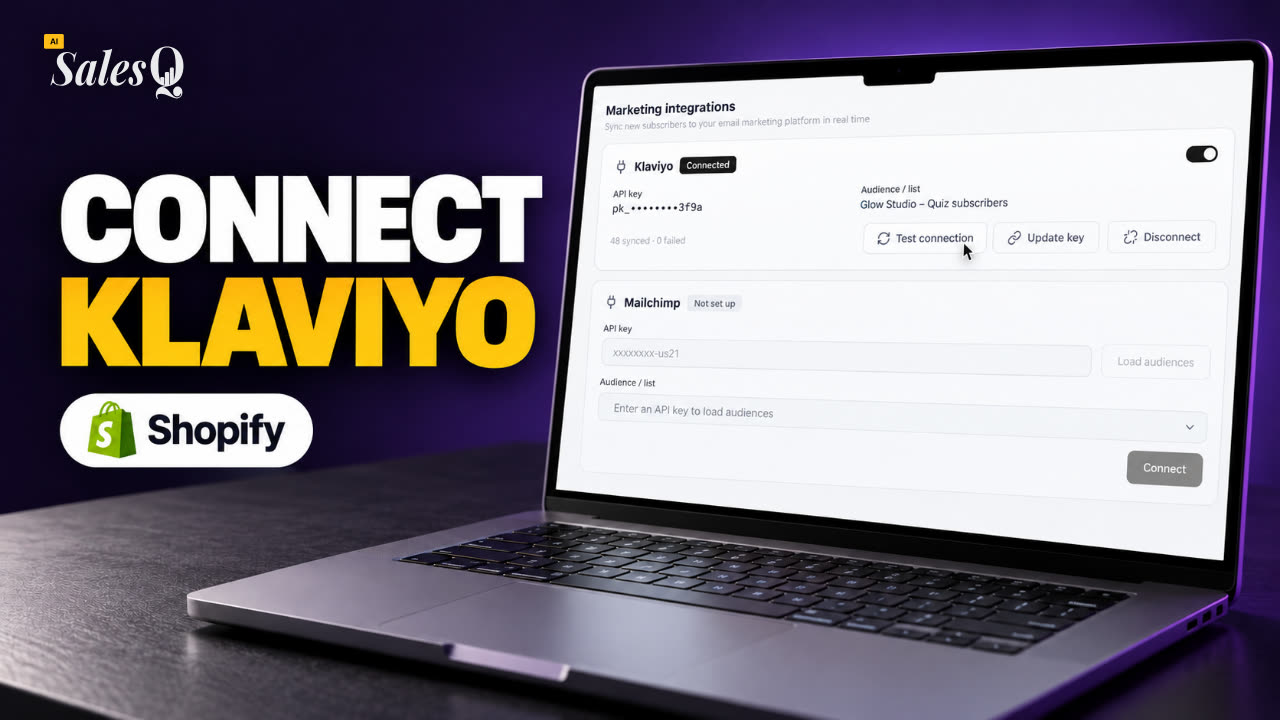 1:42Klaviyo Shopify Integration: Send Quiz Subscribers to Klaviyo
- 21
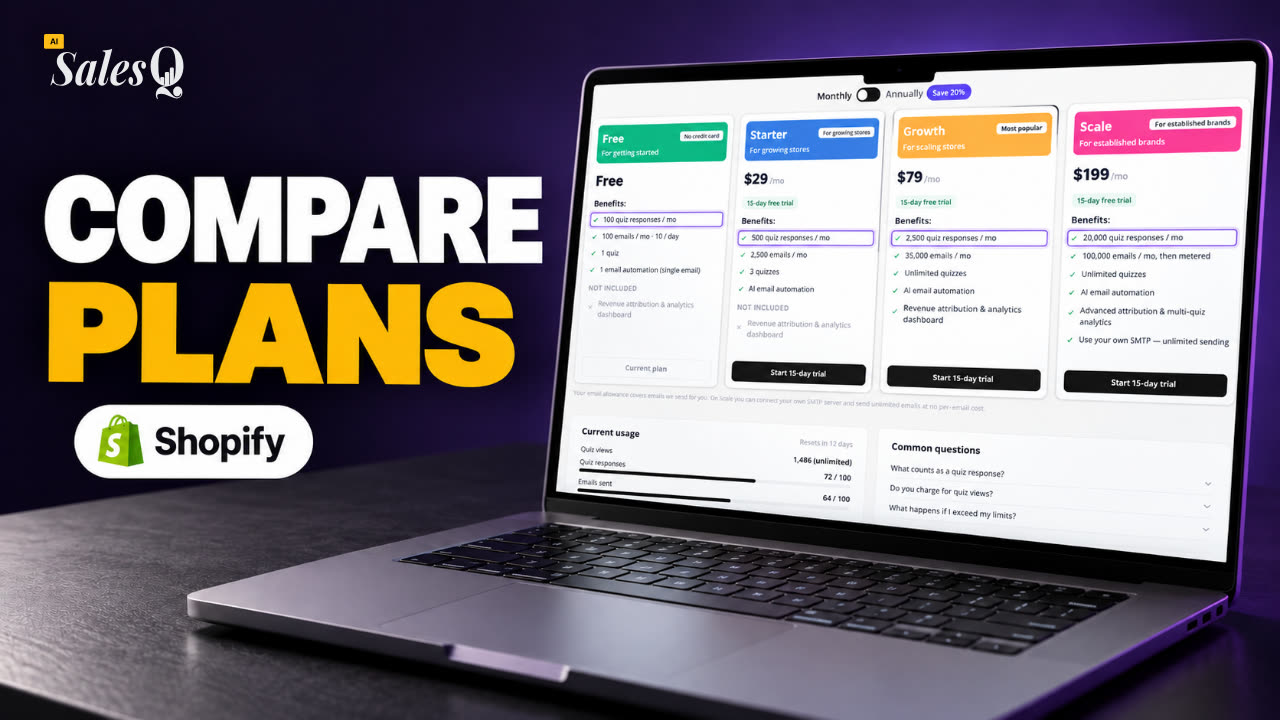 1:43Best Shopify Quiz App Pricing: AI Sales Quiz Builder Plans Compared
Learn more
Related articles
- Popup triggers and pagesChoose which pages your quiz popup shows on, when it opens, how often shoppers see it, and how its reopen and close buttons look.→
- Install AISalesQInstall the app from the Shopify App Store, then switch on the AISalesQ app embed in your theme so quizzes can appear on your store.→
- Create your first quizStart a quiz from a template or a blank page, add your questions, connect the answers to products, then save and preview it.→
Was this page helpful?
Still need help?
Can't find what you need? Talk to the people who build the app.